How to Connect Claude to Google Drive Files
Connecting Claude to Google Drive lets the AI read and analyze your documents without manual uploading. Claude's built-in integration works for basic chats, but developers and teams building agents need something more reliable for production workflows.

Why Connect Claude to Google Drive?
Most teams keep their documents in Google Drive. When you need Claude to analyze those files, the usual process is: download, re-upload, repeat. A direct connection skips all of that, giving Claude access to your latest files without the back-and-forth. Productivity research suggests knowledge workers spend a significant portion of their time searching for information across platforms. Connecting Claude directly to Drive cuts out that manual step.
Why bother with a direct connection?
- Smarter context usage: Large PDFs and spreadsheets can fill Claude's context window fast. With a proper integration, you can run semantic searches and feed only the relevant sections into the prompt, saving context for the actual analysis.
- Automated workflows: Build agents that watch Drive folders. When a new file appears, the agent reads it, categorizes it, and acts on it without anyone lifting a finger.
- Better security: Keeping files in a controlled workspace beats scattering them across throwaway chat sessions. You get audit logs and centralized permissions.
- Live updates: Since Drive is collaborative, Claude sees changes as they happen instead of working from stale downloads.
Helpful references: Fast.io Workspaces, Fast.io Collaboration, and Fast.io AI.
What to check before scaling connect claude to google drive
Anthropic built a Google Drive integration right into Claude.ai. It's the fast way to get started if you just need to chat about a document or two.
How to set it up:
- Open a chat in Claude.ai. 2. Click the paperclip icon or "Add Content" button. 3. Select Google Drive from the menu. 4. Authenticate your Google account when prompted. 5. Pick the file(s) you want Claude to read.
Where it falls short: This works for one-off sessions, but it doesn't scale. You have to re-select files every time you start a new chat, and there's no way to monitor folders automatically. It's a manual pull for the current conversation only.

Method 2: Fast.io MCP Server (Best for Agents & Automation)
If you're building agents or need programmatic file access, the native chat integration won't cut it. The Fast.io MCP Server gives Claude persistent, structured access to your files through the Model Context Protocol. Here's how it works: Fast.io syncs your Google Drive files via URL import, then exposes them to Claude through MCP. Claude can browse folder structures, read files, and run queries against your data like it's a local file system.
Setup in three steps: 1.
Import from Drive: Use Fast.io's URL Import to pull files from Google Drive into a workspace. This runs cloud-to-cloud, so it doesn't touch your local bandwidth. 2.
Enable Intelligence Mode: Toggle this on and Fast.io indexes your files automatically, creating vector embeddings and metadata summaries. This gives you built-in RAG, so Claude can search across thousands of pages and pull back only what's relevant. 3.
Connect Claude: Point any MCP-compatible client (Claude Desktop, Claude Code, or a custom integration) at the Fast.io MCP server. You get access to 14 consolidated tools covering file operations, AI chat, uploads, and more.
Why this works better for agents:
- Persistent access: Unlike chat uploads, this connection stays active. Agents can reference file paths and content across sessions.
- Scale: Intelligence Mode lets Claude query across large volumes of data. It pulls only relevant sections into the context window, avoiding the "lost in the middle" problem with long prompts.
- Full CRUD: The MCP server lets Claude read, create, update, and delete files (with proper permissions), so agents can manage files autonomously.
- Faster responses: File processing and search happen on Fast.io's infrastructure, so Claude gets answers faster than with manual uploads.
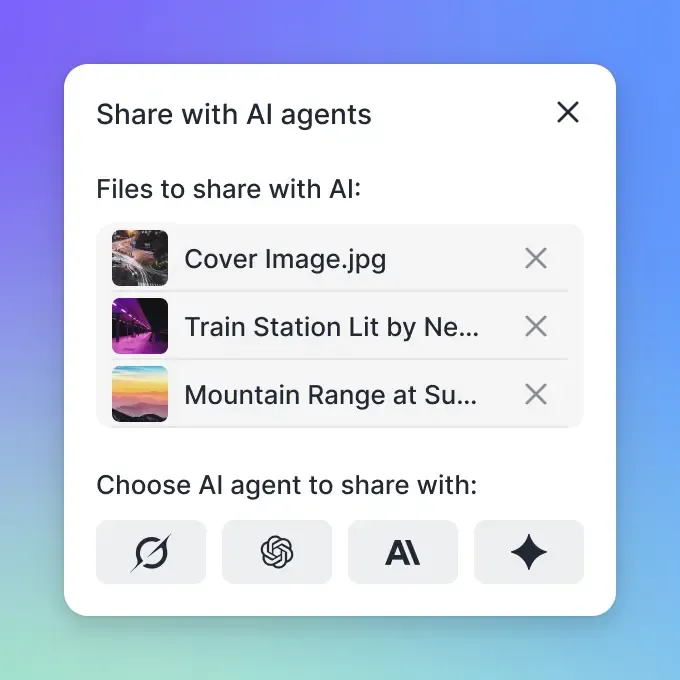


Give Your AI Agents Persistent Storage
Stop juggling file uploads. Get 50GB of persistent, MCP-ready storage for your AI agents, free forever.
Method 3: Automation Platforms (Best for Triggers)
Want something like "when a new PDF lands in Drive, summarize it with Claude"? Automation platforms like Make or n8n handle this well. They're built for event-driven workflows where a change in one system needs to kick off work in another.
How it works: 1.
Set up a watcher: Create a watcher node for a Google Drive folder that polls for new uploads or changes. 2.
Authenticate: Connect your Google account and Anthropic API key to the platform. 3.
Wire the logic: Connect the Drive node to a Claude API node. Map the file content from Drive's output to Claude's prompt input. 4.
Write your prompt: Tell Claude what to do with each file (e.g., "Extract quarterly revenue from this financial statement"). 5.
Route the output: Send results to Slack, email, a database, or back to a new Google Doc. These platforms are flexible, but they add maintenance overhead. You own the glue code, API version updates, and webhook reliability. As your document volume grows, costs climb too, since most platforms charge per operation step. For high-frequency file processing, a dedicated MCP-based setup is usually more cost-effective.
Comparison: Which Method Should You Choose?
The right method depends on what you're building.
Native Integration is best if you want to chat about a single document. Setup is instant, but there's no persistence between sessions, no folder monitoring, and no RAG. You're limited to Claude's context window.
Fast.io MCP is the strongest option for developers and agent builders. Setup takes about 5 minutes. You get 50GB of free storage, built-in RAG search, permanent file access across sessions, and full CRUD operations through MCP tools.
Automation platforms (Make/n8n) work well for trigger-based workflows like "summarize every new PDF." Setup takes considerably longer, there's no built-in RAG, and costs scale with operation volume. For most agent projects, the Fast.io MCP approach gives you persistent file access without the overhead of managing your own vector database or glue code.
Frequently Asked Questions
Can Claude access my Google Drive files directly?
Yes. Claude.ai Pro and Team users can select Google Drive files from within the chat interface. For programmatic access or agent workflows, you'll want an MCP server like Fast.io instead.
Is there a free way to connect Claude to my files?
Fast.io has a free Agent Tier with 50GB of storage and 5,000 monthly credits. You can import files from Google Drive and connect Claude through the MCP server at no cost.
Does connecting Claude to Google Drive compromise security?
The native integration uses OAuth, so you only grant access to specific files. Using Fast.io as an intermediary adds permission management, audit logs, and the ability to revoke access at any time.
Related Resources

Give Your AI Agents Persistent Storage
Stop juggling file uploads. Get 50GB of persistent, MCP-ready storage for your AI agents, free forever.