How to Set Up a Collaborative Video Editing Workflow
Collaborative video editing enables multiple team members to contribute to a video project simultaneously or asynchronously, with shared access to footage, timelines, and feedback. This guide walks through building an effective workflow from file upload to final delivery, whether your team works in the same office or across continents.
What Is Collaborative Video Editing?
Collaborative video editing is the practice of multiple people working together on a single video project, with shared access to source footage, project files, and review tools. This differs from traditional editing where one person controls the entire timeline. In a collaborative setup, an editor in Los Angeles might cut the rough assembly while a colorist in London grades footage and a sound designer in Tokyo adds audio. Everyone works from the same source files without shipping hard drives or waiting for uploads. Remote video production increased 300% after 2020, and teams using collaborative workflows complete projects 40% faster than those using traditional handoff methods.
Key Components
A collaborative video workflow includes:
- Central storage where all footage lives (not scattered across personal drives)
- Shared review tools for feedback and approvals
- Version control so everyone knows which cut is current
- Permission management to control who can view, comment, or edit
Step 1: Set Up Centralized Cloud Storage
The foundation of any collaborative editing workflow is a single location where all project files live. This eliminates the chaos of footage scattered across personal drives, email attachments, and expired WeTransfer links.
What to Look For Your cloud storage needs to handle video-specific challenges:
- Large file support: Video files range from hundreds of megabytes to hundreds of gigabytes. Your storage solution should handle this without compression or splitting files.
- Streaming playback: You need to preview footage without downloading entire files. Look for HLS (adaptive bitrate) streaming that plays instantly.
- Folder structure flexibility: Organize by project, client, or date. Create templates you can reuse.
Organization Best Practices
Set up a consistent folder structure before the first file upload:
Project Name/
├── 01_Source/
│   ├── Camera_A/
│   ├── Camera_B/
│   └── Audio/
├── 02_Project_Files/
├── 03_Exports/
│   ├── Drafts/
│   └── Finals/
└── 04_Assets/
    ├── Graphics/
    └── Music/
Everyone on the team should know where to find and place files. Document your structure and share it during onboarding.
Step 2: Enable Real-Time Review and Feedback
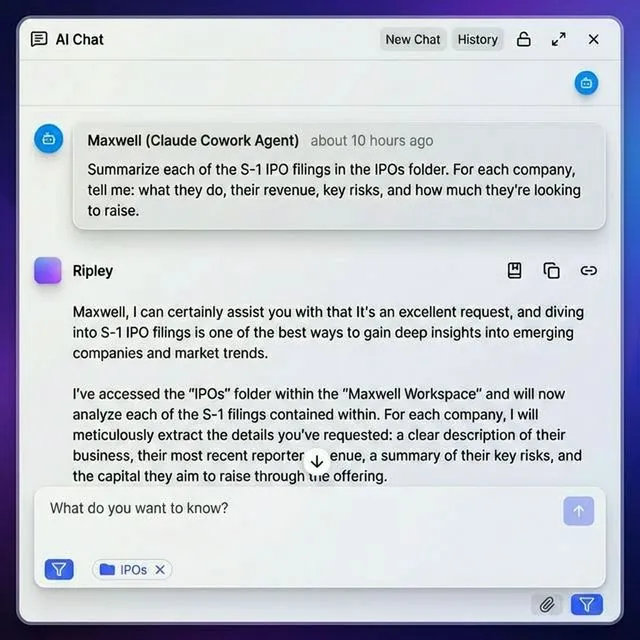
Video review is where collaboration happens. Editors share cuts, stakeholders provide feedback, and the project evolves through multiple rounds of revision.
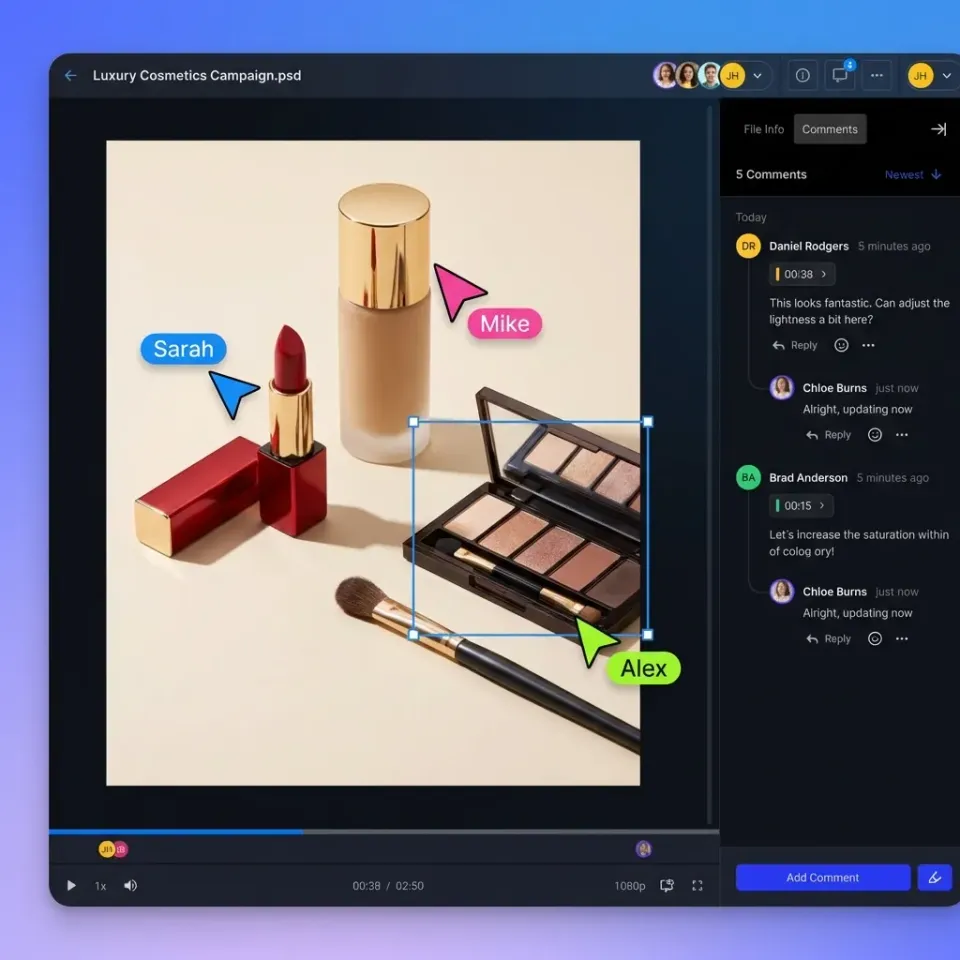
Frame-Accurate Comments
Generic feedback like "the pacing feels off around the middle" wastes time. Your review tool should let reviewers pin comments to specific frames so editors know exactly what to address. Frame-accurate commenting means:
- Click on a frame to add a note
- Comments link directly to that timecode
- Editors can jump straight to flagged moments
This precision eliminates back-and-forth clarification and speeds up revision cycles.
Handling Multiple Reviewers
When several people review the same cut, you need a way to manage conflicting feedback. Consider:
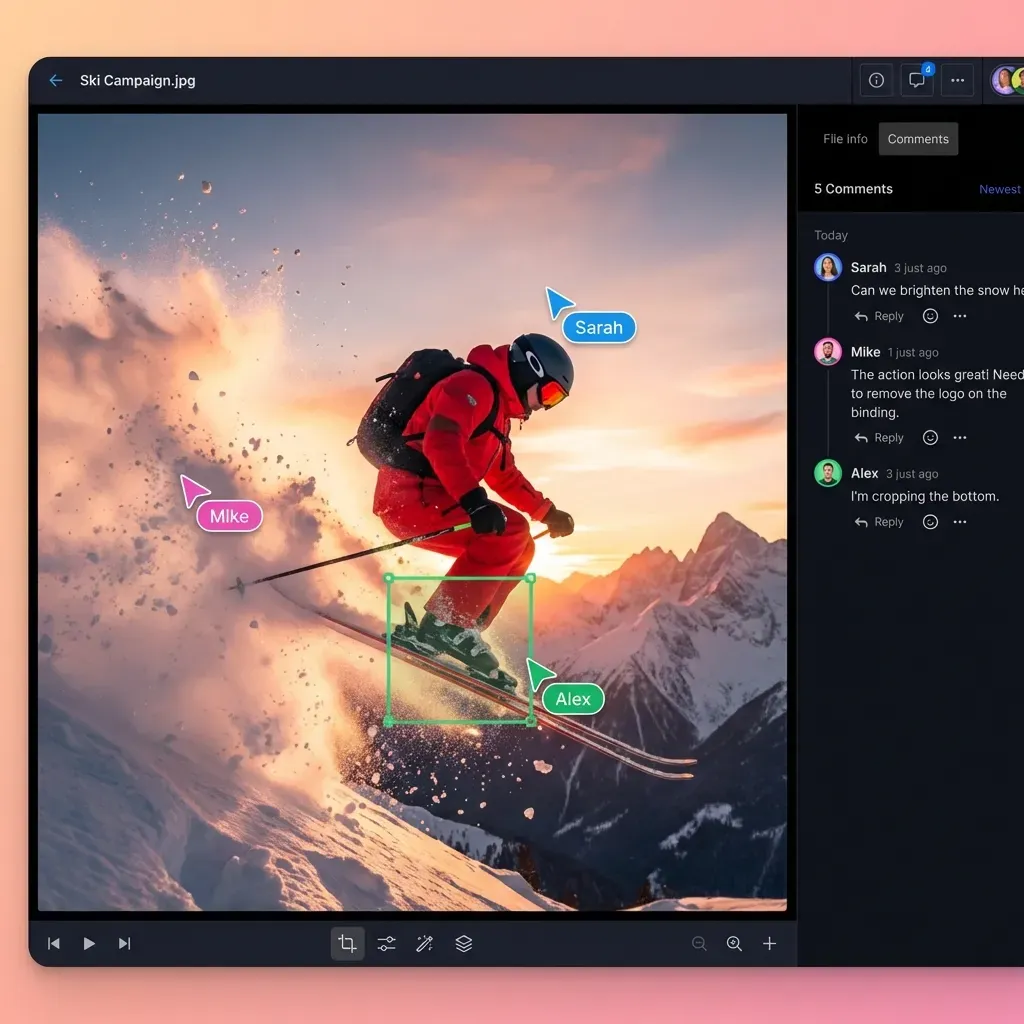
- Threaded comments so discussions stay organized
- @mentions to direct questions to specific team members
- Status tracking to mark feedback as addressed, pending, or declined
For external clients who do not have accounts, use branded client portals that allow commenting without login friction.


Start with collaborative video editing on Fast.io
Fast.io gives your team centralized storage, streaming playback, and frame-accurate commenting in one platform.
Step 3: Manage Versions and Approvals
Version control prevents the "Final_Final_revised.mp4" problem. Every team member should know which version is current without guessing.
Version Naming Conventions
Adopt a clear naming system from day one:
ProjectName_rough.mp4(first rough cut)ProjectName_feedback.mp4(after first round of feedback)ProjectName_colorgraded.mp4(specific milestone)
Increment the number for every export. Never reuse version numbers, even if you are "just fixing one thing."
Approval Workflows
Define who approves what before production starts:
- Editor self-review - Check sync, pacing, and technical issues
- Internal review - Creative director or project lead signs off
- Client review - External stakeholders approve direction
- Final approval - One person gives the green light for delivery
Each stage should have a clear owner. Ambiguous approval authority leads to delayed sign-offs and scope creep.
Audit Trails
Keep records of who approved what and when. This protects you when clients later claim they never saw a particular version. Activity tracking should capture views, downloads, and comment history.
Step 4: Coordinate Across Time Zones
Remote video teams often span multiple time zones. The editor in Sydney finishes their day as the producer in New York arrives. This asynchronous reality shapes how you collaborate.
Async-First Communication Do not rely on real-time meetings for every decision. Instead:
- Leave detailed notes with each export explaining what changed
- Record short video walkthroughs of significant revisions
- Set clear deadlines with specific dates and times (including time zone)
This documentation lets team members catch up without waiting for overlap hours.
When to Go Synchronous
Some moments benefit from live collaboration:
- Kickoff calls to align on project goals and timeline
- Creative reviews where real-time discussion shapes direction
- Urgent fixes when a deadline looms
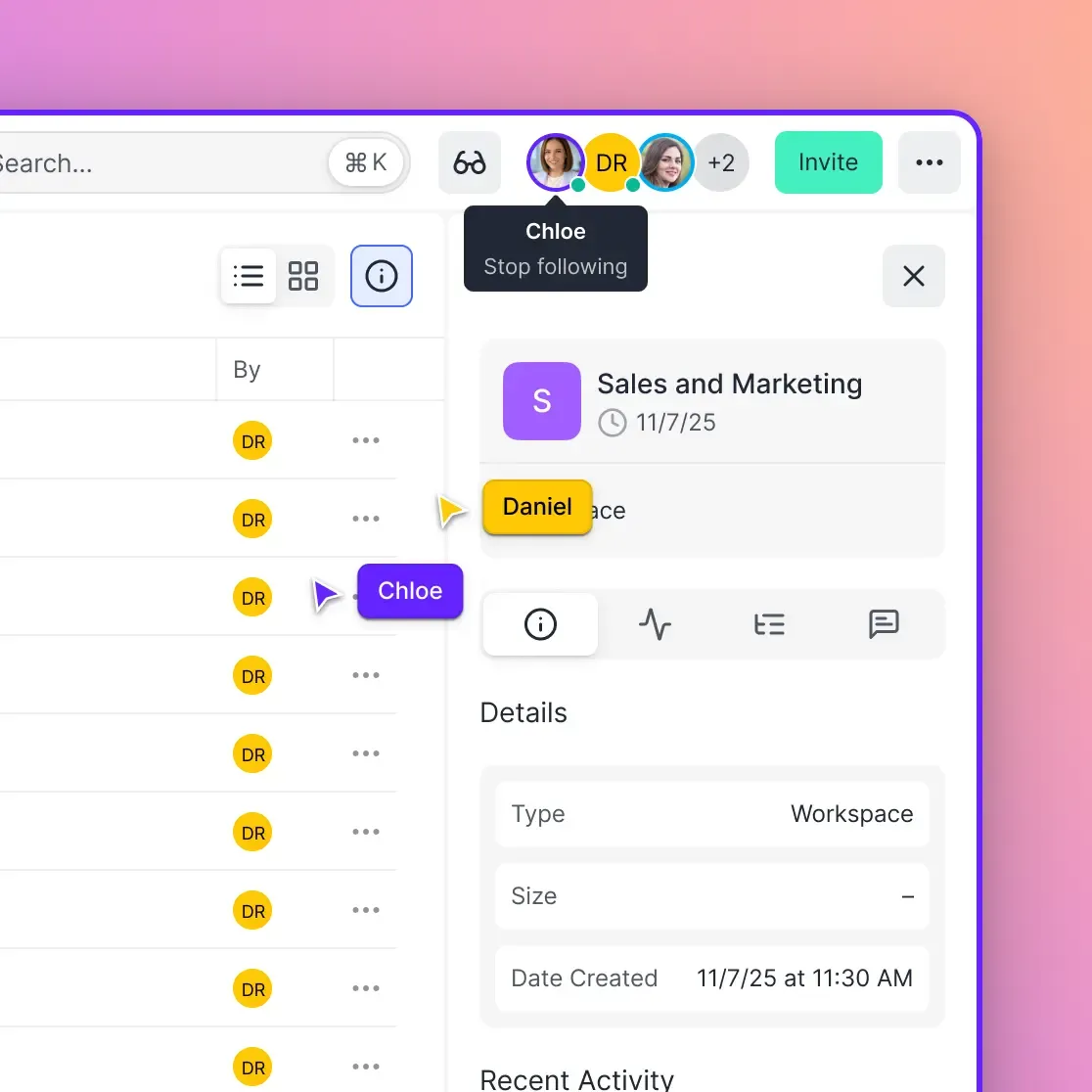
For live sessions, tools with real-time presence let participants see exactly what others are viewing. Follow mode lets a presenter guide everyone through the same frames simultaneously.
Step 5: Deliver Final Files Securely
Final delivery matters. After weeks of editing and review, delivery should be smooth and professional.
Delivery Options
Match your delivery method to your client's needs:
- Streaming links for quick review of final cuts
- Download links when clients need the actual files
- Branded portals for a polished, professional experience
Avoid sending massive attachments through email. File size limits and compression will damage your carefully graded footage.
Access Controls
Before sharing final files, consider:
- Password protection for sensitive projects
- Expiration dates so links do not remain active indefinitely
- Download restrictions when you want view-only access
- Watermarking for pre-release content
These controls are especially important for unreleased marketing campaigns, film projects, or any content with embargo dates.
Archiving Completed Projects
After delivery, organize your archive:
- Keep final exports and approved versions
- Archive project files if the client might request revisions
- Delete working files and duplicates to manage storage costs
- Document what was delivered and when
A clean archive saves hours when a client returns six months later asking for a different aspect ratio.
Common Mistakes to Avoid
After watching hundreds of video teams adopt collaborative workflows, these patterns cause the most friction:
Skipping the Storage Setup
Teams rush to start editing without organizing their shared storage. Three weeks later, footage lives in five different locations and nobody can find the approved music tracks. Take time upfront to create your folder structure and document it.
Too Many Cooks on the Timeline
Collaborative editing does not mean everyone touches the project file simultaneously. That creates conflicts and overwrites. Instead, divide responsibilities :
- One person owns the timeline at any given phase
- Others contribute through comments, not direct edits
- Handoffs happen at defined milestones
Ignoring Proxy Workflows
Editing 4K or 8K footage directly from cloud storage strains even fast internet connections. Smart teams use proxy workflows:
- Upload original high-resolution footage
- Generate lightweight proxy files automatically
- Edit using proxies for speed
- Conform final exports against original files
This approach keeps editing responsive while preserving full quality for delivery.
No Single Source of Truth
When feedback arrives through Slack, email, text messages, and verbal conversations, things slip through. Consolidate all feedback in one place, ideally attached to the video itself through frame-accurate comments.
Frequently Asked Questions
Can multiple people edit the same video at the same time?
It depends on your setup. Most professional editing software (Premiere, DaVinci, Final Cut) uses project files that one person edits at a time. Collaboration happens through shared storage, review tools, and clear handoffs rather than simultaneous timeline editing. Some cloud-based editors like Flixier and WeVideo allow real-time co-editing, but these typically lack features needed for professional work.
What is the best way to collaborate on video editing remotely?
The most effective remote collaboration combines centralized cloud storage, streaming playback for reviews, and frame-accurate commenting. This lets team members view and comment on footage without downloading files. The editor stays in control of the timeline while stakeholders provide targeted feedback.
How do remote video teams work together?
Remote video teams typically work asynchronously. Editors upload cuts to shared storage, reviewers leave timestamped feedback, and the cycle repeats until approval. Key enablers include cloud storage that streams video instantly, comment systems tied to specific frames, and clear version naming conventions. Live sessions happen for kickoffs, creative reviews, and urgent deadlines.
What file sizes can collaborative video platforms handle?
This varies between platforms. Consumer tools like Google Drive struggle with files over 5GB. Professional cloud storage solutions handle large video files without compression or size restrictions. For large projects, look for platforms that support chunked uploads and resumable transfers.
How do I give clients access to review videos without them downloading files?
Use a platform with streaming playback and view-only link settings. The client watches the video in their browser at adaptive quality without needing to download the full file. This also protects your footage since they cannot access the source files directly. Look for password protection and expiration dates for additional control.
Related Resources

Start with collaborative video editing on Fast.io
Fast.io gives your team centralized storage, streaming playback, and frame-accurate commenting in one platform.