How to Use Cloud Storage for Video Editing Workflows
Cloud storage for video editing provides remote access to large video files, enabling editors to work from anywhere while maintaining project organization. This guide covers how to set up efficient cloud workflows, use proxies to edit without downloading massive files, and choose the right storage platform for your creative team. This guide covers cloud storage video editing with practical examples.
Why Video Editing Needs Specialized Cloud Storage
Video files are unique. Unlike documents or spreadsheets, a single high-res video file averages several hundred MB per minute of footage. A typical project can easily exceed several TB. This massive data scale breaks standard cloud storage workflows. If you try to edit video using consumer cloud storage like generic Google Drive or basic Dropbox, you run into three walls:
Sync Delays: Waiting for hundreds of gigabytes of rushes to sync to a local drive can take days. Remote video teams report spending up to nearly a third of their time just waiting for file transfers. 2.
Versioning Conflicts: If two editors open the same Premiere Pro project file, standard cloud sync creates "conflicted copies," potentially losing hours of work. 3.
Playback Buffering: Most storage services treat video files like data blobs. They don't stream them; they download them. This makes reviewing footage in the browser impossible without buffering. Cloud storage for video editors isn't just about dumping files in a folder. It's about access. The goal is to separate the storage of the high-resolution media from the work of editing.
Helpful references: Fast.io Workspaces, Fast.io Collaboration, and Fast.io AI.
How to Edit Video from the Cloud
You generally cannot edit raw ultra-high-res footage directly over a standard internet connection. The bandwidth required (often multi-gigabit speeds) exceeds most residential and office connections. Instead, professional editors use one of three cloud workflows:
1. The Proxy Workflow (Best for Remote Teams)
This is the industry standard for remote editing.
- Ingest: Raw footage uploads to the cloud.
- Transcode: The cloud platform (or a local ingest station) creates lightweight "proxy" files (e.g., low-res ProRes Proxy).
- Edit: Editors download only the small proxies to their local machine. Large raw shoots generate just a few gigabytes worth of proxies.
- Link: The editor works in Premiere, Resolve, or Final Cut using the proxies.
- Conform: When editing is done, the project file reconnects to the high-res masters in the cloud for the final render.
2. The "Cloud NAS" Workflow
Technologies like LucidLink or specialized mounting software treat the cloud bucket as a local drive.
- Mount: The cloud storage appears as the
G:drive on your computer. - Stream: When you press play in your timeline, the software pulls only the specific bits of the file needed for that frame.
- Requirement: This requires a fast, stable internet connection and specialized (often expensive) software.
3. The Browser-Based Workflow
For rough cuts, social clips, or review, some platforms allow editing directly in a web browser.
- Edit: You cut footage using a web interface (like Frame.io or dedicated cloud editors).
- Render: The cloud server renders the final file.
- Limitation: These tools rarely offer the depth of professional NLEs like DaVinci Resolve.
Key Features to Look for in Video Cloud Storage
When evaluating storage for your post-production team, ignore generic "features" lists and look for these video-specific capabilities:
True HLS Streaming If a client clicks a video link, it should play instantly, like Netflix. Standard "progressive download" (used by Dropbox and Google Drive) forces the viewer to download the file buffer before playing. For large review files, this is a dealbreaker. HLS adapts to their connection speed.
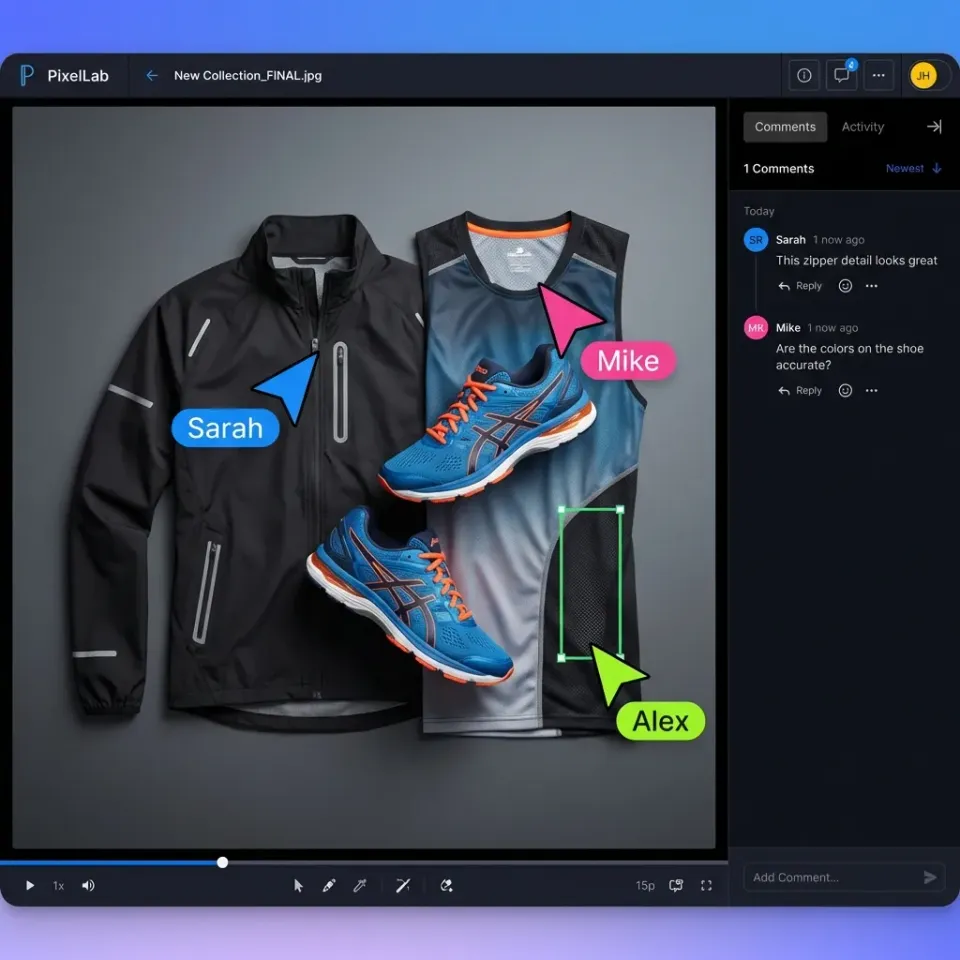
Frame-Accurate Comments Precise cut instructions become useless if the viewer and editor see different frames due to compression lag. Professional video storage allows comments pinned to the exact frame of video, ensuring feedback is precise.
Non-Destructive File Locking
To prevent "conflicted copies," your storage system should recognize when a project file (like .prproj) is in use and lock it or warn other users.
Usage-Based Pricing Video teams fluctuate. You might have a handful of editors today and dozens next week for a deadline. Paying published pricing for every freelancer seat gets expensive. Usage-based models (paying for bandwidth/storage, not heads) are often much cheaper for production houses.


Run Use Cloud Storage For Video Editing Workflows workflows on Fast.io
Stop waiting for uploads. Fast.io lets you stream dailies, share proxies, and collect frame-accurate feedback from your team.
Top Cloud Storage Options for Video Editors
Here is how the leading options compare specifically for editing workflows:
1. Fast.io
Best for: Review, delivery, and proxy distribution. Fast.io focuses on the visibility of your assets. It provides true HLS streaming for every video file, so clients can watch dailies, proxies, and cuts without downloading anything. It works alongside your existing storage buckets or provides its own.
- Workflow: Upload rushes -> Fast.io generates streamable previews -> Share with team -> Editors download proxies.
- Key Feature: Frame-accurate comments and unlimited guest access for clients.
2. LucidLink
Best for: Direct-connect editing. LucidLink splits files into tiny blocks, allowing you to stream raw video data on demand. It mounts as a local drive.
- Workflow: Mount drive -> Edit directly in Premiere.
- Trade-off: Requires high monthly per-user fees and substantial internet bandwidth.
3. Frame.io
Best for: Creative review and Adobe integration. Now owned by Adobe, Frame.io is widely used for feedback in professional post-production. It integrates directly into the NLE timeline.
- Workflow: Push cut from timeline -> Client comments on web -> Comments appear as markers in timeline.
- Trade-off: High cost per seat and storage limits; not meant for archival storage.
4. Backblaze B2
Best for: Archival and raw storage. When the project is done, you can't keep dozens of TB on expensive active storage. Backblaze offers S3-compatible storage at a fraction of the cost.
- Workflow: Move finished projects to B2 for long-term cold storage.
- Trade-off: No visual interface; requires a tool like Cyberduck or Fast.io to browse files visually.
Comparison: Cloud Storage for Video Editing
Video files demand more from your storage platform than documents do. You need adaptive bitrate streaming for smooth playback, frame-accurate commenting for precise feedback, and enough bandwidth to handle large uploads without timeouts. Progressive download is not good enough for professional review workflows.
Step-by-Step: Setting Up a Cloud Editing Workflow
Here is a recommended setup for a small-to-mid-sized video team:
Centralize Raw Assets: Upload all raw footage to a central cloud bucket (using Fast.io or S3). 2.
Generate Proxies: Create low-resolution proxies of all footage. 3.
Organize Project Files: Keep your .prproj or .drp project files in a separate, synced folder (like a small Dropbox or a dedicated Fast.io workspace) so they sync instantly.
4.
Edit Locally: Editors download the proxies to their fast local SSDs. They link the project file to these local proxies. 5.
Review in Cloud: When a cut is ready, export it and upload to Fast.io. Share the link with the director/client. 6.
Gather Feedback: Use frame-accurate comments to mark changes. 7. Conform & Master: For the final export, the lead editor downloads the specific high-res raw files needed (or reconnects to the cloud mount if bandwidth permits) and renders the master. This hybrid approach gives you the speed of local editing with the flexibility of cloud storage.
Common Pitfalls to Avoid
- The "Upload Everything" Trap: Don't try to upload terabytes of raw footage over a slow broadband connection the night before the edit starts. Plan your ingest time or ship a hard drive if necessary (some cloud providers offer drive seeding). * Ignoring Egress Fees: Some cloud providers charge you every time you download a file. If multiple editors download the same large footage files, that cost adds up. Fast.io and Backblaze offer predictable or low egress pricing. * Overlooking Bandwidth: For cloud workflows, upload speed is just as important as download speed. Ensure your editors have fast upload speeds to send cuts back efficiently.
Frequently Asked Questions
Can you edit video directly from cloud storage?
Yes, but with caveats. You generally use a 'proxy workflow' where you edit low-resolution copies locally while the high-resolution originals stay in the cloud. Alternatively, services like LucidLink allow streaming raw data effectively if you have a fast internet connection (multi-gigabit recommended for high-res editing).
What is the top cloud storage for video production?
For active collaboration and review, Fast.io and Frame.io are top choices due to their media engines and commenting tools. For editing directly from the cloud, LucidLink is the industry leader. For long-term archival of massive video libraries, Backblaze B2 is the most cost-effective.
How do video editors share large files?
Professional editors avoid email or basic file transfer sites. They use specialized cloud platforms that support accelerated transfers and 'resume' capabilities. This ensures that if a large upload is interrupted, it picks up where it left off rather than starting over. They also use services that allow the recipient to preview the file before downloading.
What is a proxy in video editing?
A proxy is a lower-resolution, lower-bitrate copy of your raw video footage. It is small enough to stream or store on a laptop drive easily. Editors cut the video using these smooth-playing proxies, and the editing software automatically swaps them for the high-quality originals during the final export.
Related Resources

Run Use Cloud Storage For Video Editing Workflows workflows on Fast.io
Stop waiting for uploads. Fast.io lets you stream dailies, share proxies, and collect frame-accurate feedback from your team.