How to Build Browser Automation AI Agents That Actually Work
Browser automation AI agents navigate websites, fill forms, extract data, and complete multi-step web tasks without human input. This guide covers how to build them, which frameworks to use, and how to solve the storage problem that most tutorials skip: what happens to all the screenshots, downloaded files, and scraped data your agents produce.

What Are Browser Automation AI Agents?
Browser automation AI agents are autonomous systems that control a web browser to complete tasks the way a human would, but faster and at scale. They click buttons, fill forms, navigate between pages, extract content, take screenshots, and handle multi-step workflows across multiple sites. Unlike traditional browser automation (Selenium scripts, Puppeteer macros), AI-powered agents don't rely on hard-coded selectors or brittle CSS paths. They use large language models to interpret page content, decide what to click, and recover from unexpected layouts. When a website redesigns its checkout flow, a Selenium script breaks. An AI agent reads the new page and adapts. Industry analysts project the AI browser automation market to grow from $4.5 billion in 2024 to $76.8 billion by 2034, a 32.8% CAGR. The driver is straightforward: teams are replacing scripted automation with agents that can reason about pages and self-correct when things break. Three core capabilities define a browser automation AI agent:
- Perception: The agent sees the page through the DOM, a screenshot, or both. Vision-capable models like GPT-4o and Claude can interpret screenshots directly.
- Decision-making: Given a goal ("find the cheapest flight from SFO to JFK"), the agent plans a sequence of actions: navigate to a travel site, enter dates, compare results, extract prices.
- Action execution: The agent types text, clicks elements, scrolls, waits for page loads, and handles popups. It maps high-level decisions to low-level browser commands.
Top Frameworks for Building Browser Agents
Several open-source and commercial frameworks have emerged for building browser automation agents. Here's what works in practice.
Browser Use
Browser Use is the leading open-source framework, with an 89.1% success rate on the WebVoyager benchmark across 586 web tasks. It's a Python library that wraps Playwright and connects to any LLM provider (OpenAI, Anthropic, Google, or local models via Ollama). A basic Browser Use agent looks like this:
from browser_use import Agent
from langchain_openai import ChatOpenAI

agent = Agent(
    task="Go to amazon.com, search for 'mechanical keyboard', extract the top 5 results with prices",
    llm=ChatOpenAI(model="gpt-4o"),
)
result = await agent.run()
The agent handles navigation, search, scrolling, and data extraction on its own. You describe the goal; it figures out the steps.
Browserbase
Browserbase provides serverless browser infrastructure for AI agents. Instead of running browsers locally, your agent connects to managed browser instances in the cloud. This solves the scaling problem: you don't need to provision servers or manage browser pools. The company announced Series B funding in 2025, reflecting strong demand for managed browser infrastructure.
Microsoft Playwright with AI
Microsoft's browser automation tool in Azure AI Foundry combines Playwright with natural language prompts. You describe what you want in plain English, and the system generates and executes the Playwright commands. It supports multi-turn conversations for complex workflows.
Agent Browser (CLI)
Agent Browser from Vercel Labs takes a different approach: it's a command-line tool designed for AI coding assistants. Most AI agents can already execute bash commands, so Agent Browser fits right into tools like Claude Code and Cursor. It uses a three-layer architecture (Rust CLI, Node.js daemon, Chromium) for fast execution.
Step-by-Step: Building Your First Browser Agent
Here's a practical walkthrough for building a browser automation agent that extracts data from websites and stores the results.
Step 1: Choose Your Stack
Pick your LLM and browser framework based on your requirements:
- For quick prototyping: Browser Use + GPT-4o or Claude. fast path from idea to working agent.
- For production scale: Browserbase + your preferred LLM. Managed infrastructure, no browser maintenance.
- For integration with coding tools: Agent Browser CLI. Works with any AI assistant that can run shell commands.
Step 2: Set Up the Environment
Install Browser Use with Python:
pip install browser-use
pip install langchain-openai  # or langchain-anthropic
playwright install chromium
Set your API key:
export OPENAI_API_KEY="your-key-here"
Step 3: Define the Task
Write a clear, specific task description. Vague instructions produce vague results.
Bad: "Get some data from LinkedIn" Good: "Navigate to linkedin.com/company/fastio, extract the company description, employee count, and industry, then take a screenshot of the company page"
Step 4: Handle Navigation and Extraction
from browser_use import Agent
from langchain_openai import ChatOpenAI

agent = Agent(
    task="""
    1. Go to news.ycombinator.com
    2. Extract the titles and URLs of the top 10 stories
    3. For each story, note the point count and comment count
    4. Take a screenshot of the front page
    """,
    llm=ChatOpenAI(model="gpt-4o"),
)
result = await agent.run()
Step 5: Store the Results
This is where most tutorials stop, and it's the biggest gap in browser automation guides. Your agent produces screenshots, extracted datasets, downloaded PDFs, and logs. Where does all of it go? Local disk works for prototyping, but production agents need persistent cloud storage that other systems (and humans) can access. We'll cover storage patterns in the next section.
The Storage Problem Most Guides Skip
Browser automation agents generate a lot of output: screenshots for visual verification, extracted data as JSON or CSV, downloaded documents, error logs, and session recordings. Most tutorials dump everything to a local /tmp directory and call it done. That breaks down fast in production:
- Multiple agents running in parallel can't share a local filesystem
- Serverless browser instances (Browserbase, AWS Lambda) have ephemeral storage that disappears after execution
- Humans need to review agent output, but they can't access your agent's local disk
- Downstream agents need to pick up where the browser agent left off, reading extracted data or screenshots
What you need is persistent, organized cloud storage that both agents and humans can access. The storage layer should support:
- File uploads via API: Agents push screenshots, data files, and documents programmatically
- Folder organization: Group outputs by task, date, or project
- Shared access: Humans review results without needing SSH access to the agent's server
- Search and querying: Find specific screenshots or data files across thousands of agent runs
- Webhooks: Trigger downstream processing when new files arrive
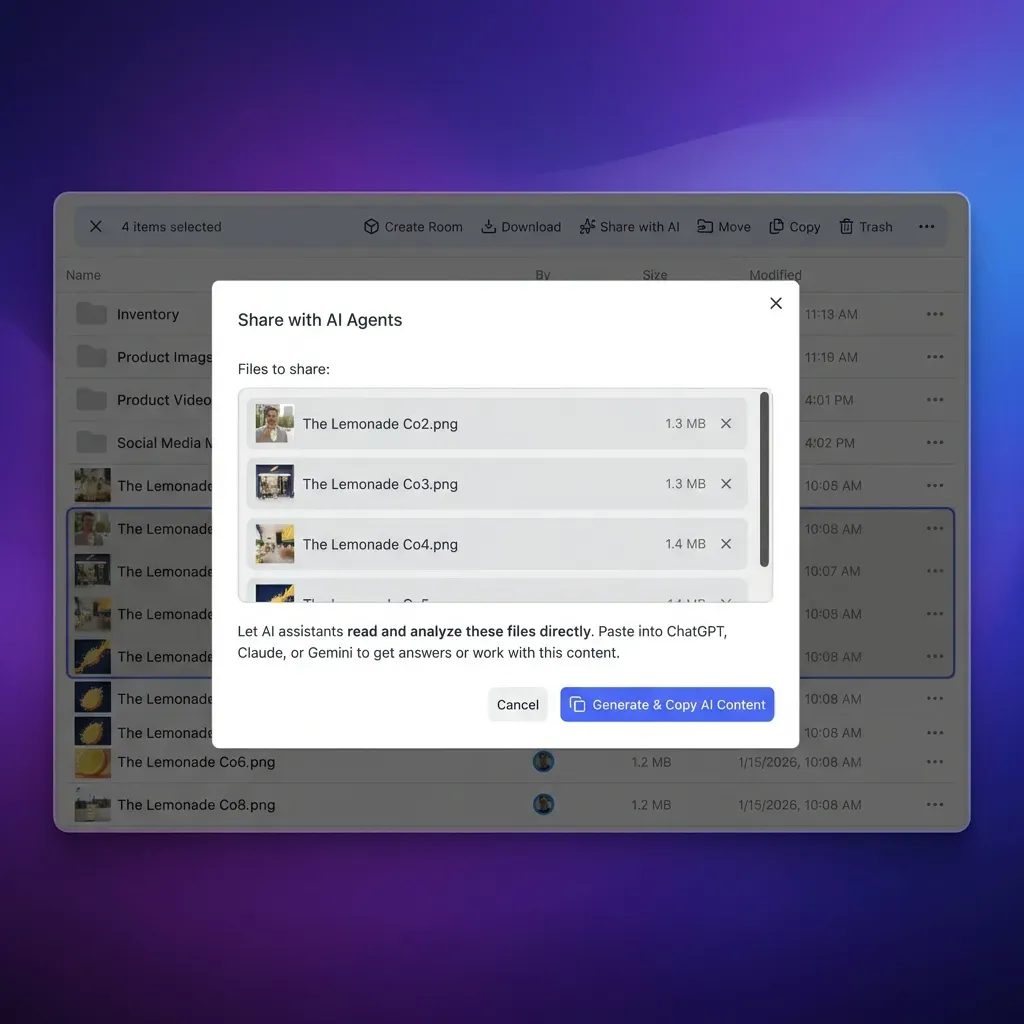
Fast.io was built for this use case. AI agents sign up for their own accounts with 50GB of free storage, create workspaces for each project, and upload files via 251 MCP tools or the REST API. The free tier doesn't expire and doesn't require a credit card.


Run Build Browser Automation AI Agents That Actually Work workflows on Fast.io
Fast.io gives teams shared workspaces, MCP tools, and searchable file context to run browser automation ai agents workflows with reliable agent and human handoffs.
Connecting Browser Agents to Cloud Storage
Here's how to wire a browser automation agent to persistent cloud storage using Fast.io's MCP server.
Option 1: MCP Integration (For Claude and MCP-Compatible Agents)
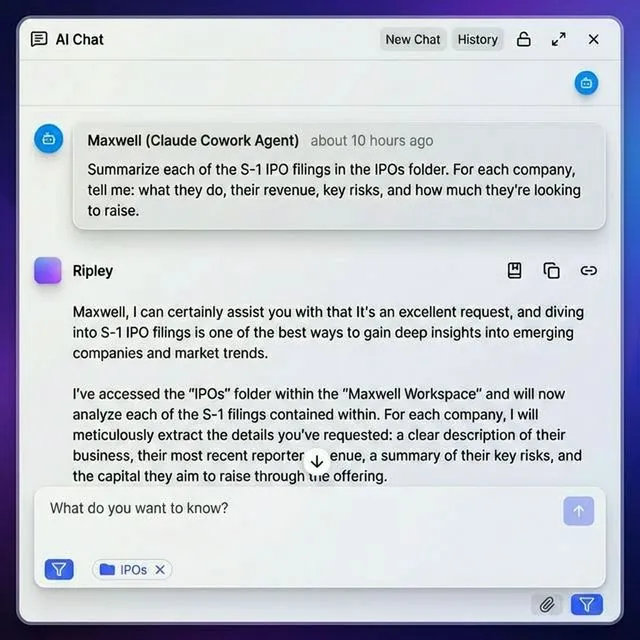
If your agent supports the Model Context Protocol, it can use Fast.io's 251 MCP tools directly. The agent creates workspaces, uploads files, and organizes outputs through natural language:
MCP Server URL: /storage-for-agents/
Transport: Streamable HTTP or SSE
Documentation: /storage-for-agents/
The agent can then do things like:
- "Create a workspace called 'competitor-research-feb-2026'"
- "Upload this screenshot to the workspace"
- "Create a share link so the marketing team can review the extracted data"
Option 2: REST API (Any Language, Any Agent)
For agents built with Browser Use, Browserbase, or custom frameworks, use the REST API directly:
import requests

### Upload extracted data
response = requests.post(
    "https://api.fast.io/upload/text-file",
    headers={"Authorization": f"Bearer {agent_token}"},
    json={
        "filename": "competitor-prices.json",
        "content": json.dumps(extracted_data),
        "profile_type": "workspace",
        "profile_id": workspace_id,
        "parent_node_id": "root"
    }
)
Option 3: OpenClaw (Zero-Config)
For agents that use the OpenClaw framework, install the Fast.io skill with one command:
clawhub install dbalve/fast-io
This gives the agent file management tools out of the box. No config files or environment variables to set up. The agent manages storage through natural language commands.
Organizing Agent Output
A good folder structure for browser automation output:
workspace: competitor-monitoring/
  screenshots/
    competitor-a-pricing.png
    competitor-b-features.png
    competitor-c-homepage.png
  extracted-data/
    pricing-comparison.json
    feature-matrix.csv
  downloads/
    competitor-a-whitepaper.pdf
    competitor-b-case-study.pdf
  logs/
    agent-run.log
With Intelligence Mode enabled, Fast.io auto-indexes uploaded files for RAG queries. Your team can ask, "What did competitor A change on their pricing page this week?" and get cited answers from the agent's collected data.
Production Patterns for Browser Agents
Running browser agents reliably in production means dealing with failures, scaling beyond a single machine, and wiring agents into the rest of your stack.
Error Recovery
Browser agents encounter broken pages, CAPTCHAs, rate limits, and unexpected popups. Build recovery into your agent's workflow:
- Screenshot on failure: Capture the page state when something goes wrong. Upload the screenshot to cloud storage so a human can diagnose the issue later.
- Retry with backoff: If a page fails to load, wait and retry. Most transient failures resolve within 30 seconds.
- Fallback strategies: If the primary approach fails (clicking a button), try alternatives (keyboard navigation, direct URL).
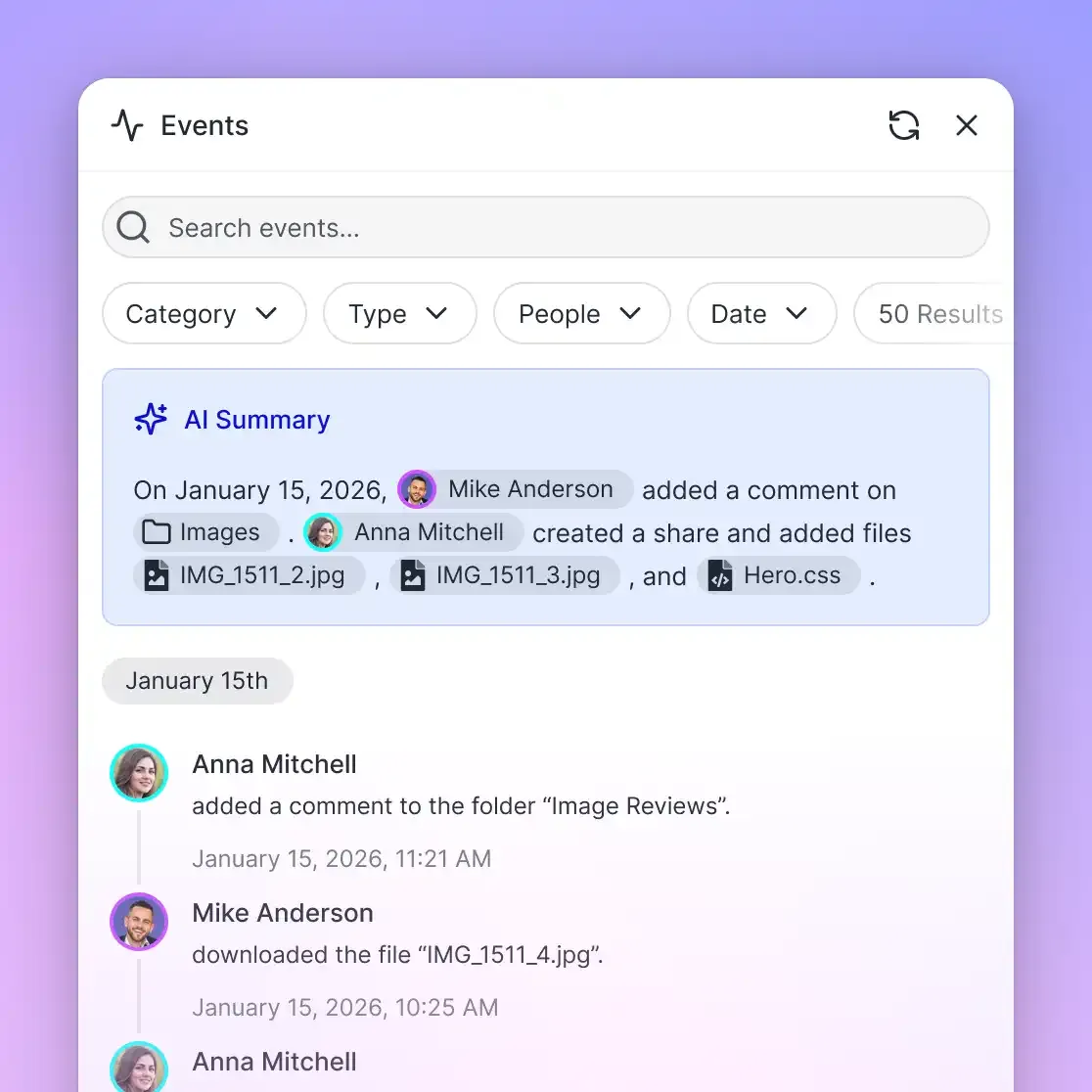
- Session logging: Record every action the agent takes. When something breaks three weeks later, you need the full history.
Multi-Agent Coordination
Complex workflows often split across multiple browser agents. One agent extracts data, another validates it, a third uploads it to a target system. Fast.io's file locks prevent conflicts when multiple agents write to the same workspace. Agent A acquires a lock on the output file, writes its results, and releases the lock before Agent B processes the data. Webhooks notify downstream agents when new files arrive. Instead of polling for changes, your validation agent gets triggered automatically when the extraction agent uploads new data.
Scaling with Serverless Browsers
Running Chromium locally doesn't scale past a handful of concurrent sessions. Serverless browser providers (Browserbase, Bright Data) spin up isolated browser instances on demand. Your agent code stays the same; the browser runs in the cloud. Pair serverless browsers with cloud storage to keep everything stateless. The browser instance extracts data, uploads results to Fast.io, and terminates. Nothing persists on the instance itself, so there's no disk cleanup to worry about.
Monitoring and Observability
Track these metrics for production browser agents:
- Task success rate: Percentage of tasks completed without errors
- Execution time: How long each task takes (flag outliers)
- Cost per task: LLM API costs + browser infrastructure costs
- Data quality: Spot-check extracted data against manual verification
Common Use Cases
Here's what teams are actually building with browser automation agents:
Competitive Intelligence
Set an agent loose on competitor websites daily. It captures pricing pages, pulls feature lists, and flags changes from the previous run. The extracted data feeds into dashboards and reports. One agent can cover many competitor pages much faster than a human.
Lead Research and Enrichment
Sales teams point browser agents at company websites and industry directories to gather firmographic data, technographic signals, and decision-maker profiles. The output is a structured dataset ready for CRM import.
Content Aggregation
Media monitoring agents scan news sites, social platforms, and industry blogs for mentions of specific topics. They pull article text, grab screenshots, and sort everything by relevance and date.
QA and Testing
Browser agents walk through web application flows (signup, purchase, account management) and verify each step works. The advantage over traditional test scripts: AI agents handle UI changes without updating selectors. When a button moves from the header to a sidebar, the agent finds it by understanding what it does, not where it sits on the page.
Document Collection
Legal and compliance teams need to pull regulatory filings, court documents, and public records from government websites. A browser agent handles the search forms, downloads matching documents, and drops files into an organized workspace for the legal team to review.
Price Monitoring
E-commerce teams track competitor pricing across hundreds of products. A browser agent visits each product page, grabs the current price and availability, and writes structured data for analysis. With webhooks set up, price changes trigger alerts within minutes.
Frequently Asked Questions
What is a browser automation agent?
A browser automation agent is an AI system that controls a web browser to complete tasks autonomously. It navigates pages, clicks buttons, fills forms, extracts data, and handles multi-step workflows without human intervention. Unlike traditional scripted automation, AI agents use language models to interpret page content and adapt to layout changes.
How do AI agents browse the web?
AI agents browse the web using browser control libraries (Playwright or Puppeteer) paired with large language models. The browser library handles low-level actions like clicking and typing. The LLM interprets page content, decides what to do next, and generates the sequence of actions needed to complete a task. Some agents also use computer vision to interpret screenshots directly.
What can browser automation agents do?
Browser agents can extract data from websites, fill and submit forms, take screenshots, download files, monitor pages for changes, run QA tests, collect documents, compare prices across competitors, and complete multi-step workflows that span multiple websites. They handle tasks at scale, processing hundreds of pages in the time a human would check a handful.
How do I store files from browser automation agents?
Use cloud storage with API access so your agents can upload screenshots, extracted data, and downloaded documents programmatically. Fast.io offers AI agents 50GB of free storage with 251 MCP tools for file management. Agents create workspaces, organize files into folders, and share results with team members through branded portals.
Which framework should I use for browser automation?
Browser Use is a strong starting point for most developers. It's open-source, supports multiple LLM providers, and achieved 89.1% task success on standard benchmarks. For production scale, consider Browserbase for managed browser infrastructure. For integration with AI coding assistants, Agent Browser CLI works well since it operates through standard shell commands.
Related Resources

Run Build Browser Automation AI Agents That Actually Work workflows on Fast.io
Fast.io gives teams shared workspaces, MCP tools, and searchable file context to run browser automation ai agents workflows with reliable agent and human handoffs.