How to Share Videos: The Best Methods for 2026
Video files are the most demanding content to share. A single minute of 4K ProRes can exceed 5GB, and most tools either fail on size limits or destroy quality through compression. This guide breaks down the best methods for sharing video, whether you need instant client previews, archival transfers, or professional deliverables. You will learn which approach fits each scenario and how to avoid the compression trap that ruins professional footage. This guide covers best way to share videos wit...
Why Video Sharing Is Harder Than Sending Documents: best way to share videos
Documents and images are straightforward to share. Attach them to an email or drop them in a folder, and you are done. Video is a different beast entirely. The file sizes alone create problems that most sharing tools were never designed to handle. Consider the numbers. A single minute of 4K ProRes footage, the industry standard for professional editing, weighs in at roughly 5.3GB. A ten-minute client review cut can hit 50GB without breaking a sweat. Standard email services cap attachments at 25MB, which means your footage would need to be split into over 2,000 separate emails. That is not practical. But size is only the first hurdle. The second problem is compression. When you upload a video to WhatsApp, Slack, or most messaging apps, the platform aggressively compresses your footage to save bandwidth and storage costs. A 500MB file might shrink to 15MB. That sounds efficient until you realize the compression destroyed shadow detail, introduced banding in gradients, and turned crisp text into a blurry mess. For casual clips of your dog, this is fine. For professional work, it is unacceptable. The third challenge is playback. Even services that preserve quality often require recipients to download the entire file before watching. On a slow connection, a large file might take hours to download. Your client wanted to review the cut during their lunch break, not wait until tomorrow. Understanding these three constraints, size, compression, and playback, helps you pick the right tool for each situation.
Helpful references: Fast.io Workspaces, Fast.io Collaboration, and Fast.io AI.
Method 1: Streaming-First Delivery for Client Reviews
The modern standard for professional video sharing is what we call "streaming-first" delivery. Instead of forcing recipients to download a massive file before watching, you give them a link that starts playing immediately. This is how Netflix and YouTube work, and there is no reason your client review process should be any different. Traditional cloud storage services like Google Drive or Dropbox technically support video playback, but the experience is poor. Google Drive serves a heavily compressed preview while the file "processes," sometimes showing only 360p or 720p quality for hours after upload. Dropbox uses progressive download, which means the viewer must buffer the entire file before they can scrub to a specific timecode. Neither is acceptable for professional feedback. Fast.io takes a different approach by generating HLS (HTTP Live Streaming) versions of your footage automatically. HLS is the same adaptive bitrate technology that powers most major streaming platforms. The video starts instantly, adapts quality to the viewer's connection, and allows smooth scrubbing to any frame without buffering the entire file first. For creative professionals, this eliminates the awkward workflow where clients screenshot problems instead of giving frame-accurate feedback. When a director can pause on the exact frame where the color grade feels off, the note is useful. When they can only say "somewhere around the 3-minute mark," you waste time hunting for the issue. Streaming-first delivery also handles the file size problem elegantly. The original stays untouched in your storage while optimized streaming proxies handle playback. Your 50GB ProRes file lives safely in the cloud, but clients watch a 1080p stream that loads in seconds.
Method 2: Cloud Storage Links for Archive and Raw Transfer
Sometimes you genuinely need to send the original file. An editor needs your raw footage for their timeline. A colorist requires the uncompressed master. An archive needs the deliverable for long-term storage. In these cases, cloud storage links remain the most practical option. Google Drive, Dropbox, and OneDrive all handle large video files reasonably well for download purposes. The recipient clicks a link, and the file downloads to their machine. Simple. The original quality is preserved because no transcoding happens. What you uploaded is exactly what they download. The limitations show up in the details. Free tier storage fills up fast when you are dealing with video. Google gives you 15GB, Dropbox gives you 2GB. A single project can exhaust your quota immediately. Paid tiers help, but costs add up when you are storing terabytes of footage. Bandwidth can also become an issue. If you share a popular file with many recipients, your account might get temporarily throttled. Dropbox has been known to disable links that generate too much traffic. For one-off transfers to a single recipient, this rarely matters. For broader distribution, it becomes a real concern. The other consideration is organization. Cloud storage is designed around folders and files, which works until you have hundreds of projects with thousands of assets. Finding that specific cut from six months ago becomes a treasure hunt through nested directories. Dedicated video platforms add metadata, search, and version tracking that generic storage lacks. Use cloud storage when the recipient specifically needs the original file and plans to download it anyway. For everything else, streaming-first delivery saves time on both ends.
Method 3: Dedicated Transfer Services for One-Off Deliveries
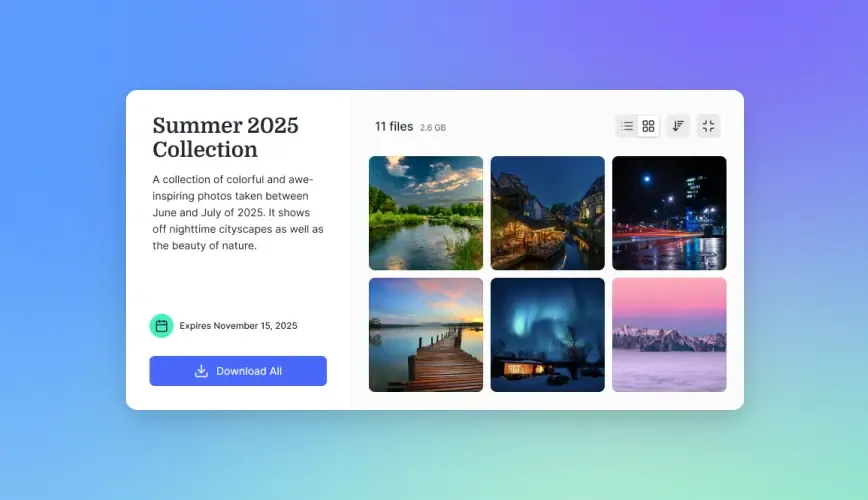
Transfer services like WeTransfer, MASV, and Signiant exist specifically to move large files from one place to another. They are not storage platforms or collaboration tools. They are pipes. You upload a file, get a link, and the recipient downloads it before the link expires. These services shine when you need to send a final master to someone outside your regular workflow. A broadcaster needs your commercial in ProRes 4444. A licensing company requires the uncompressed version of your stock footage. A client wants to archive the final deliverable on their own servers. In each case, you are handing off a file that does not need to live in a shared workspace or receive ongoing feedback. MASV specifically markets to video professionals with features like UDP-accelerated upload that can saturate your connection better than standard HTTPS transfers. If you have a 500GB documentary master and your upload speed is 100 Mbps, the difference between a 3-hour upload and a 6-hour upload matters when you are racing a deadline. The trade-offs are straightforward. Transfer services charge per gigabyte, typically between $0.10 and $0.25 per GB for high-speed options. A 100GB transfer might cost $10-25 per delivery. Links expire after 7-14 days on most plans, so recipients need to act promptly. There is no playback or preview capability, just raw download. And you must re-upload for each new recipient since there is no persistent storage. For recurring collaboration or client review workflows, transfer services are inefficient. You end up re-uploading the same assets repeatedly. But for true final delivery of finished work, they do one thing well.
Choosing the Right Method: A Practical Decision Framework
Rather than memorizing which tool does what, use the recipient's needs as your guide. Ask two questions: Does the recipient need to watch or work? Will this be a one-time transfer or ongoing access?
When the recipient needs to watch
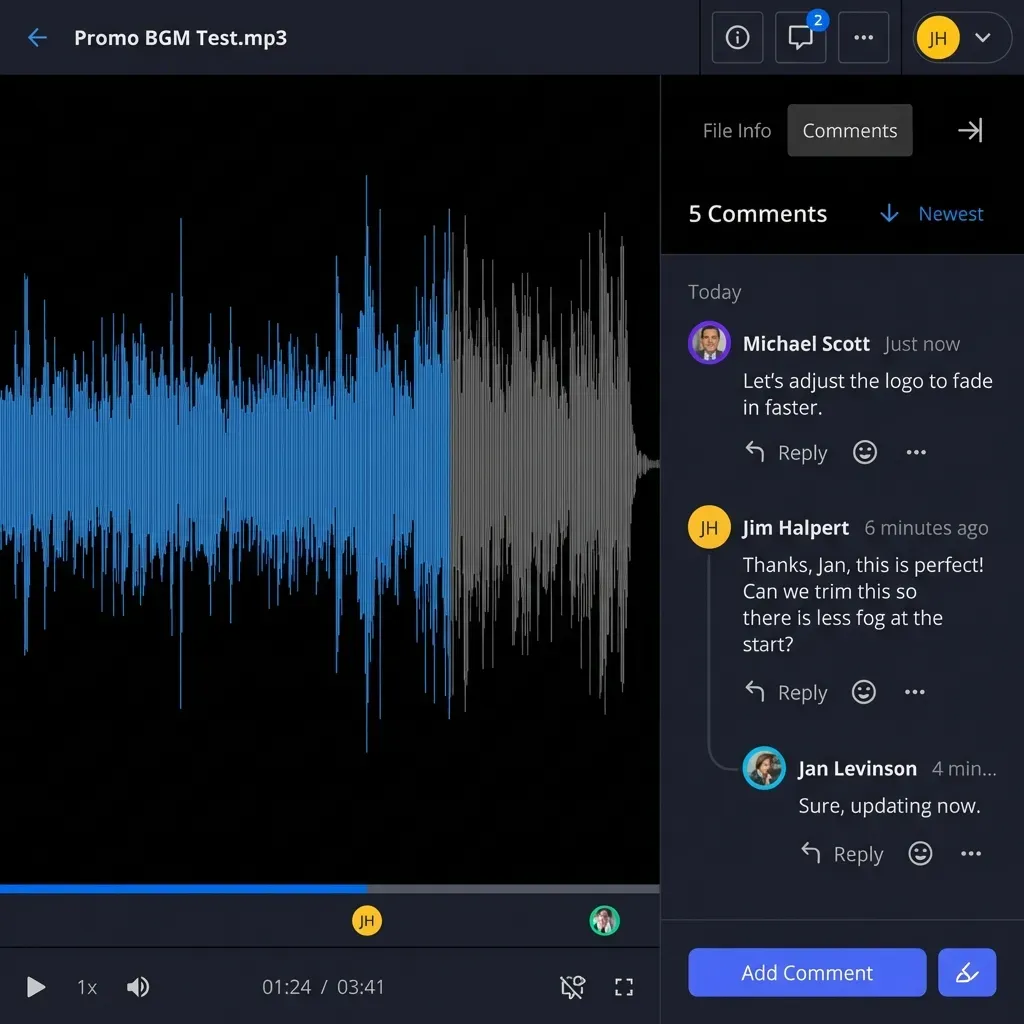
Most client interactions fall into this category. A director reviewing a rough cut. A brand manager approving an ad. A stakeholder signing off on the final edit. None of these people need the raw files. They need to see the content, give feedback, and move on with their day. For watching, streaming-first delivery wins every time. Fast.io, Frame.io, and Vimeo all offer instant playback with commenting features. The viewer clicks a link and watches immediately without downloading anything. Feedback can be pinned to specific timecodes or frames. Everyone stays aligned on which version they are discussing.
When the recipient needs to work
Editors, colorists, sound mixers, and VFX artists need actual files on their local machines. You cannot grade a proxy stream, and you cannot cut a protected Vimeo link into your timeline. These handoffs require the full-resolution original. For working, cloud storage or dedicated transfer services make sense. If the collaboration is ongoing, a shared workspace in your cloud storage keeps everything organized. If it is a one-off handoff, a transfer service gets the files moving without cluttering your storage with temporary shares.
When security matters
Pre-release content, confidential deals, and sensitive internal footage all require extra precautions. Look for password protection, link expiration, domain restrictions, and watermarking. Fast.io Data Rooms add view analytics so you can see who accessed what and for how long. This level of tracking matters when leaks have real consequences.

How to Share Videos Without Losing Quality
Quality loss happens at three points: upload compression, storage transcoding, and download re-encoding. Understanding where each occurs helps you prevent it.
Upload compression
Consumer messaging apps compress aggressively because their users mostly share casual phone clips where quality is not critical. WhatsApp, Messenger, and SMS all reduce video quality . Never use these channels for professional footage. Even if the file technically transfers, the output will be visibly degraded.
Storage transcoding
Some platforms transcode your uploads into their own formats for playback optimization. YouTube, for example, re-encodes everything into their streaming formats. This is fine for public distribution but means the file you get back is not the file you uploaded. For archival purposes, use storage that preserves your original untouched.
Download re-encoding
This one is rare but worth knowing about. Some services offer "optimized" downloads that re-compress files for smaller transfer size. Always look for an option to download the original when available. The safest approach is using platforms designed for professional video from the start. Fast.io preserves your original file exactly as uploaded while generating separate streaming proxies for playback. Viewers watch the optimized stream, but anyone with download permission gets the original untouched master. You get the convenience of instant streaming without sacrificing archival quality.
Format Recommendations for Different Recipients
The container and codec you choose should match what the recipient needs to do with the footage. For client viewing and approval, H.264 in an MP4 container is nearly universal. Every device, browser, and operating system can play it. File sizes are reasonable, and quality is good enough for review purposes. Export at 1080p unless your client specifically needs to evaluate 4K detail. For handoff to other editors, match their workflow. Most professional editors work in ProRes (Mac-heavy shops) or DNxHR (Avid and Windows environments). These are larger files but preserve the quality and flexibility needed for color grading, compositing, and further editing. Ask what format they need before exporting. For archival, keep your project files and raw camera footage. Rendered masters are useful but incomplete. The ability to re-export with different specifications in the future requires access to the source material, not just the final render.
Setting Up a Professional Video Sharing Workflow
A repeatable workflow saves time and prevents mistakes. Here is a practical setup that handles most professional video sharing needs.
Organize by project, not by date
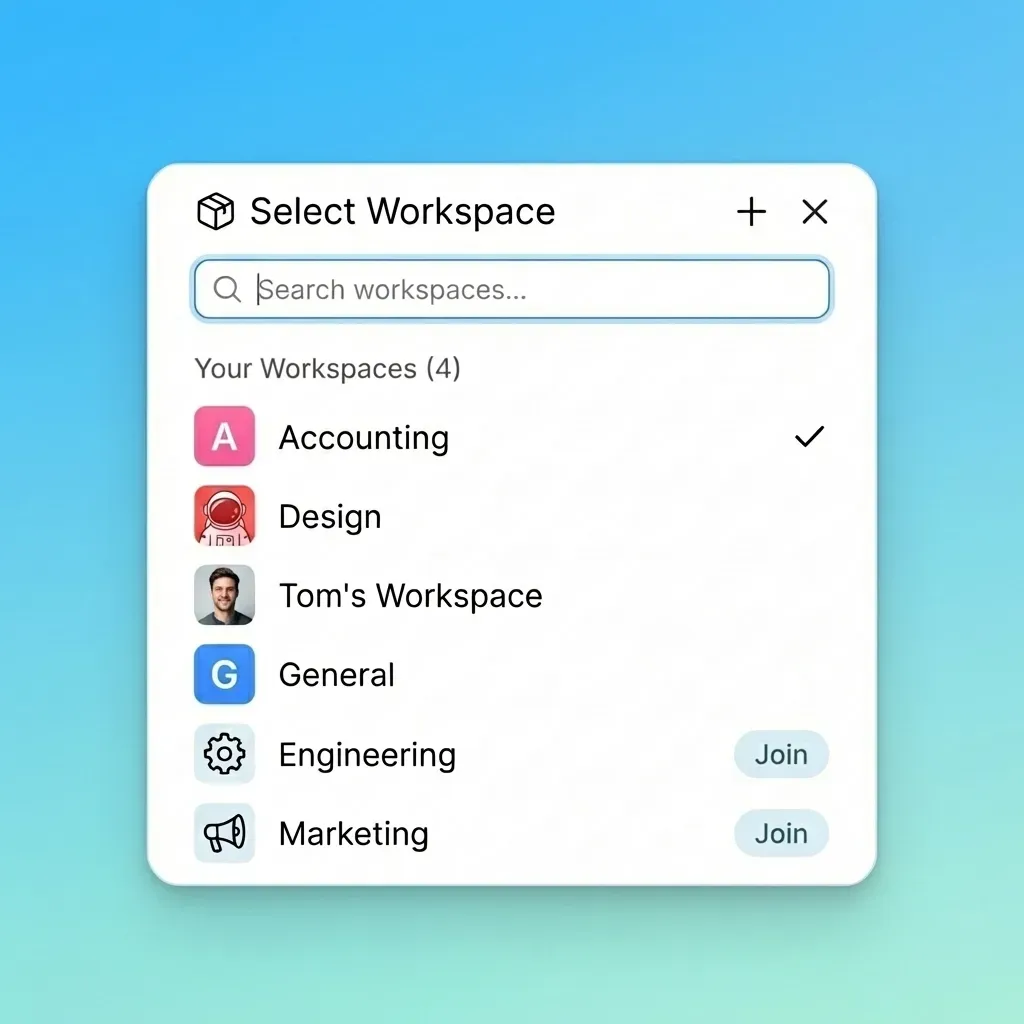
Create a workspace or folder for each project. Inside, maintain consistent subfolders: Source (camera originals), Cuts (edit exports), Approved (client sign-offs), and Delivery (final masters). This structure makes it easy to find any version of any project months or years later.
Use descriptive naming
Include the project name, version number, date, and format in every filename. "AcmeBrandSpot_v3_20260201_1080p.mp4" tells you everything at a glance. "Final_FINAL_v2_edited.mp4" tells you nothing useful.
Set up client-facing sharing separately
Clients should access a curated selection of assets, not your entire project folder. Create a dedicated shared folder or portal that contains only what they need to see. Hide the messy middle where seventeen test renders live.
Automate where possible
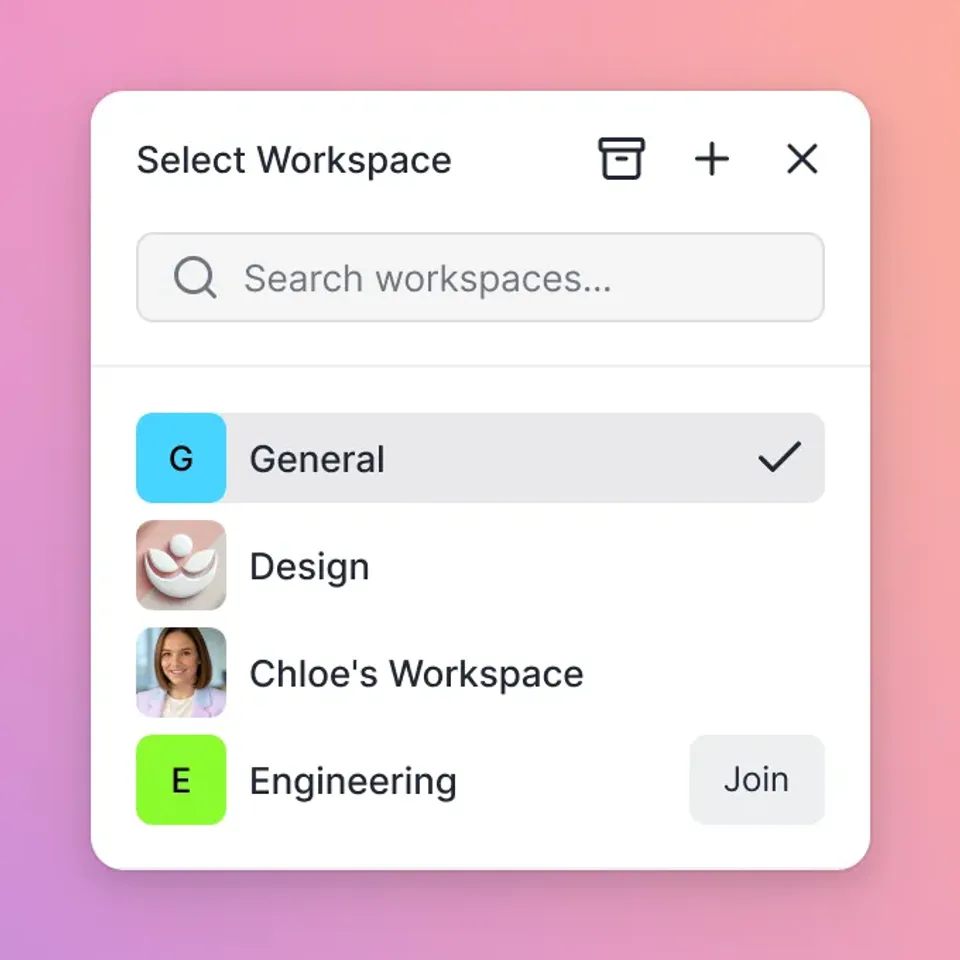
Fast.io can index your existing cloud storage and generate streaming links automatically. This means you can continue working in your familiar folder structure while clients get branded viewing portals. No duplicate uploads, no manual link creation.
Document access and feedback
Keep a record of who received what and when. Note feedback in a central location tied to specific versions. When a client says "I preferred the earlier color grade," you should be able to identify exactly which version they mean without guesswork.
Frequently Asked Questions
What is the fast way to share a 10GB video?
The fast method is sharing a link to where the file already exists rather than re-uploading it. If your footage is in cloud storage, Fast.io can generate an instant streaming link without any additional upload time. If you must upload fresh, UDP-accelerated services like MASV can saturate your connection better than standard HTTPS, potentially cutting upload time in half.
How can I send a video that is too large for email?
For files over 25MB, which is the typical email limit, upload the video to cloud storage (Google Drive, Dropbox) or a transfer service (WeTransfer) and email the share link instead. For professional workflows, use a streaming platform like Fast.io so recipients can watch immediately without downloading.
Does Google Drive reduce video quality?
Google Drive does not alter your original file, so downloads will be exact quality. However, the browser preview player shows a heavily compressed version while the file processes, often at only 360p or 720p. This processing can take hours for large files, leading clients to think your footage looks bad when it is actually the preview at fault.
How do I password protect a shared video?
Most professional sharing platforms offer password protection on shared links. In Fast.io, you can set passwords along with expiration dates, domain restrictions, and view-only permissions. For sensitive content like pre-release footage, look for watermarking options and view tracking as well.
What format should I use when sharing video for client review?
For client review, H.264 in an MP4 container at 1080p offers the best balance of quality, file size, and compatibility. Every device can play it, and the quality is sufficient for approval feedback. Save the larger ProRes or DNxHR exports for handoffs to other professionals who need to work with the footage.
Can I share videos without the recipient needing to download them?
Yes, streaming platforms like Fast.io, Frame.io, and Vimeo allow recipients to watch videos directly in their browser without downloading. Fast.io uses HLS adaptive streaming, the same technology behind Netflix, so playback starts instantly and adjusts quality based on the viewer's connection speed.
Related Resources

Run Share Videos The Best Methods For 2026 workflows on Fast.io
Stop waiting for uploads and fighting compression. Fast.io turns your cloud storage into a branded video portal with instant HLS streaming and frame-accurate feedback.