How to Share Large Files: 6 Methods Compared
The top file sharing method depends on three factors: file size, whether recipients need ongoing access, and how often you'll share. One-off transfers work for occasional sharing, but teams that share files daily need persistent cloud storage. This guide compares six methods so you can pick the right tool for your workflow. This guide covers best way to share large files with practical examples.
Quick Comparison: Large File Sharing Methods: best way to share large files
Here's how the main options stack up:
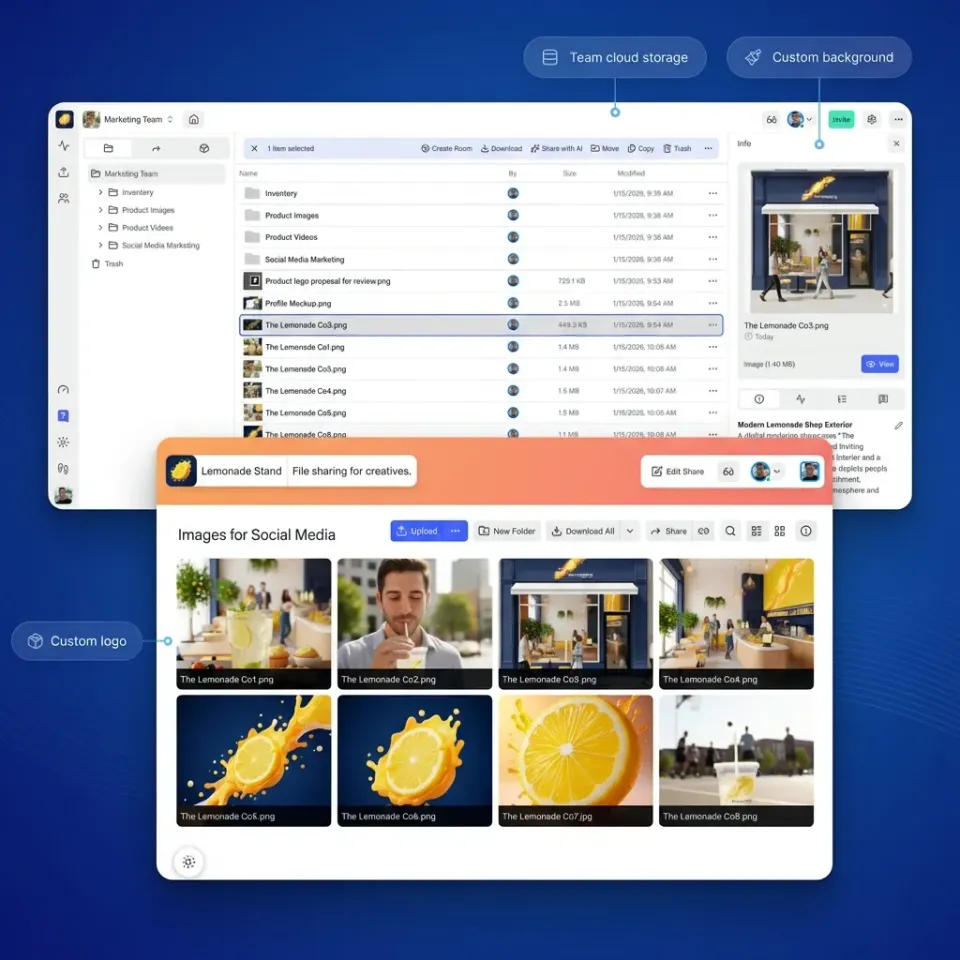
Cloud Storage (Google Drive, Dropbox, Fast.io)
- Max file size: Several terabytes depending on plan
- Speed: Upload once, share instantly via link
- Best for: Teams needing ongoing access to files
- Tradeoff: Monthly subscription required
Transfer Services (WeTransfer, Smash)
- Max file size: A few gigabytes free, larger on paid plans
- Speed: Must upload each time you share
- Best for: One-off transfers to external contacts
- Tradeoff: Files expire after a limited time
Email Attachments
- Max file size: A few megabytes depending on provider
- Speed: Instant for small files
- Best for: Small documents
- Tradeoff: Size limits make it useless for large files
Direct Transfer Apps (Blip, Resilio)
- Max file size: large files supported
- Speed: Fast if both parties are online
- Best for: Tech-savvy users transferring huge files
- Tradeoff: Requires both sender and recipient online
Physical Drives
- Max file size: Limited by drive capacity
- Speed: Depends on shipping time
- Best for: Multi-terabyte datasets
- Tradeoff: Slow, risk of loss or damage
FTP/SFTP
- Max file size: large files supported
- Speed: Depends on connection
- Best for: Automated server-to-server transfers
- Tradeoff: Technical setup required
What Makes a File 'Large'?
A file is "large" when it exceeds the limits of common sharing methods. In practice, files over a few megabytes are too big for email, files over a few gigabytes exceed free transfer service limits, and large files require specialized tools or paid cloud storage plans.
For most people, "large file" means anything bigger than a few photos. Video files, design assets, CAD drawings, and RAW photos regularly hit several gigabytes. Large video projects can easily reach dozens or even hundreds of gigabytes. The question isn't just "can I share this file?" but "can the recipient actually download and use it?" Sharing large files via transfer services works, but if your recipient is on hotel WiFi, they'll wait hours.
Method 1: Cloud Storage Services
Cloud storage is the most practical option for teams that share large files regularly. You upload files once, then share links to anyone who needs access.
How it works: Files live on remote servers. You share a link, and recipients stream or download from the cloud. No re-uploading each time you share.
Pros:
- Files stay accessible indefinitely
- Share the same file with multiple people
- Version history tracks changes
- Works from any device
Cons:
- Monthly subscription costs
- Privacy concerns if misconfigured
- Sync-based services can create conflicts
Best options:
- Fast.io: Cloud-native storage with HLS streaming for video files. No per-seat pricing, so you can share with unlimited external contacts.
- Google Drive: 15GB free, works alongside Google Workspace
- Dropbox: Reliable sync, but expensive for teams (published pricing/month)
- OneDrive: Good for Microsoft 365 users
For creative teams working with video, audio, or design files, cloud storage with native streaming matters most. Instead of forcing recipients to download a 10GB video file, they watch it instantly in the browser.
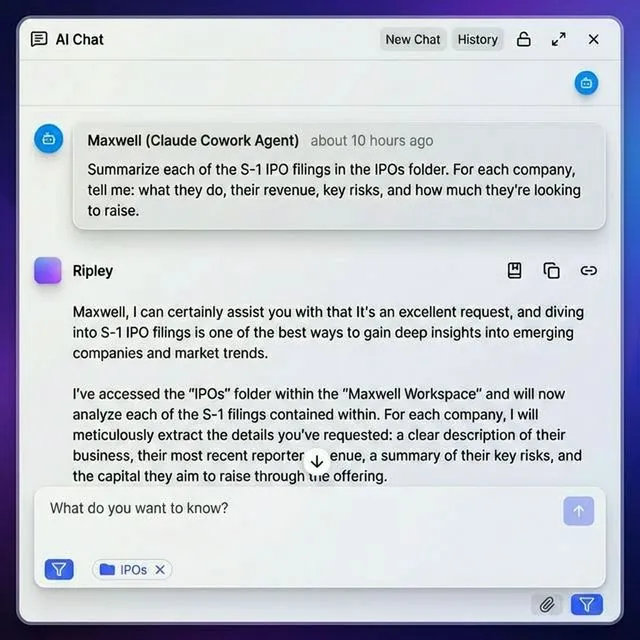


Run Share Large Files 6 Methods Compared workflows on Fast.io
Fast.io handles files up to 5TB with streaming playback, unlimited guests, and no per-seat pricing.
Method 2: File Transfer Services
Transfer services like WeTransfer and Smash handle one-off file deliveries. Upload your file, get a link, send it. The recipient downloads before the link expires.
How it works: You upload files to their servers. They generate a download link that stays active for a limited time. After expiration, the file is deleted.
Pros:
- No account required for recipients
- Simple, no-frills interface
- Free tiers available (with limits)
Cons:
- Files expire and disappear
- Must re-upload for each new share
- No organization or search
- Progressive download means buffering for video
Best options:
- WeTransfer: Free tier available, larger transfers on paid plans
- Smash: No file size limit, files expire after limited period
- Filemail: Various tiers available for different file sizes
Transfer services work well for freelancers sending final deliverables to clients. They're not ideal for ongoing collaboration, you'll end up re-uploading the same files repeatedly.
Method 3: Direct Peer-to-Peer Transfer
Direct transfer apps send files straight from your device to the recipient's, without storing copies on intermediate servers.
How it works: Both devices connect directly (or via relay servers). The file streams from sender to receiver in real-time.
Pros:
- No file size limits
- Faster than upload-then-download
- No storage costs
- More private (files don't sit on third-party servers)
Cons:
- Both parties must be online simultaneously
- Transfer fails if connection drops
- No link sharing, requires recipient to have the app
Best options:
- Blip: Fast, cross-platform, works over long distances
- Resilio Sync: Peer-to-peer sync for power users
- LocalSend: Open-source, works on local networks
Direct transfer is excellent for moving huge files between your own devices or to a tech-savvy recipient. It's awkward for sharing with clients who may not have the app installed.
Method 4: Email and Messaging Workarounds
Email wasn't built for large files, but there are workarounds that extend its usefulness.
Standard email limits: Most email providers cap attachments at a few megabytes, which prevents sending larger files directly.
Workarounds:
Compression: Tools like 7-Zip can shrink files depending on file type. ZIP a folder of documents before attaching. This won't help much with already-compressed formats like JPEG, MP4, or PDF.
Cloud attachment links: Gmail and Outlook automatically upload large files to Google Drive or OneDrive and insert a link. This works, but the recipient may need to request access or sign in.
Split archives: Some compression tools can split large files into smaller chunks. The recipient needs the same tool to reassemble them. Email workarounds are clunky. If you're regularly sharing files larger than email limits allow, switch to cloud storage or transfer services.
Method 5: Physical Drives and Storage Media
Sometimes the fast way to transfer data is to ship a hard drive. AWS famously offers Snowball, a physical device you load with data and ship back to them.
When physical makes sense:
- large datasets
- Unreliable or slow internet connections
- Archival transfers to cold storage
- Situations requiring chain of custody documentation
Pros:
- No bandwidth limits
- Can transfer massive amounts of data
- Works offline
Cons:
- Shipping takes days
- Risk of damage or loss
- Requires physical handling at both ends
The break-even point depends on your internet speed. For large datasets, overnight shipping a drive is often faster than uploading.
Method 6: FTP and SFTP Servers
FTP (File Transfer Protocol) has been around since 1971. SFTP adds encryption. Both are still used for automated, server-to-server file transfers.
How it works: You connect to a remote server using FTP client software (like FileZilla or Cyberduck). Files transfer directly between your machine and the server.
Pros:
- No file size limits
- Scriptable and automatable
- Reliable for recurring transfers
Cons:
- Technical setup required
- Recipients need FTP client software
- Standard FTP sends passwords in plain text (use SFTP instead)
- No preview, versioning, or collaboration features
FTP works well for workflows where files automatically move between systems, like a print shop pulling files from a client's server nightly. For human-to-human sharing, modern cloud tools are easier.
How to Choose the Right Method
Pick your method based on three questions:
1. How often will you share this file?
- Once → Transfer service or direct transfer
- Repeatedly → Cloud storage
2. Does the recipient need ongoing access?
- No, just download once → Transfer service
- Yes, view and re-download later → Cloud storage
3. What's the file type?
- Video or audio → Cloud storage with streaming (avoid forcing downloads)
- Documents → Any method works
- Huge datasets → Direct transfer or physical drives
For teams that share files daily: Cloud storage wins. The time saved by not re-uploading outweighs the subscription cost. Look for platforms with unlimited guest access so external collaborators don't need paid seats.
For occasional freelance deliveries: Transfer services work fine. WeTransfer's free tier covers most one-off needs.
For massive one-time transfers: Ship a drive. It sounds old-fashioned, but it's still the fast way to move large datasets across the country.
What About Security?
Large files often contain sensitive data. Here's how to share safely:
Basic security checklist:
- Use HTTPS links (not HTTP)
- Set passwords on shared links
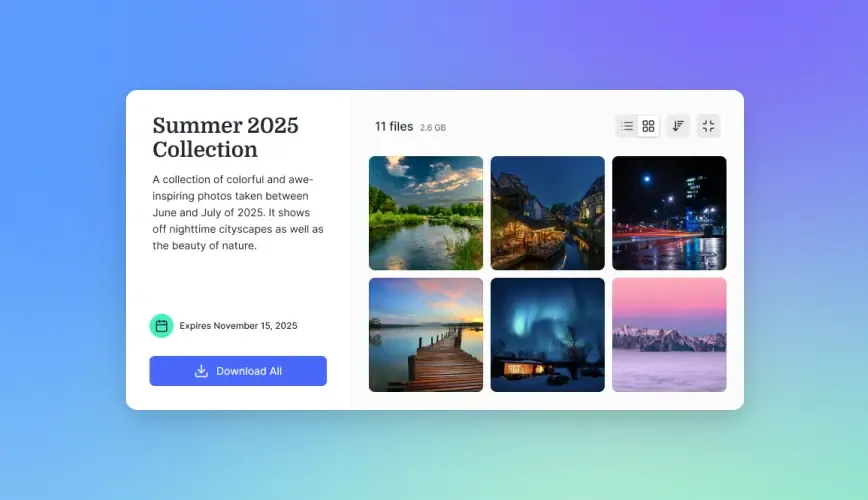
- Set expiration dates on access
- Avoid public links for confidential files
- Use services with encryption at rest and in transit
For sensitive business files:
- Require authentication to download
- Use link controls with view-only options
- Check audit logs to see who accessed files
- Consider data rooms for M&A or legal documents
Transfer services are generally less secure than cloud storage because files sit on shared infrastructure with less access control. If you're sharing contracts, financial data, or unreleased creative work, use a platform with granular permissions.
Frequently Asked Questions
What is the safest way to share large files?
The safest method is cloud storage with encryption, password-protected links, expiration dates, and audit logging. Avoid public links for sensitive files. For highly confidential documents, use a virtual data room with authenticated access and view-only permissions.
How do professionals share large files?
Most professionals use cloud storage (Dropbox, Google Drive, Fast.io) for recurring collaboration and transfer services (WeTransfer) for one-off deliveries. Video and creative professionals prioritize platforms with streaming playback so clients don't need to download multi-gigabyte files.
Is Google Drive good for large files?
Google Drive works for files up to 5TB and offers 15GB free storage. It's good for Google Workspace users and document collaboration. Limitations: video playback requires download for large files, and per-user pricing gets expensive for teams.
What's the fast way to send a large file?
If both parties have fast internet, direct peer-to-peer transfer (Blip, Resilio) is fast since files stream directly without upload-then-download delays. For recipients on slower connections, cloud storage with streaming lets them start viewing immediately without waiting for the full download.
Can I share large files without creating an account?
Yes. Transfer services like WeTransfer and Smash let you share files without signing up. Cloud storage services typically let recipients download without accounts, but the sender usually needs an account to upload.
Related Resources

Run Share Large Files 6 Methods Compared workflows on Fast.io
Fast.io handles files up to 5TB with streaming playback, unlimited guests, and no per-seat pricing.