How to Use AI Assistants for File Management and Organization
AI assistant file management uses artificial intelligence to organize, categorize, search, and manage files automatically. These systems reduce the time workers spend daily searching for files through auto-tagging, smart search, and workflows that process documents without manual intervention. This guide covers five practical ways AI assistants can manage your files, the tools available, and how to get started with AI-powered organization.

What Is AI Assistant File Management?
AI assistant file management uses artificial intelligence to organize, categorize, search, and manage digital files. Instead of manually creating folder structures, renaming files, or hunting through directories, AI systems analyze your files and handle these tasks on their own. The technology works at multiple levels. Basic AI file organizers sort files into folders based on type or content. More advanced systems read document contents, extract metadata, generate tags automatically, and even summarize files so you can find them later through natural language search.
Why
This Matters Now
Knowledge workers spend significant time each day searching for and gathering information. AI file management tools can substantially reduce this time through smart search and automatic organization. The shift from folder-based to AI-powered organization changes how teams work. Traditional file systems need everyone to follow the same naming conventions and folder structures. AI systems find files based on content, not location. Search for "Q3 budget proposal" and the system finds it whether it's named "Budget_Q3_2026_v3_FINAL.xlsx" or "financial-planning-draft.xlsx" buried three folders deep.
Five
Ways AI Assistants Manage Files
Smart search: Find files by describing what you need, not remembering file names 2. Auto-tagging: Categorize files based on content analysis 3.
Organization suggestions: AI recommends where files should go based on patterns 4.
Workflow automation: Trigger actions when specific file types appear 5.
Content summaries: Get quick overviews without opening every document
What to check before scaling ai assistant file management
Traditional file search matches keywords in file names and sometimes file contents. AI-powered search understands what you're looking for. Ask a traditional search system for "contract with Acme" and it finds files containing those exact words. Ask an AI search system the same query and it finds the Acme agreement, even if it's titled "MSA_2025_Acme_Corp.pdf" and the word "contract" never appears in the document.
How AI
Search Works
AI search systems use vector embeddings to represent files as mathematical points in a high-dimensional space. Files with similar meanings cluster together, even if they use different words. This allows:
- Semantic matching: "employee handbook" finds "staff guidelines" and "team policies"
- Natural language queries: "spreadsheet from last month with sales data" returns relevant results
- Cross-format search: Find information whether it's in a PDF, Word doc, or spreadsheet
- Typo tolerance: Misspellings and partial matches still return correct results
Practical Example
Say you're looking for a vendor agreement from six months ago. You remember it was about cloud services but not the vendor name or file location. With traditional search, you browse through folders, open multiple files, or try keyword combinations until something works. With AI search, you type: "cloud services vendor agreement from around August." The system returns relevant contracts ranked by relevance, showing you preview snippets so you can identify the right one without opening files individually. Fast.io's semantic search works this way. Describe what you need in plain language, and the system finds matching files based on their actual content, not just metadata.
Auto-Tagging and Categorization
Manual tagging doesn't scale. You might tag the first hundred files, but by the thousandth file, consistency breaks down. AI auto-tagging applies tags based on file content analysis, keeping things consistent no matter how many files you have.
What AI
Can Tag
Modern AI systems extract multiple tag types:
- Document type: Invoice, contract, report, presentation, spreadsheet
- Topic categories: Finance, HR, Marketing, Legal, Operations
- Named entities: People, companies, products, locations mentioned
- Date references: Dates mentioned in content, not just creation date
- Sentiment: Positive, negative, neutral (useful for customer feedback files)
- Custom categories: Tags specific to your business terminology
How Auto-Tagging Works
AI tagging systems typically use a combination of:
Document classification models: Trained to recognize document types from structure and content 2. Named entity recognition (NER): Extracts people, organizations, locations, dates 3.
Topic modeling: Identifies subject matter from document content 4.
Custom training: Learn your organization's specific terminology and categories
The process is automatic. Upload a file, and tags appear within seconds. Edit tags manually when the AI gets something wrong, and better systems learn from corrections.
Tagging vs.
Folders
Tags solve the "where does this belong?" problem that plagues folder systems. A project proposal involving both marketing and finance doesn't fit cleanly in either folder. With tags, it gets both "Marketing" and "Finance" tags, appearing in searches for either category. This is why modern AI file systems emphasize tags over rigid folder hierarchies. Folders force single-parent relationships. Tags allow files to exist in multiple logical contexts simultaneously.
Workflow Automation with AI Agents
AI file management extends beyond organization into automated workflows. When specific files appear, AI agents can process them automatically.
Common AI
File Workflows
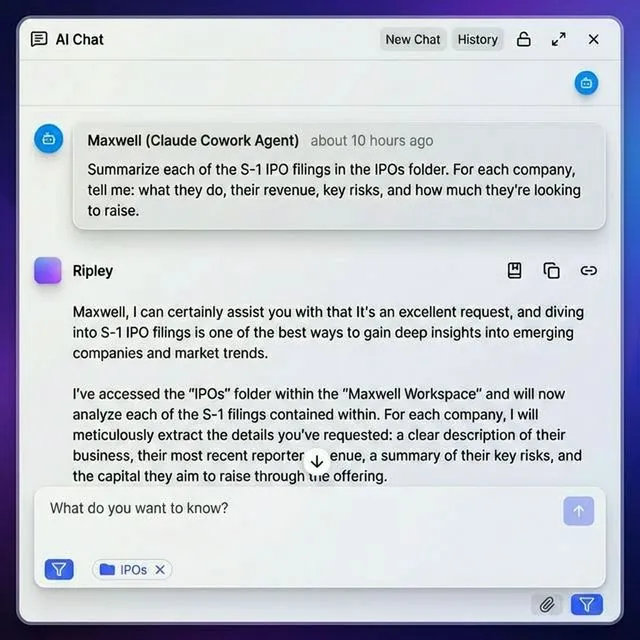
Invoice processing: An AI agent monitors a folder for incoming invoices. When one appears, it extracts vendor name, amount, and due date, then routes the data to accounting software and moves the original to an archive workspace.
Contract review: Legal documents uploaded to a review folder trigger AI analysis. The agent extracts key terms, flags unusual clauses, and generates a summary for human review.
Media processing: Creative files uploaded to a project workspace automatically generate thumbnails, extract metadata, and organize into dated subfolders.
Report distribution: Completed reports get automatically tagged, have summaries generated, and are shared with relevant team members based on content analysis.
Building
Agent Workflows
Effective file automation requires storage that agents can control programmatically. The agent needs to:
- Monitor specific folders for new files
- Read file contents (not just metadata)
- Move, copy, and rename files
- Create and manage folder structures
- Set permissions and sharing settings
- Generate and update metadata
General-purpose cloud storage like Dropbox or Google Drive wasn't built for this. Agents end up using human credentials, which creates security issues and makes audit trails unclear. Fast.io gives AI agents their own accounts with full workspace control. Agents sign up like human users, create their own workspaces, and manage files through a complete REST API. For Claude and MCP-compatible agents, the official MCP server provides native integration without custom API code.



Start with ai assistant file management on Fast.io
Fast.io includes AI-powered search, auto-tagging, and agent integration. Free tier available for AI agents with 5,000 credits monthly.
AI File Organizer Tools Compared
Several categories of AI file management tools exist, each with different strengths.
Desktop AI
Organizers
Tools like Sparkle, Files Magic AI, and Sorted App run locally on Mac or Windows. They analyze your Downloads, Desktop, and Documents folders, automatically moving files into organized structures.
Strengths: Privacy (files stay local), one-time cost, works offline Limitations: Single-device only, no team collaboration, limited AI capabilities
Best for: Individual users wanting to tidy up a messy personal computer.
Cloud
Document Management
Platforms like M-Files, DocuWare, and Box (with AI features) provide enterprise document management with AI-powered search and classification.
Strengths: Team collaboration, version control, enterprise security features Limitations: Per-user pricing adds up, complex setup, often overkill for smaller teams
Best for: Large organizations with formal document management requirements.
AI-Powered
Cloud Storage
Modern cloud storage platforms build AI into the core experience. Fast.io, for example, includes semantic search, smart summaries, and AI agent integration as native features.
Strengths: Team collaboration, AI built-in, agent-friendly APIs, usage-based pricing Limitations: Requires internet connection, learning curve for new workflow patterns
Best for: Teams wanting AI file management without enterprise complexity or per-seat costs.
AI
Extraction APIs
Services like AWS Textract, Google Document AI, and Azure Form Recognizer provide AI document processing as APIs. You build the storage and workflow layers.
Strengths: Pay-per-use, highly customizable, works alongside existing systems Limitations: Requires development work, you manage the storage layer
Best for: Teams with engineering resources building custom document workflows.
Getting Started with AI File Management
Moving from manual file management to AI-powered organization doesn't mean ripping out your existing systems. Start small and expand.
Week 1:
Assess Your Current State
Before adding AI, understand your current file chaos:
- Where do files live now? (Multiple systems? Personal drives? Email attachments?)
- What are the most common "I can't find this file" situations?
- Who needs access to what? How are permissions currently managed?
- What manual file tasks consume the most time? The assessment often shows that the problem isn't bad tools. It's files scattered across too many locations. Consolidation may help more than AI.
Week 2:
Consolidate and Test
Pick your highest-value file type (usually project files or client documents) and consolidate into a single system with AI features. Test the AI capabilities:
- Does semantic search find files you couldn't locate before?
- Does auto-tagging produce useful categories?
- Can you create a simple automation (like auto-organizing incoming files)? When testing Fast.io, set up a workspace for your test files. Try natural language searches like "budget spreadsheets from Q3" or "contracts with renewal dates coming up." See what the AI finds that keyword search missed.
Month 1:
Establish Patterns
Based on testing, establish organization patterns:
- Workspace structure: How do you divide files? By client? By project? By department?
- Tagging taxonomy: What categories matter for your work?
- Automation triggers: What file events should trigger automatic actions? Document these patterns. AI helps maintain consistency, but someone needs to decide what "consistent" means for your organization.
Month 2+: Expand and Automate
Roll out to more file types and team members. Build automations:
- Incoming client files organized by client workspace
- Completed deliverables shared with the right stakeholders
- Archive workflows moving old files to cold storage
- AI agents processing specific document types end-to-end
AI File Management for Teams vs. Individuals
AI file management works differently depending on whether you're organizing personal files or managing team content.
Individual
Use Cases
For personal file management, AI organizers focus on:
- Cleaning up Downloads folders with automatic sorting
- Finding old files through natural language search
- Keeping file names consistent without manual work
- Archiving files automatically based on age or access patterns
Local AI organizers work well here. Tools like Sparkle or AI FileSorter run on your machine, process files locally, and don't require subscriptions.
Team
Use Cases
Team file management adds complexity:
- Multiple people creating and accessing files
- Permission management across projects and clients
- Version control when multiple people edit files
- Audit trails showing who accessed what
- Handoffs between team members and AI agents
Cloud-based AI file management makes more sense for teams. Everyone accesses the same organized system. Permissions flow from workspace membership, not manual sharing. AI features work across all files, not just one person's machine.
Human-Agent
Collaboration
The most interesting team use case involves AI agents as team members. An agent that processes invoices needs its own identity, not shared human credentials. It needs workspace access appropriate to its role. Its actions should appear in audit logs under its own name. Fast.io treats agents as first-class users. Agents sign up for accounts, join workspaces, and operate with their own permissions. Humans and agents work on the same files with clear attribution of who did what. This model works for workflows where:
- Agents handle routine processing (organizing, tagging, extracting)
- Humans handle exceptions and decisions
- Both access the same file system with the right permissions
- Audit trails show complete activity from both human and agent actions
Frequently Asked Questions
Can AI organize my files?
Yes, AI can automatically organize files based on content analysis. AI file organizers sort files into folders, apply tags based on document content, and learn your organizational preferences over time. Desktop tools like Sparkle work locally, while cloud platforms like Fast.io provide AI organization for team file systems.
How does AI file management work?
AI file management uses machine learning models to analyze file contents, not just names. The AI recognizes document types, extracts named entities like people and companies, identifies topics, and applies tags on its own. Search uses semantic matching to find files based on meaning, so you can describe what you're looking for in plain language.
What is AI-powered file storage?
AI-powered file storage combines cloud storage with built-in artificial intelligence features. This includes semantic search that understands natural language queries, automatic document tagging, smart summaries of file contents, and APIs that let AI agents manage files programmatically. Fast.io is an example of storage built for both human users and AI agents.
How to use AI for document management?
Start by consolidating files into a system with AI features. Use semantic search to find files by describing what you need. Turn on auto-tagging to categorize files. Set up workflows where AI agents process specific document types. Review and correct AI suggestions to improve accuracy over time.
What's the best AI file organizer?
The best choice depends on your needs. For personal desktop organization, tools like Sparkle or Files Magic AI work well. For team file management with collaboration features, cloud platforms like Fast.io provide AI organization plus sharing, permissions, and agent integration. For enterprise document management, platforms like M-Files offer AI features within formal DMS frameworks.
How much time can AI file management save?
AI-powered search and organization saves several hours per week for knowledge workers who frequently search for files. Workers spend significant time daily searching for information. AI substantially reduces this through instant semantic search and automatic organization that removes manual filing.
Related Resources

Start with ai assistant file management on Fast.io
Fast.io includes AI-powered search, auto-tagging, and agent integration. Free tier available for AI agents with 5,000 credits monthly.