How to Set Up an AI Agent Shared Workspace
A shared workspace gives multiple AI agents a single place to read, write, and organize files without stepping on each other's work. This guide covers setup, file locking, permission design, and practical patterns for multi-agent collaboration. This guide covers ai agent shared workspace with practical examples.
What Is an AI Agent Shared Workspace?
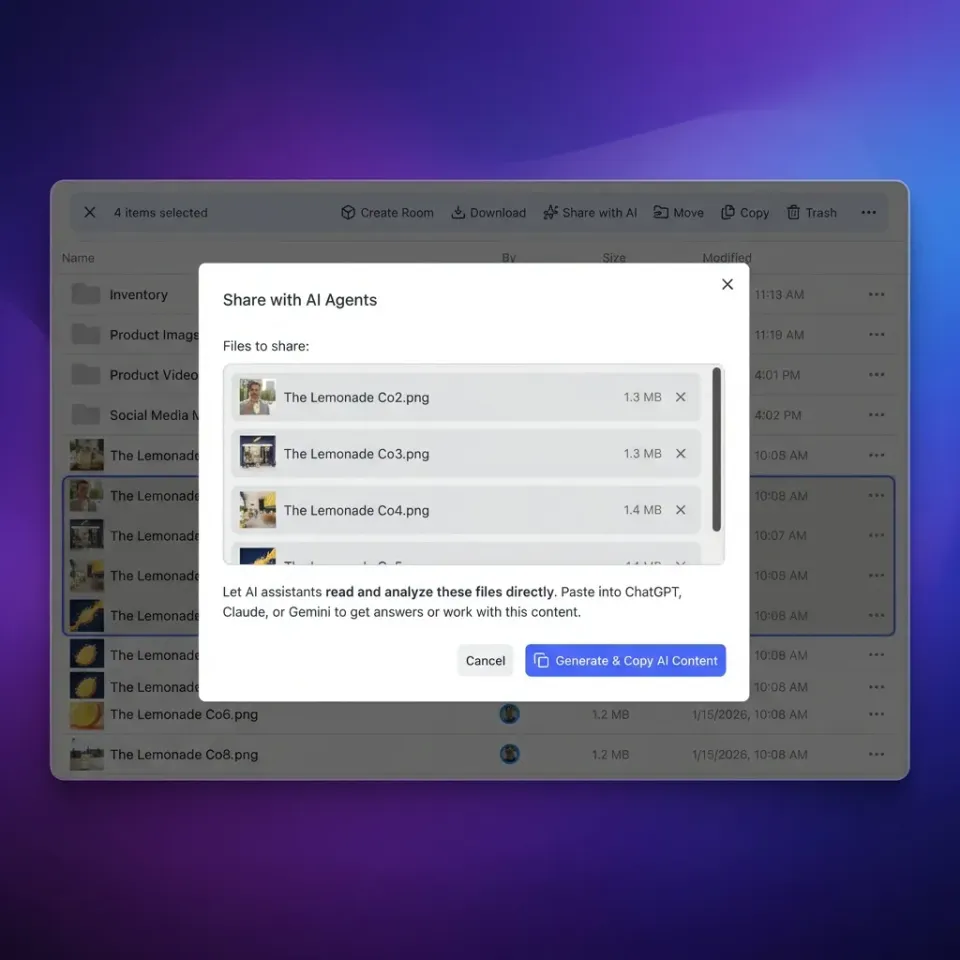
A shared workspace is persistent storage where multiple AI agents can read, write, and manage files together. It's like a team drive built for programmatic access, where agents operate through APIs and protocols instead of a browser UI.
Without shared storage, agents work in isolation. Agent A generates a report, saves it locally, and Agent B has no way to access it. Temporary links expire. Context disappears between sessions. You end up with duplicated work, broken handoffs, and debugging nightmares when you can't figure out which agent changed what.
Shared workspaces solve this by giving every agent in a system the same persistent file layer. Multi-agent systems that share a common file store tend to be far more effective than those relying only on message passing. Files are the natural artifact of agent work, and passing file IDs between agents is much cheaper (in tokens and latency) than passing file contents through chat context.
What makes an agent workspace different from Dropbox?
Traditional cloud storage assumes human users with a browser. Agent workspaces assume programmatic access. The key differences:
- API-first access: Agents connect through REST APIs or MCP (Model Context Protocol) rather than drag-and-drop
- File locking: Concurrent access from multiple agents requires lock/unlock primitives
- Audit trails: Every file operation is logged with the agent identity, not just "someone edited this"
- Webhook triggers: Agents need to react when files change, not poll for updates
- Persistent sessions: Files survive between agent runs, unlike ephemeral sandbox storage

Why Your Agent System Needs Shared Storage
Most enterprise agent deployments now use shared storage for tasks that require cross-agent coordination. The rest mostly handle single-agent, stateless tasks where persistence doesn't matter. If your agents hand work to each other, they need a shared workspace.
Five concrete benefits:
Context persistence across sessions. An agent runs a research task Tuesday, writes findings to the workspace. On Thursday, a different agent picks up those findings and continues. No re-prompting, no re-searching.
Conflict-free concurrent access. File locks prevent two agents from overwriting each other's changes. Agent A acquires a lock on
quarterly-report.json, makes edits, releases the lock. Agent B waits for the lock, then makes its edits. No data loss.Token efficiency. Passing a file ID costs a few tokens. Passing the full file content through a chat message might cost thousands. Shared storage keeps large artifacts out of context windows entirely.
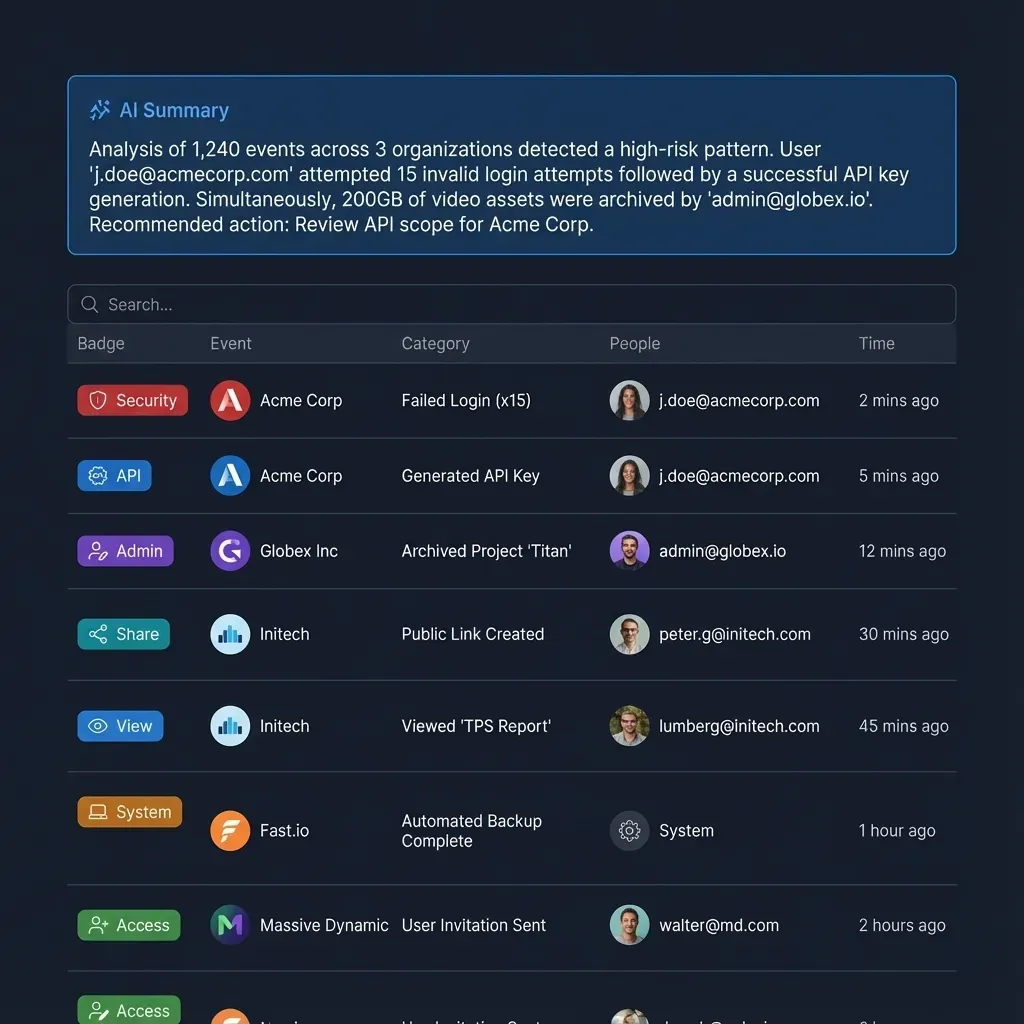
Debuggable workflows. When something goes wrong in a five-agent pipeline, audit logs tell you exactly which agent modified which file and when. Without this, debugging multi-agent systems is guesswork.
Human-agent handoff. Agents do the work, humans review it. A shared workspace makes this natural: the agent writes to a folder, the human opens the same folder in a browser and reviews. No export step, no email attachments.
The cost of not having shared storage
Without a shared workspace, teams typically resort to one of these workarounds:
- Embedding files in prompts: Expensive, limited by context window size, and impossible for binary files like images or PDFs
- Local file systems: Only works if all agents run on the same machine, which breaks in distributed or cloud-hosted setups
- Temporary URLs: Links expire, breaking long-running workflows that span hours or days
- Database blobs: Works but provides no file management features like versioning, search, or preview
Core Components of a Multi-Agent Workspace
Not every cloud storage service works well for agent collaboration. When evaluating platforms for multi-agent use, these features matter most.
File locking
This is the most important feature. When Agent A is updating analysis.json, Agent B must wait or receive a clear signal that the file is locked. Without locking, you get silent data corruption: one agent's changes overwrite another's with no error raised.
Fast.io supports file locks natively through its API and MCP server. An agent acquires a lock before writing, and releases it when done:
### Acquire lock before writing
lock = client.storage.lock_acquire(
    context_type="workspace",
    context_id="your-workspace-id",
    node_id="file-node-id"
)

### Write your changes
client.upload.text_file(
    content=updated_json,
    filename="analysis.json",
    profile_type="workspace",
    profile_id="your-workspace-id"
)

### Release lock so other agents can access the file
client.storage.lock_release(
    context_type="workspace",
    context_id="your-workspace-id",
    node_id="file-node-id"
)
Webhooks for reactive workflows
Polling wastes resources. Webhooks let agents react right away when files change. A "processor" agent uploads cleaned data, the webhook notifies the "analyst" agent to start its work. No delay, no polling loop.
Built-in RAG and search
Agents often need to query existing files: "What did the researcher find about competitor pricing?" With Intelligence Mode enabled, a workspace auto-indexes every uploaded file. Agents query the workspace in natural language and get answers with source citations. No separate vector database needed.
Granular permissions
Not every agent should have write access to everything. A researcher agent might only need read access to source data. A writer agent needs write access to the output folder but not the source data. Role-based permissions prevent accidental (or malicious) modifications.
Universal protocol support
Your workspace should work with any LLM. Fast.io's MCP server provides 251 tools via Streamable HTTP and SSE. It works with Claude, GPT, Gemini, LLaMA, and local models. If you switch LLM providers, your storage layer stays the same.


Run Set Up An AI Agent Shared Workspace workflows on Fast.io
Fast.io gives teams shared workspaces, MCP tools, and searchable file context to run ai agent shared workspace workflows with reliable agent and human handoffs.
How to Set Up a Shared Workspace Step by Step
This walkthrough uses Fast.io, which offers a free agent tier with 50GB storage, 5,000 monthly credits, and no credit card required.
Step 1: Create an organization
Every workspace lives inside an organization. Create one to group your agent workspaces together.
### Using the MCP server or REST API
### Action: org.create
### name: "My Agent Team"
### domain: "my-agent-team"
The agent plan is applied automatically. You get 50GB storage, 5 workspaces, and 50 shares for free.
Step 2: Create a workspace
Workspaces are the actual file containers. Create one per project or per agent team.
### Action: workspace.create (via org tool)
### org_id: "your-org-id"
### folder_name: "research-pipeline"
### name: "Research Pipeline"
Step 3: Set up folder structure
A good folder structure prevents chaos. This layout works well for multi-agent pipelines:
research-pipeline/
├── inbox/          # Raw inputs from external sources
├── processing/     # Files currently being worked on
├── output/         # Finished artifacts
├── shared-context/ # Reference materials all agents can read
└── logs/           # Agent activity logs and checkpoints
Step 4: Connect your agents
Each agent connects via the MCP server or REST API. For MCP-compatible frameworks:
{
  "mcpServers": {
    "fastio": {
      "url": "/storage-for-agents/",
      "transport": "streamable-http"
    }
  }
}
For frameworks that don't support MCP directly, use the REST API with an API key:
import requests

headers = {"Authorization": "Bearer your-api-key"}
response = requests.get(
    "https://api.fast.io/storage/list",
    params={"context_type": "workspace", "context_id": "your-workspace-id"},
    headers=headers
)
Step 5: Enable Intelligence Mode (optional)
If your agents need to query workspace files in natural language, toggle Intelligence Mode on for the workspace. This enables automatic RAG indexing, so agents can ask questions like "What were the key findings from last week's analysis?" and get answers with citations pointing to specific files.
Step 6: Configure permissions per agent
Give each agent only the access it needs:
- Researcher agent: Read access to
inbox/andshared-context/, write access toprocessing/ - Writer agent: Read access to
processing/andshared-context/, write access tooutput/ - Reviewer agent: Read access to
output/, write access for comments and annotations
Coordination Patterns for Multi-Agent File Access
How agents share files depends on your workflow architecture. Three patterns cover most use cases.
Sequential handoff (pipeline)
Agents work in stages. Agent A processes files and writes results to a folder. Agent B picks up from that folder and continues.
Researcher → writes to processing/
Writer → reads from processing/, writes to output/
Reviewer → reads from output/, adds annotations
When to use it: Linear workflows where each stage depends on the previous one. This is the simplest pattern and covers most content generation, data processing, and ETL pipelines.
File conflict risk: Low. Each agent writes to its own output location.
Fan-out / fan-in (parallel)
Multiple agents work on different parts of a task simultaneously, then a coordinator merges the results.
Coordinator → splits task into chunks
Each agent  → processes one chunk, writes to output/chunk-N.json
Coordinator → reads all chunks, merges into final/result.json
When to use it: Large datasets that can be processed in parallel. The coordinator waits for all chunks (using webhooks or polling) before merging.
File conflict risk: Low if each agent writes to a unique file. High if multiple agents update a shared state file, which requires locking.
Shared blackboard
All agents read and write to a shared state file (or set of files). Each agent checks the current state, decides what to do, and updates the state.
state.json contains: { "tasks": [...], "completed": [...], "in_progress": [...] }
Agent A → reads state, claims task 3, updates state
Agent B → reads state, claims task 7, updates state
When to use it: Dynamic task allocation where agents self-coordinate. Common in autonomous agent swarms.
File conflict risk: High. This pattern requires file locking. Without it, two agents reading the state at the same time might claim the same task.
Debugging and Monitoring Your Shared Workspace
Multi-agent systems fail in ways that are hard to reproduce. A file gets overwritten silently. An agent reads stale data. A lock never gets released because an agent crashed mid-operation. Good monitoring surfaces these problems before they cascade.
Check audit logs first
Every file operation in your workspace should be logged with the agent identity, timestamp, and operation type. When a downstream agent produces unexpected results, trace back through the logs to find where the data went wrong.
Fast.io's event system records all storage operations. You can filter by agent, by file, or by time range to reconstruct what happened during a failed run.
Set up webhook-based alerting
Configure webhooks to notify a monitoring system when unexpected events occur:
- A file is deleted from a folder that should be append-only
- A lock has been held for more than 5 minutes (possible agent crash)
- Multiple agents attempt to lock the same file within a short window (possible design issue)
Implement checkpoint files
Have agents write checkpoint files at each stage of their work. If an agent crashes, the next run can read the checkpoint and resume rather than starting over. Store checkpoints in a logs/ folder with timestamps:
logs/
├── researcher-checkpoint-a.json
├── researcher-checkpoint-b.json
└── writer-checkpoint-a.json
Monitor storage usage
Agents can generate a surprising amount of data, especially in loops or retry scenarios. Track your credit usage and storage consumption to catch runaway agents early. The free agent tier includes 5,000 credits per month, and you can check current usage through the billing API.
Frequently Asked Questions
What is a shared workspace for AI agents?
A shared workspace for AI agents is cloud storage where multiple agents can read, write, and manage files through APIs or MCP. It provides persistent storage that survives between agent sessions, file locking to prevent conflicts, and audit logs to track which agent modified which file. Instead of passing file contents through chat messages, agents exchange data by referencing file IDs.
How do multiple AI agents share files?
Agents share files by connecting to a common workspace through REST APIs or the Model Context Protocol (MCP). One agent uploads or modifies a file, and other agents access it by file ID or path. This avoids passing full file contents through context windows, which saves tokens and supports large binary files that can't fit in a prompt.
How do you prevent file conflicts in multi-agent systems?
Use file locking. Before modifying a shared file, an agent acquires a lock that prevents other agents from writing to it simultaneously. After the modification is complete, the agent releases the lock. Platforms like Fast.io support lock acquisition and release natively through their API. For sequential workflows, you can also avoid conflicts by having each agent write to its own output folder.
Can agents using different LLMs share the same workspace?
Yes. Because the workspace communicates through standard HTTP APIs and file formats like JSON, Markdown, and CSV, agents powered by different models can collaborate. An agent running Claude can write to the same workspace that a GPT or LLaMA agent reads from. The MCP server at Fast.io supports any MCP-compatible client regardless of the underlying model.
How much does an AI agent workspace cost?
Fast.io offers a free agent tier with 50GB of storage, 5,000 monthly credits, 5 workspaces, and 50 shares. No credit card is required and the plan does not expire. Credits cover storage (100 per GB), bandwidth (212 per GB), AI tokens (1 per 100 tokens), and document ingestion (10 per page). For most text-based agent workflows, the free tier is more than enough.
What is the Model Context Protocol (MCP) and how does it relate to shared workspaces?
MCP is an open standard that lets AI agents interact with external tools and services through a unified interface. Fast.io's MCP server exposes 251 tools for file operations, workspace management, sharing, and AI queries. Agents connect to the MCP server via Streamable HTTP or SSE transport, giving them full access to shared workspace functionality without writing custom API integration code.
How do I transfer an agent-built workspace to a human?
Fast.io supports ownership transfer. An agent creates an organization with workspaces, populates them with files, and then generates a transfer token. The human claims the token to become the owner, and the agent retains admin access. This is useful for building client deliverables, data rooms, or onboarding packages that an agent assembles and a human receives.
Related Resources

Run Set Up An AI Agent Shared Workspace workflows on Fast.io
Fast.io gives teams shared workspaces, MCP tools, and searchable file context to run ai agent shared workspace workflows with reliable agent and human handoffs.