How to Set Up Video Asset Management for Your Team
Video asset management is the system for organizing, storing, and distributing video files so teams can find what they need, collaborate on reviews, and deliver finals without losing track of versions. This guide covers practical setup for teams handling video content at scale.
What Video Asset Management Actually Means
Video asset management is the process of organizing, storing, and distributing video files using systems designed to handle large file sizes, multiple formats, and version control. It sits between raw storage (where files live) and creative tools (where editing happens). A working system answers three questions:
- Where is it? Find specific footage without digging through folders
- What version? Know which file is current and which is archived
- Who can access it? Control who views, downloads, or edits each asset
The numbers paint the picture: video will represent 82% of all internet traffic. Marketing teams manage hundreds of video assets. Finding the right clip takes 18 minutes on average. Editors spend significant time searching instead of creating. Standard file storage fails at video because it treats a large ProRes file the same as a tiny spreadsheet. Video needs streaming playback, format-aware previews, and infrastructure that handles large files without choking.
Helpful references: Fast.io Workspaces, Fast.io Collaboration, and Fast.io AI.
Why General DAM Fails for Video
Digital asset management (DAM) is a broad category. Video asset management is a specialized subset. The difference matters because video has requirements that generic systems handle poorly.
Streaming vs. Download
Most DAM systems use progressive download. You wait for the file to download before watching. For a large file on average internet, that can take considerable time. Video-specific systems use adaptive bitrate streaming (HLS), so playback starts in seconds and quality adjusts to your connection.
Transcoding and Proxies
Video workflows need proxy files. A large master becomes a smaller streaming copy for review. General DAM rarely handles this automatically. You're stuck transcoding manually or forcing reviewers to download originals.
Frame-Accurate Feedback
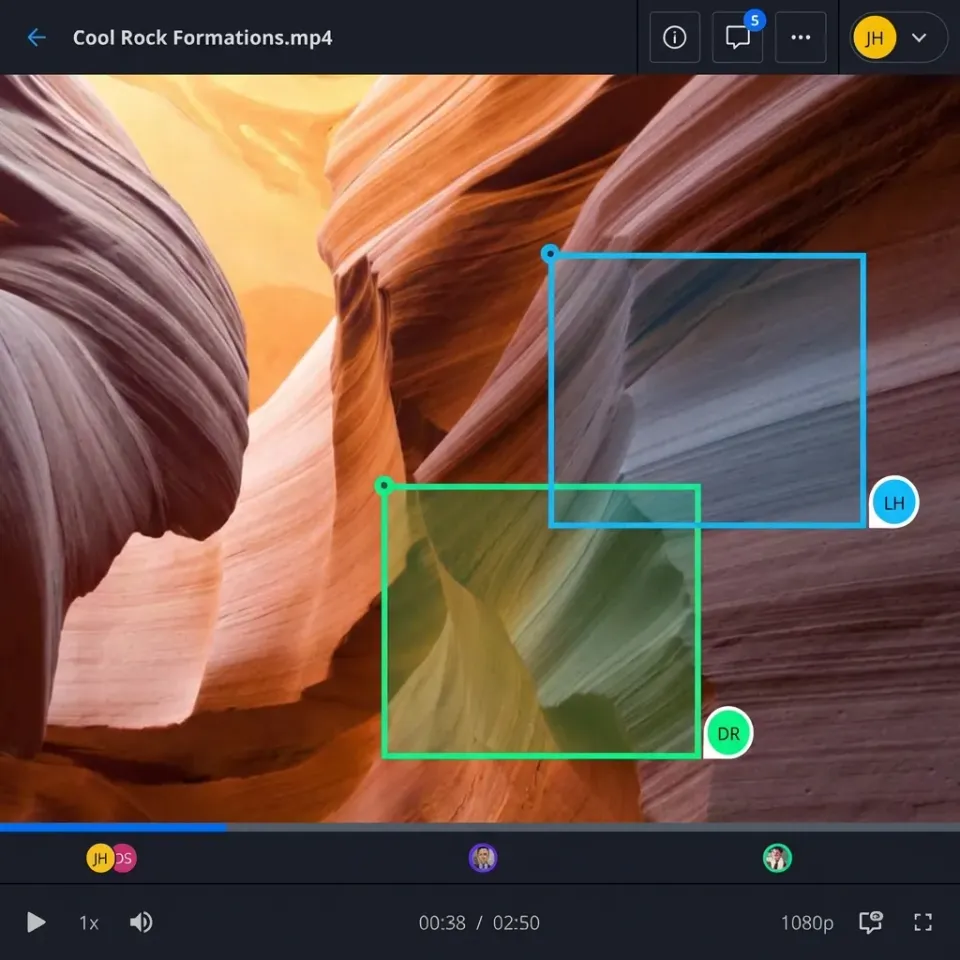
Reviewing video requires comments pinned to specific frames. "Fix color here" beats "the middle part looks off." General DAM offers file-level comments at best.
Timecode and Metadata
Production workflows depend on timecode. Camera RAW files carry lens data, exposure settings, and scene markers. General DAM often strips or ignores this information during upload. You'll also hear the term MAM (Media Asset Management). MAM typically refers to broadcast systems with scheduling, playout, and transmission features. For most creative teams, video asset management covers what you need without the broadcast complexity.
Building Your Folder Structure
Good folder structure makes finding assets intuitive. Start with a pattern that matches how your team thinks about work.
Project-First Organization Most teams organize by project at the top level:
/Video_Assets
  /2026_ClientName_Project
    /01_Source
      /Camera_A
      /Camera_B
      /Audio
    /02_Working
    /03_Exports
      /Review_Cuts
      /Final_Deliverables
    /04_Archive
Number prefixes control sort order. Keep folder depth to three levels. Deeper nesting hides assets.
Asset Library Organization
Reusable footage like stock, B-roll, and graphics works better organized by content type:
/Stock_Library
  /Backgrounds
  /Transitions
  /Lower_Thirds
  /Music
  /Sound_Effects
Most teams need both: project folders for active work, libraries for reusable assets.
Naming Conventions That Stick
The best naming convention is the one your team actually follows. Keep it simple:
Date_Project_Description_Version.ext
Example: 20260130_BrandX_Interview_CEO_v2.mov
Write it down. Post it where people can see it. Enforce it during onboarding.
Metadata and Tagging Systems
Filenames and folders only take you so far. Metadata lets you search by content, not just location.
Essential Metadata Fields
Start with fields your team will actually use:
- Project: Which project this asset belongs to
- Content type: Interview, b-roll, product shot, animation
- Status: Raw, in-progress, approved, archived
- Resolution: 1080p, 4K, 8K
- Rights: Licensed, original, restricted
Don't create dozens of fields. Create a handful that get filled in consistently.
Tagging Best Practices
Tags work when they're consistent. "aerial" vs "drone" vs "aerials" fragments your search results. Build a controlled vocabulary. Write it down. Use it. Common video tags:
- Style: interview, documentary, commercial, corporate
- Setting: indoor, outdoor, studio, location
- Content: people, product, landscape, graphics
- Technical: 4K, slow-motion, time-lapse, raw
When AI Helps
Modern platforms use AI to identify content automatically. Searching "outdoor interview mountains" finds matching clips even without manual tags. Fast.io's semantic search works this way. Describe what you're looking for in plain language. The system finds visually matching content.


Start with video asset management on Fast.io
Fast.io handles large video files with streaming preview, professional format support, and usage-based pricing. No per-seat costs for your production team.
Streaming and Preview Requirements
Previewing video shouldn't require downloading massive files. Streaming changes the workflow entirely.
Why Streaming Matters
Progressive download (the old way): Wait for the file to download, then watch. A large file on average internet takes considerable time. Adaptive streaming (HLS): Start watching immediately. Quality adjusts to connection speed. Scrubbing works instantly. For review workflows, the difference is enormous. Clients can watch cuts immediately instead of waiting. Teams can scrub through footage to find moments. Remote collaboration becomes practical.
Format Support
Your video asset management should preview professional formats in the browser:
- Camera codecs: ProRes, DNxHD, DNxHR, Blackmagic RAW
- Intermediate formats: Cineform, XAVC
- Delivery formats: H.264, H.265, MP4
If the system shows generic icons instead of actual thumbnails, you'll spend time downloading files just to see what they are. Fast.io's Universal Media Engine streams professional formats directly. Upload ProRes or DNxHD and reviewers see the actual video without specialized software.
Proxy Generation Good systems generate lightweight streaming copies automatically:
- You upload the original (full resolution, professional codec)
- System creates a web-streamable proxy in the background
- Anyone can preview without downloading
- Download delivers the original, untouched
This happens automatically. No manual transcoding required.
Version Control for Video
Video versions multiply fast. First assembly, director's notes, client feedback round one, legal revisions. Without a system, you get filename chaos.
Naming
Versions Use a pattern everyone understands:
- v1, v2, v3: Major versions (significant changes)
- v1.1, v1.2: Minor revisions within a major version
- v1_CLIENT, v1_INTERNAL: Audience variants
Example progression:
BrandX_Spot_v1.mov          # First assembly
BrandX_Spot_v1.1.mov        # Internal notes addressed
BrandX_Spot_v2.mov          # Post client feedback
BrandX_Spot_v2_30sec.mov    # Duration variant
BrandX_Spot_v3_FINAL.mov    # Approved master
Archive, Don't Delete
Never delete old versions. Archive them. Clients ask to revisit earlier cuts. Stakeholders change their minds. Legal requires specific versions retained. ``` /03_Exports /Current BrandX_Spot_v3_FINAL.mov /Archive BrandX_Spot_v1.mov BrandX_Spot_v2.mov
### Platform Version History

Some platforms track versions automatically when files are overwritten. Useful as a safety net, but not a replacement for explicit versioning:

- Automatic history often expires after 30-90 days
- Large files may not retain full version history
- No context for why versions differ

Use both: explicit versioning as your system, platform history as backup.
Collaboration and Review Workflows
Getting feedback on video traditionally means email chains and comments like "the middle part is too long." Time-coded, frame-accurate feedback changes everything.
Review Setup
A good review workflow:
- Upload the cut to a shared workspace
- Generate a review link (view-only, password if sensitive)
- Share with stakeholders
- Collect feedback through in-platform comments
- Upload revision, repeat until approved
Everything stays in one place. No email attachment limits, no "which version?" confusion.
Frame-Accurate Comments
Comments should pin to specific frames: "Jump cut here" beats "somewhere in the middle."
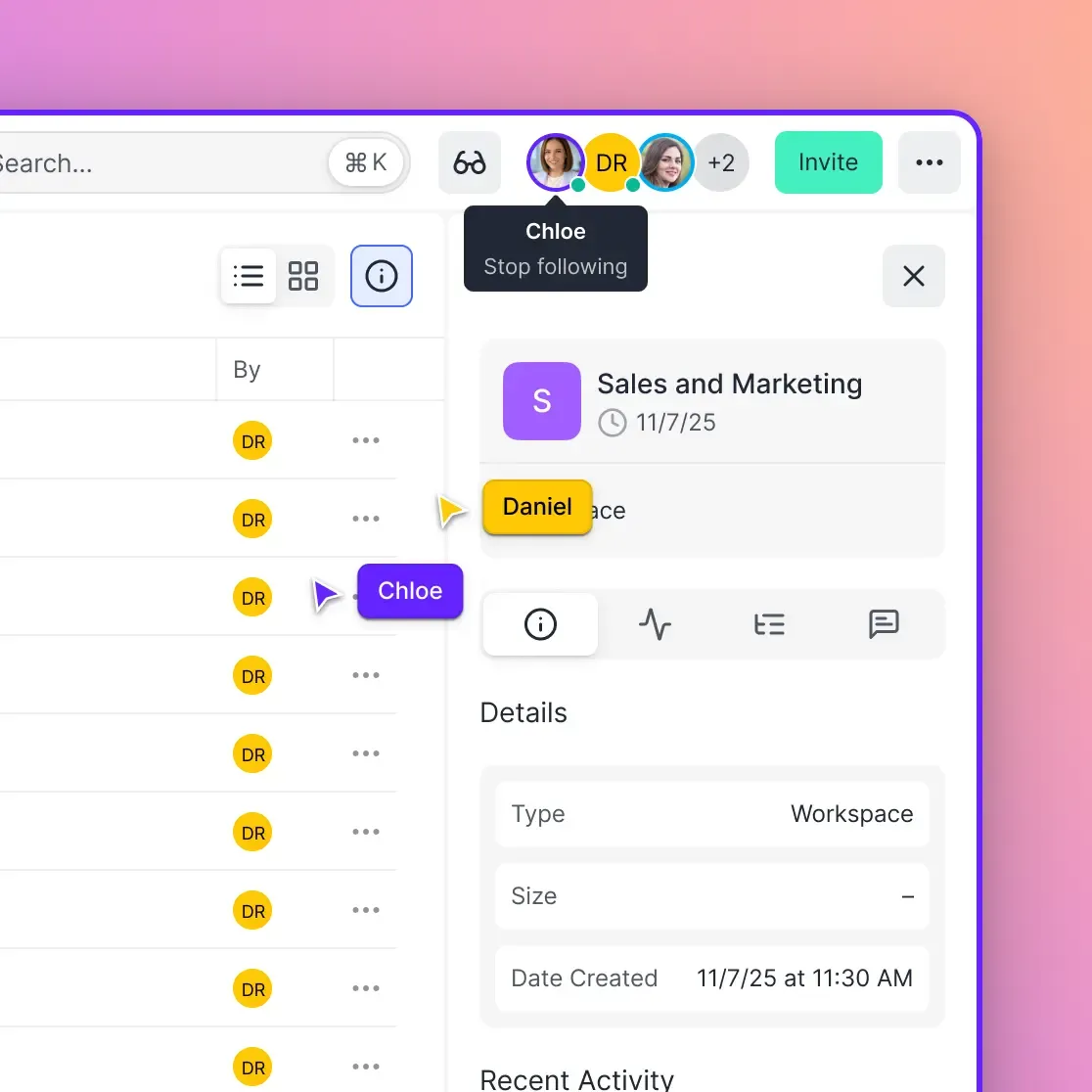
Drawing tools let reviewers circle exactly what needs attention. Discussion threads stay attached to specific moments. Fast.io supports contextual comments on video frames. See who's watching in real-time. Collaborate live during review sessions.
Approval Tracking
Track status per asset:
- Pending review: Waiting for stakeholder feedback
- Changes requested: Feedback received, revision needed
- Approved: Ready for delivery or archive
This eliminates "did they approve this?" confusion.

Access Control and Permissions
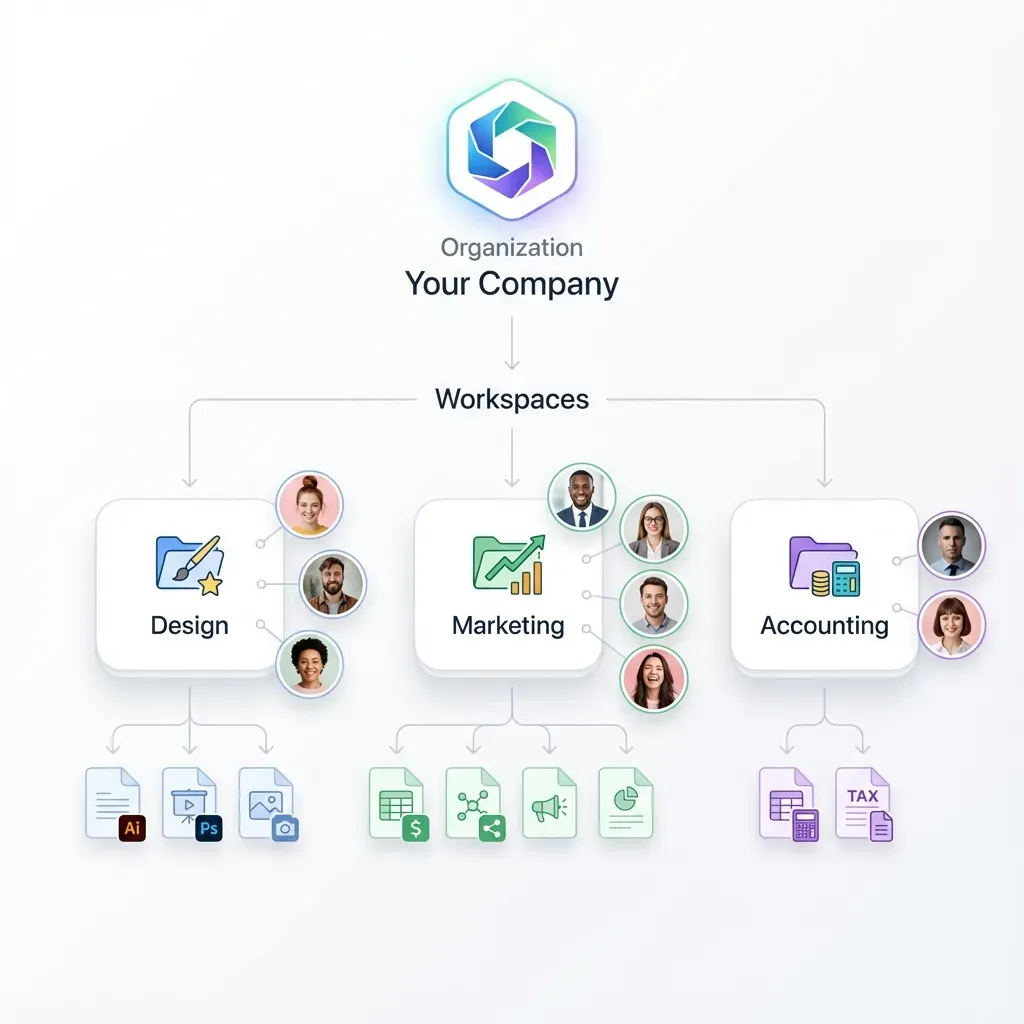
Not everyone needs the same access. Granular permissions prevent accidental changes and control sensitive content.
Permission Levels
Typical video asset management permissions:
- View only: Watch and comment, no download
- Download: View plus download originals
- Upload: Add new assets to workspace
- Edit: Modify metadata, move files
- Admin: Manage permissions, delete assets
Match permissions to roles. Clients get view-only. Editors get full access. External reviewers get time-limited links.
External Sharing
Sharing outside your organization needs controls:
- Password protection: Basic security layer
- Expiration dates: Access ends automatically
- Domain restrictions: Only allow access from specific email domains
- Watermarking: Visible identifier on preview
Fast.io's link controls include all of these. Set them once; they apply to everyone accessing that link.
Audit Trails
Know who accessed what and when. Audit logs track:
- Views and downloads
- Permission changes
- File modifications
- Login activity
Essential for sensitive content, client assets, or anything under NDA.
Delivering Finals to Clients
After approval, finals need to reach clients reliably. This seems simple until you're sending massive delivery packages.
Delivery Options
Direct download links: Works for smaller files. Impractical for large packages.
Streaming plus download: Client previews first, downloads when ready. Reduces wrong-file mistakes.
Branded portals: Dedicated space with your branding. Professional presentation for high-value clients.
Specification packages: Multiple versions (web, broadcast, social) organized in one folder.
Standard Delivery Contents
A complete delivery typically includes:
- Final master (highest quality)
- Web-optimized version (H.264, reasonable bitrate)
- Textless version (if graphics were burned in)
- Audio splits if requested
- Technical specifications document
Label everything . "Use this for social" prevents client confusion.
Data Rooms for Sensitive Delivery
High-stakes deliveries benefit from data room features:
- View analytics (who watched, how long)
- Download tracking
- One-click access revocation
- Professional branded presentation
Fast.io's data rooms combine delivery with deal intelligence. See engagement metrics alongside secure access controls.
Frequently Asked Questions
What is video asset management?
Video asset management is the process of organizing, storing, and distributing video files using systems designed for video-specific challenges: large file sizes, multiple formats, version control, and frame-accurate review. Unlike general file storage, it handles transcoding, streaming preview, timecode preservation, and metadata management that video production requires.
How do you organize video files?
Most production teams organize by project first, then by asset type. Use numbered folder prefixes (01_Source, 02_Working, 03_Exports) to control sort order. Keep depth to three levels. Establish naming conventions that include date, project code, description, and version. The specific structure matters less than everyone following the same rules.
What is the difference between MAM and DAM?
DAM (Digital Asset Management) is a broad category for managing any digital files. MAM (Media Asset Management) typically refers to broadcast systems with scheduling, playout, and transmission features. Video asset management falls between them, focused on video-specific needs like transcoding and frame-accurate review without broadcast complexity. For most creative teams, video asset management covers what's needed.
How do production companies manage video files?
Production companies use centralized systems with automatic proxy generation for review, frame-accurate commenting, version tracking, and secure external sharing. Files are organized by project with standardized naming conventions. Review happens through streaming links rather than file transfers. Access is controlled through workspace-based permissions rather than complex folder hierarchies.
What features should a video asset management system have?
Essential features include automatic transcoding and proxy generation, metadata preservation and search, frame-accurate commenting for review, version control, streaming playback without downloads, secure external sharing with password protection and expiration dates, and audit logging. AI-powered search that understands natural language queries helps as video libraries grow.
Can I preview ProRes and professional video formats in a browser?
Yes, with the right platform. Look for video asset management with a universal media engine that streams professional formats. Fast.io handles ProRes, DNxHD, and other production codecs directly in the browser without specialized software.
How do I control access to sensitive video content?
Use granular permissions matching roles to access levels. Apply password protection, expiration dates, and domain restrictions to shared links. Enable audit logs to track who accessed what. Use watermarking for pre-approval content.
Related Resources

Start with video asset management on Fast.io
Fast.io handles large video files with streaming preview, professional format support, and usage-based pricing. No per-seat costs for your production team.