How to Share Files Without Compression
Sharing files without compression means transferring data in its original format and quality, avoiding the lossy encoding used by social media and email platforms. This guide explains how to bypass automatic compression using cloud storage, direct transfer protocols, and proper archiving techniques to ensure your recipients receive exactly what you sent.
Why Do Platforms Compress Your Files?
Understanding why compression happens is the first step toward avoiding it. Most consumer platforms compress files automatically because storing and transferring data costs money. Every gigabyte stored on their servers, every byte transferred over their networks, adds to their infrastructure bills. To protect their margins while offering free or low-cost services, they reduce file sizes aggressively.
Social media compression is particularly destructive. Platforms like WhatsApp, Facebook Messenger, and Instagram compress images aggressively. A high-resolution photo from your camera might arrive as a blurry, low-quality version. The same photo you carefully edited in Lightroom, exported at maximum quality, gets re-encoded the moment you share it. These platforms prioritize speed and server efficiency over your image quality because most casual users never notice the difference.
Email was never designed for large files. Most email providers enforce strict attachment limits. Gmail caps attachments at 25MB. Outlook allows up to 20MB. When you try to attach larger files, many email clients automatically suggest resizing images or compressing videos to fit within these constraints. Even when files fit under the limit, some providers re-encode attachments to reduce storage costs.
The word "optimization" often hides quality loss. Google Photos offers "High Quality" storage that sounds premium but actually recompresses every image. High-resolution photos get downscaled. HD videos get reduced. For casual snapshots, this might be acceptable. For professional work in photography, video production, architecture, or print design, this "optimization" destroys the data needed for editing, color grading, and final output. The common thread is that consumer platforms treat your files as content to be displayed, not packages to be delivered intact. To share files without losing quality, you need tools that respect your original data.
Helpful references: Fast.io Workspaces, Fast.io Collaboration, and Fast.io AI.
What to check before scaling share files without compression
The most straightforward way to share uncompressed files is through cloud storage services that preserve original uploads. Unlike social platforms that process and re-encode everything, dedicated file storage services keep the exact binary data you upload.
Choose file-centric platforms over content platforms. Services like Dropbox, Google Drive (with proper settings), Box, and Fast.io are built to store files exactly as they are. When you upload a ProRes video file, the recipient downloads the exact same ProRes video file with identical timecode, color data, and audio tracks. The service acts as a delivery mechanism, not a content processor.
Always verify your storage settings. Some services default to "optimized" or "smart" storage modes that compress files to save space. Google Drive, for example, has a "Storage saver" option that reduces quality for photos and videos. Before uploading critical assets, check your account settings and confirm you're using "Original quality" or equivalent full-resolution storage.
Share via link instead of attachment. Rather than attaching files directly to emails or messages, upload them to your cloud storage and generate a shareable link. This approach bypasses email size limits entirely. Your recipient clicks the link and downloads the original file directly from the cloud server. No intermediate processing, no compression, no quality loss.
Consider folder organization for recurring workflows. If you regularly share files with the same clients or collaborators, set up dedicated shared folders. New files appear automatically for everyone with access. This eliminates the repetitive process of generating and sending individual links while maintaining original quality for every file.
Method 2: Protect Files with Uncompressed Archives
When you must use a transfer method that might tamper with files, or when you want to bundle multiple assets together, wrapping them in an archive provides a protective container.
Create archives with "Store" compression. Tools like 7-Zip, WinRAR, and the built-in archive utilities on Mac and Windows can create ZIP or 7z files using "Store" mode, which means zero compression. This wraps your files in a container without attempting to shrink them. The resulting archive is essentially a folder packaged as a single file, with every byte of your original data intact.
Archives bypass platform processing. Most platforms recognize archive files as opaque data blobs. They won't attempt to "optimize" a ZIP file the way they might resize a JPEG or re-encode an MP4. The container protects the contents from automated processing. This trick works on most messaging platforms, email services, and even some social media direct messages.
Bundling makes transfers more reliable. Sending many individual photos creates many opportunities for something to go wrong. One photo might fail to upload. Another might get compressed by an overzealous email client. By bundling all your photos into a single archive, you reduce the transfer to one file. Either it arrives complete and intact, or it fails . No partial deliveries or mixed-quality results.
Add verification with checksums. For mission-critical transfers, generate an MD5 or SHA-256 checksum of your archive before sending. Share the checksum separately. Your recipient can verify the downloaded archive matches the checksum exactly, confirming nothing was altered or corrupted during transfer. This level of verification is standard practice in video post-production and software distribution.
Watch your archive format. ZIP is universally supported, but 7z offers better organization for complex folder structures. For Mac-to-Mac transfers, native archive utilities handle both formats well. For cross-platform work, plain ZIP is the safest choice.


Share Files Without Limits on Fast.io
Fast.io delivers your files exactly as you exported them. Start free with no per-seat fees, stream previews instantly, and let recipients download full-resolution originals.
Method 3: Direct Transfer Without Cloud Middlemen
For the fast uncompressed transfer with complete control, skip cloud services entirely and move files directly between devices.
Device-to-device protocols preserve everything. AirDrop on Apple devices and Quick Share (formerly Nearby Share) on Android transfer files directly over WiFi or Bluetooth. These protocols do not compress, re-encode, or modify files in any way. They move raw data from one device to another. AirDrop is particularly useful for transferring media from an iPhone to a Mac for editing, delivering the exact camera file without any processing.
Local network transfers maximize speed. When both devices are on the same local network, direct transfer can saturate your network connection. A gigabit Ethernet connection transfers roughly 100MB per second. That means a 10GB video file moves in about 100 seconds. Cloud uploads and downloads, even with fast internet, often can't match local transfer speeds because of server congestion, distance, and protocol overhead.
FTP and SFTP for maximum control. Running an FTP or SFTP server gives you complete control over file transfers. Files move as binary data streams with no compression unless you specifically configure it. Setting up an FTP server requires some technical knowledge, but it's a reliable solution for teams that regularly transfer large files within an office or between production facilities.
UDP-based tools for massive files. For enormous transfers, professionals use UDP-based acceleration tools. Standard TCP connections include overhead for reliability checks that can slow transfers. UDP-based solutions like Aspera, Signiant, and MASV optimize for raw throughput, verifying integrity at the destination rather than during transfer. These tools are standard in film, broadcast, and scientific research where datasets routinely exceed terabytes.
Consider hybrid approaches. You might use AirDrop to move files from your phone to your laptop, then upload to cloud storage for delivery to a client. Or use SFTP to transfer files between production servers, then generate share links for external review. The key is choosing the right tool for each leg of the journey.
The Fast.io Approach: Stream for Preview, Download for Delivery
Most file sharing scenarios involve a fundamental tension. You want recipients to preview content quickly without downloading massive files. But you also need them to receive the full-resolution original when they're ready to work with it. Fast.io resolves this tension with a hybrid approach that separates viewing from delivery.
Original files remain untouched. When you upload to Fast.io, your original asset stays exactly as you exported it. Upload a 4GB ProRes 4444 file, and that exact file gets stored. The master file is never compressed, re-encoded, or modified. It sits in your cloud storage, waiting for download, in its original form.
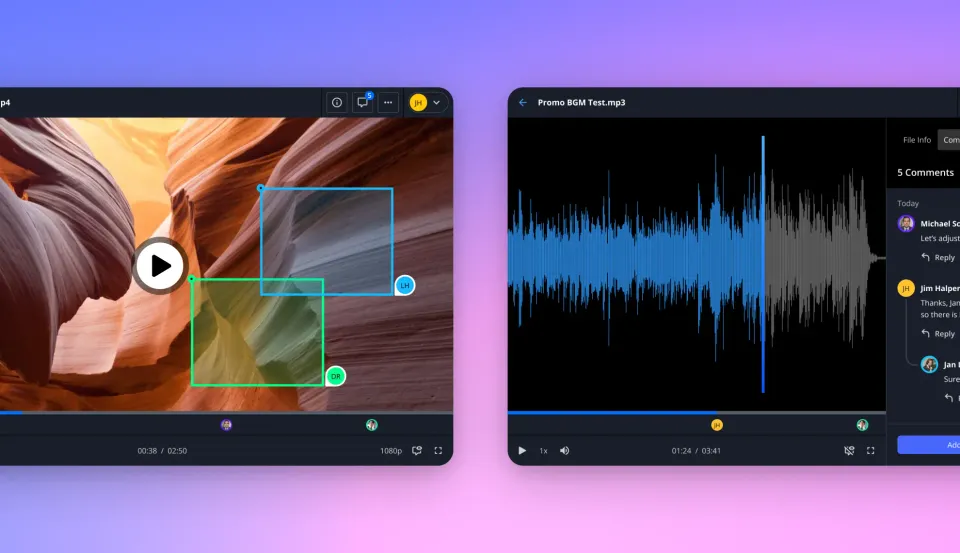
Automatic proxy generation for streaming. For every video, Fast.io generates lightweight streaming proxies using HLS (HTTP Live Streaming), the same adaptive bitrate technology Netflix uses. These proxies let clients and collaborators watch content instantly in their browser. No buffering while the file downloads. No waiting for a large file to transfer before seeing the first frame. They can scrub through the timeline, jump to any point, and review content at streaming quality.
Recipients choose preview or download. The viewer interface offers both options . Someone doing a quick approval can watch the streamed proxy, leave timestamped comments on specific frames, and move on. Someone who needs to work with the actual file can click download and receive the full-resolution original. Same link, two different experiences based on what the recipient needs.
No arbitrary file size limits. Email caps at 25MB. Free transfer tools often limit individual files. Fast.io handles files of any size. Send a 500GB raw footage folder as easily as a PDF. The streaming proxy approach means even enormous files are immediately viewable while the full download happens in the background if needed.
Built for production workflows. Frame-accurate commenting lets editors and directors communicate precisely about specific moments in a video. Activity tracking shows who viewed what and when. Branded portals let agencies deliver client work through a professional interface. These features make Fast.io particularly suited for creative teams who need quality and collaboration together.
Choosing the Right Method for Your Situation
Each transfer method has strengths suited to different scenarios. Here's how to decide which approach fits your needs.
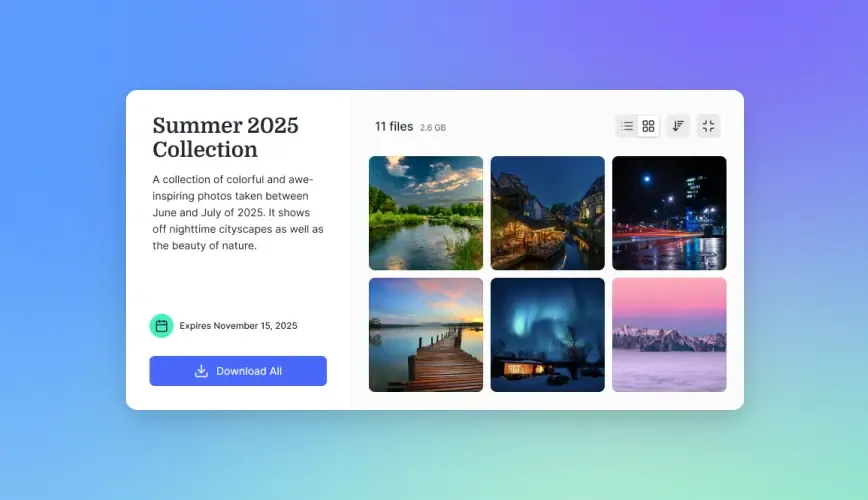
For one-time transfers to non-technical recipients: Use cloud storage with share links. Upload your files to Fast.io, Dropbox, or Google Drive, generate a link, and send it via email or message. The recipient clicks once and downloads. No software installation, no account creation, no technical steps. This works for delivering final assets to clients, sharing photos with family, or sending documents to anyone.
For recurring collaboration with the same team: Set up shared folders or workspaces. Everyone with access sees new files automatically. Changes sync without manual re-sharing. This reduces the friction of generating individual links while maintaining quality. Fast.io's workspace model works well here, with organization-owned files that persist regardless of who uploaded them.
For maximum speed on local networks: Use direct transfer tools. AirDrop between Apple devices, Quick Share between Android devices, or FTP/SFTP between computers on the same network. These methods bypass internet upload and download entirely, moving files at local network speeds.
For protecting files sent through messaging apps: Bundle files into uncompressed archives before sending. The ZIP container protects contents from platform compression. This works for sending photos through WhatsApp or Messenger when you can't convince the recipient to use a proper file sharing link.
For massive files in professional production: Consider specialized transfer tools with UDP acceleration. When you're moving terabytes of raw footage between production facilities, general-purpose cloud storage may not offer adequate speed. Tools like MASV, Signiant, and Aspera are designed specifically for high-volume media transfer.
For mixed audiences with different needs: Use a hybrid streaming service like Fast.io. Clients who just need to review can stream instantly. Team members who need to edit can download the original. One upload serves multiple use cases without quality compromise.
Common Mistakes That Cause Quality Loss
Even when using the right tools, certain habits can undermine file quality. Avoid these common pitfalls.
Re-encoding before sharing. Some people export video at lower quality "to make it smaller" before uploading to a cloud service. This is unnecessary and destructive. Cloud storage doesn't compress your uploads. You've just permanently reduced your video quality for no benefit. Always upload your full-quality export and let the recipient choose whether they need a smaller version.
Using social platforms for file transfer. Sending files through Instagram DMs, Facebook Messenger, or even iMessage (for large files) almost always triggers compression. These platforms are designed for casual content sharing, not file delivery. Even if the interface shows your full-resolution image, it may be re-encoded on the server before reaching the recipient.
Forgetting to check settings. Google Drive, Google Photos, and iCloud all have storage optimization settings that compress files to save space. If you're using these services for professional work, verify you're using original-quality storage. A one-time settings check prevents ongoing quality loss.
Assuming email attachments are safe. Email providers increasingly process attachments to save storage. Some re-encode images. Some strip metadata. Some convert formats. Even when your file arrives, it may not be identical to what you sent. For important files, use cloud storage links instead of direct attachments.
Ignoring file format choices. Some formats compress better than others for the same quality. Delivering a 500MB uncompressed TIFF when a 50MB PNG would be visually identical wastes transfer time without quality benefit. Understand your format options and choose appropriately. Lossless formats like PNG, FLAC, and ProRes preserve full quality. Lossy formats like JPEG, MP3, and H.264 trade quality for size.
Skipping verification on critical transfers. For files where accuracy matters legally or financially, verify the received file matches what you sent. Generate checksums before sending. Compare file sizes. Open the file and check it's playable or viewable. A few seconds of verification prevents hours of rework when transfers go wrong.
Frequently Asked Questions
How do I share photos without losing quality?
Avoid messaging apps like WhatsApp, Messenger, or Instagram, which compress images automatically. Instead, upload your photos to a cloud storage service like Fast.io, Dropbox, or Google Drive (set to 'Original Quality') and share the download link. For Apple devices, AirDrop transfers photos at full quality without compression. If you must use a messaging app, wrap photos in an uncompressed ZIP archive first.
Which file sharing service does not compress video?
Professional file transfer services like Fast.io, MASV, Dropbox, and WeTransfer do not compress video files. They transfer the exact file you upload byte-for-byte. Consumer services like YouTube, Vimeo, WhatsApp, and Facebook re-encode videos to their own formats and quality levels, resulting in quality loss. For video production workflows, choose a service that separates streaming previews from original file downloads.
Does zipping a file reduce quality?
No. ZIP is lossless compression. It reduces file size by finding patterns in the data, but when you extract the archive, the original file is restored bit-for-bit identical. For already-compressed formats like JPEG or MP4, ZIP provides little size reduction but acts as a protective container. Using 'Store' mode in ZIP creates an uncompressed archive that bundles files together.
How do I send a large video file without compression?
Upload the video to a cloud platform like Fast.io that supports large files without size limits. Share the download link with your recipient. They can stream a preview instantly or download the full original file when ready to work with it. Avoid emailing video files directly, as email services block large attachments and may compress smaller ones.
Why do my photos look worse after sharing them?
Most sharing platforms re-encode images to save bandwidth and storage costs. WhatsApp, Messenger, and social media platforms apply aggressive compression that reduces image quality. To preserve quality, share via cloud storage links or use AirDrop for local transfers. The platform that receives your photo determines the quality, not the camera or editing software you used.
What's the best format for sharing uncompressed video?
ProRes (Mac) and DNxHD/DNxHR (cross-platform) are industry-standard formats that preserve full quality while remaining editable. For delivery to clients who won't edit the footage, high-bitrate H.264 or H.265 offers excellent quality with smaller file sizes. The key is exporting at your intended final quality and using a transfer method that doesn't re-encode your export.
Related Resources

Share Files Without Limits on Fast.io
Fast.io delivers your files exactly as you exported them. Start free with no per-seat fees, stream previews instantly, and let recipients download full-resolution originals.