How to Send Video Without Losing Quality
Sending video without losing quality means transferring video files in their original format without compression that degrades resolution, color, or audio. Most messaging apps and email services compress videos , turning crisp footage into pixelated mush.
Why Videos Lose Quality When You Send Them
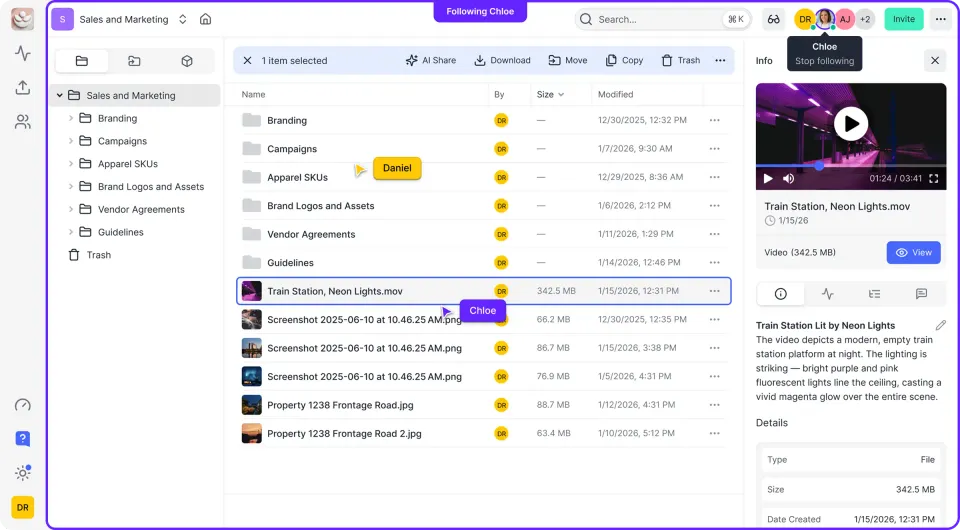
Video files lose quality for one reason: compression. When you attach a video to an email, send it through WhatsApp, or upload it to most messaging platforms, the service reduces the file size by discarding visual data. Email services apply heavy compression to large attachments. WhatsApp limits videos to 16MB and applies heavy compression regardless of your original quality. Even iMessage degrades video quality when sending to non-Apple devices. The compression happens because these platforms prioritize speed and storage efficiency over fidelity. High-resolution videos shot on your phone can be several gigabytes in size. No messaging service wants to store or transmit files that size, so they shrink them. For casual sharing, this tradeoff is acceptable. But for professional work, client deliveries, or archival purposes, you need the original quality intact.
Helpful references: Fast.io Workspaces, Fast.io Collaboration, and Fast.io AI.
Method 1: Cloud Storage Services
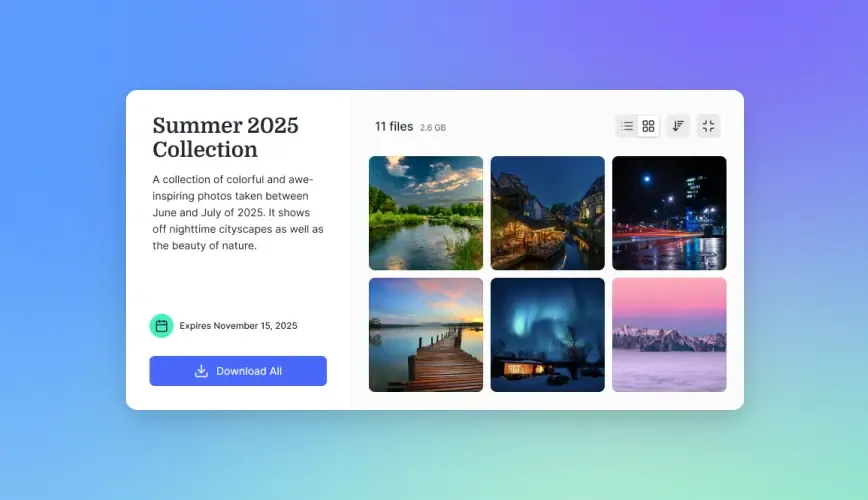
Cloud storage platforms like Google Drive, Dropbox, and OneDrive let you upload videos at full quality and share download links. The recipient downloads the exact file you uploaded, with no compression applied.
How it works:
- Upload your video to the cloud service
- Generate a shareable link
- Send the link via email or message
- Recipient downloads the original file
Limitations to know:
- Free plans have storage caps (15GB for Google Drive, 2GB for Dropbox)
- Large videos take time to upload and download
- Recipients need to download the entire file before viewing
- No streaming preview for large files
Cloud storage works well for occasional sharing between individuals. For teams or frequent large file transfers, the storage limits and download wait times slow things down.
Method 2: File Transfer Services
File transfer services such as WeTransfer, Smash, and Dropbox Transfer are built specifically for sending large files. They typically offer larger upload limits and simpler interfaces than general cloud storage.
Advantages:
- WeTransfer allows up to 2GB free (200GB on paid plans)
- Dropbox Transfer supports up to 250GB per transfer
- No account required for recipients
- Links auto-expire to save storage
Drawbacks:
- Files expire after 7-30 days
- No organization or folder structure
- Recipients still must download before viewing
- Not suitable for ongoing collaboration
Transfer services work best for one-off deliveries when you don't need to keep files organized or accessible long-term.


Share Files Without Limits on Fast.io
Fast.io gives teams shared workspaces, MCP tools, and searchable file context to run send video without losing quality workflows with reliable agent and human handoffs.
Method 3: Cloud-Native Platforms with Streaming
The most efficient approach combines full-quality storage with streaming playback. Cloud-native platforms store your original video files while generating optimized streaming proxies.
How streaming helps:
- Recipients watch instantly without downloading
- Adaptive bitrate adjusts to their connection
- Original file remains untouched at full quality
- Download option available when needed
Fast.io uses HLS (HTTP Live Streaming), the same technology used by major streaming platforms. Your master file stays preserved. When someone opens the link, they get instant playback without waiting for a large file download. If they need the original, they can still download it. Viewers get immediate access, and the original quality is preserved for those who need it.
Method 4: Unlisted Video Hosting
YouTube and Vimeo let you upload videos as "unlisted," making them viewable only to people with the link. This provides streaming playback without making content public.
Considerations:
- YouTube applies its own compression (good but not lossless)
- Vimeo preserves quality better, especially on paid plans
- No way for viewers to download the original file
- Your content lives on a third-party platform
- Terms of service may affect commercial use
This method works for review purposes when you don't need the recipient to have the source file. It's not suitable when they need the actual master for editing or delivery.
Choosing the Right Method
The best approach depends on your use case:
For occasional personal sharing: Use Google Drive or Dropbox. Free tiers work for most videos under 15GB. Accept the download wait time.
For one-time large deliveries: File transfer services like WeTransfer handle big files with minimal setup. Just remember links expire.
For professional workflows: Cloud-native platforms with streaming let clients preview immediately while preserving originals for download. This works best for ongoing client work, review cycles, and team collaboration.
For review-only purposes: Unlisted YouTube or Vimeo works when recipients don't need source files. Good for approvals and feedback rounds.
File Format Tips
Before sending, consider your export settings:
- H.264 in MP4 container: Most compatible, reasonable file sizes
- H.265/HEVC: Better compression, same quality, but less compatible with older systems
- ProRes or DNxHD: Professional formats, much larger files, best for editing handoffs
What to Avoid
Skip these methods when quality matters:
Email attachments: Most email providers cap attachments at 25MB and compress anything larger. Gmail, Outlook, and Yahoo all apply compression.
Messaging apps: WhatsApp, Messenger, Telegram, and iMessage all compress video. WhatsApp is particularly aggressive, limiting videos to 16MB.
Social media uploads: Instagram, TikTok, and Facebook compress everything to their own specs. Never send source video through these platforms.
Free "video compressors": Online tools that promise to "reduce file size without quality loss" are misleading. Compression always involves tradeoffs. If you need smaller files, use proper encoding software like HandBrake with understood settings. The features that matter most depend on your specific use case. Rather than chasing the longest feature list, focus on the capabilities that directly impact your daily workflow. A well-executed core feature set beats a bloated platform where nothing works particularly well.
Frequently Asked Questions
How do I send a video without it being blurry?
Use a cloud storage service like Google Drive or a cloud-native platform like Fast.io that doesn't compress your upload. Avoid email attachments and messaging apps like WhatsApp, which reduce quality to shrink file size. Share via download link instead of direct attachment.
Why does my video lose quality when I send it?
Most platforms compress video to reduce file size and speed up transmission. Email services cap attachments at 25MB. Messaging apps like WhatsApp limit videos to 16MB. This compression discards visual data, causing blur and pixelation. Use services that preserve original files.
What app sends videos without losing quality?
Google Drive, Dropbox, and OneDrive preserve full quality because recipients download the original file. Fast.io combines full-quality storage with streaming playback, letting viewers watch instantly while keeping the original available. Avoid WhatsApp, iMessage, and email for quality-sensitive video.
Can I send a video without compressing it?
Yes. Upload to cloud storage and share a download link instead of attaching the file directly. The recipient downloads your exact file with no compression applied. For large videos, use file transfer services like WeTransfer or platforms with streaming like Fast.io.
What is the best format for sending video?
MP4 with H.264 encoding offers the best balance of quality, file size, and compatibility. Most devices and platforms support it natively. For professional editing handoffs, use ProRes or DNxHD, but expect much larger files.
Related Resources

Share Files Without Limits on Fast.io
Fast.io gives teams shared workspaces, MCP tools, and searchable file context to run send video without losing quality workflows with reliable agent and human handoffs.