How to Set Up a Secure Client Portal for File Sharing
A secure client portal is a password-protected online space where businesses share files, collect feedback, and collaborate with external clients. This guide covers the essential security features every client portal needs, how to set one up, and the differences between client portals and basic file sharing tools.
What Is a Secure Client Portal?
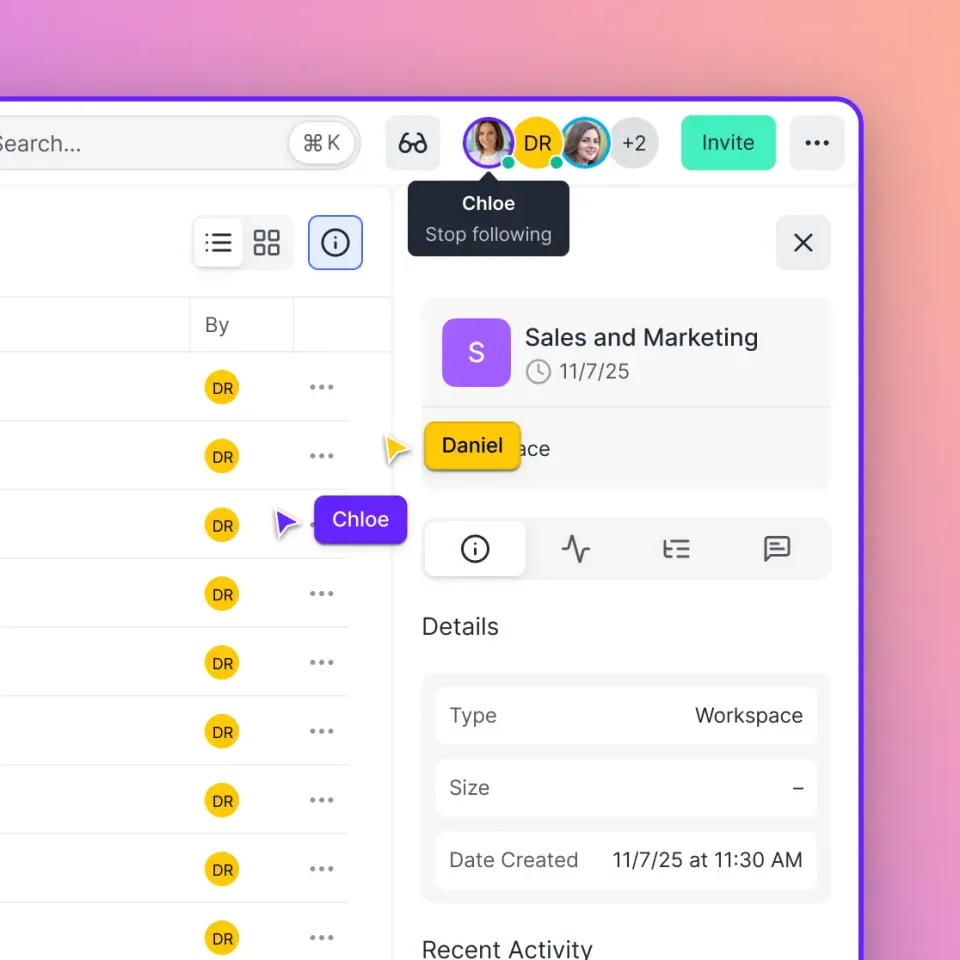
A secure client portal is a protected digital gateway where you share files, collect documents, and collaborate with people outside your organization. Unlike email attachments or generic file sharing links, a client portal gives you centralized control over who sees what, when, and for how long. The core components of a secure client portal include:
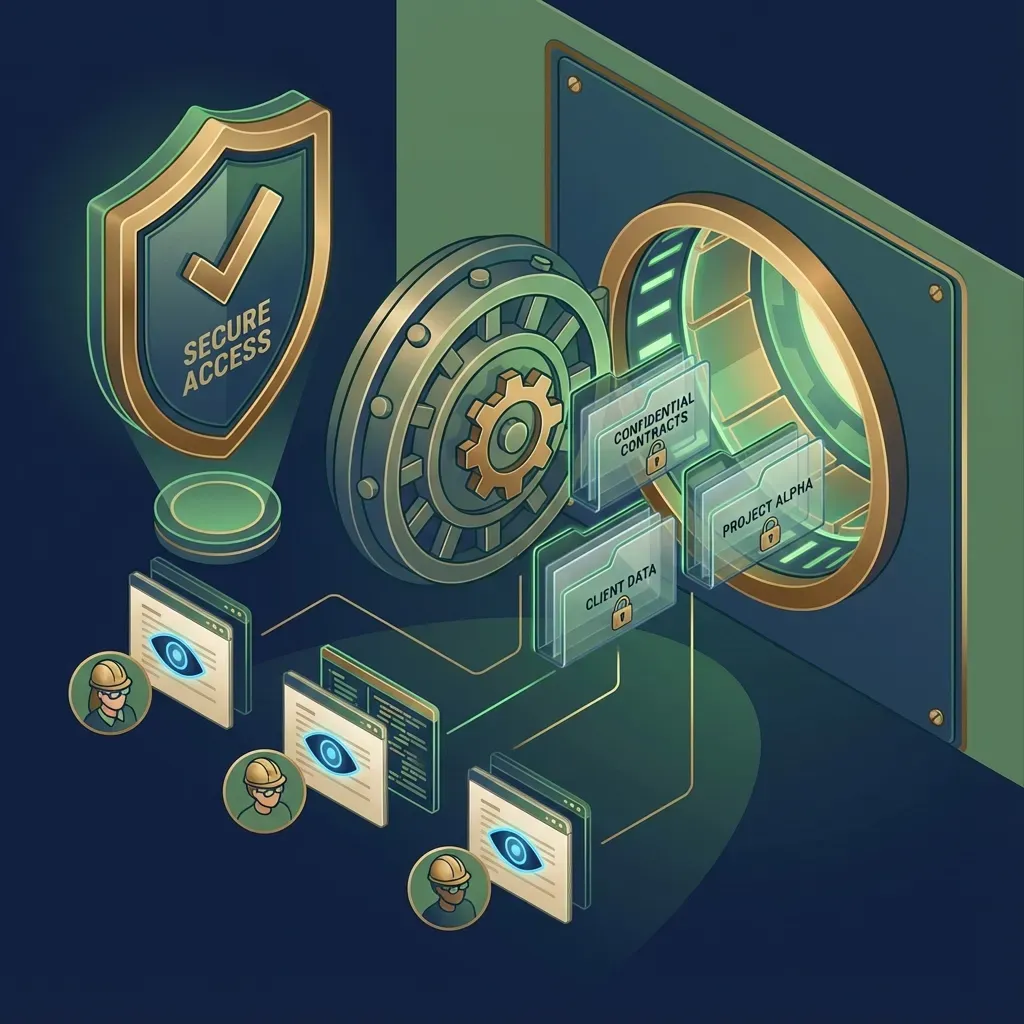
- Authentication: Clients log in with credentials or access via secure, unique links
- Encryption: Files protected both at rest and during transfer
- Access controls: Permissions down to individual files or folders
- Audit trails: Complete logs of who accessed, downloaded, or modified files
- Branding: Your logo, colors, and domain instead of generic third-party branding
67% of clients prefer self-service portals over email for document exchange. Portals cut the back-and-forth of email threads. No more hunting for attachments or wondering which version is current. Clients get one place to find everything.
Helpful references: Fast.io Workspaces, Fast.io Collaboration, and Fast.io AI.
Essential Security Features for Client Portals
Not all client portals offer the same protection. Here are the security features worth looking for:
Access Control Features
- Password protection on shared links and folders
- Link expiration dates that automatically revoke access
- View-only permissions that prevent downloads
- Domain restrictions limiting access to specific email domains
- Watermarking on viewed documents for leak tracing
Authentication and Identity
- SSO/SAML integration with identity providers like Okta, Azure AD, or Google
- Multi-factor authentication for additional login security
- Guest access that doesn't require clients to create accounts
Monitoring and Compliance
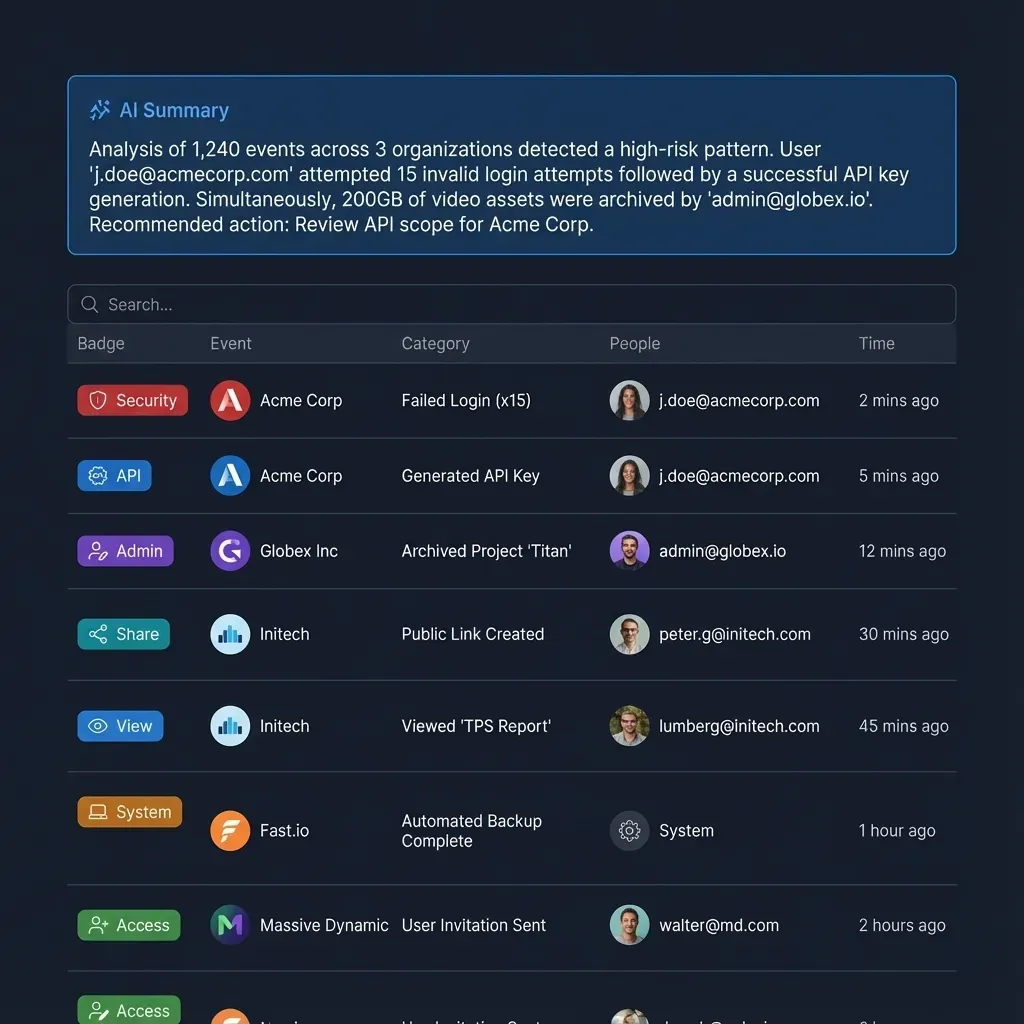
- Audit logs tracking views, downloads, permission changes, and logins
- Activity tracking at workspace, folder, and file levels
- Real-time notifications when clients access sensitive documents
Teams using client portals with these features cut email volume by 40% and can actually see how clients interact with shared documents.
Client Portal vs. Basic File Sharing: Key Differences
The terms get used interchangeably, but they serve different purposes.
Basic file sharing gives you:
- The provider's logo on everything
- Anyone with the link gets access
- Flat or folder-based organization
- All-or-nothing permissions
- Basic or no audit trail
Client portals give you:
- Your company's branding
- Authenticated access only
- Structured workspaces
- Per-file permission control
- Complete activity history
Basic file sharing works for one-off transfers where security isn't critical. Portals make sense when you need ongoing collaboration, deal with sensitive documents, or want clients to see your brand instead of a generic interface. The "portal" distinction also implies a dedicated space clients can return to. Instead of hunting through email for the latest link, they bookmark one URL and access everything there.


Start with secure client portal on Fast.io
Fast.io includes branded portals, unlimited guest access, and fine-grained permissions. No per-seat pricing for your clients.
How to Set Up a Secure Client Portal
Setting up a client portal involves four steps: choosing your platform, configuring security, applying branding, and onboarding clients.
Step 1: Choose a Portal Platform
Look for platforms that offer:
- No per-seat pricing for external clients (avoid paying extra for every client you invite)
- Unlimited guest access without requiring client accounts
- White-label customization (logo, colors, custom domain)
- Fine-grained permission controls
- Built-in audit logging
Step 2: Configure Security Settings
Before inviting anyone, lock down your security:
- Enable encryption at rest and in transit (most platforms do this by default)
- Set up SSO integration if you use an identity provider
- Require MFA for admin accounts
- Define default permission levels for new shared folders
- Configure automatic link expiration policies
Step 3: Apply Your Branding
A branded portal builds client trust. Configure:
- Company logo for the portal header
- Brand colors for buttons and accents
- Custom domain (clients.yourcompany.com instead of provider.com/share/abc123)
- Welcome message or instructions for new clients
Step 4: Onboard Your First Clients
Start with a pilot group:
- Create a dedicated workspace or folder for each client
- Set appropriate permissions (view-only vs. upload access)
- Send invitation links with clear instructions
- Monitor audit logs to ensure clients can access what they need
When to Use Data Rooms vs. Standard Portals
Data rooms are specialized client portals for high-stakes scenarios: M&A due diligence, fundraising, legal discovery, or any situation where you need maximum control and visibility.
Use a standard client portal when:
- Sharing project deliverables with clients
- Collecting documents from customers
- Collaborating on ongoing work
- Distributing marketing assets to partners
Use a data room when:
- Sharing confidential deal documents
- Running a competitive bidding process
- Managing legal discovery
- Any scenario requiring NDA-level security
Data rooms add features like view analytics (seeing exactly how long someone spent on each page), dynamic watermarking, and one-click access revocation. They typically cost more and require more setup, so reserve them for situations that justify the overhead.
Best Practices for Client Portal Management
A portal is only as secure as how you manage it. Follow these practices:
Organize Files Logically
Create a clear folder structure clients can navigate without your help:
- Group by project, client, or document type
- Use descriptive folder names (not "Documents_v2_final_FINAL")
- Archive completed projects instead of deleting them
Review Permissions Regularly
Permissions drift over time. Schedule quarterly reviews to:
- Remove access for completed clients or projects
- Verify current clients have appropriate permission levels
- Check for orphaned shared links that should be expired
Monitor Activity Proactively
Don't wait for problems. Check audit logs for:
- Unusual download patterns (bulk downloads, after-hours access)
- Failed login attempts
- Permission changes you didn't authorize
Document Your Processes
Create internal documentation covering:
- How to set up new client workspaces
- Standard permission templates by client type
- Escalation procedures for security incidents
Frequently Asked Questions
What should a client portal include?
A secure client portal needs encrypted file storage, access controls (password protection, expiration dates, view-only options), your branding (logo and colors), audit logging for compliance, and an interface clients can navigate without training. Advanced portals add SSO integration, watermarking, and analytics showing how clients engage with documents.
How do I create a secure portal for clients?
Start by selecting a platform that offers white-label branding and doesn't charge per-seat for external clients. Configure encryption, enable SSO if you use an identity provider, and set up MFA for admin accounts. Add your branding (logo, colors, domain), then create organized workspaces for each client. Send secure invitation links and monitor audit logs during the initial rollout.
What is the difference between a client portal and file sharing?
File sharing is typically a one-time transfer with a link that anyone can access. A client portal is a persistent, branded space where clients log in, access organized files, and collaborate over time. Portals offer per-file permissions, audit trails, and a professional experience. File sharing works for quick transfers; portals are for ongoing client relationships.
Can clients access a portal without creating an account?
Yes, many platforms support guest access where clients use secure links without signing up. This reduces friction while maintaining security through link-level controls like passwords, expiration dates, and view-only restrictions. The trade-off is less detailed per-user tracking compared to authenticated accounts.
How much does client portal software cost?
Pricing varies widely. Per-seat models charge $15-30 per user per month, which adds up quickly when you factor in client seats. Usage-based models like Fast.io include generous seat packages (25-100 included) with extra seats at published pricing, making them more economical for teams that share with many external clients. Always check whether pricing applies to internal users only or includes external guests.
Related Resources

Start with secure client portal on Fast.io
Fast.io includes branded portals, unlimited guest access, and fine-grained permissions. No per-seat pricing for your clients.