How to Build a Remote Video Editing Workflow That Actually Works
A remote video editing workflow is a structured process that enables video editors, producers, and clients to collaborate on projects from different locations without sacrificing efficiency or quality. This guide walks through the five stages of building a workflow that actually works: standardization, file management, review systems, delivery, and the tools that tie it all together.
What Makes Remote Video Editing Different
Remote video editing introduces three problems that don't exist in a shared physical edit suite:
File access: Raw footage lives somewhere. Editors need to get it. The files are huge. Moving terabytes over the internet is slow and expensive.
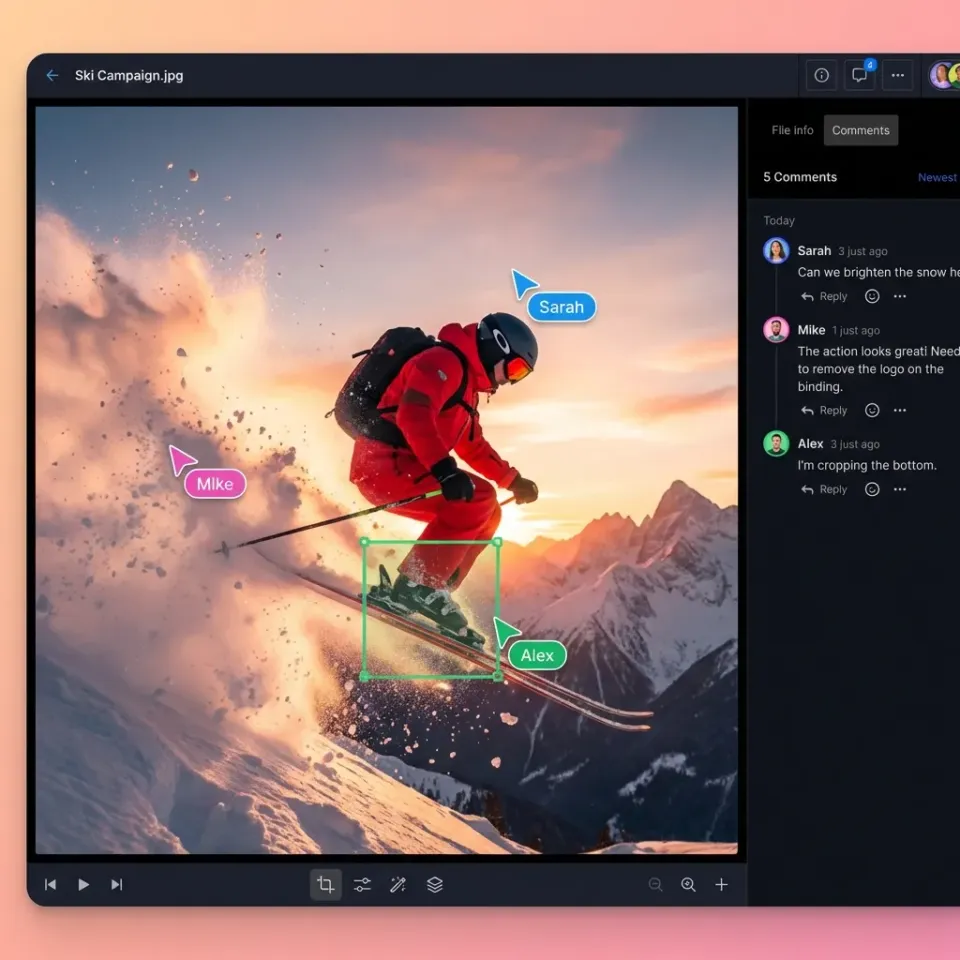
Review friction: Directors and clients can't look over an editor's shoulder. Getting feedback means exporting, uploading, waiting for downloads, collecting comments via email, and hoping nothing gets lost.
Version chaos: Multiple editors working on the same project creates confusion about which cut is current, who changed what, and where the approved assets live. A good remote workflow solves all three. The best ones make remote collaboration faster than working in the same room, because they eliminate the waiting and the walking. Many video professionals now work remotely at least part-time. The shift isn't temporary. Remote workflows have become the default for productions that want access to the best talent regardless of location.
Helpful references: Fast.io Workspaces, Fast.io Collaboration, and Fast.io AI.
The Five Stages of a Remote Video Editing Workflow
Every remote video project moves through five stages. Each stage has specific requirements and potential failure points.
1. Project Setup and Standardization
Before anyone opens an NLE, establish the ground rules:
- Software versions: Every editor runs the same version of Premiere, Resolve, or Avid. Version mismatches cause project file corruption.
- Codec and resolution standards: Define the working format. ProRes 422 LT for proxies, original camera files for finishing.
- Folder structure: One structure, used by everyone.
01_RAW,02_AUDIO,03_GRAPHICS,04_EXPORTS,05_PROJECT_FILES. - Naming conventions:
ProjectCode_Scene_Take_Version. No spaces. No special characters. Document these in a project bible that lives in your shared workspace. New team members read it before touching anything.
2. Ingest and File Management
Raw footage needs to get from cameras to editors. This is where most remote workflows break down.
Bad approach: Someone uploads footage to Google Drive. Editors download everything to their local machines. Files get duplicated across five different laptops.
Better approach: Upload once to cloud-native storage. Editors stream the files they need. Originals stay in one place. The difference matters when dealing with tens of TB of footage across long shoots. Sync-based storage (Dropbox, Google Drive) wasn't built for this. Cloud-native storage was.
3. The Edit Phase
Editors work in their NLEs. The remote-specific concerns:
- Proxy workflows: Generate lightweight proxies from original footage. Edit with proxies. Relink to originals for export.
- Project file sharing: Use a single source of truth. Don't email project files back and forth.
- Communication: Slack or Teams for quick questions. Scheduled video calls for creative discussions.
4. Review and Approval
This is where remote workflows either save time or waste it.
Slow method: Export a draft. Upload to a file sharing service. Email the link. Wait for downloads. Receive feedback via email or text. Try to match vague comments to specific moments. Repeat.
Fast method: Upload the draft to a review platform with timecode. Reviewers leave comments pinned to specific frames. Editors see exactly what needs fixing without translation. Frame-accurate feedback turns a three-day review cycle into a three-hour one.
5. Delivery
Final exports go to clients, distributors, or platforms. Remote workflows need to handle:
- Multiple delivery formats (broadcast, streaming, social)
- Version control for delivery files
- Secure transfer to external stakeholders
- Archive of approved finals with associated project files
Building Your File Management System
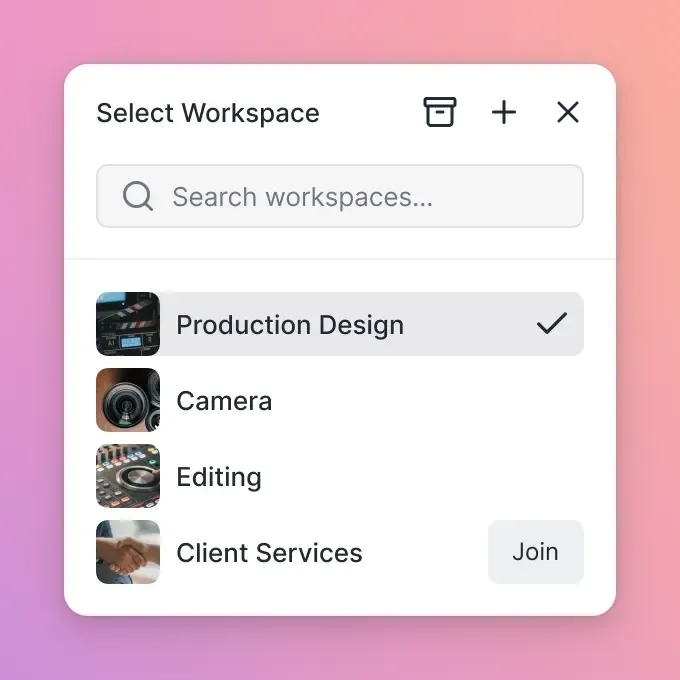
File management is the foundation. Get this wrong and everything else falls apart.
Storage Architecture
You have three options:
Local + manual sync: Cheapest, most error-prone. Each editor maintains their own copy. Someone is responsible for consolidating. Files get lost.
Sync-based cloud storage: Dropbox, Google Drive, OneDrive. Better than manual, but designed for documents, not video. Files sync to every device, eating local storage. Conflicts happen when two people edit the same file.
Cloud-native storage: Files live in the cloud. Editors stream what they need. No sync, no local storage requirements, no conflicts. This is what professional video teams use.
The Single Source of Truth
One location holds the authoritative version of every asset. Editors don't download and modify local copies. They work from the source. This requires:
- Fast enough infrastructure to stream video over the internet
- Automatic transcoding to create working proxies
- Permission controls so editors can't accidentally delete source footage
- Version history so mistakes can be undone
Handling Large Files
Video files are large. A single day of shooting can generate terabytes of footage, depending on camera and codec choices. Transferring these files over consumer internet takes hours or days. Solutions:
- On-set upload: DITs upload footage to cloud storage at the end of each shooting day
- Proxy-first workflows: Upload proxies immediately, originals overnight
- Regional ingest: Use a service that can receive physical drives and upload at datacenter speeds
Setting Up Review and Approval Workflows
Review is where remote workflows either shine or stumble. The goal is getting specific, usable feedback without the back-and-forth.
What Good Review Tools Provide
- Timecode-linked comments: Click on a frame, leave a note. The editor sees exactly where the issue is.
- Version comparison: View the current cut against the previous cut. See what changed.
- Approval workflows: Clear indication of who approved what, when.
- No downloads required: Reviewers watch in their browser. No waiting for downloads, no "what codec is this?" questions.
The Review Process
- Editor exports a review cut with burned-in timecode
- Upload to review platform (or cloud storage with streaming support)
- Share link with reviewers
- Reviewers watch and leave frame-specific comments
- Editor addresses notes and uploads revised cut
- Repeat until approved
Common Pitfalls
Too many reviewers: Everyone has opinions. Not everyone should have approval power. Define who can request changes vs. who can approve.
Vague feedback: "The pacing feels off in the middle" isn't actionable. Good review tools force specificity by tying comments to timecode.
Email feedback: Comments sent via email get lost. All feedback should live in the review platform, attached to the relevant version.
Client Reviews
External stakeholders need simpler interfaces than internal teams. Branded portals let clients review and approve without creating accounts or learning new software. The best client review experiences:
- Work in any browser without downloads
- Don't require account creation
- Show only what the client needs to see
- Make approval clicks easy and obvious
Tools for Remote Video Production
The tool landscape breaks into four categories. You need something from each.
Editing Software
Your NLE is your home base. The major options:
- Adobe Premiere Pro: Industry standard. Best integration with After Effects and other Adobe tools. Subscription pricing.
- DaVinci Resolve: Strongest color grading. Free version is surprisingly capable. Studio version adds collaboration features.
- Avid Media Composer: Still dominant in broadcast and film. Steeper learning curve. Best for large teams with established workflows.
- Final Cut Pro: macOS only. Fast performance on Apple hardware. One-time purchase. For remote work, the NLE choice matters less than how you handle files around it.
Cloud Storage
This is the critical decision for remote workflows. Requirements for video production:
- Handles files over 100GB without issues
- Doesn't force sync to local drives
- Provides streaming preview (so you can review without downloading)
- Supports proxies and version control
- Offers granular permissions (editors vs. viewers vs. clients)
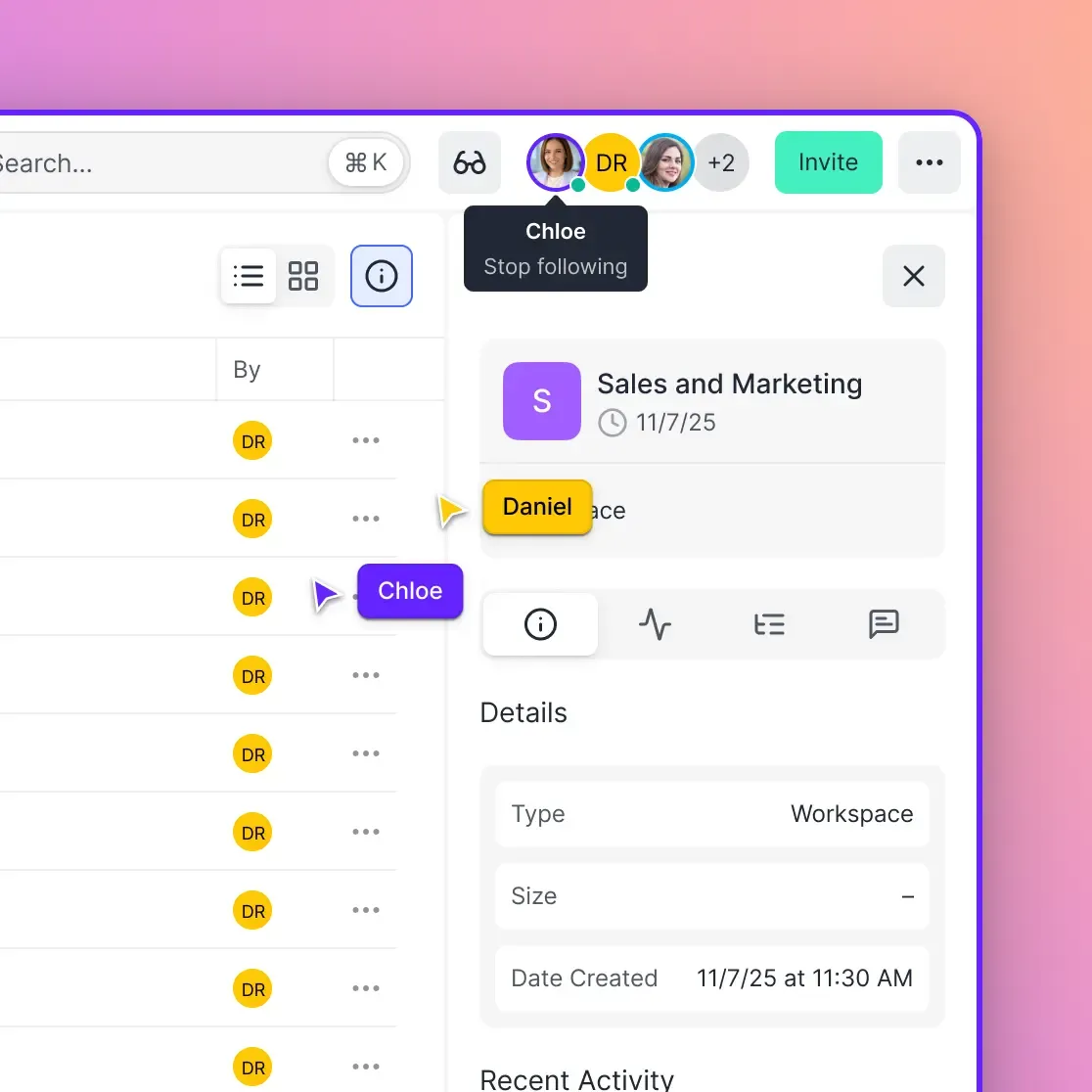
Generic consumer cloud storage (Google Drive, Dropbox) works for small projects but creates friction at scale. Purpose-built media storage handles the edge cases that video production creates. Fast.io provides cloud-native storage with HLS streaming, automatic proxy generation, and frame-accurate commenting. Files stream on demand without syncing to local drives, and clients can review in their browser without accounts.
Review and Collaboration
Dedicated review tools include:
- Frame.io: The most widely adopted. Tight integration with Premiere and other NLEs.
- Wipster: Simpler interface. Good for client-facing reviews.
- Vimeo Review: Built into Vimeo's hosting platform. Alternatively, cloud storage with built-in review features can consolidate your toolset. Using one platform for storage and review eliminates the upload-to-another-service step.
Project Management
Track tasks, deadlines, and assignments:
- Monday.com: Visual boards. Popular with creative teams.
- Asana: Task lists and timelines. works alongside most tools.
- Notion: Flexible. Good for combining docs and tasks. The specific tool matters less than consistent usage. Pick one and make everyone use it.
Remote Workflows Save Money When Done Right
Remote workflows aren't just about working from home. They reduce production costs when implemented properly.
The Math
Traditional post-production facility costs:
- Edit suite rental: $500-2,000/day
- Runner to shuttle drives: $200-400/day
- Travel and accommodation for out-of-town editors: $300-500/day
- Overnight shipping for client review: $50-150 per package
Remote workflow costs:
- Cloud storage: $50-200/month depending on scale
- Review platform: $0-50/month per user
- Internet upgrades for team members: One-time investment
Remote workflows can reduce post-production costs, according to studios that have made the switch. The savings come from eliminating physical infrastructure and reducing the logistics overhead of moving people and drives around.
Where the Savings Disappear
Bad remote workflows cost more than good in-person ones. Common money pits:
- Rework from miscommunication: Vague feedback leads to wrong revisions. Frame-accurate review tools prevent this.
- Download time: Editors waiting for files to download aren't editing. Cloud-native storage with streaming eliminates the wait.
- Version confusion: Working from the wrong cut wastes hours. Single source of truth prevents this.
- Security incidents: Lost laptops with sensitive footage create liability. Cloud storage with permissions keeps footage off local drives.
The Hybrid Approach
Many productions use remote for some phases and in-person for others.
Good candidates for remote: Initial assembly, rough cuts, revisions, graphics, color grading Often better in-person: Final mix, color approval sessions, complex VFX work requiring real-time collaboration
The key is recognizing which tasks benefit from physical proximity and which don't.

Security Considerations for Remote Video
Unreleased footage is valuable. Leaks damage relationships and can kill distribution deals.
Minimum Security Requirements
- Encryption in transit and at rest: Files should be encrypted when stored and when transferred.
- Access controls: Not everyone needs access to everything. Editors see their project. Clients see their review cuts. No one sees other projects.
- Audit logs: Track who accessed what, when. If a leak happens, you need to know the source.
- No local copies: When footage lives only in the cloud (not synced to laptops), a stolen laptop doesn't mean stolen footage.
Working With NDAs and Confidential Material
High-security projects (unreleased features, music videos, commercials) often have contractual security requirements. Common requirements and how to meet them:
- Watermarking: Dynamic watermarks identify which user viewed which version
- Download restrictions: View-only access prevents downloads
- Expiring links: Shared links automatically expire after review periods
- IP restrictions: Limit access to specific locations or networks
- Two-factor authentication: Require additional verification beyond passwords
What to Look for in Storage Providers
Ask these questions:
- Where is data physically stored?
- What encryption standards are used?
- Can you provide audit logs on request?
- What happens to data when the contract ends? Be wary of providers who can't answer these questions .
Frequently Asked Questions
How do you edit videos remotely as a team?
Teams edit remotely by establishing a shared cloud storage system for footage, using proxy workflows for efficient editing, and implementing frame-accurate review tools for feedback. Each editor works in their own NLE while pulling files from a single source of truth. Communication happens through scheduled video calls and messaging tools, with all feedback centralized in a review platform rather than scattered across emails.
What do you need for remote video editing?
You need four things: capable editing hardware (modern computer with sufficient RAM and GPU), reliable internet, cloud storage designed for video (not consumer sync services), and a review platform for collecting feedback. The storage choice is most critical, as it determines whether your team fights with file transfers or focuses on editing.
How do video editors share large files?
Professional video editors use cloud-native storage that streams files on demand rather than syncing entire libraries. This approach avoids the hours-long wait for file transfers. For initial uploads from set, teams either upload directly via high-speed connections or ship physical drives to services that ingest at datacenter speeds. Once footage is in the cloud, editors access it instantly without downloading.
What's the best way to get client feedback on video edits?
Use a review platform that supports frame-accurate commenting and works in any browser without downloads. Send clients a link, they watch and leave notes pinned to specific timecodes, and you get specific feedback instead of vague emails. The best client experiences don't require account creation or software installation.
Do remote video editors need expensive internet?
Reliable internet matters more than raw speed. A stable 50 Mbps connection works fine for proxy-based editing. Gigabit speeds help when uploading or downloading original footage but aren't required for daily editing work. The bigger factor is using cloud storage that doesn't require downloading entire files to work with them.
How do you manage versions in a remote editing workflow?
Maintain one authoritative location for all project files and footage. Editors work from this single source of truth rather than downloading and maintaining local copies. Version control happens automatically when your storage tracks file history. For review cuts, name files with version numbers and dates, and keep all versions in one place rather than scattered across email threads.
Related Resources

Run Build A Remote Video Editing Workflow That Actually Works workflows on Fast.io
Stop fighting with file transfers and scattered feedback. Fast.io gives your team cloud-native storage with built-in review tools.