How to Send Large Files: 5 Methods That Actually Work
Sending large files means transferring data that exceeds standard email attachment limits, typically 25MB. This guide covers five proven methods: cloud sharing links, dedicated transfer services, file compression, SFTP for technical users, and physical media for massive datasets. You'll learn which method works best for different file sizes, security requirements, and recipient needs. This guide covers how to send large files with practical examples.
Why Email Attachments Fail for Large Files: how to send large files
Email was never designed for large file transfers. Most providers cap attachments at 10-25MB:
- Gmail: 25MB limit
- Outlook/Microsoft 365: 20MB limit
- Yahoo Mail: 25MB limit
- Corporate email servers: Often 10MB or less
Video files have grown dramatically in size over recent years. A single 4K video clip can easily reach hundreds of megabytes. Even a basic PowerPoint with several embedded images often exceeds typical email limits. When you hit these limits, the email bounces back or sits in your outbox forever. Your recipient never gets notified. You waste time troubleshooting what seems like a mysterious delivery failure. The solution: Stop attaching files entirely. Use links instead.
What to check before scaling how to send large files
Upload your file to cloud storage and email a share link instead of the file itself. This is the most reliable method for recurring file sharing needs.
How it works:
- Upload the file to your cloud storage (Google Drive, Dropbox, OneDrive, or Fast.io)
- Generate a share link with appropriate permissions
- Email the link to your recipient
- They click to view or download
Pros:
- Files stay available until you remove them
- Track who accessed the file and when
- Update the file without resending
- Control permissions (view-only, download allowed, password protected)
Cons:
- Requires a cloud storage subscription for large files
- Free tiers often limit storage (Google Drive: 15GB, Dropbox: 2GB)
- Recipients may need to create an account on some services
This method works best when you share files regularly with the same people, need to track access, or want to maintain a single version everyone references.
Method 2: Dedicated File Transfer Services
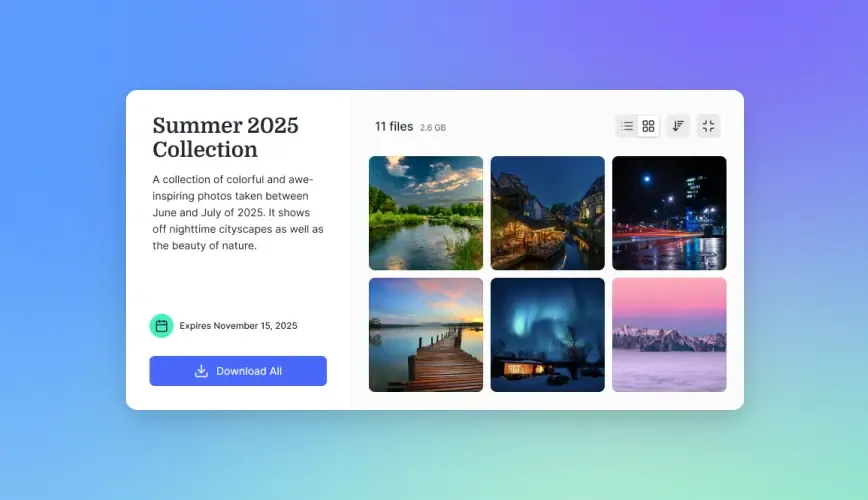
Transfer services like WeTransfer, Smash, and Filemail specialize in one-time large file sends. Upload your file, get a link, share it.
Popular options:
- WeTransfer: Up to 2GB free, 200GB with Pro (published pricing)
- Smash: Up to 50GB free, unlimited with Premium
- Filemail: Up to 5GB free, 250GB with paid plans
- TransferNow: Up to 5GB free, 500GB with Premium
Pros:
- No account required for basic transfers
- Simple drag-and-drop interface
- Recipients don't need accounts either
Cons:
- Files expire (typically 7-14 days on free plans)
- No collaboration features
- Limited tracking on free tiers
- Repeated sends require uploading each time
Transfer services work best for one-off sends to people outside your organization when you don't need ongoing access to the file.


Run Send Large Files 5 Methods That Actually Work workflows on Fast.io
Fast.io handles files of any size with streaming previews, unlimited guest access, and no per-seat pricing.
Method 3: File Compression
Compression reduces file size by 20-80% depending on the file type, potentially bringing large files back under email limits.
Tools to use:
- 7-Zip (Windows/Mac/Linux, free): Best compression ratios
- Built-in ZIP (Windows/Mac): No extra software needed
- WinRAR (Windows): Good for splitting into parts
What compresses well:
- Text documents, spreadsheets, presentations: 70-90% reduction
- Uncompressed images (BMP, TIFF): 60-80% reduction
- Database files: 50-70% reduction
What barely compresses:
- JPG, PNG images: Already compressed, 5-10% at best
- MP4, MOV videos: Already compressed, minimal gains
- PDF files: Usually pre-compressed, 10-20% at best
Splitting Large Archives
For files that won't compress enough, split them into multiple parts:
- Right-click your file in 7-Zip
- Select "Add to archive"
- Under "Split to volumes," enter a size (like 20MB)
- Send each part as a separate email attachment
Recipients need to download all parts and extract them together. This is clunky but works when other methods aren't available.
Method 4: SFTP for Technical Users
SFTP (Secure File Transfer Protocol) transfers files over an encrypted connection. It handles files of any size without limitations.
Requirements:
- An SFTP server (your own or a hosting provider)
- SFTP client software (FileZilla, Cyberduck, WinSCP)
- Server credentials for your recipient
Pros:
- No file size limits whatsoever
- Strong encryption protects data in transit
- Scriptable for automated transfers
- No third-party service involved
Cons:
- Requires technical setup
- Recipients need SFTP client software
- You manage server security and access
- Not practical for non-technical recipients
SFTP works best for regular transfers between technical teams, automated workflows, or when compliance requirements prohibit third-party services.
Method 5: Physical Media for Massive Files
When files reach terabyte scale, the internet becomes the bottleneck. Shipping a hard drive is often faster.
The math:
- large file on a 100Mbps connection: 22+ hours to transfer
- large file on overnight shipping: 12-18 hours door to door
AWS even offers a service called Snowball where they ship you a physical storage device for massive data migrations.
When to use physical media:
- Datasets over 500GB
- Unreliable or slow internet connections
- One-time archive transfers
- Air-gapped security requirements
Practical tips:
- Use encrypted drives (hardware encryption preferred)
- Ship with tracking and insurance
- Include a manifest of what's on the drive
- Keep a backup until recipient confirms receipt
Which Method Should You Use?
Match the method to your situation:
Key Criteria to Consider
Speed: How fast does the recipient need the file? Cloud links are instant. Upload time varies by your connection speed.
Security: Does the file contain sensitive data? Look for encryption in transit, password protection, and access controls. Avoid free services for confidential business files.
Recipient experience: Will they need to create an account? Download special software? The easier you make it for them, the more likely they'll actually get your file.
Persistence: Do you need the file available for days, months, or permanently? Transfer services expire. Cloud storage persists until you delete it.
Sending Large Files for Business Teams
Individual file transfers work for occasional needs. But if your team sends large files regularly, you need something more systematic.
Problems with ad-hoc transfers:
- Files scattered across personal Dropboxes, email threads, and transfer links
- No visibility into what was shared with whom
- Expired links mean lost access to important deliverables
- Per-user pricing adds up fast as teams grow
What business teams need:
- Central workspace where files live permanently
- Clear ownership (organization owns files, not individuals)
- Audit trail of access and downloads
- Guest access without requiring accounts or eating up seats
Fast.io handles large file sharing with HLS streaming for video previews, unlimited guest access for external recipients, and workspace organization that keeps files findable long after the initial transfer. The files belong to your organization, not individual employees. When someone leaves, their shared files don't disappear with their personal account.
Frequently Asked Questions
What is the best way to send large files?
For most people, cloud storage share links (Google Drive, Dropbox, Fast.io) offer the best balance of ease, security, and persistence. Upload once, share a link, and recipients can access it anytime. For one-off sends to people outside your organization, transfer services like WeTransfer work well for files under 5GB.
How can I send a file that is too large to email?
Upload the file to cloud storage and email a share link instead of the file itself. Alternatively, use a transfer service like WeTransfer or Smash that generates a download link. For files barely over the limit, try compressing with 7-Zip first.
What is the fast way to send large files?
The fast method depends on file size. Cloud services with good upload speeds like Fast.io or Dropbox work well for typical large files. For terabyte-scale data, shipping a physical hard drive is actually faster than transferring over the internet.
Are free file transfer services secure?
Free transfer services typically encrypt data in transit, but may lack features like password protection, access tracking, and expiration controls. For sensitive business files, use a paid service with proper security controls or your organization's approved cloud storage.
How do I send large video files?
Video files are already compressed, so ZIP compression won't help much. Use cloud storage with streaming preview (so recipients can watch without downloading) or a transfer service. Fast.io uses HLS adaptive streaming, meaning recipients can preview large videos instantly without waiting for the full download.
Related Resources

Run Send Large Files 5 Methods That Actually Work workflows on Fast.io
Fast.io handles files of any size with streaming previews, unlimited guest access, and no per-seat pricing.