Game Asset Management: Organize and Share Game Development Files
Game asset management is the systematic organization, versioning, and distribution of digital assets used in game development, including textures, models, audio, and animations. This guide covers best practices for organizing assets, collaborating with teams, and delivering files to stakeholders efficiently.
What is Game Asset Management?
Game asset management is the systematic organization, versioning, and distribution of digital assets used in game development. These assets include 3D models, textures, animations, audio files, shaders, UI elements, and more. AAA games can contain over 100,000 individual assets. Without proper management, studios waste time searching for files, dealing with version conflicts, and re-creating lost work. According to industry reports, asset management issues cause approximately 30% of game development delays. Effective asset management solves three core problems:
Organization: Where are your assets stored, and how do you find them?
Versioning: Which version is the latest? What changed between iterations?
Distribution: How do team members access assets, and how do you share with external stakeholders?
Helpful references: Fast.io Workspaces, Fast.io Collaboration, and Fast.io AI.
Why Game Studios Need Specialized Asset Management
Game development presents unique challenges that generic file storage doesn't solve.
Scale and Complexity
Modern games contain thousands of interconnected assets. A single character might include:
- Base mesh (3D model)
- Multiple texture maps (diffuse, normal, roughness, metallic)
- Rigged skeleton
- Animation clips (idle, walk, run, attack)
- Audio files (voice lines, footsteps, combat sounds)
- VFX elements (particles, shaders)
Multiply this by dozens or hundreds of characters, plus environments, UI, and cinematics.
File Size Realities
Game assets are large. Uncompressed 4K textures can be 64MB each. High-poly ZBrush models reach gigabytes. Audio files in lossless formats add up quickly. Studios routinely work with multi-terabyte project folders. Traditional file sharing services struggle with these sizes. Upload times drag, download links expire, and version history gets lost.
Multi-Discipline Collaboration
Game development involves specialists who work in different tools:
- 3D artists (Blender, Maya, 3ds Max, ZBrush)
- Technical artists (Substance Painter, Houdini)
- Audio designers (Wwise, FMOD, Pro Tools)
- Animators (MotionBuilder, Maya)
- Engineers (Unity, Unreal, custom engines)
Assets move between these tools constantly. A texture created in Substance Painter needs to reach Unity. An animation exported from Maya needs review before implementation.
Outsourcing and External Partners
Many studios work with external artists, contractors, and QA teams. These partners need access to specific assets without opening your entire project folder. You also need to deliver assets to publishers, marketing teams, and platform holders for approval. Email attachments don't work for 500MB video files.
Core Components of a Game Asset Management System
An effective game asset management system handles five essential functions.
1. Centralized Storage
All assets live in one place, accessible to authorized team members. This eliminates the "it's on my hard drive" problem that causes delays when someone is out of office. Cloud-native storage means artists access files from anywhere, without syncing entire project folders locally. This is critical for remote teams and external contractors.
2. Version Control
Every asset goes through iterations. Version control tracks changes, preserves history, and allows rollback when needed. For code, Git is standard. For binary assets (textures, models, audio), you need tools that handle large files efficiently. Some studios use Git LFS (Large File Storage), while others rely on specialized asset management platforms. Version control answers questions like:
- What did this character model look like two weeks ago?
- Who updated the environment texture, and why?
- Can we revert to the previous animation before the physics changes?
3. Metadata and Search
With thousands of assets, search becomes critical. Metadata helps you find files quickly:
- Asset type (character, environment, prop, VFX)
- Status (work-in-progress, review, approved, deprecated)
- Tags (forest, medieval, boss fight)
- Creator and date
Some systems offer semantic search that finds assets by description rather than just filename.
4. Preview and Review
Artists and stakeholders need to preview assets without opening them in heavy software like Maya or Blender. Modern asset management systems provide in-browser previews for:
- 3D models (rotate, zoom, inspect)
- Textures (view at full resolution)
- Animations (play, scrub, loop)
- Audio (waveform visualization, playback)
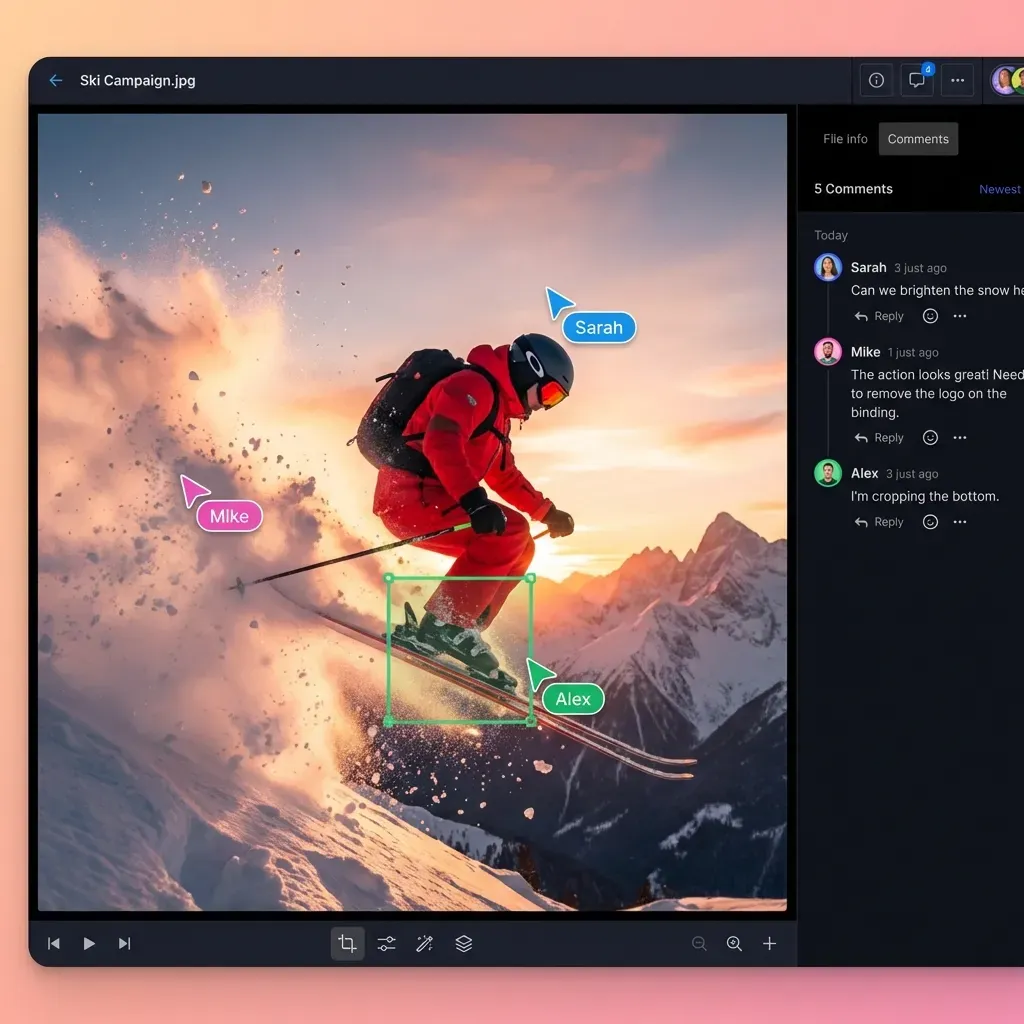
Review tools let team members comment on specific frames, regions, or timestamps. This speeds up feedback cycles dramatically.
5. Access Control and Sharing
Not everyone needs access to everything. Asset management systems provide granular permissions:
- Engineers access final assets, not work-in-progress source files
- Contractors access only the assets they're working on
- Marketing teams get read-only access to approved renders
External sharing features let you send assets to publishers or partners without giving them full project access.
Organizing Game Assets: Best Practices
How you structure your asset library determines how quickly your team can work.
Folder Structure
Most studios use a hierarchical folder structure based on asset type and function:
/Characters
  /Player
    /Textures
    /Models
    /Animations
    /Audio
  /Enemies
    /Boss_Dragon
    /Enemy_Goblin
/Environments
  /Level_01_Forest
    /Terrain
    /Props
    /Lighting
  /Level_02_Cave
/UI
  /Menus
  /HUD
  /Icons
/Audio
  /Music
  /SFX
  /VO
/VFX
  /Explosions
  /Magic
  /Weather
Consistency is more important than the exact structure. Once your team learns the system, stick with it.
Naming Conventions
Clear naming prevents confusion and makes search work. Establish conventions early:
- Prefix by type:
TX_for textures,MD_for models,AN_for animations - Include asset name:
TX_Character_Knight_Diffuse.png - Add version numbers for iterations:
MD_Sword_v03.fbx - Use descriptive suffixes:
AN_Run_Loop.fbx
Avoid generic names like final.fbx or new_version_2.png. Six months later, no one will remember what these files contain.
Asset Status Tracking
Mark asset status to communicate progress:
- WIP (Work in Progress): Active development, expect changes
- Review: Ready for feedback from leads or stakeholders
- Approved: Final version, ready for implementation
- Deprecated: Older version, kept for reference but not used
Some teams use folder structures to indicate status (e.g., /WIP/ and /Approved/). Others use metadata tags or file naming conventions.
Master vs. Working Files
Distinguish between master source files and exported assets:
- Master files: Native format files with full editing capability (e.g.,
.blend,.ma,.psd) - Working files: Game-engine-ready formats (e.g.,
.fbx,.png,.wav)
Store both. Masters preserve editing flexibility. Working files are what the game actually uses. When someone needs to modify an asset, they work from the master, then export a new working version.
Asset Pipeline Workflows for Game Teams
Different roles interact with assets in different ways. Here's how the pipeline typically flows.
3D Art Pipeline
- Modeling: Artist creates the base mesh in Blender, Maya, or ZBrush
- Texturing: Export to Substance Painter for texture creation
- Rigging: Import to Maya/Blender for skeleton setup
- Export: Export as
.fbxfor game engine - Review: Upload to shared workspace for lead approval
- Implementation: Engineer integrates into Unity/Unreal
The asset might go through multiple iterations at each stage. Version control tracks changes. Comments capture feedback like "reduce polygon count" or "make the metal more reflective."
Audio Asset Pipeline
- Recording: Capture raw audio (voice acting, Foley, music)
- Editing: Clean up, normalize, apply effects in Pro Tools or Audacity
- Implementation: Import to Wwise or FMOD for interactive audio design
- Export: Generate game-ready formats (e.g.,
.ogg,.wav) - Review: Share with audio director and design team
- Integration: Engineer hooks audio events to gameplay triggers
Audio files are often large and require specialized preview tools. Waveform visualization helps reviewers identify specific sections without playing the entire file.
Animation Pipeline
- Blocking: Create rough animation timing
- Refinement: Polish motion, add secondary animation
- Export: Export from Maya/Blender as
.fbx - Engine Setup: Import to Unity/Unreal, configure blend trees
- Review: Preview in-game context
- Iterate: Adjust timing, transitions, or retarget to different rigs
Animations often need frame-accurate feedback. Comments like "frame 47: the foot slides" or "frames 120-135: too slow" help animators fix issues quickly.
Outsourced Asset Delivery
When working with external artists:
- Brief: Share reference materials, style guides, and technical specs
- WIP Reviews: Contractors submit work-in-progress for feedback
- Revisions: Provide comments, request changes
- Final Delivery: Contractor uploads approved assets to your workspace
- Integration: Internal team integrates assets into the game
Contractors need secure access to specific folders without seeing your entire project. Branded portals with upload/download controls simplify this workflow.
Sharing Game Assets with Stakeholders
Game development involves many stakeholders beyond the core team. Publishers, marketing teams, QA, platform holders, and press all need assets at various stages.
Publisher and Marketing Deliverables
Publishers often require specific deliverables on tight deadlines:
- Gameplay trailers (uncompressed video, often 10+ GB)
- Screenshots (high-resolution PNGs)
- Character renders (for marketing materials)
- Build files (game executables for testing)
Email doesn't work for these sizes. File transfer services like WeTransfer delete files after a few days, which breaks approval workflows that take weeks. Cloud-native storage with link sharing solves this. Upload once, share a link, and stakeholders access files on their timeline.
QA and Playtesting
QA teams need access to builds, debug logs, and sometimes source assets to reproduce bugs. You can create dedicated workspaces for QA with:
- Latest build files
- Known issues documentation
- Asset references for bug reports
When a bug involves a specific asset (e.g., "character model clips through terrain"), QA can reference the exact file version to help engineers diagnose the issue.
Press and Content Creators
Before launch, you'll share assets with press and influencers:
- Press kits (logos, screenshots, videos)
- Review builds
- B-roll footage for YouTube/Twitch creators
Use password-protected links with expiration dates to control access. Track downloads to see who accessed what.
Internal Cross-Department Sharing
Not everyone on the team needs full project access:
- Executives: Need high-level progress updates (milestone builds, key art)
- HR/Recruiting: Use gameplay videos and concept art for hiring materials
- Business Development: Share builds and trailers with potential partners
Role-based permissions ensure people access only what they need.
Tools and Platforms for Game Asset Management
Game studios use a mix of specialized tools depending on their size and needs.
Version Control Systems
Git + Git LFS: Popular for indie studios. Git handles code and text files, while Git LFS manages large binaries. Free and open source, but requires some technical setup.
Perforce Helix Core: Industry standard for AAA studios. Designed for massive projects with terabytes of assets. Handles large files natively, supports file locking to prevent conflicts. Expensive and complex to administer.
Plastic SCM: Unity-owned version control. Good balance of power and usability. works alongside Unity workflows.
Asset Management Platforms
Unity Asset Manager: Cloud-based DAM for Unity projects. Previews, version control, and sharing built in. Only works within Unity ecosystem.
Anchorpoint: Desktop app that adds asset management features on top of Git. Thumbnail previews, visual version history, and artist-friendly workflows.
Shotgun (Autodesk): Production tracking and asset management for film and games. Overkill for small studios, but powerful for large teams.
Cloud Storage for Teams
Many studios use general cloud storage with collaboration features:
Fast.io: Cloud-native storage with unlimited workspaces and users. HLS streaming for video previews, frame-accurate commenting, and generous free tier. Works across any game engine or tool.
Dropbox/Google Drive: Familiar but limited for game development. File size caps, slow uploads for large assets, sync-based (eats local disk space).
Box: Enterprise features but per-seat pricing gets expensive quickly.
Hybrid Approaches
Most studios combine tools:
- Git/Perforce for version control
- Cloud storage for sharing with external stakeholders
- Specialized tools for specific tasks (e.g., Wwise for audio)
The goal is reducing friction. Artists shouldn't need to learn command-line Git. Contractors shouldn't need VPN access to your internal servers.
How Game Studios Actually Manage Assets
Real-world workflows vary by studio size and structure.
Small Indie Teams (2-10 people)
Small teams often use lightweight tools:
- Git + GitHub for version control
- Cloud storage (Dropbox, Google Drive, Fast.io) for quick sharing
- Discord or Slack for communication and file drops
At this scale, informal processes work. Everyone knows where files live. Version control prevents catastrophic data loss. Challenges emerge when working with contractors. You need to share specific assets without exposing your entire repository.
Mid-Size Studios (10-50 people)
Mid-size studios need more structure:
- Dedicated asset management platform or version control (Perforce, Plastic SCM)
- Formalized naming conventions and folder structures
- Lead artists responsible for asset approval
- Separate workspaces for different disciplines (art, audio, design)
At this size, you can't rely on tribal knowledge. New hires need documentation to understand where things are. External sharing becomes critical. Publishers request milestone deliverables. Marketing needs assets for announcements. Contractors submit outsourced work.
Large/AAA Studios (50+ people)
Large studios use enterprise-grade tools:
- Perforce or custom version control systems
- Production tracking software (Shotgun, Jira)
- Dedicated IT staff to manage infrastructure
- Strict approval workflows with multiple review stages
Assets move through formal pipelines. Nothing gets into the game without sign-off from leads. File access is tightly controlled. Junior artists can't accidentally delete approved assets. Contractors work in isolated environments. Even at this scale, sharing with external stakeholders remains a challenge. Publishers, platform holders, and press need access to specific assets without navigating your complex internal systems.
Cloud Storage Benefits for Game Asset Management
Cloud-native storage offers specific advantages for game development teams.
No Local Storage Limits
Game projects grow fast. A typical Unreal Engine 5 project can reach several terabytes. Sync-based tools like Dropbox force you to store everything locally. This fills hard drives quickly and causes sync conflicts when multiple people edit the same files. Cloud-native storage streams files on demand. You only download what you need, when you need it. This works well for artists who need to reference old assets occasionally but don't want them taking up local disk space.
Remote Team Collaboration
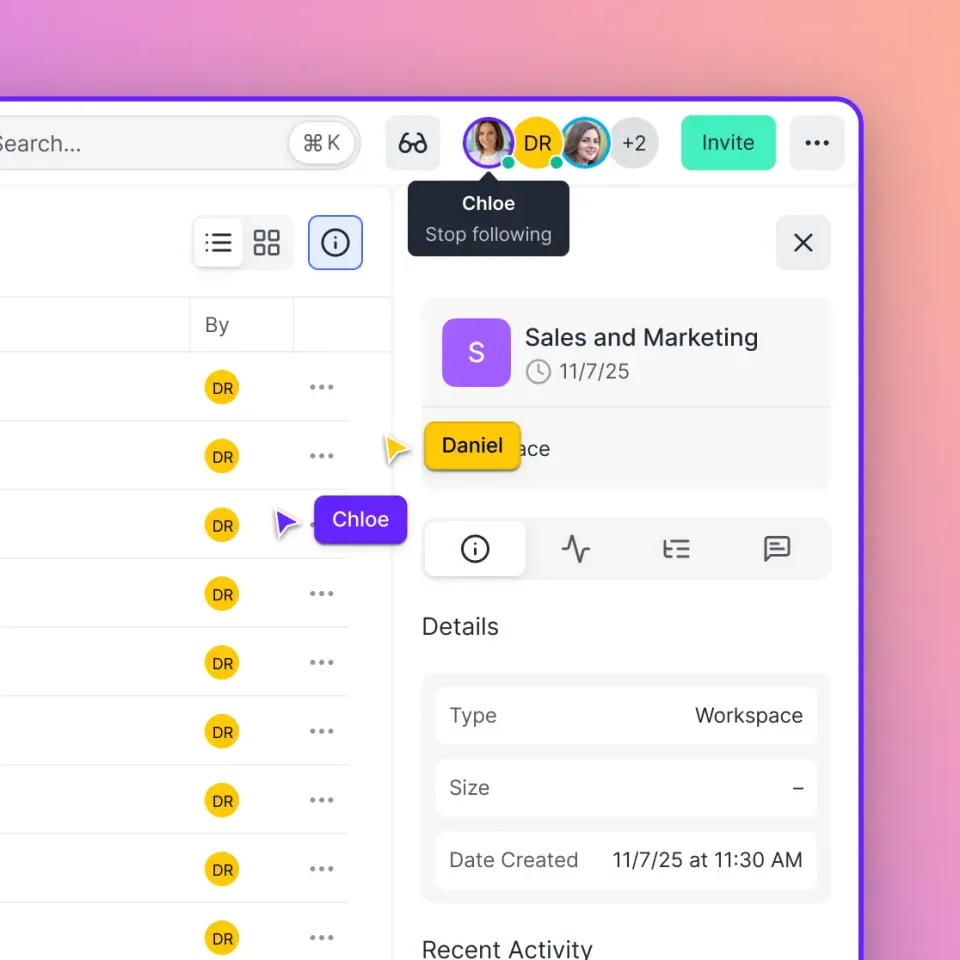
Game development increasingly happens remotely. Team members work from home or across time zones. Contractors are spread globally. Cloud storage eliminates VPN bottlenecks. Artists upload work directly to shared workspaces. Engineers pull the latest assets without waiting for overnight file syncs. Presence indicators show who's working on what. Comments and annotations replace email threads and screenshot attachments.
Fast Previews for Large Files
Downloading a 500MB texture to preview it wastes time and bandwidth. Modern cloud storage provides in-browser previews. Click a file, see it instantly. No download, no opening heavy software. For video files, HLS streaming loads instantly and lets you scrub to any timestamp. This matters when reviewing gameplay recordings or cinematic sequences.
Branded External Sharing
When sharing assets with publishers or contractors, you want a professional presentation. Branded portals let you customize the experience with your studio's logo, colors, and domain. Partners access a polished interface, not a generic file list. Link controls (passwords, expiration dates, download limits) protect sensitive assets. Track who accessed what, and revoke access instantly when needed.
Scalable Pricing for Teams
Traditional storage services charge per user. For a 30-person studio, this adds up fast. Usage-based pricing scales with your actual storage and bandwidth usage, not headcount. You can invite unlimited guests (contractors, QA, partners) without paying per seat.
Setting Up an Asset Management Workflow
Implementing asset management doesn't require a complete overhaul. Start small and build incrementally.
Step 1: Audit Your Current State
Before changing anything, understand what you have:
- Where are assets currently stored? (Local drives, shared network, cloud?)
- How do team members find files? (Folder browsing, search, asking teammates?)
- What pain points exist? (Lost files, version confusion, slow access?)
Talk to your team. Ask artists, engineers, and designers what frustrates them about the current system.
Step 2: Define Your Folder Structure
Design a logical hierarchy based on how your team thinks about assets. Common approaches:
- By asset type (characters, environments, audio, UI)
- By game area (Level_01, Level_02, Shared)
- By status (WIP, Review, Approved)
Hybrid structures work too. The key is consistency.
Step 3: Establish Naming Conventions
Document your naming rules and share them with the team:
- Required elements (asset type, name, version)
- Format (CamelCase, snake_case, or hyphens)
- Examples for each asset type
Create a shared doc or wiki page with examples. New team members and contractors need this.
Step 4: Choose Your Tools
Pick tools that match your team's size and technical comfort:
- Small indie team: Git + cloud storage for sharing
- Growing studio: Plastic SCM or Perforce + cloud storage for external sharing
- Large team: Perforce + production tracking software
You don't need to buy everything at once. Start with version control, then add collaboration and sharing tools as you grow.
Step 5: Migrate Incrementally
Don't try to move everything at once. Start with:
- New assets created from today forward
- Critical assets referenced frequently
- Completed assets ready for archival
Leave old project files alone unless you need them. Focus on making the new system work smoothly.
Step 6: Train Your Team
New tools only help if people use them correctly. Hold training sessions:
- How to upload and organize assets
- How to use version control (commit messages, branching)
- How to share files externally
- How to search and preview assets
Create quick reference guides for common tasks. Make it easy to do the right thing.
Step 7: Iterate Based on Feedback
No system is perfect from day one. Ask your team:
- What's working well?
- What's still confusing?
- Where are the bottlenecks? Adjust folder structures, naming conventions, or tool settings based on real usage patterns.
Common Asset Management Mistakes to Avoid
Game studios often repeat the same mistakes. Learn from others' experience.
Mistake 1: No Version Control
Working without version control is like coding without backups. Eventually, someone will overwrite important work or delete the wrong file. Even a simple Git setup is better than nothing. For binary assets, Git LFS or Plastic SCM handles large files without bloating your repository.
Mistake 2: Over-Complicated Folder Structures
Some teams create deeply nested folders with dozens of subcategories. This makes it hard to find anything. Keep it shallow. Three or four levels deep is usually enough:
/Characters/Player/Textures/Diffuse/
works better than:
/Assets/GameContent/Characters/Humanoid/Player/Visuals/Materials/Textures/Albedo/
Mistake 3: Inconsistent Naming
When some artists use character_knight_v2.fbx and others use Knight_Character_02.fbx, search breaks down. Enforce conventions from day one. Use templates or scripts to auto-generate filenames if possible.
Mistake 4: No Access Controls
Giving everyone full access to everything seems simpler, but it causes problems:
- Junior artists accidentally delete approved assets
- Contractors see confidential project files
- Partners download unfinished work not ready for external eyes
Set up role-based permissions early. It's easier to relax restrictions later than to fix accidental damage.
Mistake 5: Ignoring External Sharing Workflows
Many studios focus on internal collaboration but forget about publishers, contractors, and partners. Build external sharing into your workflow. Create dedicated workspaces or portals for outsiders. Don't force them to navigate your internal folder chaos.
Frequently Asked Questions
What is game asset management?
Game asset management is the systematic organization, versioning, and distribution of digital assets used in game development, including textures, models, audio, and animations. It helps teams track thousands of files, manage versions, and share work efficiently.
How do game studios manage large numbers of assets?
Game studios use a combination of version control systems (like Git, Perforce, or Plastic SCM), cloud storage platforms, and formalized workflows. They organize assets into hierarchical folder structures, use consistent naming conventions, and implement version control to track changes. Large studios often use specialized asset management platforms like Unity Asset Manager or Shotgun for production tracking.
What's the best way to organize game assets?
Organize assets by type (characters, environments, audio, UI) or by game area (Level_01, Level_02). Use consistent naming conventions with prefixes for asset type, descriptive names, and version numbers. Keep folder structures shallow (3-4 levels deep) for easy navigation. Store both master source files and exported game-ready formats.
How do you share game assets between team members?
Use cloud-native storage platforms that allow on-demand access without syncing entire project folders locally. Create shared workspaces for different teams or projects. Use real-time previews for large files like videos and 3D models. Implement role-based permissions so team members access only what they need. For remote teams, cloud storage eliminates VPN bottlenecks and enables smooth collaboration.
What file formats are commonly used for game assets?
Common formats include FBX for 3D models and animations, PNG and TGA for textures, WAV and OGG for audio, and native formats like .blend (Blender), .ma (Maya), .psd (Photoshop) for master source files. The specific formats depend on your game engine. Unity and Unreal support most standard formats but may have preferred formats for optimization.
How do you handle version control for game assets?
Use version control systems designed for large binary files. Git with Git LFS works for small teams, while Perforce and Plastic SCM handle enterprise-scale projects better. Name files with version numbers (e.g., v01, v02) and track status (WIP, Review, Approved). Store master source files separately from exported game-ready assets so you can always re-export if needed.
What's the difference between master files and working files for game assets?
Master files are native format files with full editing capability (like .blend, .ma, .psd) that preserve all layers, edit history, and maximum quality. Working files are game-engine-ready formats (like .fbx, .png, .wav) that are optimized for runtime performance. Always store both: masters for future edits, working files for actual game use.
How do indie game studios handle asset management on a budget?
Indie studios typically use Git with GitHub for version control, which is free for small teams. For file sharing, cloud storage platforms with generous free tiers (like Fast.io's free plan) provide collaboration features without per-seat costs. Many successful indie studios start with simple folder structures and naming conventions, then add specialized tools as they grow.
How do you manage assets when working with external contractors?
Create dedicated workspaces or folders for contractor access, separated from your main project. Use branded portals to share briefs, references, and technical specs. Implement upload portals where contractors submit deliverables. Use link controls (passwords, expiration dates) to protect sensitive files. Track who accessed what and when. This keeps contractors productive without exposing your entire project.
What are the biggest asset management challenges for game developers?
The biggest challenges include managing file sizes (game assets are huge), coordinating across multiple tools (3D, audio, engine), maintaining version control for binary files, enabling remote collaboration, and sharing with external stakeholders like publishers and contractors. Many studios also struggle with search and discovery when projects contain tens of thousands of assets.
Related Resources

Run Game Asset Management Organize And Share Game Development Files workflows on Fast.io
Fast.io provides cloud-native storage with unlimited workspaces, HLS video streaming, and real-time collaboration. Organize assets, share with contractors, and deliver to publishers—all from one platform. Get started with our generous free tier.