How to Set Up File Version Control for Teams
File version control automatically tracks changes to files over time, allowing you to view history, compare versions, and restore previous states. This guide covers practical methods for implementing version control, from manual naming conventions to automated cloud-native systems.
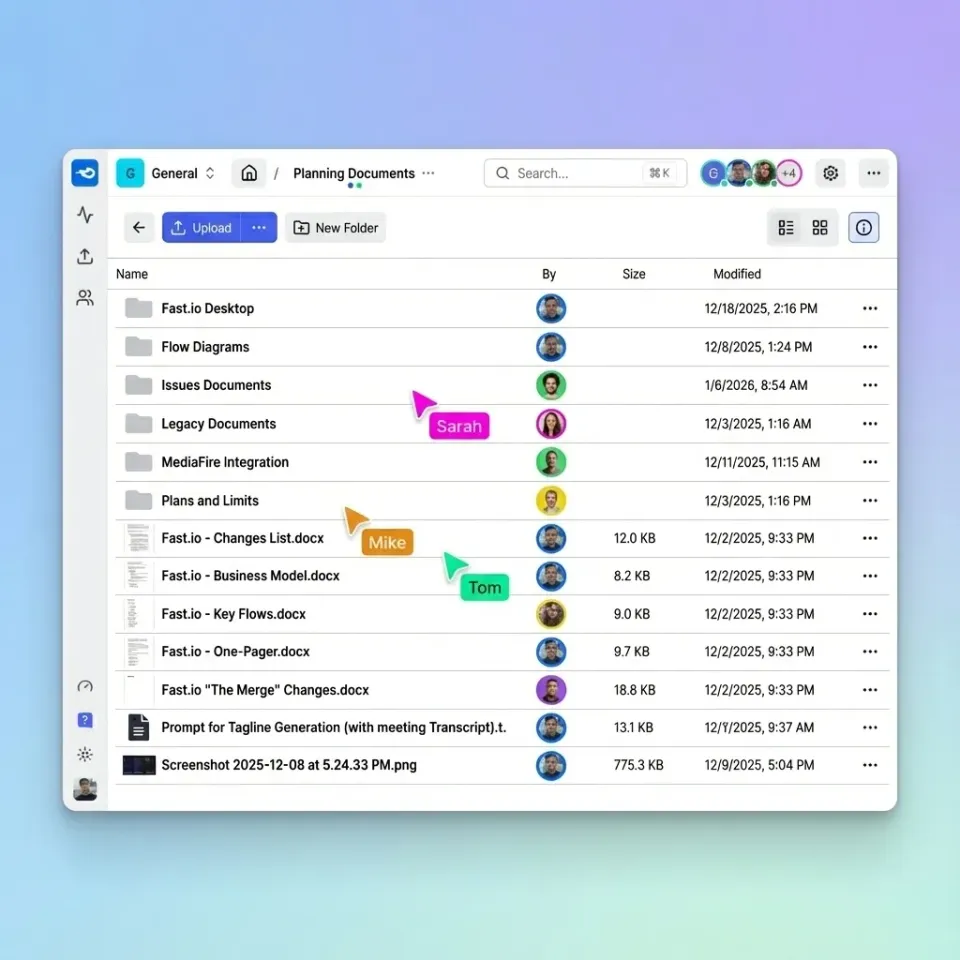
What Is File Version Control?
File version control is the systematic tracking of changes to documents, images, videos, and other digital assets over time. It records who made changes, when they made them, and what exactly changed. At its simplest, version control answers three questions:
- What did this file look like before?
- Who made the last change?
- Can I undo what just happened? For software developers, version control through tools like Git is standard practice. But for creative teams, marketing departments, and business users working with documents, spreadsheets, and media files, version control often means a folder full of files named
Final_v2_FINAL_actually_final.docx.
Why version control matters:
- Prevents accidental overwrites. Version control prevents most cases where someone saves over someone else's work.
- Saves time. Teams lose hours each week to version confusion, hunting for the right file or recreating lost work.
- Reduces risk. Automatic versioning lets you recover from mistakes that would otherwise mean expensive rework. Version control differs from backup. Backup protects against hardware failure by copying files to a safe location. Version control tracks changes within those files, giving you a timeline you can navigate.
Helpful references: Fast.io Workspaces, Fast.io Collaboration, and Fast.io AI.
Why Traditional File Versioning Fails
Most teams rely on one of two approaches for managing file versions. Neither works well at scale.
Manual Naming Conventions
The "Save As" method creates new files with version numbers or dates appended: Proposal_v1.docx, Proposal_v2.docx, Proposal_v2_edited.docx. This breaks down quickly:
- Human error. Someone forgets to increment the version number, or uses the wrong naming format.
- Storage bloat. You keep full copies of every version, consuming space quickly with large files.
- Search difficulty. Finding the version from "two weeks ago with the blue header" requires opening multiple files.
- No audit trail. Filenames don't tell you who made changes or why.
Sync-Based Cloud Storage
Tools like Dropbox and Google
Drive improved on local files by adding automatic sync and some version history. But they introduce new problems:
Sync conflicts. When two people edit the same file simultaneously, sync tools create "conflicted copy" files. Someone has to manually compare and merge changes. For complex files like video projects or design files, this is tedious.
Limited history. Most consumer cloud storage keeps version history for a limited period depending on the plan. Older versions disappear. Business plans extend this, but at higher per-user costs.
Performance with large files. A 10GB video project takes significant time to sync to every team member's device. When you just need to review one file, waiting for a full sync wastes time. For small teams with simple documents, these approaches work acceptably. For larger teams, creative professionals, or anyone handling large media files, they create more problems than they solve.
3 Methods for File Version Control
Different versioning approaches suit different workflows. Here's how each method works in practice.
Method 1: Developer Tools (Git)
Git tracks changes at the text level, showing exactly which lines changed between versions. With Git LFS (Large File Storage), it can handle larger files.
Best for: Code repositories, text-based documentation, configuration files.
Limitations for creative work:
- Git compares text, not visual content. You can't see what changed in an image.
- Large binary files (videos, PSDs, 3D models) perform poorly even with LFS.
- Learning curve requires technical training most creative teams won't invest in.
Method 2: Document Management Systems
Enterprise tools like SharePoint, M-Files, and Box add version control to document workflows. They track check-in/check-out to prevent simultaneous editing conflicts.
Best for: Legal, finance, and compliance-heavy industries with formal document processes.
Limitations:
- High per-user costs.
- Designed for documents, not media files. Video and design assets are afterthoughts.
- Check-out workflows interrupt creative collaboration.
Method 3: Cloud-Native Media Platforms
Modern platforms built for creative teams treat version control as automatic. Every save creates a version. History is visual, not text-based. Large files stream rather than download.
Best for: Creative agencies, video production, marketing teams, any workflow with large media files.
How Fast.io handles versioning:
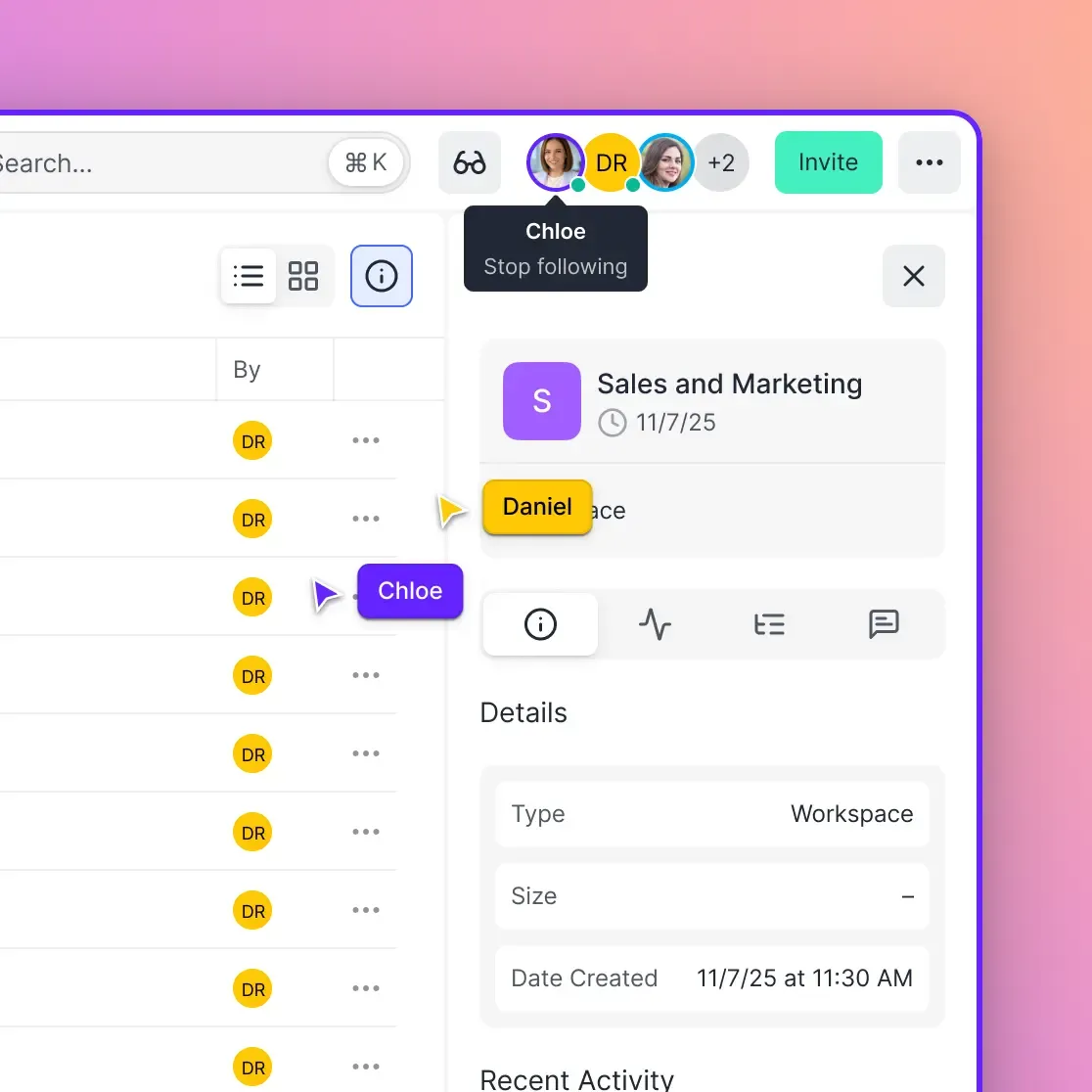
- Files belong to the organization, not individual users. Version history stays intact when team members leave.
- Activity logs track every view, download, and upload with timestamps and user attribution.
- Universal Media Engine lets you preview versions of PSD, RAW, ProRes, and other professional formats directly in the browser.
- HLS streaming lets you scrub through video versions without downloading large files. The cloud-native approach eliminates sync conflicts entirely. There's no local copy to get out of sync because files live in the cloud and stream on demand.


Collaborate on Files with Your Team
Fast.io automatically tracks every version with visual previews and activity logs. No more naming confusion or overwritten work.
Setting Up Version Control for Your Team
No matter which tools you use, these practices improve how version control works for your team.
Establish File Ownership
Decide who owns your files. With personal cloud storage, files belong to whoever created them. When that person leaves, so do the files (or you scramble to transfer ownership). Organization-owned storage changes this dynamic. Files belong to the company or team. Individual users have access, but the organization retains control. This matters for:
- Business continuity. A departing employee doesn't take client files with them.
- Access management. Add or remove access without transferring ownership.
- Audit requirements. Demonstrate chain of custody for compliance purposes.
Create Clear Folder Structures
Even with automatic versioning, good organization helps. Separate working files from delivered assets:
[Project Name]
├── 01_Working        # Active files, works in progress
├── 02_Exports        # Rendered/exported versions
└── 03_Delivered      # Files sent to clients
Lock the "Delivered" folder so approved assets can't be accidentally modified after client approval.
Use Comments, Not Filenames
Instead of renaming files to track changes (Logo_blue_version.ai), use contextual comments. Note what changed and why: "Adjusted blue to match brand guidelines." This keeps filenames clean while preserving context that version numbers alone can't capture.
Centralize File Ingest
For camera-to-cloud workflows, raw footage should land in a central "Ingest" folder before anyone starts editing. This establishes a single source of truth. Editors pull from this authoritative copy rather than scattered uploads.
Version Control for Large Media Files
Media files present unique challenges. A large video project or Photoshop file can't be versioned the same way as a Word document.
The Size Problem
Traditional version control stores complete copies of each version. For a 1GB video with 10 versions, that's 10GB of storage. Sync-based tools make this worse by copying versions to every team member's device. Cloud-native platforms handle this differently. The file lives in one place. Versions are tracked as deltas (changes) rather than full copies. You access versions through streaming rather than downloading.
Visual Comparison
Text-based version control shows line-by-line differences. That doesn't help when you need to see "did the color grade change between versions?"
Platforms built for media let you:
- Preview multiple versions side by side.
- Scrub through video versions using adaptive streaming.
- View professional formats (ProRes, EXR, RAW) without expensive software licenses.
Handling Simultaneous Work
Two editors can't work on the same video timeline file simultaneously. But they can work on the same project in parallel. Version control for media often means:
- Locking files during active editing to prevent conflicts.
- Branching (creating copies for experimental changes).
- Merging approved changes back to the main version. For video review workflows, commenting on specific frames provides feedback without creating conflicting edits. The editor addresses feedback in their edit, then uploads a new version.
Measuring Version Control Effectiveness
How do you know if your version control is working? Track these indicators.
Overwrite Incidents
Count how often someone saves over work that shouldn't have been changed. This should trend toward zero with proper versioning. If it keeps happening, you have either a tool problem or a training problem.
Version Hunting Time
How long does it take to find "the version from last Tuesday"? With manual naming, this can take considerable time opening multiple files. With automatic versioning and search, it should take under a minute.
Recovery Success Rate
When something goes wrong, can you recover? Track:
- Accidental deletions successfully recovered.
- Unwanted changes successfully reverted.
- Client requests for "the old version" fulfilled. Complete recovery means your versioning is working. Gaps indicate either tool limitations or gaps in your process.
Storage Efficiency
Compare your total storage to unique content. If you're storing multiple copies of similar files for version tracking, you're wasting space. Good version control stores changes efficiently, not complete duplicates.
Frequently Asked Questions
What is file version control?
File version control is the systematic tracking of changes to digital files over time. It records who made changes, when changes happened, and what changed. This allows you to view history, compare different versions, and restore files to previous states. Unlike backup (which protects against data loss), version control gives you a navigable timeline of your file's evolution.
How do I track versions of a file?
You can track file versions through three main methods. Manual naming conventions append version numbers to filenames. Cloud storage like Dropbox and Google Drive automatically save version history. Cloud-native platforms like Fast.io track versions automatically with visual previews and activity logs. For teams, automated approaches prevent human error and provide better audit trails than manual naming.
What is the best version control for documents?
The best version control depends on your file types and team size. For text documents, Google Docs or Microsoft 365 track changes automatically. For design files and media, platforms like Fast.io handle large files with visual previews. For code, Git is the standard. Consider how many versions you need to keep, whether you need audit logs, and how large your files are when choosing.
Does version control work for video files?
Yes, but you need tools designed for large files. Traditional version control struggles with videos because each version creates a full copy. Cloud-native platforms handle video versioning through streaming rather than downloading, letting you scrub through different versions without waiting for massive downloads. Fast.io uses HLS streaming to preview video versions in the browser.
What's the difference between backup and version control?
Backup copies files to a safe location to protect against hardware failure or data loss. Version control tracks changes within files over time. Backup asks 'do I still have my files?' Version control asks 'what did this file look like yesterday, and who changed it?' Good practice uses both: backup for disaster recovery, version control for tracking changes.
Related Resources

Collaborate on Files with Your Team
Fast.io automatically tracks every version with visual previews and activity logs. No more naming confusion or overwritten work.