How to Set Up a File Upload Portal for Clients
A file upload portal is a branded, secure web interface where clients submit files directly to your organization without needing accounts or technical setup. This guide compares portal options, covers the features that matter for secure client file collection, and walks through setup.

What Is a File Upload Portal?
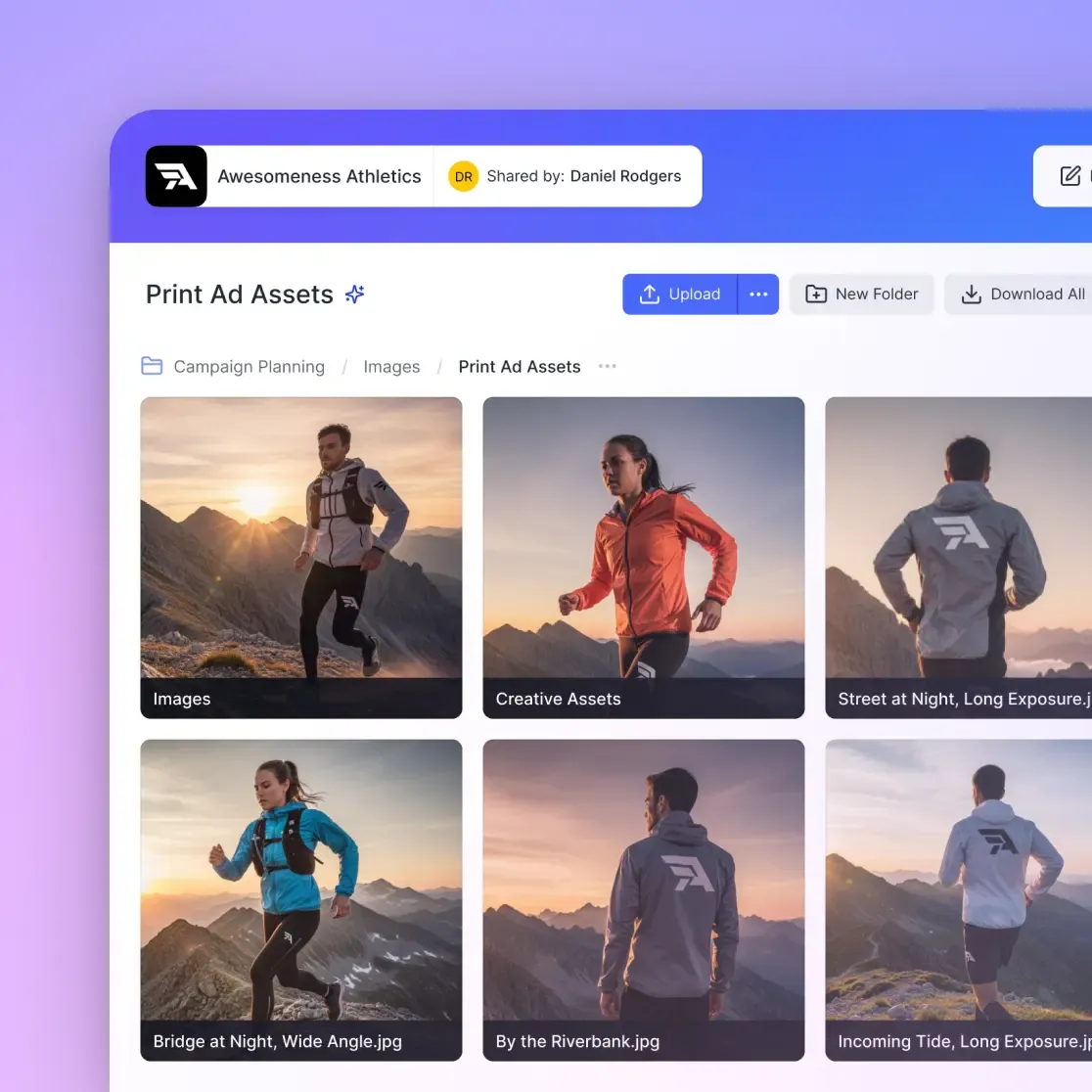
A file upload portal is a branded, secure web interface where clients and external collaborators can submit files directly to your organization without needing accounts or technical setup. Think of it as a digital submission box. Clients visit a link, drag files in, and those files appear in your workspace. No email attachments bouncing. No FTP credentials to manage. No "did you get the file?" phone calls. Upload portals solve one problem well: getting files from people outside your organization into a place you control. That could mean collecting tax documents from accounting clients, gathering footage from video production clients, receiving contracts from vendors, or accepting applications with supporting materials. Clients prefer self-service upload over email requests, and portals reduce back-and-forth communication. The math makes sense: clients can submit on their own time without scheduling a call or waiting for instructions.

Why Traditional Methods Fall Short
Before upload portals, teams used email, FTP, or shared drive links. Each has problems.
Email Attachments
Most email providers have strict attachment size limits. That works for PDFs but fails for video files, CAD drawings, or photo sets. Worse, attachments aren't encrypted between mail servers. For sensitive client documents, that's a liability. Files also get buried in threads. When a client sends five versions across three weeks of emails, finding the right one becomes an archaeology project.
FTP and SFTP
FTP solves the size problem but creates new ones. Clients need credentials, an FTP client application, and instructions for connecting. Most will struggle or give up. IT teams hate managing FTP accounts. Every new client means a new account, and every offboarded client means an account to disable. The credentials also tend to get shared and reused in ways that create security gaps.
Shared Drive Links
Sending clients a Google
Drive or Dropbox link feels simpler but exposes more than intended. Clients might see other files in the folder. Permission settings are confusing. And you're trusting that the client has (or creates) an account with that service. Upload portals fix these issues. They're simple enough for any client to use, secure enough for sensitive files, and organized enough to scale across dozens or hundreds of clients.
Features That Matter for Client Portals
Upload portal tools vary widely. Some are just file drop boxes. Others include workflow automation, branding, and detailed tracking. Here's what to evaluate.
No Account Required
This is non-negotiable. If clients need to create an account or remember a password, friction increases and completion rates drop. Fastio offers unlimited guest access so clients upload without accounts and don't count against your seat limits.
Custom Branding
A generic upload page looks suspicious. Clients want to see your logo, your colors, maybe your domain name. Branded portals build trust in a way generic links can't. When clients see familiar branding, they're more confident they're sending files to the right place.
Security Controls
Password protection adds a layer beyond having the link. Expiration dates close portals after deadlines. Domain restrictions limit uploads to specific email addresses. These controls let you balance accessibility with security based on what you're collecting.
Notifications
Get alerted when files arrive. For high-volume portals, batch notifications prevent inbox flooding. For critical submissions, instant alerts ensure you don't miss anything time-sensitive.
Upload Size
Some portals have file size caps. If your clients send large video files, construction drawings, or datasets, verify the limit before committing to a platform. Fastio handles large files without arbitrary caps.


Set Up Your Client Upload Portal
Fastio gives you usage-based cloud storage built for file upload portal. Get streaming previews, AI-powered search, and unlimited guest sharing. Start with a free account, no credit card required.
Comparing File Upload Portal Options
The market splits into three categories: enterprise platforms, lightweight tools, and file transfer services.
Enterprise Platforms
ShareFile, FileCloud, and Egnyte target large organizations with compliance requirements. They offer detailed audit logs, retention policies, and admin controls. These platforms have higher per-user pricing, which adds up fast for teams. Setup takes IT involvement. These platforms make sense if you're in a regulated industry and need specific compliance features. For most businesses, they're overkill and overpriced.
Lightweight Tools
Tools like Dropbox file requests, Google
Drive shared folders, and OneDrive sharing handle basic collection. They're often included in storage plans you already pay for. The tradeoff: limited branding, confusing permission models, and accounts required for clients in some cases. Good for occasional file collection. Not ideal for client-facing workflows where you need professional presentation.
File Transfer Services
WeTransfer, MASV, and similar tools specialize in large file transfers. They're built for sending files, not for organizing ongoing client relationships. Files often expire after a period. There's typically no workspace for long-term collaboration. Best for one-off large transfers. Not suited for ongoing client file collection.
Team Cloud Storage with Portals
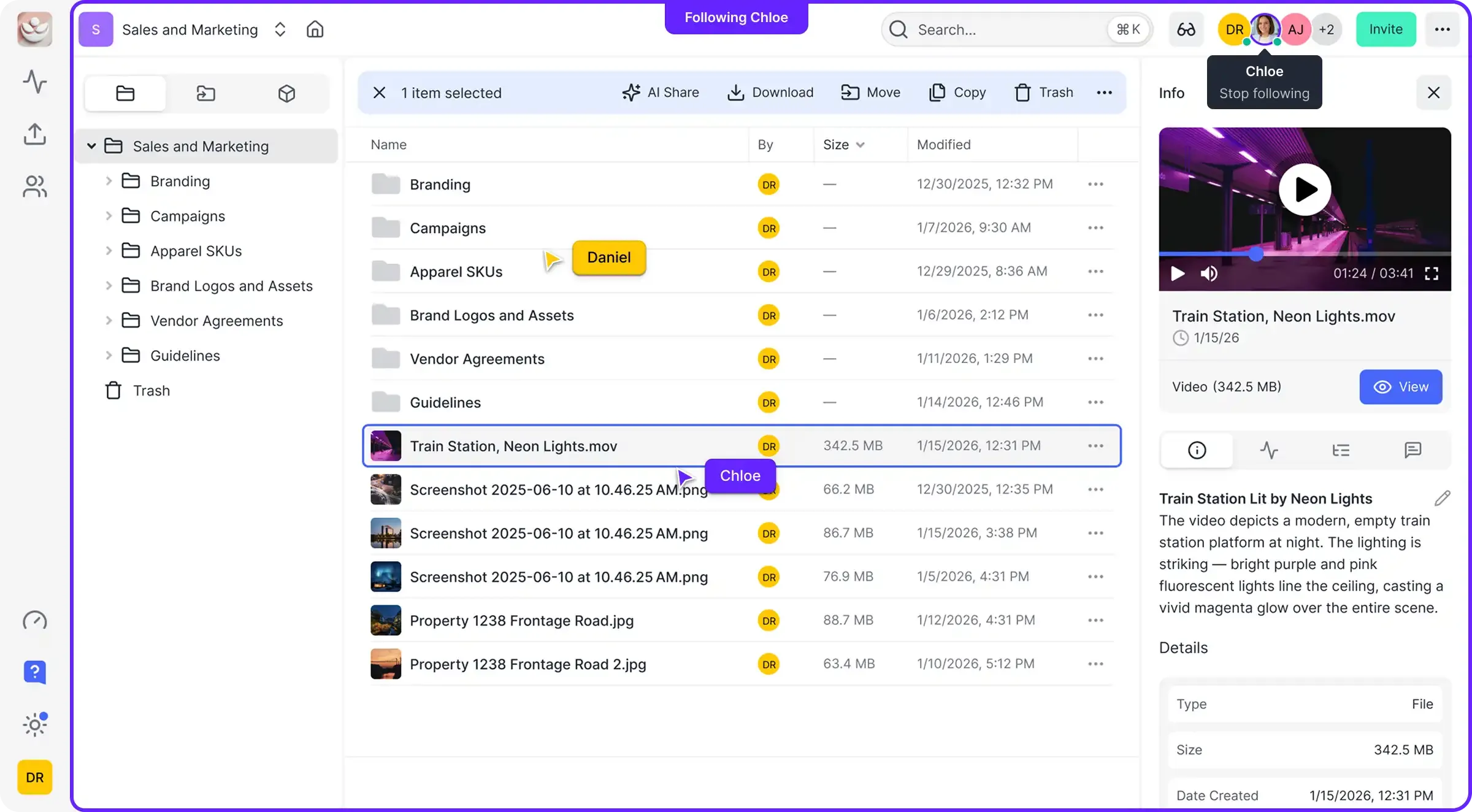
Fastio combines cloud storage, workspaces, and client-facing portals in one platform. Files clients upload land in your workspace where you can organize, preview, and collaborate on them. No separate transfer tool, no file expiration, no per-seat pricing for guests.
How to Set Up a Client Upload Portal
Here's the process in Fastio. Other platforms follow similar patterns.
Step 1: Create a destination
Decide where uploaded files should land. A dedicated workspace per client keeps submissions separate. A project folder works for one-off collections. The destination determines who on your team sees the files.
Step 2: Generate the portal link
Right-click the workspace or folder and select Share. Choose the external sharing option that allows uploads. This creates a unique URL that clients will use.
Step 3: Set access controls
Configure password protection if needed. Set an expiration date for time-limited collections. Enable notifications so you know when files arrive. Restrict uploads to specific domains if you want extra verification.
Step 4: Apply your branding
Add your logo and brand colors. The portal should look like it belongs to your organization, not like a generic file drop. Clients see this branding when they visit the link.
Step 5: Share with clients
Send the portal link via email, embed it on your website, or include it in client onboarding materials. Clients click, upload, and files appear in your workspace. Most teams complete setup quickly. No IT department required.
Security Best Practices
Accepting files from external parties introduces risk. Here's how to manage it.
Encryption Everywhere
Files should be encrypted during upload (in transit) and while stored (at rest). TLS encryption protects transfers. Server-side encryption protects stored files. Verify your portal provider handles both.
Access Segregation
Not everyone on your team should see everything clients upload. Use workspace-level or folder-level permissions to restrict access. An accounting team's client submissions shouldn't be visible to marketing.
Audit Trails
When a client claims they uploaded a file, you need records. Audit logs track every upload with timestamps, file details, and client identifiers. Useful for compliance, disputes, and simple "when did they send this?" questions.
Link Management
Don't leave upload portals open indefinitely. Set expiration dates for project-based collections. Revoke links when client relationships end. Periodically review active portals and close ones no longer needed.
File Scanning
Some platforms scan uploaded files for malware before they reach your storage. This matters when accepting files from unknown sources. Ask about scanning capabilities if you're collecting files publicly.
Common Use Cases by Industry
Upload portals work anywhere external parties need to send you files. Here are patterns by industry.
Professional Services
Accountants, attorneys, and consultants collect documents from clients continuously. Tax returns need W-2s and receipts. Legal matters need evidence and contracts. Consulting projects need data and reports. A portal per client keeps everything organized with clear audit trails.
Creative and Media
Agencies receive brand assets, raw footage, and feedback from clients. Video production teams gather b-roll, music files, and review notes. A portal per project prevents the "which version?" confusion that comes with email. For ongoing relationships, see our agency client portal guide.
Real Estate
Transactions involve documents from buyers, sellers, lenders, attorneys, and inspectors. A transaction portal collects everything in one place. When deals close, the portal becomes the complete record.
Construction Subcontractors submit bids, insurance certificates, change orders, and progress photos. Site teams upload daily logs and inspection results. Project-based portals keep documentation organized across dozens of contributors.
HR and Recruiting
Candidates submit resumes, portfolios, and certifications. New hires provide onboarding documents. A portal per role or per hire simplifies collection while keeping sensitive personal information secure.
Frequently Asked Questions
What is a file upload portal?
A file upload portal is a branded, secure web interface where clients and external collaborators can submit files directly to your organization without needing accounts or technical setup. Clients visit a link, drag in files, and those files appear in your workspace.
How do I create a file upload portal?
In Fastio, create a workspace or folder for incoming files, generate an external share link with upload permissions, configure security settings like password protection and expiration dates, add your branding, and share the link with clients. Setup is quick.
How do I let clients upload files to me?
Create an upload portal with a unique link and send that link to clients. They can drag and drop files without creating accounts or installing software. The files appear in your workspace with notifications so you know when submissions arrive.
Do clients need accounts to use an upload portal?
No. Well-designed upload portals let clients submit files without creating accounts, remembering passwords, or installing software. They visit the link, upload files, and leave. Fastio's guest access means clients don't count against your seat limits either.
What's the difference between an upload portal and a data room?
An upload portal collects files from external parties. A data room provides controlled access to existing files during transactions like M&A, fundraising, or audits. Portals are for receiving; data rooms are for reviewing. Many teams use both for different purposes.
How secure are file upload portals?
Security varies by provider. Look for encryption in transit and at rest, password protection options, expiration dates, domain restrictions, and audit logging. Fastio includes these controls so you can balance accessibility with security based on what you're collecting.
Related Resources

Set Up Your Client Upload Portal
Fastio gives you usage-based cloud storage built for file upload portal. Get streaming previews, AI-powered search, and unlimited guest sharing. Start with a free account, no credit card required.