How to Create and Share Employee Training Videos
Employee training videos are recorded instructional content used to onboard new hires, teach skills, and maintain compliance across an organization. Unlike live training, video assets can be used repeatedly. The same video delivers the same message to every employee while reducing training costs. This guide covers how to plan, produce, and securely host training content for your team.
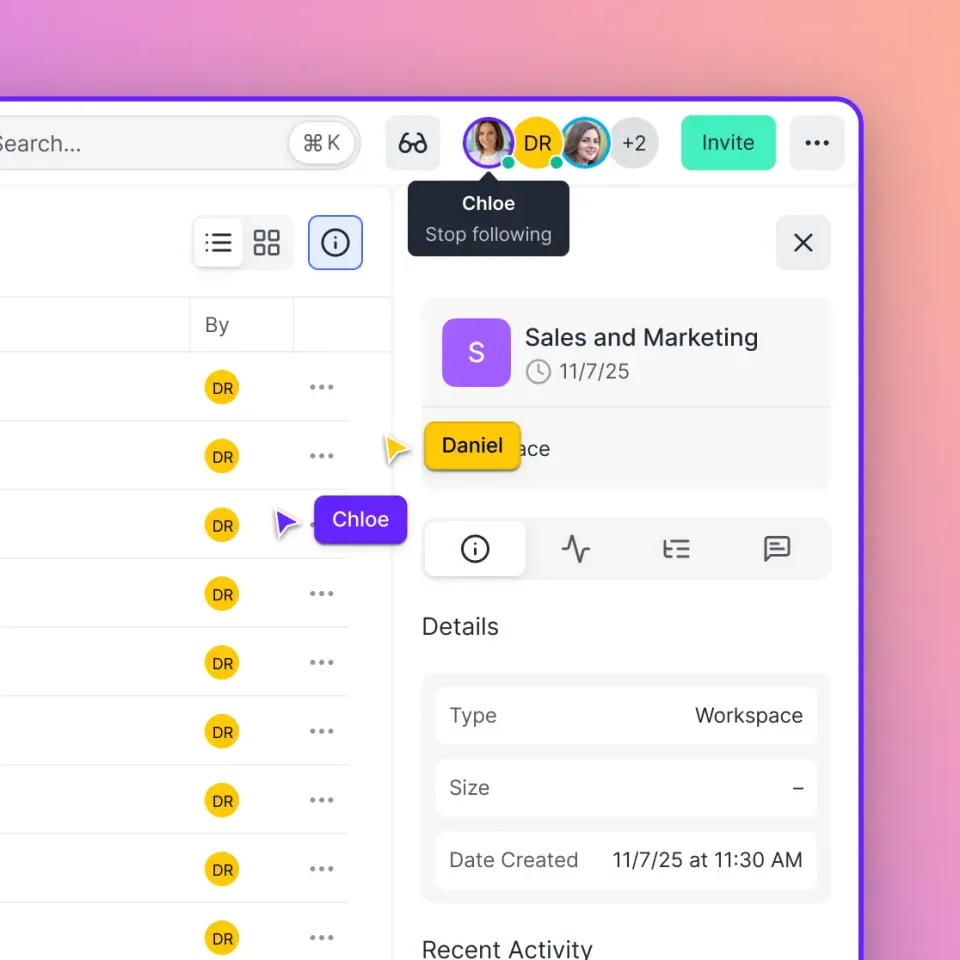
Why Video Training Beats Text Manuals: employee training videos
If you've ever skimmed a lengthy PDF handbook and remembered nothing, you understand the problem with text-based training. Video engages both visual and auditory learning channels, making complex information easier to digest and recall. The data backs this up:
- Higher Retention: Studies show video training increases information retention compared to text.
- Cost Savings: Companies like Microsoft have reported substantial savings per employee by switching to video-based training, primarily by reducing travel and instructor time.
- Consistency: Every employee hears the exact same message, eliminating the "game of telephone" effect that happens with live training sessions.
- On-Demand Access: Employees can learn at their own pace, pausing and rewinding difficult concepts as needed.
Helpful references: Fast.io Workspaces, Fast.io Collaboration, and Fast.io AI.
How to Create Effective Training Videos
You don't need a Hollywood budget to make effective training content. In fact, authenticity often works better than polish. Below is a practical workflow for creating your first training series.
1. Plan and Script (Don't Wing It)
Start with a clear learning objective. What should the viewer be able to do after watching? Write a simple script or bulleted outline. Keep videos short, ideally under ten minutes. If a topic is complex, break it into a series of shorter chapters.
2. Choose Your Format
- Screen Recordings: Best for software training. Tools like Loom, Camtasia, or OBS Studio capture your screen and voice.
- Talking Head: Best for soft skills, leadership updates, or onboarding welcomes. A smartphone on a tripod works perfectly fine.
- Hybrid: A mix of slides, screen capture, and video.
3. Record with Good Audio
Bad video is forgivable; bad audio is not. If you're using a laptop or phone, consider a simple USB microphone or lapel mic. Record in a quiet room with soft furnishings to reduce echo.
4. Edit for Clarity
Use simple editing tools (Descript, Premiere Rush, or even iMovie) to trim dead air, mistakes, and long pauses. Add simple text overlays for key terms. You don't need fancy transitions, just clear cuts.
Where to Host Internal Training Videos
Once your videos are ready, the biggest challenge is sharing them securely. You can't just email a large video file, and public platforms have serious risks.
The Risks of Public Platforms
Hosting internal training on YouTube (even as "Unlisted") is a security risk. Unlisted links can be shared with anyone, indexed by search engines if embedded on public sites, and don't offer audit logs. If an employee leaves, they still have the link.
The Problem with Heavy LMS
Learning Management Systems (LMS) are powerful but often expensive and complex to set up. For many teams, an LMS is overkill when you just need a secure place for employees to watch videos.
The Solution: Secure Cloud Hosting
For most businesses, the sweet spot is a secure cloud portal that offers:
- Streaming, not downloading: Videos play instantly in the browser without users needing to download large files.
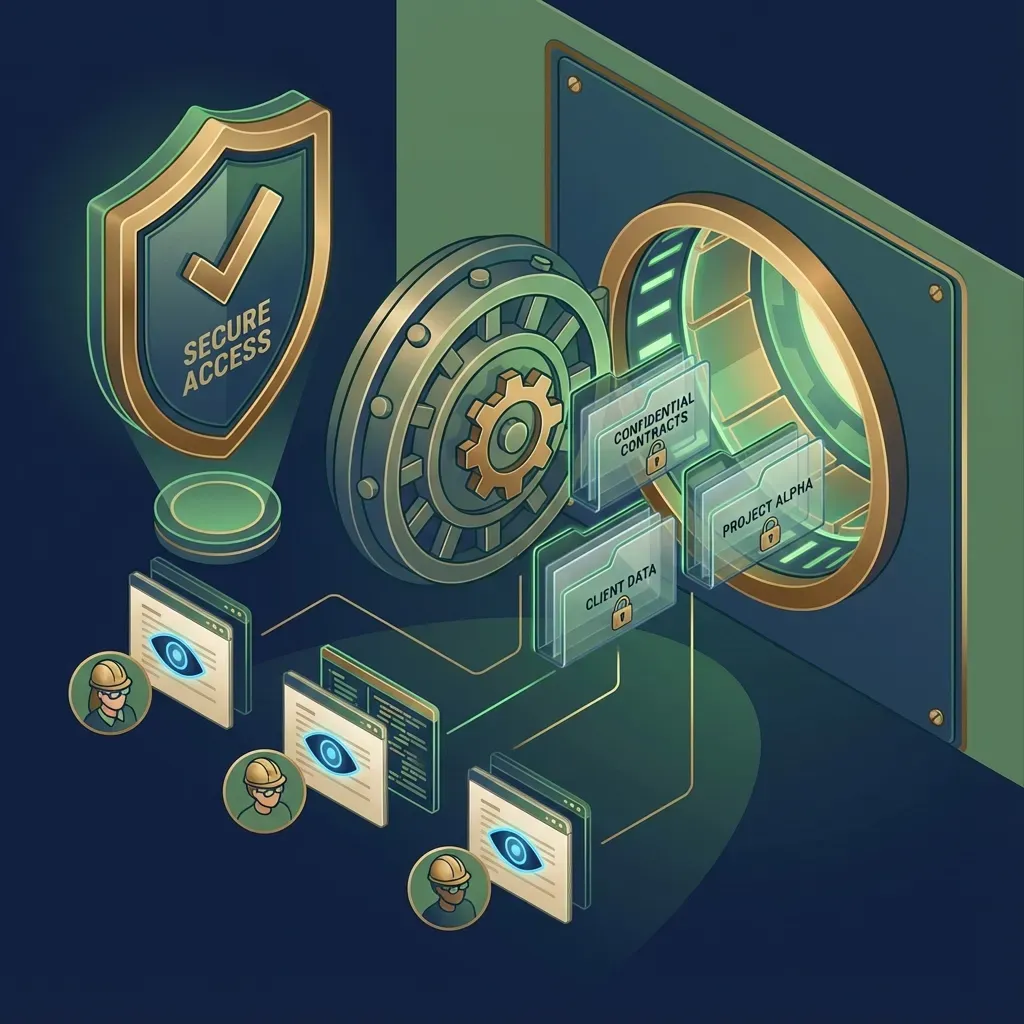
- Access control: You decide who sees what (e.g., "Management Training" is only visible to managers).
- No file size limits: Upload 4K videos or hour-long sessions without compression.
- Organization ownership: Content belongs to the company, not an individual's personal drive.
Securing Your Training Content
Internal training videos often contain sensitive company information, proprietary workflows, software credentials, or strategic plans. Security must be a priority.
Essential Security Features:
- Password Protection: The most basic layer. Ensure you can password-protect specific folders or workspaces.
- Domain Restriction: Whitelist your company domain (e.g.,
@yourcompany.com) so only users with a corporate email can access the content. - Expiration Dates: For temporary contractors, set access to expire automatically after their contract ends.
- Audit Logs: You need to know who watched what. This is critical for compliance training where you must prove an employee reviewed the material. Tools like Fast.io let you turn a folder of videos into a branded, password-protected site (a "portal") in seconds. Employees get a clean viewing experience, and IT gets the security controls they need.
Organizing Your Video Library
As your library grows from five videos to fifty, organization becomes critical. Dump-and-search doesn't scale.
Best Practices for Organization:
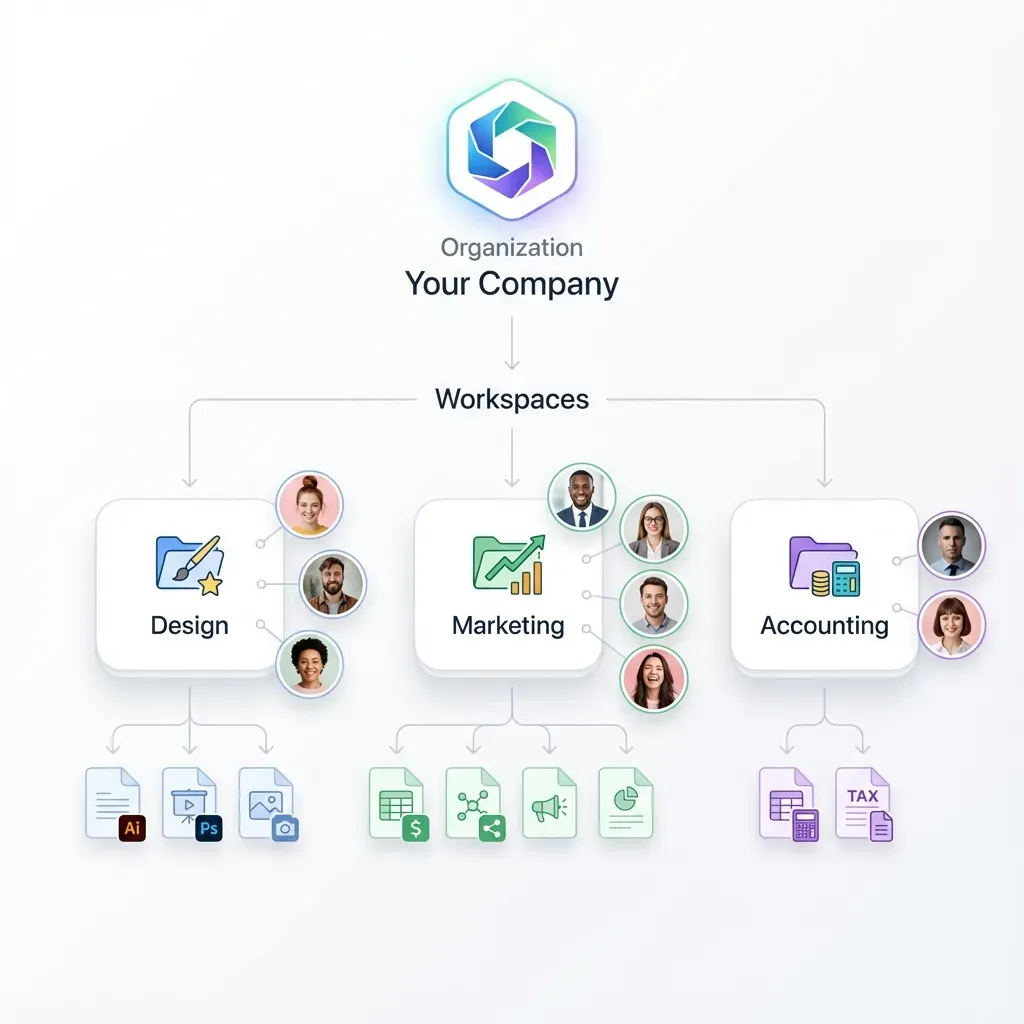
- Topic-Based Folders: Group videos by department (Sales, HR, Engineering) or topic (Onboarding, Compliance, Skills).
- Consistent Naming: Use a standard convention like
[Category] - [Topic] - v[Version]. Example:HR - AntiHarassment - v2025. - Metadata: Use a system that supports tagging or descriptions so employees can search for "how to file expenses" and find the right video without knowing the filename.
- Centralized Portal: Create a single "Training Hub" workspace. This becomes the source of truth. If you update a video file in the cloud storage, the portal should update automatically, ensuring no one watches outdated material.
Frequently Asked Questions
How long should employee training videos be?
Aim for short videos, ideally under ten minutes. Attention spans drop after the 10-minute mark. If you have a complex topic like 'Advanced Sales Strategy,' break it down into a series of shorter, focused modules (e.g., 'Opening the Call,' 'Handling Objections,' 'Closing'). This micro-learning approach improves retention and makes it easier for employees to find specific information later.
What is the best way to share large video files with employees?
Avoid email or messaging apps, which compress quality and have size limits. Use a secure cloud sharing platform that supports HLS streaming (adaptive bitrate). This allows employees to watch high-quality video instantly in their browser without waiting for a massive file to download. Ensure the platform supports large file sizes and offers password protection.
Do I need expensive equipment to make training videos?
No. A modern smartphone or a laptop with a decent webcam is sufficient for most internal content. The most important investment is audio, a good USB microphone will make your videos sound professional. For screen recordings, free or low-cost tools like Loom or OBS Studio are industry standards. Content quality and clarity matter more than production value.
How do I ensure employees actually watch the videos?
Use a hosting platform that provides audit logs or viewer analytics. This allows you to track who has accessed the training and how much they watched. For mandatory compliance training, this 'proof of view' is essential. Also, keeping videos short and engaging increases the likelihood of voluntary completion.
Can I host training videos on Google Drive or SharePoint?
You can, but the user experience is often poor. These platforms are designed for file storage, not video streaming. Videos may buffer, fail to play on mobile devices, or require downloading. A dedicated video portal or a tool like Fast.io that sits on top of your storage provides a much better playback experience (no buffering, adaptive quality) and stronger security controls.
Related Resources

Run Create And Share Employee Training Videos workflows on Fast.io
Fast.io turns your folders into a branded training portal with instant video streaming and strong security controls. No coding required.