Why Dropbox Upload Is Slow and How to Fix It
Slow Dropbox uploads frustrate creative teams moving large video or design files. Your internet connection matters, but Dropbox's default settings and sync protocols often throttle transfer rates beyond what your bandwidth explains. This guide breaks down the technical reasons behind slow uploads and gives you actionable fixes to get your files moving faster. This guide covers dropbox slow upload with practical examples.
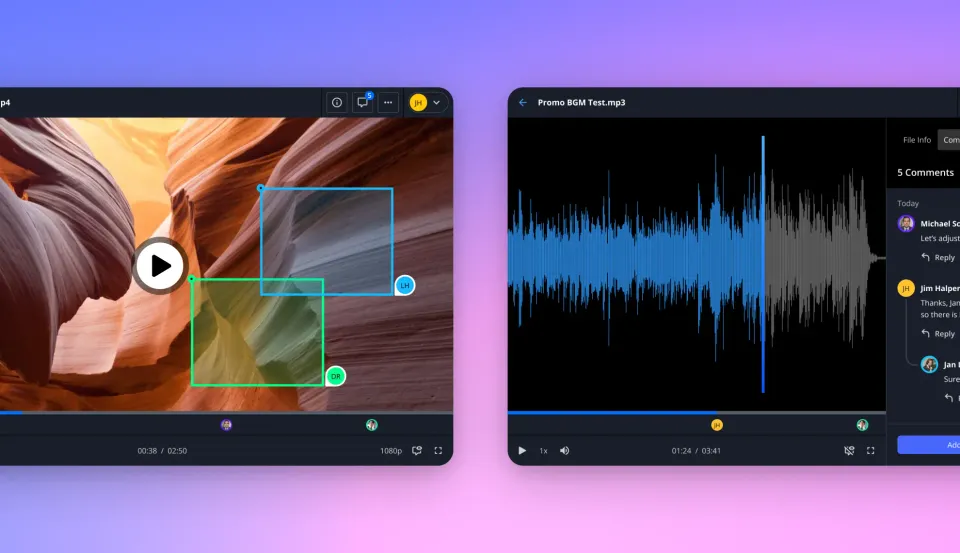
Why Is Dropbox So Slow to Upload?: dropbox slow upload
Dropbox upload speeds are limited by HTTP protocol overhead, bandwidth throttling, and sync prioritization. The software performs extensive background processing before transferring a single byte from your computer.
The Hashing and Indexing Process
Before any upload begins, Dropbox breaks your files into small chunks. Each chunk gets hashed using a cryptographic algorithm to create a unique fingerprint. The client then queries Dropbox servers to check whether that chunk already exists in the system. This deduplication check saves storage space and bandwidth for files that have been uploaded before, but it adds latency for new files that need full transfers. For large video files, this means thousands of individual chunks that each need to be hashed locally, checked against the server, and then queued for upload. The CPU overhead from hashing alone can bottleneck transfers on older machines, especially when uploading multiple large files simultaneously.
Encryption Overhead
Dropbox encrypts all data before transit. While encryption is essential for security, the encryption process consumes CPU cycles and adds latency to every transfer. On machines with slower processors or when CPU is already taxed by other applications, encryption becomes a noticeable bottleneck.
ISP Upload Asymmetry
Most internet service providers offer asymmetric connections optimized for downloading content rather than uploading it. A typical residential plan might advertise high download speeds but only deliver a fraction of that speed for uploads. Business plans are often better, but even these frequently cap uploads at a fraction of download capacity. Before blaming Dropbox, run a speed test at fast.com or speedtest.net to see your actual upload bandwidth.
Small File Overhead
Uploading a folder containing thousands of small files takes dramatically longer than uploading a single large file. Each file requires its own metadata exchange, server handshake, and sync confirmation. The per-file overhead compounds quickly when dealing with project folders containing thousands of assets, scripts, or source files. Understanding these constraints helps you diagnose whether your slow uploads stem from network limitations, hardware bottlenecks, or Dropbox configuration issues.
Helpful references: Fast.io Workspaces, Fast.io Collaboration, and Fast.io AI.

7 Ways to Fix Slow Dropbox Uploads
If your transfer rate is crawling, these fixes can help you reclaim your full bandwidth and speed up file transfers.
1. Uncap Your Bandwidth Settings
By default, Dropbox throttles upload speeds to prevent saturating your internet connection. This conservative setting keeps web browsing and video calls responsive, but it also means Dropbox rarely uses your full available bandwidth. To remove the limit:
- Click the Dropbox icon in your menu bar (Mac) or system tray (Windows)
- Select your profile picture, then click Preferences
- Navigate to the Bandwidth tab
- Under "Upload rate," change from "Don't limit" or manually set a higher value
- Avoid "Auto limit" since the algorithm is often overly conservative
After making this change, run a test upload to see if speeds improve. If you notice other applications becoming sluggish during uploads, you can set a specific limit that balances transfer speed with usability.
2. Enable LAN Sync for Team Transfers
When sharing files with colleagues on the same local network, Dropbox can transfer files directly between computers without routing through cloud servers. LAN Sync dramatically speeds up team collaboration in office environments. To enable LAN Sync:
- Open Dropbox Preferences
- Navigate to the Bandwidth or Network tab
- Check the box for "Enable LAN sync"
This feature works automatically when two Dropbox clients are on the same network and need the same files. The speed improvement is substantial since local network transfers often happen at much higher speeds than typical internet uploads.
3. Batch Small Files Into Archives
Thousands of tiny files choke the sync engine because each file requires individual processing. Zipping small files into a single archive before uploading eliminates most of this overhead. For folders containing many small files, creating a single archive can dramatically reduce upload time. The tradeoff is that recipients need to unzip the archive, and you lose the ability to sync individual file changes. Use this approach for project deliverables and archives rather than active working folders.
4. Restart the Dropbox Application
The Dropbox background process occasionally gets stuck or accumulates memory leaks that degrade performance. A simple restart can clear the upload queue and establish a fresh connection to Dropbox servers. On Mac, click the Dropbox icon, select your profile, and choose "Quit Dropbox." Wait a few seconds, then relaunch from Applications. On Windows, right-click the system tray icon and select "Quit Dropbox," then restart from the Start menu.
5. Switch to a Wired Connection
Wi-Fi is convenient but introduces latency, packet loss, and interference that degrade sustained upload performance. When a packet gets lost, Dropbox must detect the missing data and request retransmission, which compounds delays for large transfers. For uploading large projects, plug in an Ethernet cable. Wired connections provide consistent bandwidth without the variability of wireless signals. If hardwiring isn't practical, move closer to your router and ensure you're connected to the faster 5GHz Wi-Fi band.
6. Clear the Dropbox Cache
Corrupted cache files can cause sync failures and slowdowns. Clearing the cache forces Dropbox to rebuild its local index, which sometimes resolves persistent upload issues. On Windows, navigate to %HOMEPATH%\Dropbox\.dropbox.cache and delete the contents. On macOS, clear ~/Dropbox/.dropbox.cache. After clearing, restart Dropbox and allow it to re-index your files.
7. Check Proxy and Firewall Settings
Corporate networks often route traffic through proxy servers that inspect and potentially throttle non-web traffic. If your organization uses a proxy, it might be adding latency to every Dropbox request. In Dropbox Preferences, navigate to Proxies and try setting it to "No proxy" if your network allows direct connections. Also verify that your firewall isn't inspecting or blocking Dropbox traffic. Some security software treats file sharing applications as lower priority traffic.
The Fundamental Limit of Sync-Based Architecture
Even with optimized settings, Dropbox's sync-based architecture creates a performance ceiling that configuration changes cannot overcome. Understanding this limitation helps explain why some users never achieve fast upload speeds regardless of their internet connection.
Sync vs. Transfer: Different Design Goals
Dropbox was designed to keep files synchronized across multiple devices. The sync engine prioritizes consistency and reliability over raw transfer speed. Before uploading a file, the client must:
- Detect the file change through filesystem monitoring
- Wait for the file to finish writing (to avoid uploading partial data)
- Calculate chunk hashes for deduplication
- Query the server for existing chunks
- Queue new chunks for upload
- Upload chunks sequentially with confirmation
- Update local and remote indexes
- Notify other connected clients
This process ensures data integrity across all your devices but adds substantial latency to every transfer. For small document edits, the overhead is negligible. For uploading large video projects, these steps add significant time to the total transfer.
The Local Client Bottleneck
Dropbox requires a desktop application that maintains a local index of all synced files. This client application becomes a bottleneck because all uploads must flow through it. The client competes for CPU, memory, and disk I/O with your other applications. Users running memory-intensive creative applications or local servers may find that Dropbox underperforms because system resources are already allocated elsewhere.
Protocol Overhead for Large Files
HTTP-based transfers add overhead that becomes significant at scale. Each file chunk requires its own HTTP request, response, and confirmation cycle. For large uploads, this means thousands of individual HTTP transactions, each with its own latency penalty. Modern transfer protocols designed for large files use different approaches: persistent connections, parallel streams, and resumable transfers that skip protocol handshakes. Dropbox uses some of these optimizations but remains constrained by its core architecture.
A Faster Alternative: Fast.io
When upload speed matters more than cross-device synchronization, platforms designed for fast file delivery outperform sync-based storage. Fast.io takes a fundamentally different approach that eliminates the bottlenecks inherent in traditional cloud sync.
Cloud-Native Architecture
Fast.io operates as cloud-native storage rather than sync-based storage. Files live in the cloud and are accessed on-demand rather than mirrored to every connected device. This architecture eliminates the local client bottleneck since uploads go directly to cloud infrastructure without passing through a desktop sync engine. The practical impact: uploads start immediately without waiting for hashing, indexing, or deduplication checks. Your files begin transferring the moment you initiate the upload.
No Local Indexing Required
Because Fast.io doesn't maintain local file copies, there's no indexing delay. You don't wait for a background process to scan thousands of files and build a local database. Files are available immediately after upload completes. For creative teams uploading daily rushes, project deliverables, or client assets, this means faster turnaround. The time between finishing a render and having it available for team review shrinks from hours to minutes.
Branded Upload Portals
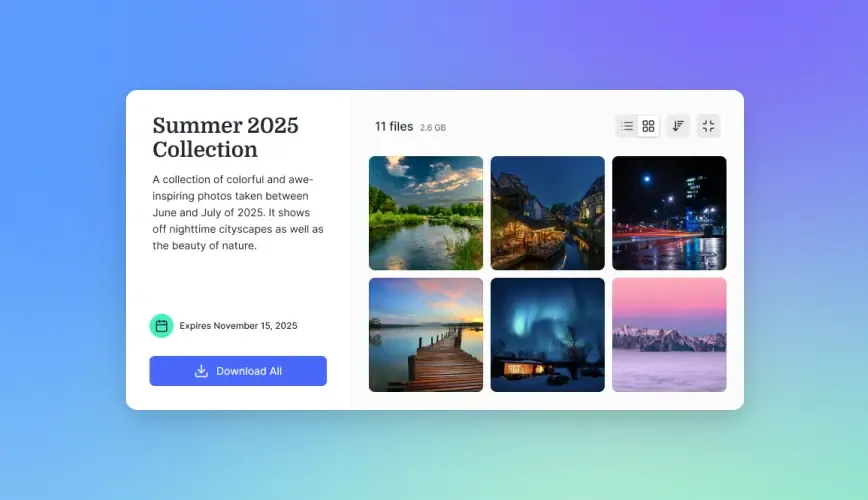
Traditional sync services require external collaborators to create accounts, install software, and navigate unfamiliar interfaces. Fast.io's branded upload portals let clients drag and drop files directly to your workspace without any account creation. These portals display your branding and provide a simple, professional upload experience. Files go directly to your Fast.io workspace rather than consuming storage in the sender's account. For agencies and production companies receiving assets from multiple clients, this simplifies intake dramatically.
Organization-Owned Files
In Dropbox, files belong to the user account that uploaded them. When employees leave, their files may leave with them unless IT has configured enterprise retention policies. Fast.io uses an organization-owned model where files belong to the company regardless of who uploaded them. This ownership model also means no conflicts between personal and work files. There's no "My Drive" folder chaos where personal photos mix with client deliverables. Workspaces are organized around projects and teams rather than individual user accounts.
When to Optimize vs. When to Switch
Not every slow upload problem requires switching platforms. The right solution depends on your specific situation and workflow requirements.
Optimize Dropbox If:
Your internet connection is the actual bottleneck. If speed tests show low upload bandwidth, no software change will dramatically improve transfer times. Focus on upgrading your internet plan or working from locations with faster connections. You primarily work with documents and small files. Dropbox's sync overhead is negligible for typical office documents. Word files, spreadsheets, and presentations transfer quickly even with the sync architecture. The optimization tips above should resolve most issues for document-centric workflows. Your team already has workflows built around Dropbox. Switching platforms involves migration effort, retraining, and potential disruption. If Dropbox uploads are merely slow rather than unusably slow, optimization may provide sufficient improvement with less disruption.
Consider Switching If:
You regularly upload large media files. Video projects, high-resolution image sets, and audio recordings expose Dropbox's architectural limitations most . Platforms designed for large file handling provide noticeably better performance for media workflows. You need to receive files from external clients. Dropbox's sharing model works well for sending files but creates friction for receiving them. Clients need Dropbox accounts, storage space, and familiarity with the interface. Upload portals provide a simpler intake process. Your team has grown beyond Dropbox's per-seat pricing model. Dropbox charges per user, which becomes expensive as teams grow. Fast.io includes 25 seats with Pro plans and 100 seats with Business plans, with additional seats at published pricing each. For larger teams, the cost difference becomes substantial. You're frustrated by sync conflicts and version confusion. The sync model that makes Dropbox useful for cross-device access also creates opportunities for sync conflicts when multiple people edit files simultaneously. Cloud-native storage with proper version control eliminates these issues.
Hybrid Approaches
Some teams use both platforms for different purposes: Dropbox for active document collaboration and a transfer-optimized platform for receiving deliverables and distributing large files. This hybrid approach captures the benefits of each architecture without fully migrating away from established workflows. The key is matching the tool to the task. Sync-based storage excels at keeping small files consistent across devices. Transfer-optimized platforms excel at moving large files quickly between people and organizations.
Conclusion: Speed Depends on Architecture
Slow Dropbox uploads have two potential causes: configuration issues you can fix, and architectural limitations you cannot. Start with the optimization steps: uncap bandwidth limits, enable LAN sync, batch small files, use wired connections, and clear the cache. These changes often provide meaningful improvement for typical file sizes and workflows. If optimization doesn't help, the sync architecture itself may be the bottleneck. Dropbox processes uploads through a local client that hashes, indexes, and queues files before transfer. This design prioritizes consistency over speed, which works well for document sync but creates overhead for large file transfers. For teams regularly moving video projects, design assets, or other large files, platforms like Fast.io provide faster uploads by eliminating sync overhead. Cloud-native storage, direct uploads, and branded intake portals create a workflow optimized for speed rather than cross-device synchronization. Test your actual use case. Upload a representative large file to both platforms and measure the time difference. The results will tell you whether optimizing Dropbox settings is sufficient or whether your workflow would benefit from a platform designed for fast file delivery.
Frequently Asked Questions
Why is Dropbox upload speed slower than download?
Two factors combine to make uploads slower than downloads. First, most internet providers offer asymmetric connections where download speeds are much faster than upload speeds. Second, uploading to Dropbox requires additional processing, including encryption, chunk hashing, and server verification, that downloading does not. These factors compound to make uploads feel slower than downloads even on fast connections.
Does zipping files make Dropbox upload faster?
Yes, faster for folders with many small files. Each individual file requires its own metadata exchange, server handshake, and sync confirmation. A folder with 5,000 files might take hours to upload while a single zip archive of the same content takes minutes. The tradeoff is that recipients need to unzip the archive, and you lose the ability to sync individual file changes. Use zipping for project deliverables and archives rather than active working directories.
Is there a faster alternative to Dropbox for large files?
Yes. Cloud-native platforms like Fast.io are designed for large media files and datasets. By eliminating the desktop sync engine and using direct cloud transfers, they achieve higher sustained speeds for big files. Fast.io also offers branded upload portals where clients can send files directly without creating accounts. For video production, design agencies, and other media-heavy workflows, the speed difference is noticeable.
Why does Dropbox take so long to sync large files?
Dropbox processes large files through multiple stages before upload begins. The client splits files into chunks, calculates a hash for each chunk, queries servers to check for existing copies, and queues new chunks for transfer. A large file becomes thousands of individual chunks that each require this processing. This architecture ensures data integrity and enables deduplication but adds substantial time overhead compared to direct file transfer.
Can I make Dropbox upload faster on a slow internet connection?
If your internet connection is the bottleneck, software optimizations provide limited benefit. Run a speed test to determine your actual upload bandwidth. If your upload bandwidth is low, upgrading your internet plan or uploading from a faster location will help more than any Dropbox setting change. For slow connections, prioritize uploading during off-peak hours when network congestion is lower, and consider uploading overnight for large files.
Related Resources

Accelerate Your File Workflows with Fast.io
Skip the bottlenecks of traditional cloud sync. Fast.io delivers fast file transfers and instant access for your largest media files, with branded upload portals for seamless client intake.