How to Manage Files Generated by Devin AI
Devin AI generates dozens to hundreds of files per session, but its workspace resets between runs. This guide covers practical strategies for persisting Devin's output, backing up generated code, sharing results with your team, and building a file management workflow around autonomous coding agents.
What Devin Creates and Why File Management Matters
Devin, built by Cognition, is an autonomous coding agent that operates inside its own cloud environment with a terminal, code editor, and browser. It takes high-level requirements and delivers working software: writing code, creating tests, debugging errors, and iterating until the solution works. Every terminal command, file edit, and browser action gets recorded in a full replay timeline.
The practical problem is volume. A typical Devin session generates anywhere from a handful of configuration files to over a hundred source files, tests, and build artifacts. If you are running Devin across multiple projects or using it for bulk refactors, those files accumulate fast. Without a file management strategy, you end up with scattered code, lost outputs, and no clear way to share results with your team.
Devin's workspace resets to a saved machine state at the start of every session. By default, that state includes all repositories you have added at app.devin.ai/workspace. But anything generated during a session that is not committed to a repository or captured in a snapshot disappears when the session ends. That reset behavior makes file management not optional but essential.
Devin's primary output channel is Git. Most finished work lands as a pull request on your connected GitHub repository. But not everything fits neatly into a PR. Intermediate artifacts, generated documentation, test reports, log files, and experimental branches all need somewhere to live. The rest of this guide covers how to handle each of these.
What to check before scaling devin ai file management
Before adding external tools, it helps to understand what Devin already provides for file persistence.
Machine Snapshots
Machine Snapshots are Devin's built-in save states. After you take a snapshot, every future session can start from that exact machine state, including everything you have downloaded and installed. Teams commonly use snapshots to preinstall dependencies, pre-authenticate into services, or have repositories pre-cloned on Devin's machine.
Each snapshot supports startup commands that run at the beginning of every session. For example, you can configure Devin to cd your-repo, git pull, and npm install automatically. Cognition built a custom VM snapshot format called blockdiff that stores only the disk blocks that changed between two states. Snapshot creation dropped from roughly 30 minutes to about 200 milliseconds for a 20 GB disk, making it practical to snapshot frequently.
Session Replay and Rollback
Every Devin session records a full timeline of commands, file diffs, and browser actions. You can roll back to any previous point in a session, restoring both files and memory state. This is useful when Devin goes down a wrong path and you want to revert to a known-good checkpoint rather than starting over.
Sessions can also be woken up after periods of inactivity. If you started a long migration and need to step away, Devin picks up where it left off.
Git Integration Devin connects directly to GitHub repositories. The standard output for completed work is a pull request that your team reviews and merges through your existing workflow. Devin can also respond to PR comments and review other pull requests. For file management purposes, this means any code you want to keep long-term should be committed and pushed before the session ends.
What Is Not Covered
Snapshots preserve machine state but are tied to your Devin account. They are not shareable with team members who use separate Devin instances. Session replays are read-only records, not editable workspaces. And Git integration covers source code but not the broader set of artifacts an autonomous agent generates: reports, logs, analysis outputs, generated documentation, and data files that do not belong in a code repository.
Organizing Devin's Output for Teams
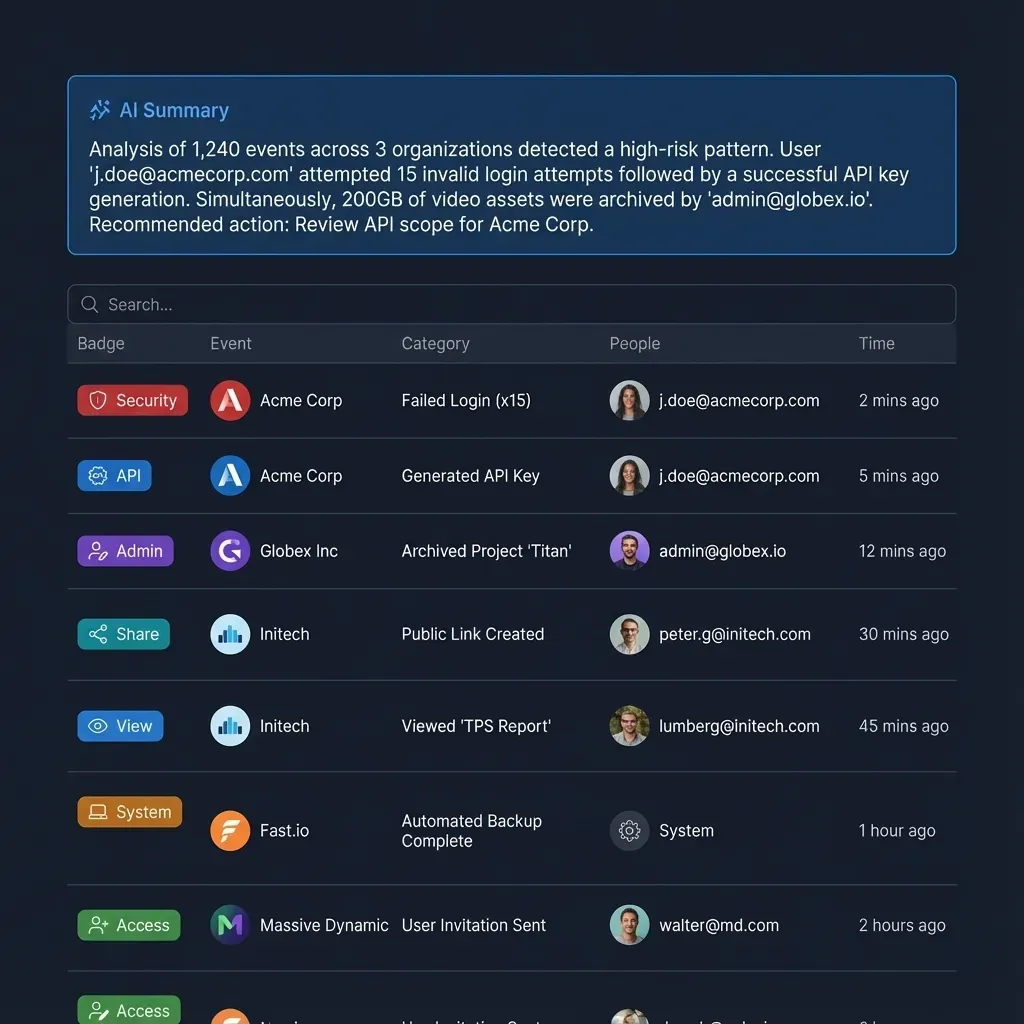
The gap between what Devin produces and what Git captures is where file management strategy matters most. Here is a practical framework for handling the different types of output.
Source Code
This is the straightforward case. Devin creates a PR, your team reviews it, and the code merges into your repository. The key habit is making sure Devin commits and pushes before a session ends. If you are running Devin on tasks where it might not automatically create a PR (exploratory coding, prototyping, research spikes), explicitly instruct it to commit its work to a branch.
Generated Documentation Devin Wiki, introduced in early 2025, automatically generates documentation from your codebase. These docs live inside Devin's system but may not sync to your team's documentation platform. Export generated docs and store them alongside your code or in a shared workspace where non-engineers can access them.
Build Artifacts and Test Reports
CI pipelines produce logs, coverage reports, and build outputs. When Devin runs tests or builds during a session, those artifacts exist only in the session environment. For important test runs, have Devin write results to a file and commit it, or upload it to shared storage.
Experimental and Intermediate Work
Not everything Devin produces is ready for a PR. Prototype code, comparison benchmarks, and exploratory analysis often need a review step before they are useful. These files need a home outside Devin's ephemeral workspace but separate from your production codebase.
A practical approach: create a dedicated workspace for agent output that sits between Devin's sessions and your production repositories. This workspace holds everything that is not yet PR-ready, gives team members visibility into what Devin is working on, and provides a staging area for review.



Give Your Coding Agents a Persistent Workspace
Fast.io provides shared workspaces where Devin and your team operate on the same files. 50 GB free storage, built-in AI search, and no credit card required. Built for devin file management workflows.
Backing Up and Sharing Devin's Files
Git handles source code. But for the rest of Devin's output, you need a storage layer that supports versioning, access control, and easy sharing.
Option 1: Local Storage and Manual Backup
The simplest approach is downloading files from Devin's workspace during or after a session. Devin's browser tool supports file downloads, and you can use the IDE to copy content. This works for individuals but breaks down with teams. There is no version history, no access control, and no way for a teammate to find what Devin generated last week without asking you.
Option 2: Cloud Storage Services
Services like Google Drive, Dropbox, or S3 give you shared access and basic versioning. The limitation is that these are general-purpose storage tools. They do not understand the relationship between files, sessions, or the agent that created them. Searching across hundreds of Devin-generated files to find a specific analysis requires manual organization discipline that most teams skip.
Option 3: Agent-Aware Workspaces
A workspace platform designed for agent output handles the problems that general storage does not. Fast.io provides shared workspaces where both agents and humans operate on the same files. The key difference from generic cloud storage is the intelligence layer: files uploaded to an intelligent workspace are automatically indexed for semantic search. Instead of organizing Devin's output into a perfect folder structure, you upload files and search by meaning later.
Practical workflow with Fast.io and Devin:
- Create a workspace for your project on Fast.io (free tier includes 50 GB storage and 5 workspaces, no credit card required)
- During a Devin session, upload artifacts that are not going into Git. Use Devin's browser to upload files directly, or use the Fast.io API to push files programmatically
- Enable Intelligence Mode on the workspace. Uploaded files get indexed automatically for RAG-powered search
- Share the workspace with your team. Everyone sees the same files with full version history and audit trails
- When outputs are ready for production, move them to your code repository through a PR
The Fast.io MCP server exposes workspace, storage, and AI operations through Streamable HTTP at /mcp. If your agent framework supports MCP, you can connect Devin's output pipeline directly to a shared workspace without manual file transfers.
For teams running multiple Devin instances across different projects, Fast.io's ownership transfer feature lets an agent create and populate a workspace, then hand ownership to a human team lead while keeping admin access for future updates.
Building a File Management Workflow for Devin
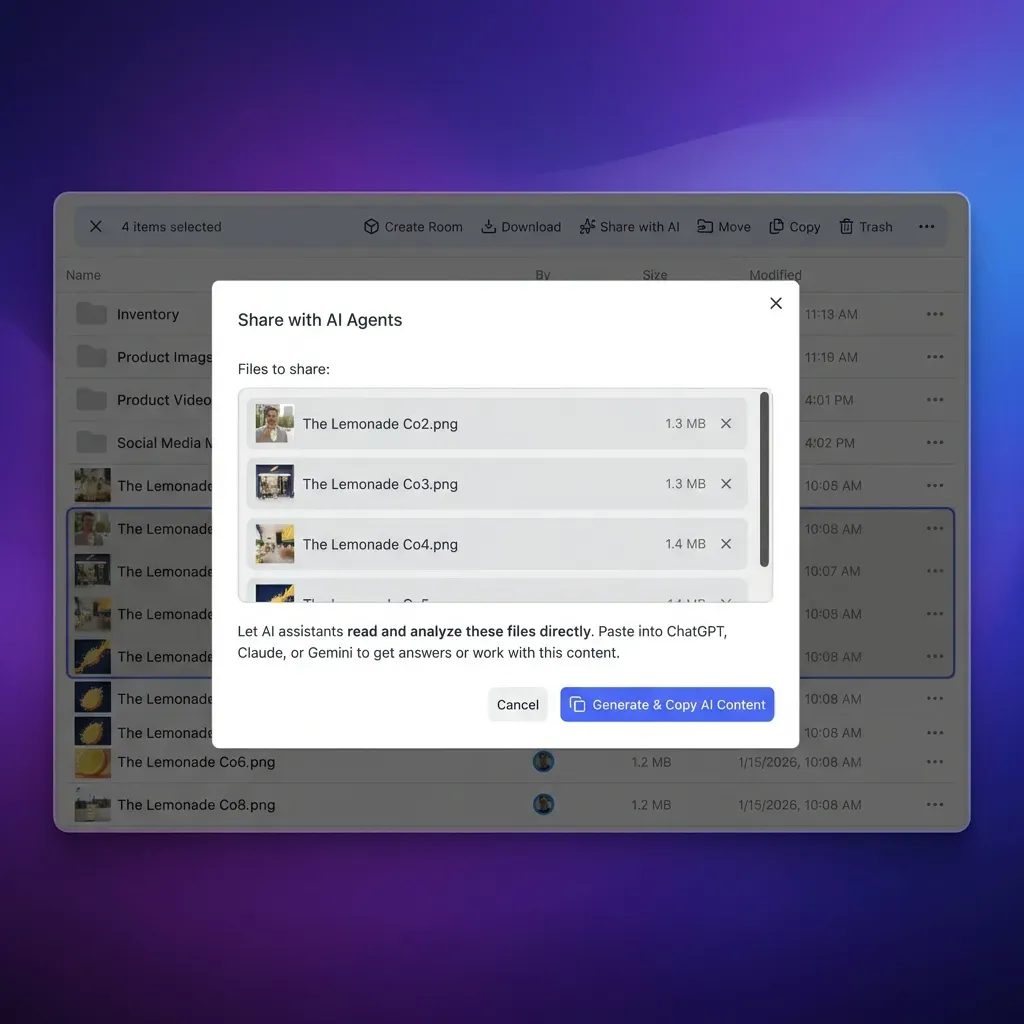
A repeatable workflow prevents the "where did that file go?" problem that hits every team using autonomous agents at scale. Here is a step-by-step process.
Before the Session - Set up a machine snapshot with your repositories, dependencies, and authentication pre-configured
- Add startup commands to pull latest changes and install dependencies
- Create or identify the shared workspace where non-Git outputs will go
During the Session - Monitor Devin's progress through the replay timeline or Slack integration
- For long-running tasks, check intermediate outputs periodically
- If Devin generates files you want to keep, instruct it to commit to a branch or upload to your shared workspace
After the Session - Review the PR that Devin created. Check that all intended changes are included
- Download or export any session artifacts that were not committed (test reports, logs, generated docs)
- Upload non-Git outputs to your shared workspace with descriptive names
- Take a new machine snapshot if you installed new dependencies or changed the environment
- Log what Devin accomplished in your project tracking tool. Devin works alongside Linear and Jira for this
Cross-Session File Strategy
For projects that span multiple Devin sessions, keep a running document that tracks which files were generated, where they live, and what state they are in. Devin supports session referencing through @ mentions, so you can point a new session at previous work. But the files themselves need to persist outside Devin's environment.
Consider this directory structure in your shared workspace:
/project-name/code-drafts/for work-in-progress code not yet in a PR/project-name/reports/for test results, benchmarks, and analysis/project-name/docs/for generated documentation/project-name/assets/for images, data files, and other non-code outputs
This structure gives team members a predictable place to find Devin's output regardless of which session produced it.
Scaling File Management Across Multiple Agents
Most teams do not stop at one coding agent. You might run Devin alongside Claude Code, Cursor, or GitHub Copilot Workspace. Each agent has its own session model, its own file handling quirks, and its own output format. File management gets harder when outputs from multiple agents need to come together.
The Multi-Agent File Problem
Agent A generates a component. Agent B writes tests for it. Agent C produces documentation. If each agent writes to its own isolated environment, someone has to manually collect and reconcile the outputs. That reconciliation step is where files get lost and versions diverge.
Centralized Storage as Coordination Layer
A shared workspace that all agents can access solves the coordination problem. Fast.io's workspace model supports this directly. Multiple agents can read from and write to the same workspace using the API or MCP server. File locks prevent conflicts when two agents try to modify the same file simultaneously.
With Intelligence Mode enabled, any agent (or human) can query the workspace contents using natural language. "What test files did Devin generate for the authentication module?" returns relevant results without anyone needing to know the exact file paths or folder structure.
Practical Setup
- Create one workspace per project (not per agent)
- Give each agent API access or MCP access to the workspace
- Use folder conventions to separate outputs by type, not by agent
- Enable Intelligence Mode for semantic search across all agent outputs
- Set up webhooks to notify your team when new files arrive
- Use branded Shares to deliver finished outputs to stakeholders who do not need workspace access
The goal is making agent output visible and searchable without requiring every team member to log into each agent's interface. Your storage layer becomes the single source of truth for everything the agents produce.
Frequently Asked Questions
How does Devin AI manage files between sessions?
Devin resets its workspace to a saved machine state at the start of every session. Repositories you have added at app.devin.ai/workspace persist by default, but other files generated during a session are lost unless you commit them to Git, capture them in a machine snapshot, or upload them to external storage.
Can Devin save files to cloud storage?
Devin can upload files through its built-in browser tool, and you can instruct it to push files to external services using terminal commands or API calls during a session. For automated workflows, connecting Devin to a workspace platform like Fast.io through its API lets you push outputs to shared storage programmatically.
How do I export Devin's code output?
The primary export path is a Git pull request. Devin connects to your GitHub repositories and creates PRs with its completed work. For non-code outputs like reports, logs, or documentation, you can download files through the session IDE or instruct Devin to upload them to cloud storage before the session ends.
What files does Devin create during a session?
Devin generates source code files, test files, configuration files, build artifacts, log outputs, and sometimes documentation. The exact volume depends on the task. A typical project session can produce anywhere from a handful of files to over a hundred, including intermediate files created during debugging and iteration.
What are Devin machine snapshots?
Machine Snapshots are save states for Devin's entire environment. They capture installed software, cloned repositories, authentication tokens, and any files on disk. You can create a snapshot after setting up an environment and use it as the starting point for all future sessions, so you do not have to reinstall dependencies each time.
How much does Devin cost?
Devin offers a Core plan at published pricing with approximately 9 Agent Compute Units (ACUs), a Team plan at published pricing with 250 ACUs, and a custom-priced Enterprise plan. ACUs measure the computing resources Devin uses per task, covering VM time, model inference, and network bandwidth.
Related Resources

Give Your Coding Agents a Persistent Workspace
Fast.io provides shared workspaces where Devin and your team operate on the same files. 50 GB free storage, built-in AI search, and no credit card required. Built for devin file management workflows.