How to Connect AI Agents to Files and Cloud Storage
Connecting AI agents to files is the practical bottleneck most developers hit after getting their agent logic working.

Why AI Agents Need File Access
Most AI agent tutorials stop at text generation. But file access is where agents become useful for real work. An agent that can read a spreadsheet, generate a report, and upload it to a shared folder replaces hours of manual labor. One that can only summarize text in a chat window does not. File access shows up in about 70% of enterprise AI agent use cases, according to industry surveys. The patterns are consistent: agents need to read input documents, write output files, and share results with humans or other agents. Three categories of file operations come up repeatedly:
- Read: Pull a contract PDF for analysis, load a dataset for processing, fetch configuration files
- Write: Save generated reports, export processed data, create deliverables
- Share: Send outputs to clients, hand off files to human reviewers, pass data between agents in a pipeline
The challenge is that most LLMs run in sandboxed environments with no direct filesystem access. You need an integration layer between the agent and your storage. The three methods below solve this in different ways.
Method 1: MCP Servers for Standardized File Access
The Model Context Protocol (MCP) is an open standard that gives AI agents a uniform way to interact with external tools, including file storage. Instead of writing custom API integration code, you connect your agent to an MCP server that exposes file operations as callable tools. An MCP server acts as a bridge between the agent and storage. The agent sees a list of available tools (upload, download, search, create folder) and calls them through a standard interface. The server handles authentication, request formatting, and error handling.
How MCP File Access Works
Connect: Point your agent at an MCP server URL using Streamable HTTP or SSE transport 2.
Discover: The agent receives a tool manifest listing available operations 3.
Execute: The agent calls tools like storage.list, upload.text-file, or ai.chat-create
4.
Respond: The server returns structured results the agent can parse and act on
Example: Connecting Claude to Fast.io via MCP
Fast.io's MCP server exposes 251 tools for file operations, workspace management, sharing, and AI-powered document queries. Here is the configuration for Claude Desktop:
{
  "mcpServers": {
    "fast-io": {
      "url": "/storage-for-agents/"
    }
  }
}
Once connected, the agent can upload files, create workspaces, search documents, and ask questions about file contents using built-in RAG. No custom code needed.
When to Use MCP
MCP works best when your agent framework supports it natively. Claude, Cursor, VS Code with Copilot, and Windsurf all support MCP connections. If your tool supports MCP, this is the fast path to file access. Integration time drops compared to building custom REST integrations from scratch.

Method 2: Direct REST API Integration
When your agent framework does not support MCP, or when you need fine-grained control over file operations, direct API integration is the standard approach. You make HTTP requests to a cloud storage API, handling authentication and data transfer yourself.
Authentication Options
Most cloud storage APIs support two authentication patterns:
- API keys: Simple bearer tokens. Good for server-side agents where the key stays private. Fast.io API keys work as direct replacements for JWT tokens with the same permissions and no expiration.
- OAuth 2.0: Required when acting on behalf of a user. Google Drive, OneDrive, and Box all use OAuth. Adds complexity but provides scoped access.
Typical API Workflow
Here is the pattern for uploading a text file through a REST API:
import requests

headers = {"Authorization": f"Bearer {api_key}"}

### Upload a text file in one step
response = requests.post(
    "https://api.fast.io/upload/text-file",
    headers=headers,
    json={
        "filename": "report.md",
        "content": report_content,
        "parent_node_id": "root",
        "profile_type": "workspace",
        "profile_id": workspace_id
    }
)

file_id = response.json()["node_id"]
For binary files or large uploads, use chunked upload sessions:
import base64

### Create upload session
session = requests.post(
    "https://api.fast.io/upload/create-session",
    headers=headers,
    json={
        "filename": "dataset.csv",
        "filesize": file_size_bytes,
        "instance_id": workspace_id,
        "parent_node_id": "root"
    }
)
upload_id = session.json()["upload_id"]

### Upload chunks
for i, chunk in enumerate(file_chunks):
    requests.post(
        "https://api.fast.io/upload/chunk",
        headers=headers,
        json={
            "upload_id": upload_id,
            "chunk_number": i + 1,
            "data": base64.b64encode(chunk).decode()
        }
    )

### Finalize
requests.post(
    "https://api.fast.io/upload/finalize",
    headers=headers,
    json={"upload_id": upload_id}
)
When to Use Direct API
Choose direct API integration when you need full control over error handling, retry logic, or when building agents in languages or frameworks without MCP support. The tradeoff is more code to write, but more flexibility in how you handle edge cases.


Give Your AI Agents Persistent Storage
Fast.io gives teams shared workspaces, MCP tools, and searchable file context to run connect ai agent to files workflows with reliable agent and human handoffs.
Method 3: Pre-Signed URLs for Lightweight File Sharing
Pre-signed URLs are temporary, authenticated links that grant access to a specific file without requiring API credentials. They are the simplest way for agents to share files with humans or other systems.
How Pre-Signed URLs Work
- The agent uploads a file through an API
- The agent requests a download URL for that file
- The URL includes embedded authentication that expires after a set period
- Anyone with the URL can download the file without logging in
This pattern is useful when an agent generates a deliverable and needs to hand it off. Instead of managing access permissions, the agent sends a link.
Example: Getting a Download URL
### Get a download URL for a file
response = requests.post(
    "https://api.fast.io/download/file-url",
    headers=headers,
    json={
        "context_type": "workspace",
        "context_id": workspace_id,
        "node_id": file_id
    }
)

download_url = response.json()["url"]
### Share this URL with a human or another agent
Use Cases for Pre-Signed URLs
- Agent-to-human handoff: Agent generates a report, sends the download link via email or Slack
- Cross-system sharing: Pass file URLs between agents running on different platforms
- Temporary access: Share sensitive files with a time-limited link that auto-expires
For more structured sharing, agents can create branded shares with password protection, expiration dates, and access analytics.
Choosing the Right Method
Each approach fits different situations. Here is a quick breakdown:
Use MCP servers when:
- Your agent framework supports MCP natively (Claude, Cursor, VS Code)
- You want the fast setup with minimal code
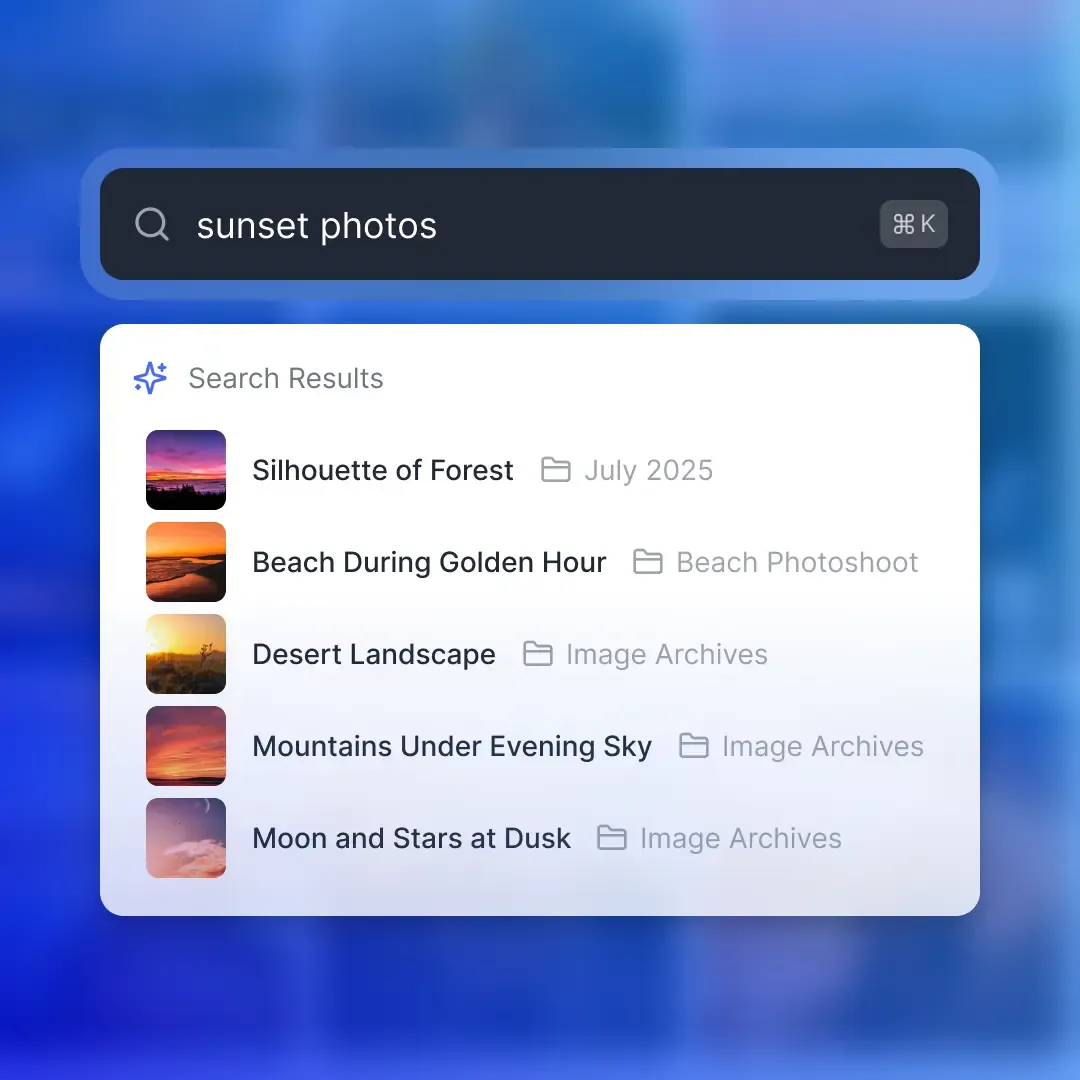
- You need access to advanced features like RAG queries and semantic search
- You are building prototypes or single-agent workflows
Use direct API integration when:
- You need fine-grained control over file operations
- Your framework does not support MCP
- You are building production pipelines with custom error handling
- You need to support multiple storage backends
Use pre-signed URLs when:
- You only need to share files, not manage them
- You are handing off deliverables to humans
- You want the simplest possible integration
- Cross-system compatibility matters more than features
Most production systems combine approaches. An agent might use MCP for daily file operations but generate pre-signed URLs when sharing results with clients. A multi-agent pipeline could use direct API calls for orchestration while individual agents connect through MCP.
Setting Up Persistent Storage for Agents
The biggest mistake in agent file architecture is treating storage as temporary. Agents that dump files into /tmp or rely on ephemeral storage lose their work between sessions. Persistent, organized storage makes agents reliable.
What Persistent Storage Looks Like
A well-configured agent storage setup has:
- Dedicated workspaces for each project or client, keeping files organized
- Folder hierarchy that mirrors the agent's workflow (inputs, processing, outputs)
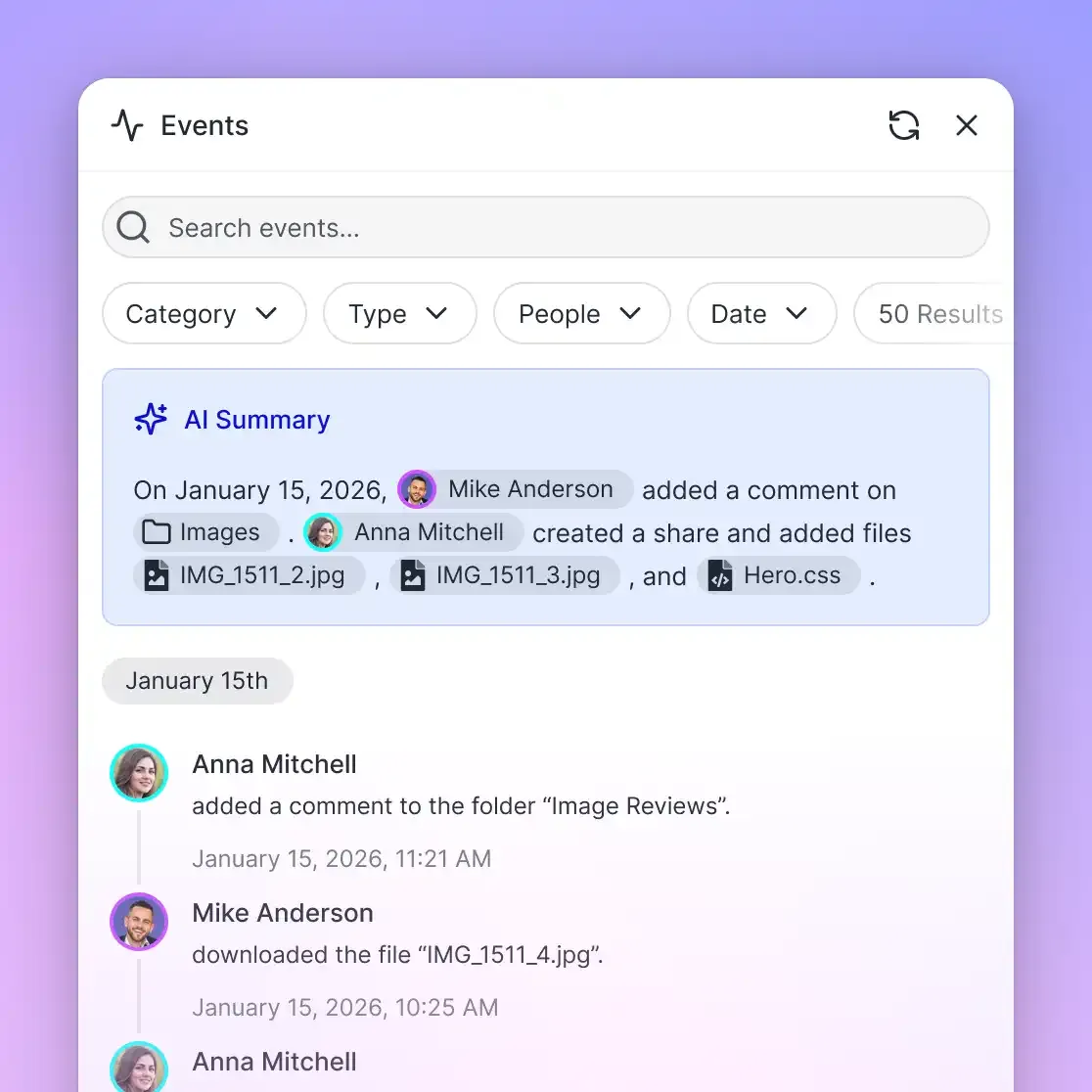
- Version history so you can trace what the agent did and when
- Access controls that limit what the agent can reach
On Fast.io, agents sign up for their own accounts with 50GB of free storage, no credit card required. The agent creates workspaces, organizes files into folders, and manages permissions through the same API humans use. Files persist indefinitely, and the full version history is maintained.
Ownership Transfer
A common pattern: an agent builds a complete workspace with organized files, branded sharing links, and permissions, then transfers ownership to a human client. The agent keeps admin access for ongoing maintenance, but the human owns the workspace. This works well for agencies, consultancies, and any workflow where agents prepare deliverables for people.
Intelligence Mode for Built-In RAG
When you enable
Intelligence Mode on a workspace, Fast.io automatically indexes every file for RAG. The agent can then ask natural language questions across all documents and get cited answers. No separate vector database, no embedding pipeline, no infrastructure to manage. Toggle it on per workspace and start querying. For teams running multi-agent systems, file locks prevent conflicts when multiple agents write to the same files. Acquire a lock, make your changes, release it.
Common Pitfalls and How to Avoid Them
After working with dozens of agent file integrations, these issues come up most often:
1. Ignoring File Size Limits
Every storage service has upload limits. Email attachments cap out around 25MB. Many LLM file APIs max out at 512MB. Fast.io supports large file uploads with chunked transfers. Know your limits before your agent hits them during automated batch jobs.
2. Missing Error Handling for Network Failures
File uploads fail. Networks drop. APIs return 500 errors. Your agent needs retry logic with exponential backoff, not a crash. Wrap every file operation in proper error handling and log failures for debugging.
3. Hardcoding Storage Paths
Do not hardcode workspace IDs, folder paths, or API endpoints. Use environment variables or configuration files. When you move from development to production, or switch storage providers, you will want that flexibility.
4. Skipping Access Controls
Agents should operate with the minimum permissions they need. A reporting agent does not need delete access. A data processing agent does not need to modify sharing settings. Use role-based permissions and scope API keys to specific operations.
5. Forgetting Human Oversight
Even autonomous agents should have human-in-the-loop checkpoints for sensitive operations. Uploading to a client-facing share? Have the agent flag it for review first. Deleting files? Require confirmation. Audit logs help maintain accountability across every file operation.
Frequently Asked Questions
How do I give an AI agent file access?
The three main approaches are MCP servers, direct API integration, and pre-signed URLs. MCP servers provide standardized tool access with minimal setup. Direct API integration gives you full control through REST calls with authentication. Pre-signed URLs offer the simplest path for sharing files without managing credentials. The best choice depends on your agent framework and how much control you need over file operations.
Can ChatGPT access my files?
ChatGPT can access files you upload directly to a conversation, but it cannot connect to external cloud storage on its own. To give ChatGPT persistent file access, you need to use a tool integration like an MCP server or build a custom GPT that connects to a storage API. Services like Fast.io provide MCP servers that work with ChatGPT and other LLMs, giving agents access to 251 file management tools.
How to connect an LLM to cloud storage?
The fast method is connecting through an MCP server. Configure your LLM client (Claude Desktop, Cursor, or VS Code) with the MCP server URL, and the LLM gains immediate access to file operations as callable tools. For custom setups, use the storage provider's REST API with bearer token authentication. Fast.io's MCP server at mcp.fast.io supports both Streamable HTTP and SSE transport, exposing 251 tools for file management, sharing, and AI-powered document queries.
What APIs do AI agents use for files?
AI agents commonly use REST APIs from cloud storage providers like Fast.io, AWS S3, Google Cloud Storage, and Azure Blob Storage. The API typically includes endpoints for upload, download, list, search, and delete operations. Authentication is handled through API keys or OAuth tokens. For standardized access across multiple services, the Model Context Protocol (MCP) provides a universal tool interface that works with any compatible storage backend.
Do AI agents need their own storage accounts?
For production use, yes. Agents sharing a human user's account creates security and organizational problems. Dedicated agent accounts provide clean audit trails, scoped permissions, and isolated workspaces. Fast.io offers a free agent tier with 50GB storage, 5,000 monthly credits, and no credit card required. The agent signs up like a human user and gets its own workspaces, shares, and access controls.
Related Resources

Give Your AI Agents Persistent Storage
Fast.io gives teams shared workspaces, MCP tools, and searchable file context to run connect ai agent to files workflows with reliable agent and human handoffs.