How to Choose Cloud Storage for Teams That Actually Works
Most team cloud storage is just personal storage with sharing bolted on.
What Is Cloud Storage for Teams?
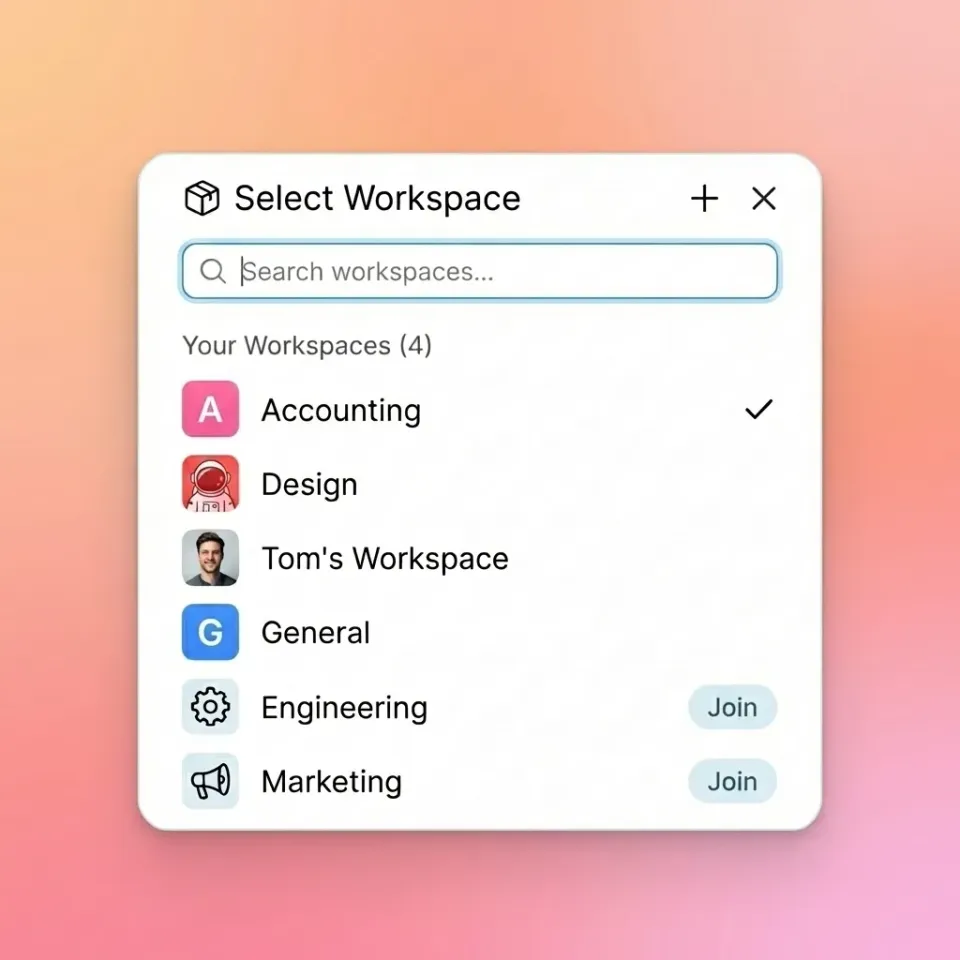
Cloud storage for teams puts files in one place where multiple users can access and work on them from anywhere with internet. Unlike personal cloud storage (Dropbox, Google Drive, iCloud), team cloud storage is designed around shared ownership. Files belong to the organization, not individuals. When someone leaves, their files stay put. The key differences from personal storage:
- Shared workspaces instead of personal folders with sharing links
- Organization-level permissions that IT can manage centrally
- Audit trails showing who accessed or modified files
- Pricing based on usage rather than individual accounts
Most businesses using "team" cloud storage are actually using personal storage tools stretched beyond their design. The 67% of businesses running multiple cloud storage providers? That's often the symptom, not the strategy.
Helpful references: Fast.io Workspaces, Fast.io Collaboration, and Fast.io AI.
The Real Cost of Per-Seat Pricing
Traditional cloud storage charges per user per month. Dropbox Business costs published pricing. Box charges published pricing. For a 25-person team, that's $450-500 monthly before you store a single file. The math gets worse as teams grow. Adding contractors, clients, or seasonal workers means either paying full seat prices or creating workarounds that break your security model.
Usage-based pricing flips this model. You pay for storage consumed, not heads counted. A 25-person team using 5TB might pay published pricing instead of $450. When evaluating pricing models, consider:
- How many external collaborators need access?
- Do seat counts force you to limit who can access files?
- Are you paying for users who rarely log in? The cheaper option depends on your usage patterns. Per-seat works if everyone actively uses storage daily. Usage-based wins when you have many occasional users or external collaborators.

Organization-Owned vs User-Owned Files
Here's a question most teams don't ask until it's too late: who owns the files? In user-owned systems (most personal cloud storage), files live in individual accounts. When Sarah from marketing leaves, her files either get deleted, require manual transfer, or sit in a deactivated account you're still paying for. Organization-owned storage works differently. Files belong to the company from day one. Employees access them through workspaces, not personal drives. Offboarding is straightforward: revoke access, files stay exactly where they are. This matters beyond offboarding:
- No "My Drive" chaos where critical files hide in personal folders
- Discoverable content means new team members find what they need
- Consistent permissions across the organization
- Clean audit trails for compliance and security reviews
If your team has ever scrambled to recover files from a departing employee, you've felt the cost of user-owned storage.


Start with cloud storage for teams on Fast.io
Fast.io offers organization-owned cloud storage with usage-based pricing and unlimited guest access.
Team Workflows That Cloud Storage Should Support
Storage itself isn't the differentiator. What separates good team cloud storage is how it handles the work happening around those files.
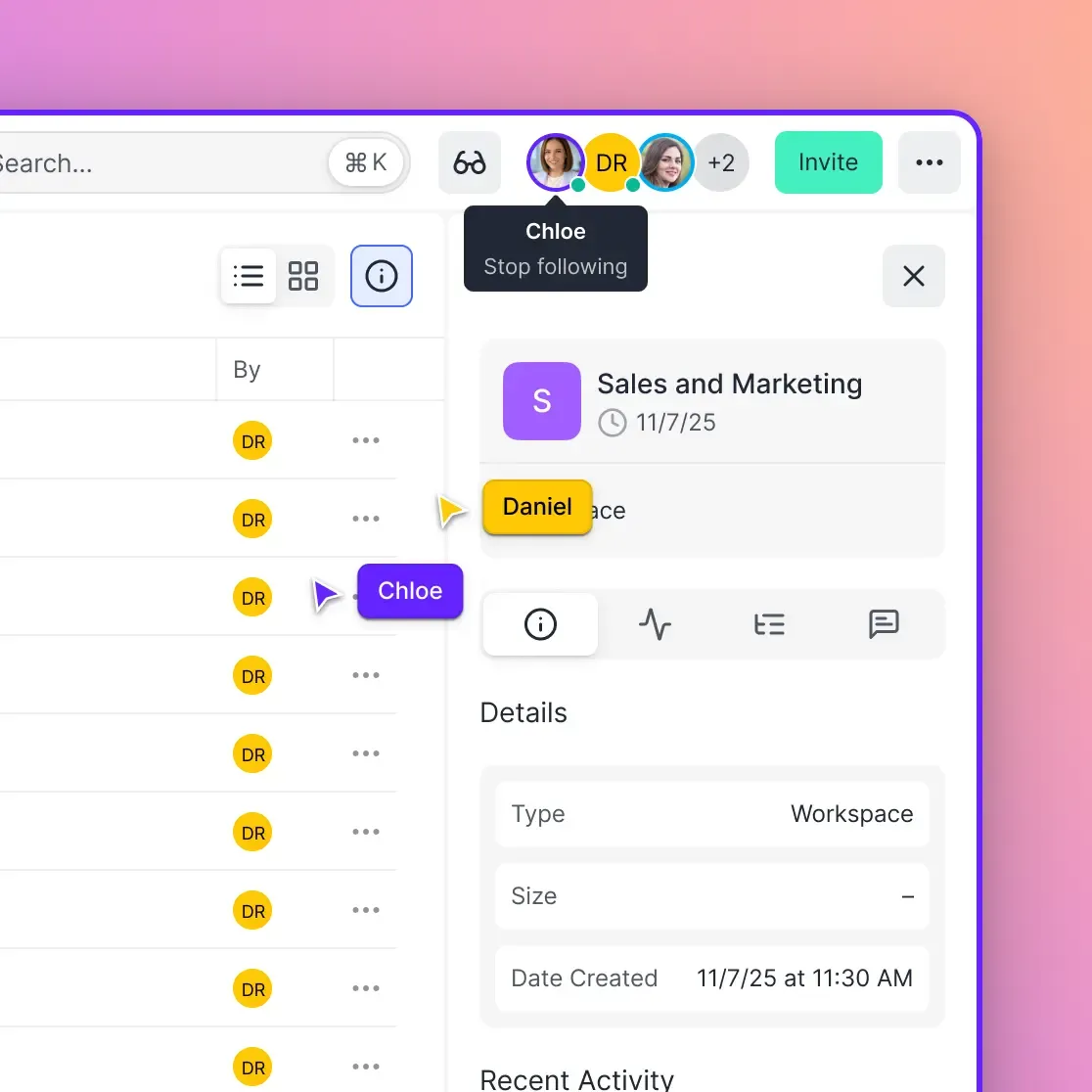
Real-time presence: Can you see who's looking at the same file? When reviewing a proposal with a colleague, you shouldn't need to ask "which version are you looking at?" Modern team storage shows live cursors and presence indicators.
Contextual comments: Feedback belongs on the file, not in a separate email chain. Look for threaded comments on specific document pages, video frames, or image regions.
Version control: Teams using shared storage accumulate versions fast. You need clear version history with the ability to restore, compare, and understand who changed what.
Workspace organization: Folder hierarchies work for small teams. Larger organizations need workspaces that people can browse and join, mixing public (org-wide) and private (invite-only) access.
External sharing: Most work involves people outside your organization. Clients, vendors, partners. Your storage should handle external access without security gymnastics or extra per-seat costs.
How Much Cloud Storage Does a Team Need?
Storage requirements vary wildly by industry and team size. A 10-person law firm working with documents might need 500GB. A 10-person video production team might need 50TB.
Baseline calculation:
- Count your current file volume (check existing storage and local drives)
- Estimate annual growth (typically 20-40% for active teams)
- Add buffer for new projects and team growth
Industry benchmarks:
- Professional services (legal, consulting): 50-100GB per user
- Marketing and creative: 200-500GB per user
- Video and media production: 1-5TB per user
- General business: 25-50GB per user
Watch out for hidden storage costs. Some providers charge for versioning, deleted file retention, or metadata. Others compress uploads, which can damage media files. Teams that organize their storage well report saving considerable time on file management. That comes from good structure, not raw capacity.
Comparing Popular Team Cloud Storage Options
The market breaks into three categories: personal storage tools with team features, enterprise platforms, and purpose-built team storage.
Personal storage with team features (Google Drive, Dropbox, OneDrive):
- Familiar interfaces most people already know
- Strong integrations with productivity suites
- User-owned file model creates organizational challenges
- Per-seat pricing scales linearly with headcount
Enterprise platforms (Box, Egnyte, ShareFile):
- Built for large organizations with IT departments
- Extensive compliance certifications
- Complex deployment and administration
- Higher per-user costs and longer contracts
Team-first storage (Fast.io):
- Files belong to the organization from day one
- Usage-based pricing instead of per-seat
- Real-time collaboration with presence and comments
- External sharing included, no extra costs
The right choice depends on your priorities. Google Workspace users who mainly collaborate on docs may stick with Drive. Teams sharing large files externally will hit limitations fast.

Security Features That Matter for Teams
Security for team storage goes beyond encryption (yes, everything is encrypted now). The questions that matter:
Access control depth: Can you set permissions at the organization, workspace, folder, and file level? Can you restrict by domain, require passwords, or set expiration dates?
Audit logging: Every view, download, and permission change should be logged. When something goes wrong, you need to trace what happened.
Single sign-on (SSO): Teams using identity providers (Okta, Azure AD, Google) shouldn't manage separate passwords for file storage.
External sharing controls: Guest access is necessary, but it needs guardrails. Look for view-only options, download restrictions, and watermarking.
Mobile access: Team members access files from phones and tablets. Mobile apps should have the same security controls as desktop. A note on compliance: security features and compliance certifications are different things. If you need specific certifications, verify them directly with vendors.

Making the Switch Without Losing Files
Migrating team storage isn't as bad as it sounds, but planning matters.
Before you start:
- Audit your current storage to identify what's actually used
- Document your permission structure
- Communicate the timeline to your team
- Run the new system in parallel during transition
Migration approaches:
- Big bang: Move everything at once, cut over on a specific date. Works for smaller teams with limited files.
- Phased rollout: Start with one department or project. Learn from that experience before expanding. Better for larger organizations.
- Gradual sunset: New work goes in the new system. Migrate legacy files over time or as needed. Most migration issues come from permissions, not files. Map your old permission structure to the new one before moving anything.
Common pitfalls:
- Orphaned files that nobody owns anymore
- Broken links in documents pointing to old locations
- Users who create workarounds instead of adopting the new system
Build in time for training. Even intuitive interfaces take adjustment when people have years of muscle memory with old tools.
Frequently Asked Questions
What is the top cloud storage for teams?
The top cloud storage for teams depends on your workflow. For teams primarily using Google Workspace, Drive integrates well. For teams sharing large files externally or needing usage-based pricing, Fast.io offers organization-owned storage with unlimited guest access. Enterprise teams requiring specific compliance certifications should evaluate Box or Egnyte.
How much cloud storage does a team need?
Storage needs vary by industry: professional services teams typically need 50-100GB per user, marketing teams need 200-500GB per user, and video production teams may need 1-5TB per user. Start by auditing your current file volume and add 20-40% for annual growth.
Is Google Drive good for team collaboration?
Google Drive works well for real-time document collaboration within Google Workspace. However, its user-owned file model can create organizational challenges when team members leave. For teams with heavy external sharing or large media files, storage designed for teams may work better.
What's the difference between personal and team cloud storage?
Personal cloud storage (like individual Dropbox or iCloud accounts) stores files owned by users. Team cloud storage organizes files around the organization, with shared workspaces, centralized permissions, and audit trails. When employees leave, files stay with the organization.
How do teams reduce cloud storage costs?
Three approaches work: switch from per-seat to usage-based pricing if you have many occasional users, consolidate from multiple storage providers to one, and implement retention policies to remove outdated files. Teams using cloud storage effectively report saving considerable time on file management, which often outweighs the direct cost savings.
Related Resources

Start with cloud storage for teams on Fast.io
Fast.io offers organization-owned cloud storage with usage-based pricing and unlimited guest access.