How to Set Up a Client Collaboration Portal
A client collaboration portal is a dedicated online space where you share files, collect feedback, and manage projects with external clients. This guide walks you through setting one up, from choosing the right platform to configuring permissions and branding.
What Is a Client Collaboration Portal?
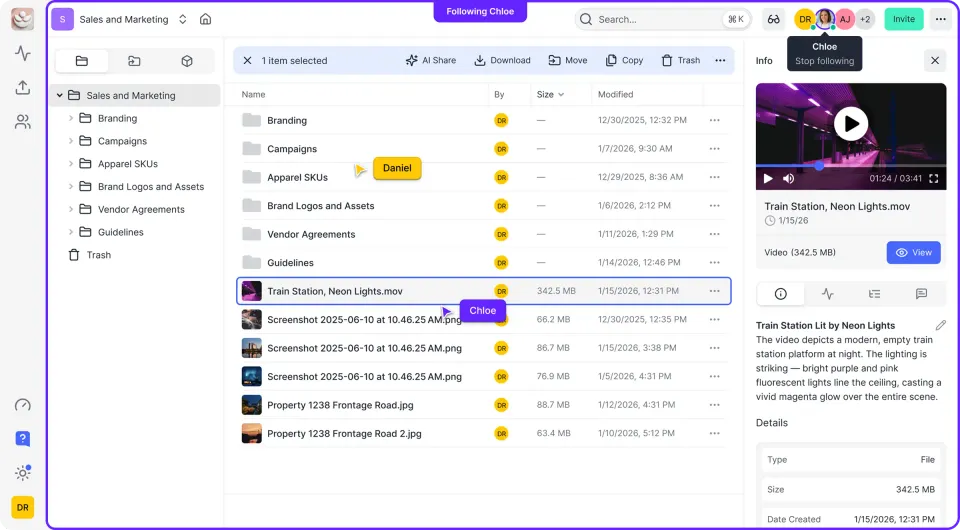
A client collaboration portal is a secure, branded web space where your team and external clients can share files, exchange feedback, and track project progress together. Unlike email attachments or consumer file-sharing links, a portal keeps everything organized in one location with proper access controls. The core components of a client collaboration portal:
- File storage: A central place for project assets, deliverables, and documents
- Access controls: Granular permissions that determine what each client can view, download, or edit
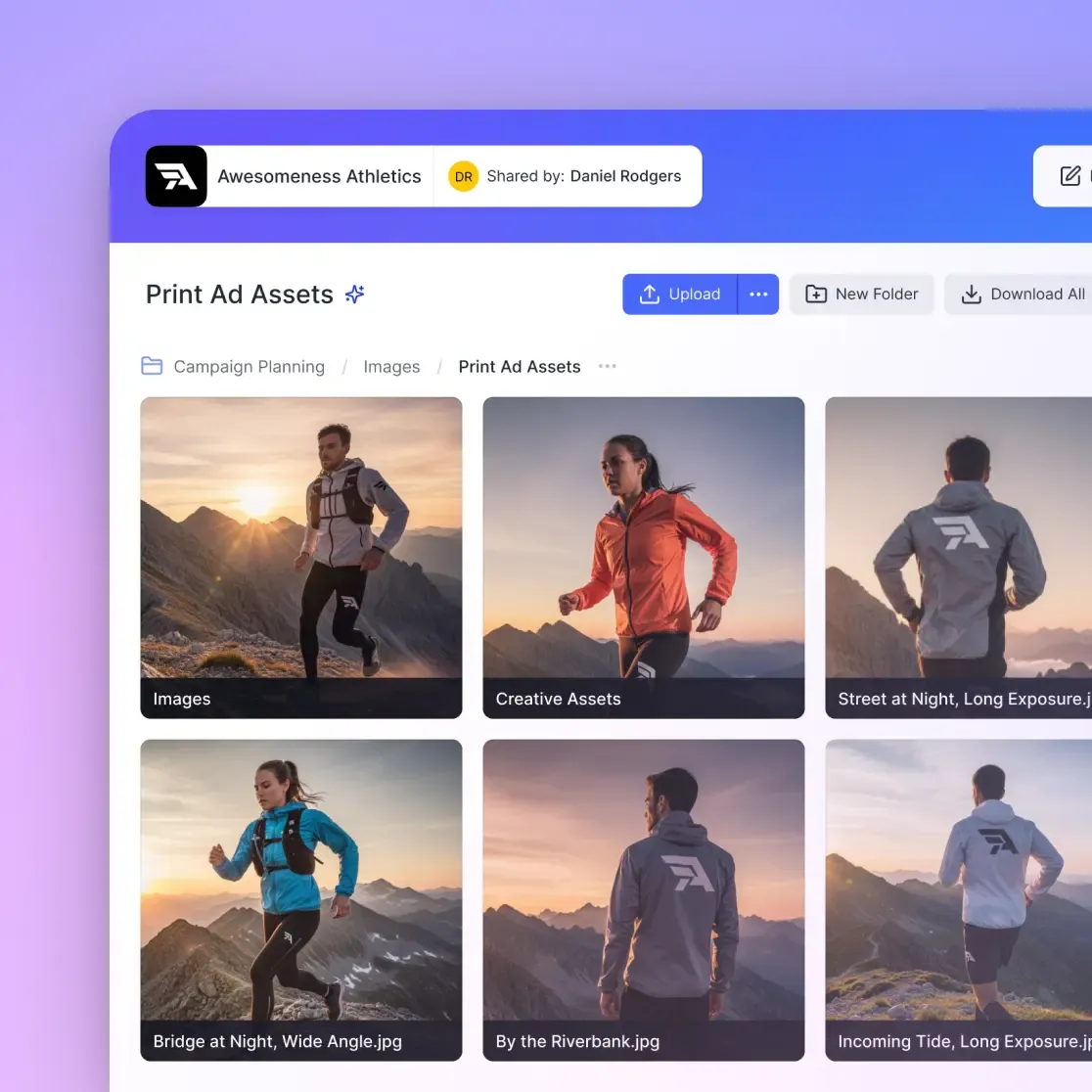
- Branding: Your logo, colors, and domain to maintain a professional appearance
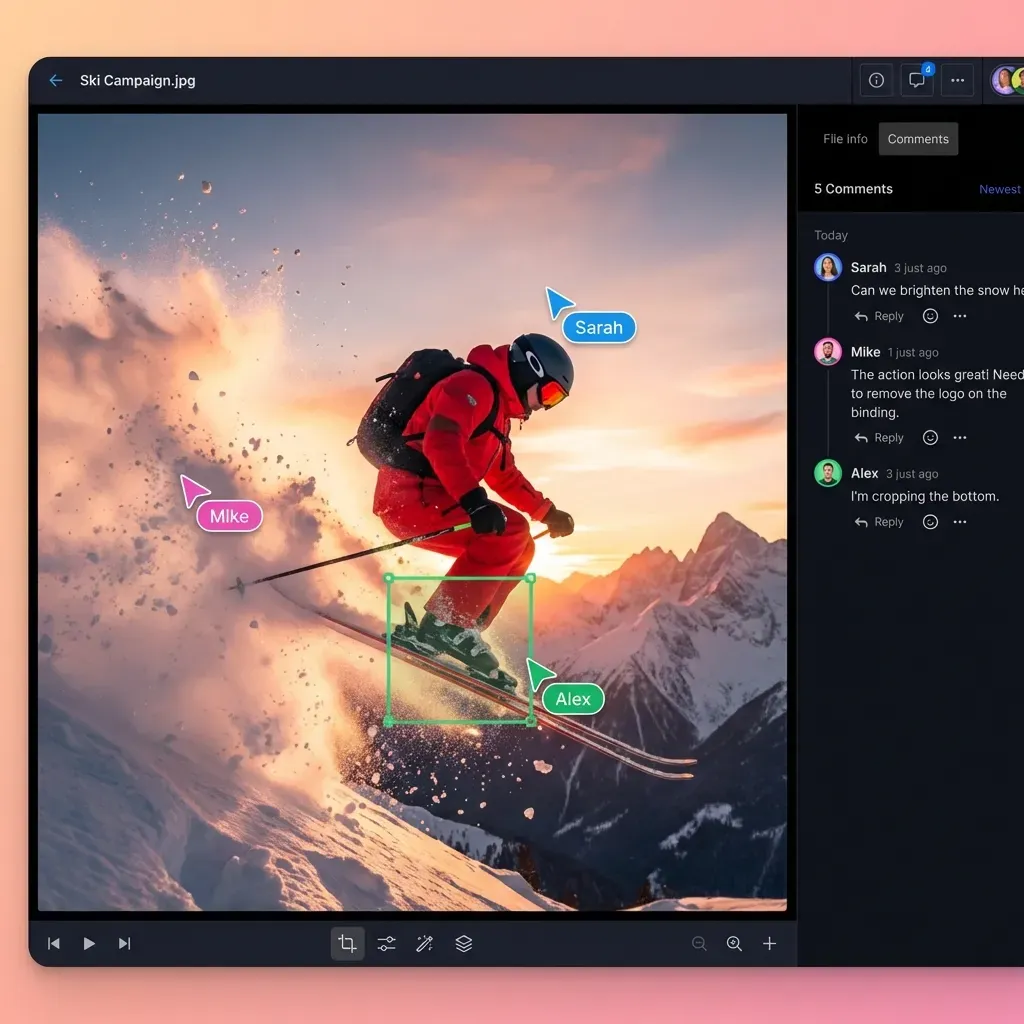
- Communication tools: Comments, annotations, or chat for contextual feedback
- Activity tracking: Logs of who viewed, downloaded, or modified files
Portals solve a specific problem: keeping client collaboration out of your inbox. When files, feedback, and approvals live in emails, things get lost. Version confusion becomes the norm. A portal centralizes this chaos into something manageable.
Helpful references: Fast.io Workspaces, Fast.io Collaboration, and Fast.io AI.
When You Need a Client Portal vs. Regular File Sharing
Not every client relationship needs a dedicated portal. Here's when the added structure pays off:
Use a client portal when:
- You exchange files with the same client repeatedly over weeks or months
- Multiple people from your team and the client's team need access
- You need to track who viewed or downloaded specific files
- Client-facing professionalism matters (agencies, consultants, legal firms)
- You're collecting feedback that needs to stay tied to specific files
Regular file sharing works fine when:
- You're sending a one-time deliverable
- Only one person needs access
- You don't need to track engagement
- The relationship is informal or short-term
The tipping point usually comes when you catch yourself searching through email threads for "the latest version" of something. That's your signal to upgrade to a portal.


Try a better approach to client collaboration portal
Fast.io gives your team cloud storage with usage-based pricing, built-in streaming previews, and AI-powered search. Start with a free account, no credit card needed.
Choosing the Right Platform
Your portal platform determines what's possible. Here's what to evaluate:
File Size and Format Support
Creative teams and agencies often deal with large video files, PSD mockups, or CAD drawings. Check whether the platform can handle your largest files without compression. Some services cap uploads at 2-5GB, which won't cut it for raw video footage. Fast.io supports files up to 250GB and previews professional formats like PSD, AI, and RAW files directly in the browser. Clients don't need expensive software to view your work.
Streaming vs. Download
For video projects, the difference between streaming and download is significant. Progressive download forces clients to wait for the entire file before watching. HLS streaming (the same technology Netflix uses) lets them start immediately with instant scrubbing and no buffering.
Branding Capabilities
Look for platforms that let you add your logo, match your brand colors, and ideally use a custom domain. A portal at "yourcompany.fast.io" or "files.yourcompany.com" looks more professional than a generic link.
Pricing Model
Per-seat pricing can get expensive when you need to invite multiple clients. Usage-based pricing (where you pay for storage and bandwidth rather than user count) often works better for agencies with many client relationships.
Setting Up Your Portal Structure
A well-organized portal makes clients feel confident working with you. Here's a structure that works for most project-based work:
Create Separate Workspaces per Client
Keep each client's files isolated. This prevents accidental exposure and makes it easier to manage permissions when team members change. Name workspaces : "Acme Corp - Q1 Campaign" is better than "Project Alpha."
Organize by Project Phase or Deliverable Type
Within each workspace, create folders that match how work flows:
/briefs-and-requirements
/work-in-progress
/for-review
/approved-finals
/reference-materials
Clients should know where to look for what. The /for-review folder is where they'll spend most of their time.
Set Default Permissions
Decide upfront what clients can and can't do:
- View-only: Clients can see files but not download or modify
- Download: Clients can save copies locally
- Comment: Clients can leave feedback but not change files
- Upload: Clients can add their own files (useful for assets they need to provide)
Start restrictive and loosen as needed. It's easier to grant additional access than to revoke it after something sensitive gets downloaded.
Adding Your Branding
Brand consistency builds trust. A portal that looks like your company feels more secure and professional than a generic interface.
Logo and Colors
Upload your logo and set your brand's primary colors. The portal header, buttons, and accents should match your visual identity. If you have brand guidelines, follow them here too.
Custom Domain
The URL matters more than you might think. Compare these:
generic-service.com/share/a7x9f2files.youragency.com/client-name
The second option reinforces your brand and looks more legitimate. Most portal platforms support custom domains or subdomains.
Welcome Message
Add a brief message that appears when clients first access the portal. Keep it practical: "Welcome to your project portal. Files for review are in the 'For Review' folder. Click any file to preview, or use the download button to save locally."
Inviting Clients and Managing Access
How you invite clients affects their first impression and ongoing experience.
Email Invitations
Send invitations directly from the portal platform. This creates a proper access record and typically handles password setup automatically. Avoid copying and pasting links into email. The platform's invite flow usually includes better security.
No Account Required (Guest Access)
Some platforms require clients to create accounts. This adds friction. Look for solutions that support guest access where clients can view files with just their email address or a password-protected link. Fast.io offers unlimited guest access. Clients don't need accounts and don't count against your seat limits.
Permission Levels
Set different access levels based on who's accessing the portal:
- Project managers: Full access to upload, download, and comment
- Stakeholders: View and comment only
- Legal/finance: View specific folders only
Revoking Access
When a project ends or a client relationship changes, you need to cut off access quickly. Choose a platform that lets you revoke access with one click rather than hunting through individual file permissions.
Collecting and Managing Feedback
The main reason to use a portal over email is keeping feedback organized and actionable.
Contextual Comments
The best feedback is attached to specific files, pages, or even frames. Look for platforms that support:
- Comments on documents tied to specific pages
- Annotations on images pointing to exact areas
- Frame-accurate comments on video (marking feedback at timecode 00:01:23, not "around the beginning")
Fast.io supports threaded discussions on files with comments pinned to specific regions, video frames, or document pages.
Consolidating Feedback
When multiple stakeholders leave comments, someone needs to synthesize them. Use the portal's activity feed or comment export to create a single list of action items. Don't let feedback scatter across multiple threads.
Approval Workflows
Some portals offer formal approval stamps or sign-off buttons. These help when you need documented client approval before moving forward. Even a simple "Approved" comment on the final version creates a record.
Tracking Client Engagement
One advantage of a portal over email is visibility into what clients actually do.
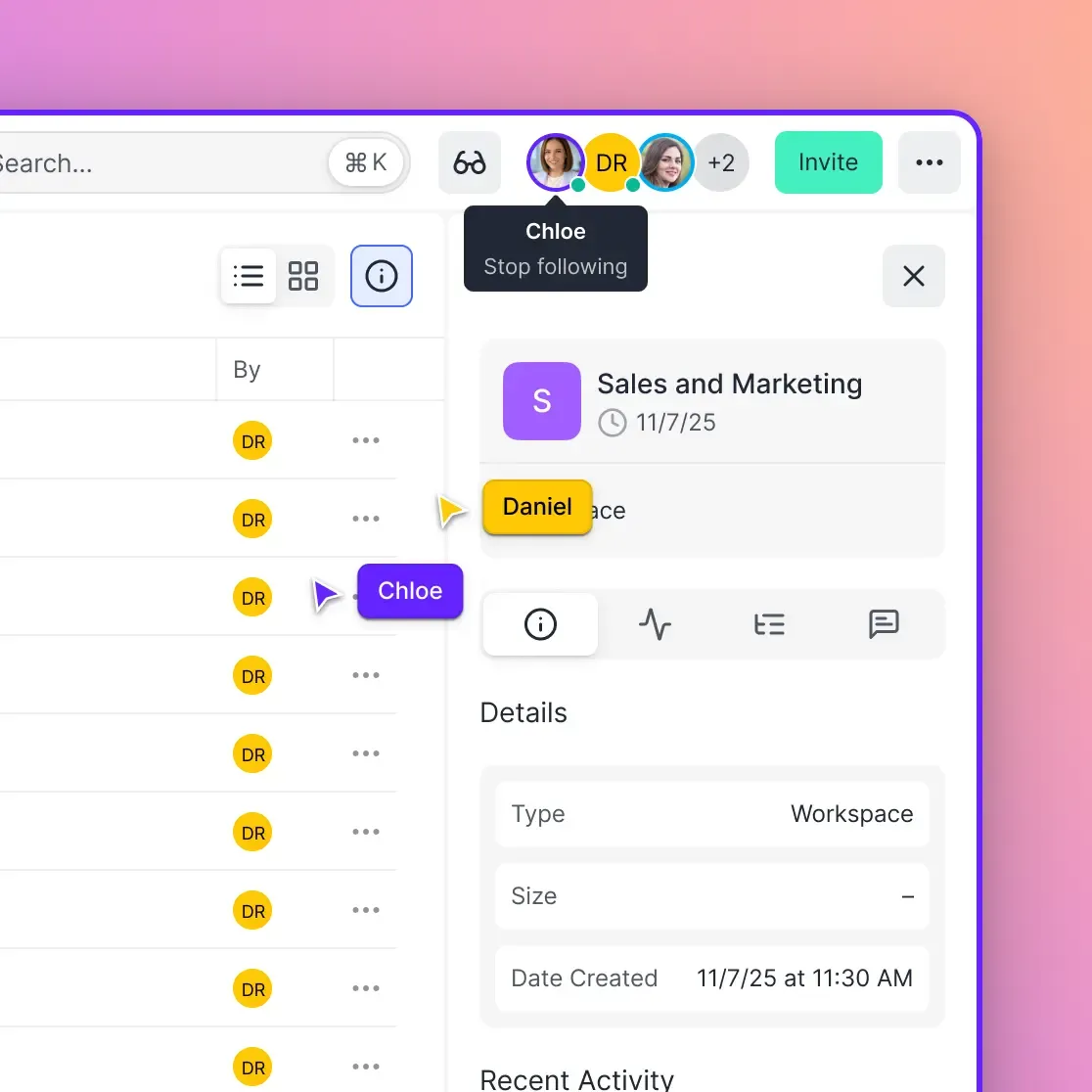
Activity Logs
A good portal tracks:
- When clients logged in
- Which files they viewed
- What they downloaded
- How long they spent on each file
This data helps you follow up intelligently. If a client hasn't viewed the files you sent three days ago, a gentle nudge makes sense. If they've viewed them ten times without commenting, maybe they're stuck and need a call.
View Analytics for Sales and Deals
For sales materials or pitch decks in data rooms, engagement tracking becomes strategic. You can see which sections prospects spent time on, which slides they skipped, and when they shared the link with colleagues. This informs your follow-up conversations. Fast.io's Data Rooms include Deal Intelligence, which shows time spent on each page, scroll depth, and re-visits.
Audit Trails for Compliance
Some industries require proof of who accessed what and when. Audit logs create a paper trail for legal, financial, or regulatory purposes. Make sure logs are tamper-proof and exportable.
Security Considerations
Client files often contain sensitive information. Your portal needs proper security controls.
Encryption
Files should be encrypted both in transit (as they upload/download) and at rest (while stored). This is a baseline requirement. Don't use a platform without it.
Password Protection
Add passwords to sensitive links or folders. This ensures that even if a link gets forwarded, unauthorized people can't access the content.
Link Expiration
Set expiration dates on shared links. A link to proposal documents doesn't need to work forever. Expiring links reduce the risk of stale access.
Domain Restrictions
For extra security, restrict access to specific email domains. If you're working with Acme Corp, you can limit access to @acmecorp.com addresses only.
Watermarking
For highly sensitive files (legal documents, unreleased creative), watermarks with the viewer's email address deter unauthorized sharing. If a watermarked file leaks, you know where it came from.
Frequently Asked Questions
How much does a client collaboration portal cost?
Pricing varies widely. Per-seat models like Dropbox Business charge $15-25 per user per month, which adds up with multiple clients. Usage-based platforms like Fast.io charge based on storage and bandwidth instead, often 70% less for teams with many external collaborators. Free tiers exist but usually lack branding, security controls, or sufficient storage for professional use.
Can clients access the portal without creating an account?
It depends on the platform. Some require account creation, which adds friction. Others support guest access via email verification or password-protected links. Fast.io allows unlimited guest access without requiring clients to create accounts or counting them against your user limits.
What file types can clients preview in a portal?
Basic portals preview common formats like PDFs, images, and Office documents. Better platforms handle professional formats: PSD, AI, INDD, RAW photos, CAD files, and video. Fast.io's Universal Media Engine previews these formats directly in the browser without requiring clients to have the native software installed.
How do I prevent clients from downloading files?
Look for view-only permission settings that disable the download button. Some platforms also offer additional protections like watermarking, disabled right-click, and screen capture deterrents. Note that determined users can always screenshot content, so view-only is a deterrent rather than absolute protection.
Can I use my own domain for the client portal?
Most professional portal platforms support custom domains or subdomains. This typically requires adding a DNS record that points your subdomain (like files.youragency.com) to the platform's servers. Setup usually takes a few minutes once you have access to your domain's DNS settings.
Related Resources

Try a better approach to client collaboration portal
Fast.io gives your team cloud storage with usage-based pricing, built-in streaming previews, and AI-powered search. Start with a free account, no credit card needed.