Claude Computer Use: Working with Files and Documents
Claude Computer Use lets Claude interact with files on your computer by seeing your screen, clicking through folders, and running file operations. Unlike traditional file APIs, Computer Use relies on visual understanding to navigate file managers, preview documents, and organize files like a human would. This guide covers claude computer use files with practical examples.

What is Claude Computer Use for Files?: claude computer use files
Claude Computer Use is a beta API that lets Claude control a computer's desktop environment to interact with applications, including file managers and document viewers. Instead of direct file system access, Claude sees screenshots of your screen and uses mouse clicks and keyboard inputs to navigate folders, open files, and organize documents. Computer Use launched in late 2024 as Anthropic's approach to letting AI agents interact with desktop applications. File operations became the second most popular use case after web browsing. Developers use it to automate document processing, organize downloads folders, and manage project files. The big difference from traditional file APIs: Claude doesn't just run commands. It visually understands what it sees on screen, reads file names and folder structures from screenshots, and adapts based on what the interface shows. This makes it work with any file manager (Finder, Windows Explorer, Linux file browsers) without custom integration.
Helpful references: Fast.io Workspaces, Fast.io Collaboration, and Fast.io AI.
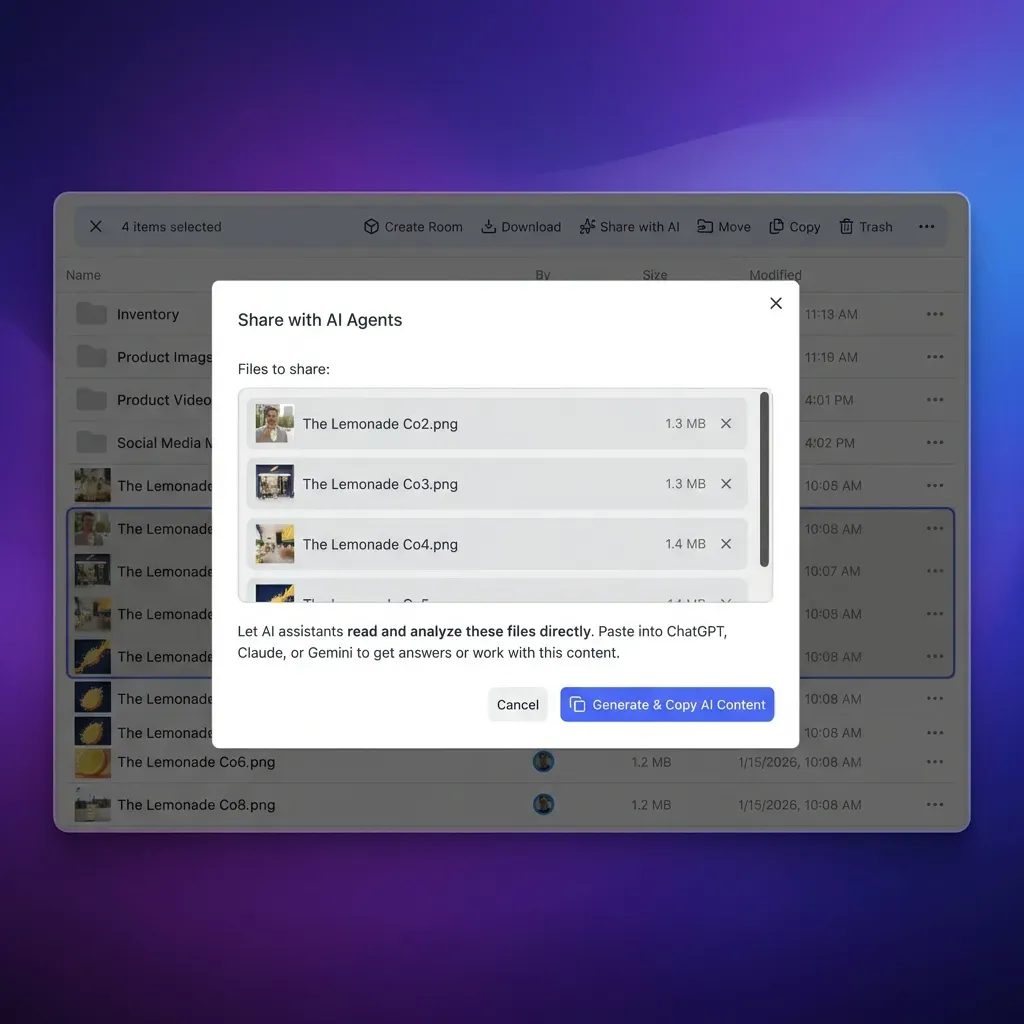
How Computer Use Accesses Files
Computer Use operates through three core capabilities that work together to handle files:
Screenshot Analysis
Claude captures screenshots of your desktop at regular intervals (every few seconds). It analyzes these images using vision models to identify file names, folder hierarchies, file icons, and UI elements. This visual parsing lets Claude work with any file manager interface without needing specific API integration.
Mouse and Keyboard Control
Once Claude identifies target files or folders in a screenshot, it calculates pixel coordinates and runs mouse clicks to navigate. It can double-click to open files, right-click for context menus, drag files between folders, and type file names to search or rename.
Shell Command Execution
While Computer Use can interact through visual interfaces, it can also run bash or PowerShell commands when that's more efficient. Tasks like bulk file moves, permission changes, or recursive searches often run faster through terminal commands than clicking through a GUI. Computer Use picks the right method for the task. Simple navigation uses clicks. Batch operations drop to shell commands for speed.
File Operations Claude Can Perform
Computer Use handles a wide range of file management tasks. Here's what Claude can do with files on your system.
Reading and Analyzing Documents
Claude can open files in their native applications, read the contents, and extract information. For PDFs, it scrolls through pages and extracts text. For images, it analyzes visual content. For spreadsheets, it navigates cells and reads data. Claude sees the rendered output the same way a human user would.
Organizing and Sorting Files
Organizing cluttered folders is one of the most popular Computer Use applications. Claude scans a directory, categorizes files by type or content, creates new folders with logical names, and moves files into the right places. Users have pointed Claude at downloads folders with thousands of files and let it create organized structures.
Renaming and Batch Operations
Claude runs bulk file operations by identifying patterns. Need to rename 200 photos with sequential numbers, add prefixes to all files in a folder, or strip special characters from filenames? Computer Use handles it through a combination of visual confirmation and automated execution.
File Format Conversions
When conversion tools are installed on the system, Claude can open files in conversion applications, set export parameters, and save to new formats. This works for document conversions (PDF to DOCX), image format changes (PNG to WEBP), or video transcoding.
Permission and Metadata Management
Computer Use can modify file permissions, update timestamps, add tags or labels (on macOS), and edit file metadata. These operations use shell commands rather than visual navigation.
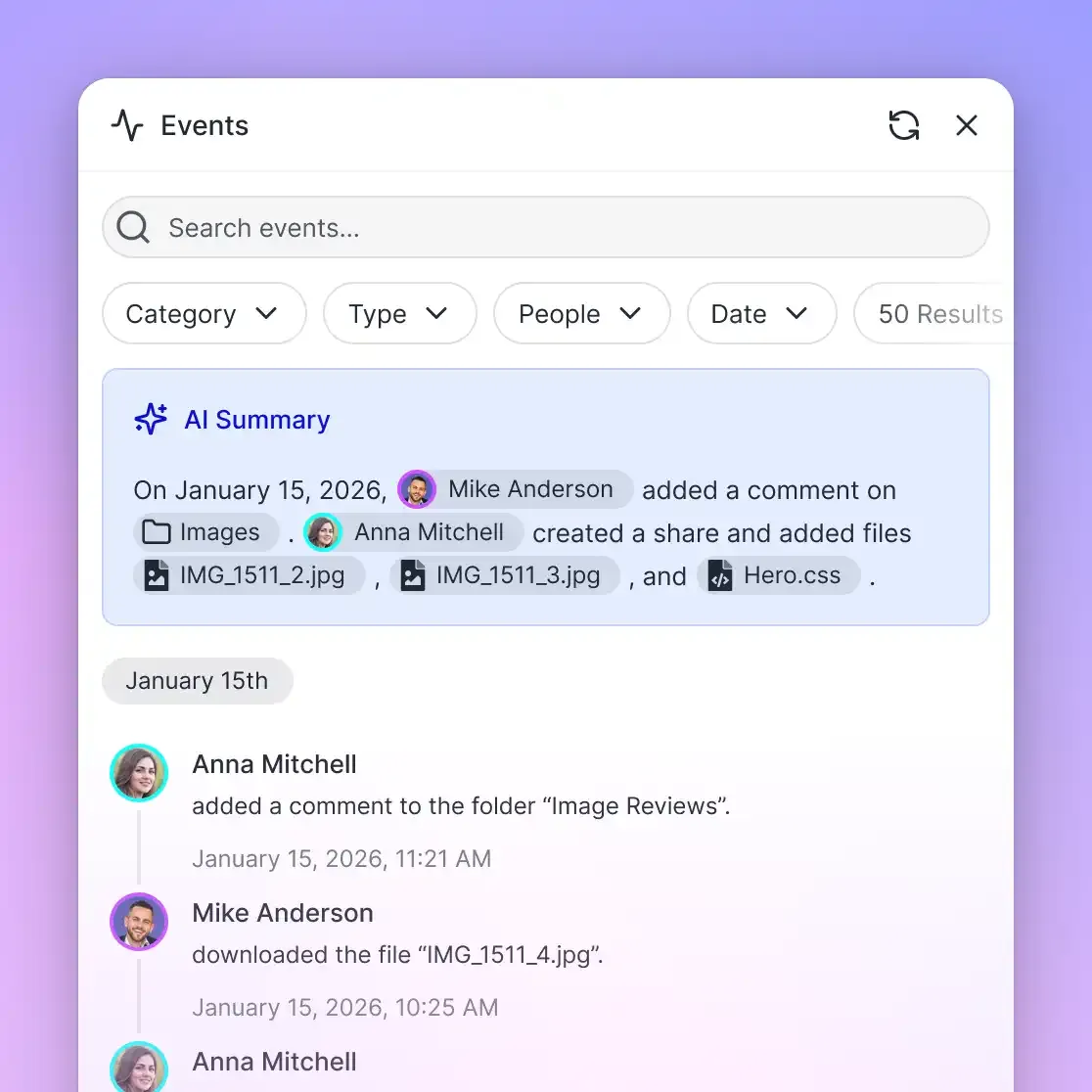
Setting Up Computer Use for File Access
Computer Use requires a sandboxed computing environment where Claude can safely interact with the desktop. Here's the recommended setup process.
Create a Sandboxed Environment
The safest approach is running Computer Use in a virtual machine or Docker container with a desktop environment. This isolates file operations from your main system. Ubuntu Desktop in Docker or a headless VirtualBox VM with VNC access are common choices.
Install Required Tools
Your sandboxed environment needs a window manager (for visual navigation), a file manager application (Nautilus, Dolphin, or Thunar for Linux), and any applications needed to open or convert files (LibreOffice for documents, GIMP for images, etc.).
Configure API Access
Computer Use runs through Anthropic's API with specific parameters. Set computer_use as a tool in your API request, specify the screen resolution, and provide display access. The API returns screenshot captures and runs your instructions through simulated user input.
Set Security Boundaries
Before giving Claude access, define what files and folders are in scope. Mount only necessary directories into your sandbox, use read-only mounts where appropriate, and run Computer Use as a limited-privilege user to prevent system-level changes.
Computer Use vs. MCP Filesystem Tools
Developers often ask whether to use Computer Use or the Model Context Protocol (MCP) filesystem server for file operations. The answer depends on your use case. Computer Use works best when you need to interact with visual file managers, work with applications that don't have APIs, or perform tasks that require human-like navigation. If you're organizing files based on visual inspection (like sorting family photos by looking at them) or using specialized desktop applications, Computer Use is the right tool. MCP filesystem tools are better for programmatic file operations where you need precise control, reliable error handling, and fast execution. Reading structured data from thousands of files, building file indexes, or managing version-controlled repositories works better through MCP's filesystem server with its dedicated file read/write/search tools. Many production systems use both. MCP handles bulk data operations and structured file management. Computer Use steps in when visual inspection or application-specific workflows are needed. The two approaches complement rather than compete.
When to Choose Computer Use
Use Computer Use for file tasks when you need visual confirmation, work with proprietary file formats that require specific applications, organize files based on content inspection, or automate workflows in desktop applications without APIs.
When to Choose MCP
Use MCP filesystem tools when you need fast, reliable file operations at scale, structured error handling, precise file path control, or integration with other MCP-connected systems. MCP is faster and more predictable for programmatic file management.
Security Considerations for File Access
Giving an AI agent access to your file system requires careful security planning. Computer Use needs guardrails to prevent unintended file operations.
Sandbox Everything
Never run Computer Use with direct access to your main system's files. Always use containers, VMs, or restricted user accounts. Mount only the specific directories needed for the task, and use read-only mounts whenever possible.
Audit File Operations
Log every file operation Computer Use attempts. Screenshot captures are useful but not enough. Maintain a separate log of file moves, deletions, permission changes, and any shell commands run. This audit trail matters when something goes wrong.
Implement Approval Workflows
For sensitive file operations (deletions, moves outside defined directories, permission changes), require human approval before execution. Many production systems have Computer Use propose operations and wait for confirmation before proceeding.
Limit Scope and Duration
Define clear boundaries for Computer Use sessions. Set maximum session durations, restrict access to specific file types or directories, and terminate sessions that exceed expected activity levels. Treat Computer Use file access like you'd treat a junior team member working remotely. Give them access to what they need, watch what they do, and verify important operations before they happen.
Real-World File Management Use Cases
Developers use Computer Use for file operations in production. Here are patterns that work reliably.
Automated Document Processing
Insurance companies and legal firms use Computer Use to process incoming scanned documents. Claude identifies document types by visual inspection, renames files based on extracted metadata (policy numbers, case IDs), and routes them to the right folders for downstream processing.
Media Library Organization
Photographers and video producers use Computer Use to organize asset libraries. Claude analyzes photos and videos visually, creates folder structures by shoot date or project, and renames files with descriptive names based on content. One videographer organized 2,200 files in a downloads folder using Computer Use, with Claude creating logical categories and moving files automatically.
Code Repository Cleanup
Development teams use Computer Use to audit code repositories for unused files, outdated documentation, and inconsistent naming. Claude scans project folders, identifies files that haven't been modified in months, and proposes cleanup operations that maintain project structure.
Research Data Management
Academic researchers use Computer Use to organize experimental data files. Claude identifies file naming patterns, creates structured directories by experiment date and conditions, and checks that all expected output files exist for each experimental run. These use cases all rely on Computer Use's ability to make human-like judgments about file content and organization, rather than just running predefined rules.
Using Fast.io for Computer Use File Storage
Computer Use file operations often need persistent cloud storage for inputs and outputs. Fast.io provides agent-native storage that works with Computer Use workflows.
Agent-Native File Storage
Fast.io offers a free tier for AI agents: 50GB storage, 5,000 monthly credits, and no credit card required. Computer Use workflows can upload processed files, download input documents, and maintain organized workspaces without local storage constraints.
MCP Integration for Hybrid Workflows
Fast.io's MCP server provides 251 tools for file operations, making it easy to combine Computer Use (for visual tasks) with MCP (for bulk operations). Your Computer Use agent can process files visually, then use Fast.io's MCP tools to organize and store results at scale.
Ownership Transfer to Humans
Computer Use agents can organize and process files, store them in Fast.io workspaces, then transfer ownership to human users. The agent maintains admin access while the human gets full control of the organized file structure.
Built-in RAG for File Search
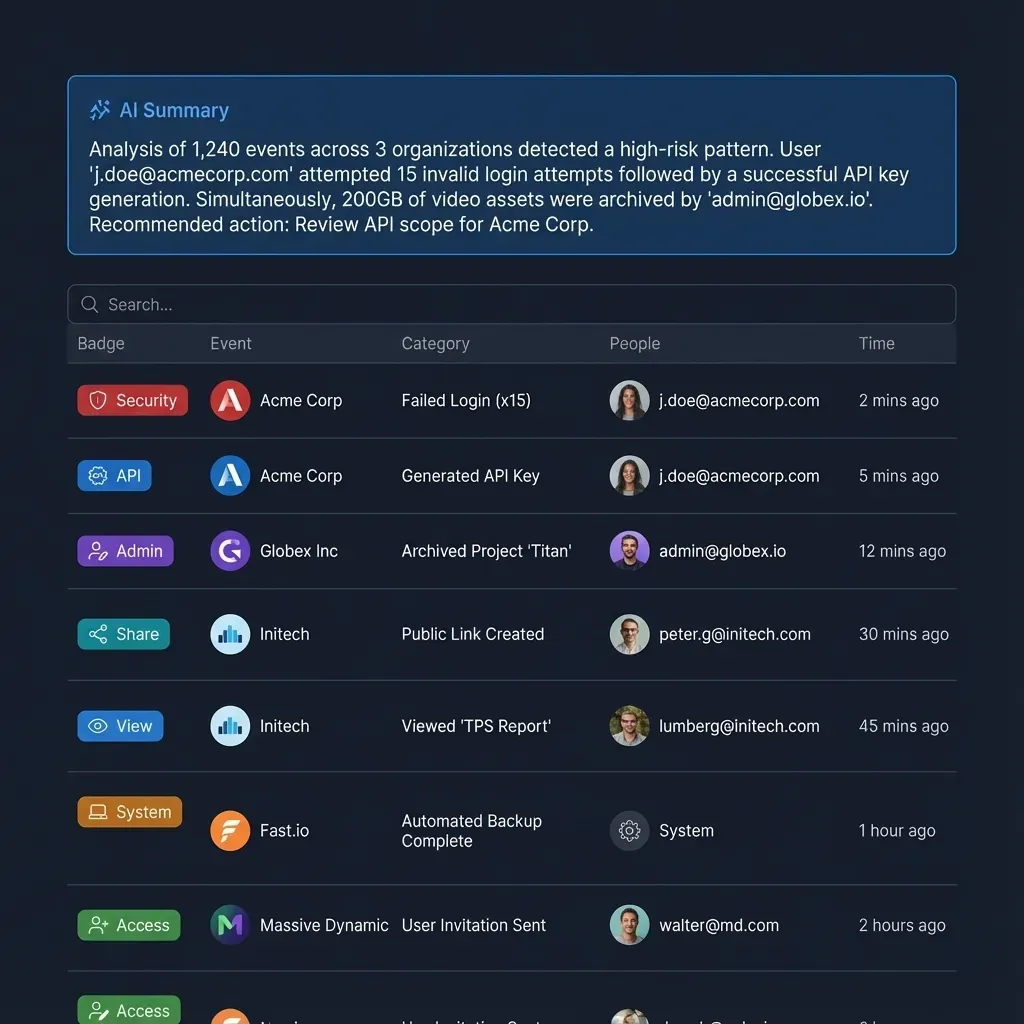
Fast.io's Intelligence Mode auto-indexes uploaded files for semantic search. After Computer Use processes documents, users can query the collection in natural language ("show me the Q3 contracts") and get cited answers from file contents.
Webhooks for Reactive Workflows
Set up webhooks to trigger Computer Use file processing when new files are uploaded to Fast.io. This creates reactive pipelines where file uploads start organization or analysis workflows automatically.
Frequently Asked Questions
Can Claude access my files without Computer Use?
Claude cannot directly access files on your computer without Computer Use or MCP integration. In standard chat, you can upload files to Claude (up to 100MB combined per conversation), but Claude cannot browse your file system, open files, or see your folders. Computer Use and MCP are the two methods for giving Claude file system access.
How does Claude Computer Use work with file permissions?
Claude Computer Use respects the file permissions of the user account running the session. If the user can read, write, or delete a file through normal desktop access, Computer Use can perform the same operations. This is why sandboxing with restricted user accounts is critical - Computer Use operates with whatever privileges the user has, so limiting those privileges limits what Claude can do.
Is Claude Computer Use safe for files?
Computer Use is safe when properly sandboxed. Run it in containers or VMs isolated from your main system, mount only necessary directories, use read-only mounts where possible, and set up approval workflows for destructive operations like deletions. The risk isn't the technology itself, but giving unrestricted access to critical files. Treat Computer Use like a remote team member - give access to what they need, watch what they do, and require approval for important operations.
Can Computer Use work with cloud storage like Google Drive?
Computer Use can interact with cloud storage through their desktop applications or web interfaces. If you have Google Drive's desktop sync app running, Computer Use can navigate the synced folders like any local directory. Alternatively, Computer Use can open a browser, log into Google Drive's web interface, and manage files visually. However, for programmatic cloud storage access, using dedicated APIs or MCP servers is faster and more reliable than visual navigation.
What's the difference between Computer Use and file upload to Claude?
File upload to Claude lets you attach documents to a conversation for Claude to read and analyze, but Claude cannot access your file system, navigate folders, or organize files. Computer Use gives Claude visual access to your desktop environment, letting it browse folders, move files between locations, and interact with file manager applications. Upload is for analysis; Computer Use is for file management and automation.
How fast is Computer Use for file operations?
Computer Use speed depends on the operation type. Visual navigation (clicking through folders, reading filenames from screenshots) takes 2-5 seconds per screen capture cycle. Bulk operations with shell commands run faster, often completing hundreds of file operations in seconds. For time-sensitive batch processing, MCP filesystem tools are faster than Computer Use because they bypass visual navigation entirely.
Can Computer Use handle large files?
Computer Use can navigate and manage large files (moving, renaming, organizing), but processing large file contents depends on the applications used. Opening a 10GB video in a desktop player works fine for visual inspection or trimming. Analyzing the full contents of large datasets is better handled by specialized tools or MCP-based processing pipelines rather than visual desktop navigation.
Related Resources

Run Claude Computer Use Working With Files And Documents workflows on Fast.io
Fast.io provides persistent cloud storage for AI agents with 50GB free tier, 251 MCP tools, and built-in RAG. Upload processed files, download inputs, and maintain organized workspaces for your Computer Use automation.