How to Build a Document Processing Pipeline with Fast.io API
A document processing pipeline built on the Fast.io API listens for new file uploads, automatically routes them for AI extraction, and stores structured metadata back in the workspace. This guide walks through each stage, from workspace setup and webhook configuration to LLM-powered extraction and metadata tagging, with practical code examples you can adapt for invoices, contracts, and forms.

What a Document Processing Pipeline Does
A document processing pipeline is an automated system that ingests files, extracts structured data from them, and routes that data to downstream applications. Instead of a person opening a PDF, reading the contents, and manually typing values into a spreadsheet, the pipeline handles every step programmatically.
The typical pipeline follows four stages: upload, trigger, process, and store. A file enters the system through an upload or email attachment. An event fires to notify the processing layer. An AI model or OCR engine reads the document and pulls out specific fields. The structured output gets saved as metadata, pushed to a database, or forwarded to another service.
According to Parseur's 2026 automation guide, organizations that automate document workflows cut manual data entry by 80% or more. The savings compound quickly. DocuExprt estimates that manual document processing costs between $5 and $25 per document when you factor in labor, error correction, and delays. For a team handling hundreds of documents per week, that adds up to thousands of dollars in avoidable overhead.
The challenge for developers is stitching together the infrastructure. A traditional pipeline requires separate services for storage (S3 or Google Cloud Storage), event delivery (Amazon EventBridge or a custom webhook layer), OCR (Tesseract, Google Document AI, or ABBYY), and metadata storage (a relational database or search index). Each integration point is a potential failure, and the whole system needs monitoring.
Fast.io collapses several of these layers into one platform. A workspace provides persistent storage. Webhooks deliver file events in real time. Intelligence Mode auto-indexes documents for semantic search and RAG. And the MCP server gives AI agents direct access to files without downloading them. The result is fewer moving parts and a shorter path from "file uploaded" to "data extracted."
Helpful references: Fast.io Workspaces, Fast.io AI.
Pipeline Architecture Overview
Before writing code, it helps to map out the components and data flow. Here is the architecture for a document processing pipeline built on the Fast.io API:
Upload layer. Documents arrive in a Fast.io workspace through the web UI, API upload, MCP tools, or a Receive share (a branded upload portal for external users). Files land in an
inboundfolder.Event layer. A webhook subscription fires when a file is created in the
inboundfolder. Fast.io sends an HTTP POST to your endpoint with the file ID, name, size, MIME type, and workspace context.Routing layer. Your application validates the webhook signature, checks the file type, and pushes a processing job onto an async queue (Redis, Celery, BullMQ, or a cloud equivalent). Simple text files get lightweight extraction. PDFs and images get routed to AI extraction.
Extraction layer. A worker pulls the job, connects an LLM to the Fast.io MCP server, and instructs the model to read the document and return structured data. The MCP server handles file access, so the raw document never leaves the Fast.io environment.
Storage layer. The worker writes the extracted key-value pairs back to the file's custom metadata in Fast.io. It moves the file from
inboundtoprocessedand updates a status tag. Human reviewers see the results instantly in the same workspace.
This event-driven design decouples ingestion from processing. Your webhook endpoint stays fast because it only enqueues a job. The actual extraction happens asynchronously, which means a sudden batch of 200 uploads does not overwhelm your server.
For teams already using Fast.io for collaboration, the pipeline runs inside the same workspace where humans review and approve documents. There is no separate "processing bucket" that agents use in isolation. Agents and humans share one environment, which simplifies permissions and audit trails.

Step 1: Configure the Workspace and API Credentials
Start by creating a dedicated workspace for your pipeline. You can do this through the Fast.io dashboard or programmatically via the API.
Create three folders inside the workspace: inbound, processing, and processed. This folder structure gives you a visual state machine. Files move left to right as the pipeline handles them, and anyone with workspace access can see where a document stands at a glance.
Next, generate an API key. Navigate to your organization settings and create a key scoped to the ingestion workspace. Restrict permissions to file read, file write, and metadata operations. Avoid granting full admin scope to a processing service.
import httpx

FASTIO_API_KEY = "your-api-key"
BASE_URL = "https://api.fast.io/current"

headers = {
    "Authorization": f"Bearer {FASTIO_API_KEY}",
    "Content-Type": "application/json",
}

# Create the inbound folder
response = httpx.post(
    f"{BASE_URL}/storage/folder/",
    headers=headers,
    json={
        "workspace_id": "ws_abc123",
        "name": "inbound",
    },
)
inbound_folder_id = response.json()["id"]
Enable Intelligence Mode on the workspace. This tells Fast.io to automatically index every uploaded file for semantic search and RAG. With Intelligence Mode active, documents become queryable the moment they finish uploading. You can verify the indexing status by checking the ai_state field on any file: it progresses from pending to in_progress to ready.
Intelligence Mode costs 10 credits per document page. On the free agent plan, you get 5,000 credits per month, 50 GB of storage, and 5 workspaces with no credit card required. That is enough to process around 500 single-page documents per month before needing a paid plan.


Automate Your Document Workflows
Start building document processing pipelines on Fast.io with 50 GB free storage, 5,000 monthly credits, and full MCP server access. No credit card required.
Step 2: Set Up Webhooks for Real-Time Triggers
Polling the API for new files wastes bandwidth and adds latency. Webhooks solve both problems by pushing events to your application the moment something happens.
Register a webhook subscription targeting file creation events in your inbound folder. Your endpoint receives an HTTP POST with a JSON payload containing the file ID, filename, size, MIME type, workspace ID, and the user or agent that uploaded the document.
from fastapi import FastAPI, Request, HTTPException
import hmac
import hashlib

app = FastAPI()
WEBHOOK_SECRET = "your-webhook-secret"

@app.post("/webhooks/fastio")
async def handle_webhook(request: Request):
    body = await request.body()
    signature = request.headers.get("Fastio-Signature", "")

# Verify the signature
    expected = hmac.new(
        WEBHOOK_SECRET.encode(),
        body,
        hashlib.sha256,
    ).hexdigest()

if not hmac.compare_digest(signature, expected):
        raise HTTPException(status_code=401, detail="Invalid signature")

payload = await request.json()
    file_id = payload["resource"]["id"]
    file_name = payload["resource"]["name"]
    mime_type = payload["resource"].get("mime_type", "")

# Route based on file type
    if mime_type in ("application/pdf", "image/png", "image/jpeg"):
        await enqueue_extraction(file_id, file_name, "ai")
    elif mime_type.startswith("text/"):
        await enqueue_extraction(file_id, file_name, "lightweight")
    else:
        await enqueue_extraction(file_id, file_name, "default")

return {"status": "accepted"}
Always verify the cryptographic signature before processing the payload. The Fastio-Signature header contains an HMAC-SHA256 hash of the request body, signed with the secret you configured when creating the webhook. Without this check, anyone who discovers your endpoint URL could inject fake events.
Return a 200 response quickly. If your endpoint takes too long, Fast.io assumes delivery failed and retries. To avoid duplicate processing, store the event_id from each payload and skip events you have already handled. This idempotency check is simple to implement with a Redis set or a database unique constraint.
For a deeper walkthrough of webhook implementation, see Implementing Fast.io Webhooks with Python FastAPI.
Step 3: Extract Data with AI via the MCP Server
The extraction stage is where the pipeline generates value. Your async worker picks up a job from the queue, connects an LLM to the Fast.io MCP server, and instructs it to read the document and return structured fields.
Fast.io exposes its MCP server via Streamable HTTP at /mcp and legacy SSE at /sse. The server provides 19 consolidated tools that let an LLM interact with workspaces, files, metadata, and AI features without your application downloading the raw document. For full tool documentation, see mcp.fast.io/skill.md.
Here is how the extraction flow works in practice. Say your pipeline processes vendor invoices. The worker receives a file ID from the queue and sends a prompt to Claude, GPT-4, or Gemini with access to the Fast.io MCP server:
System prompt:
You have access to the Fast.io MCP server. Use the AI chat tool
to read the document and extract structured data.

User prompt:
Analyze the file with ID "file_xyz789" in workspace "ws_abc123".
Extract: vendor_name, invoice_number, invoice_date, line_items,
subtotal, tax, and total_due. Return strict JSON.
The LLM calls the Fast.io MCP tools to access the file contents. Because Intelligence Mode has already indexed the document, the model can run semantic queries against specific sections rather than loading the entire file into its context window. This matters for long documents. A 40-page contract does not need to fit entirely in the prompt; the agent can search for "payment terms" or "governing law" and read only the relevant passages.
The LLM returns a JSON object with the extracted fields:
{
  "vendor_name": "Acme Supplies Co.",
  "invoice_number": "INV-2026-0847",
  "invoice_date": "2026-03-14",
  "line_items": [
    {"description": "Widget A", "qty": 100, "unit_price": 12.50},
    {"description": "Widget B", "qty": 50, "unit_price": 8.75}
  ],
  "subtotal": 1687.50,
  "tax": 135.00,
  "total_due": 1822.50
}
This approach keeps the raw PDF inside the secure Fast.io environment. Your application server only handles the structured output, which reduces bandwidth, simplifies security, and avoids managing temporary file storage on your processing nodes.
For documents that need traditional OCR (scanned images with no selectable text), you can route them to a dedicated OCR service like Google Document AI or Tesseract before sending the extracted text to the LLM for field parsing. The hybrid OCR-plus-LLM pattern catches formatting that pure OCR misses while keeping accuracy high.
Step 4: Write Metadata Back and Complete the Workflow
Once the LLM returns structured data, your worker writes it back to Fast.io as custom metadata on the file. This makes every extracted field searchable and filterable inside the workspace.
Fast.io's metadata system supports templates with typed fields (string, int, float, bool, datetime, URL, JSON). Create a metadata template for your document type, assign it to the workspace, and then set values on individual files:
# Set extracted metadata on the processed file
metadata_payload = {
    "vendor_name": extracted["vendor_name"],
    "invoice_number": extracted["invoice_number"],
    "invoice_date": extracted["invoice_date"],
    "total_due": extracted["total_due"],
    "status": "extracted",
}

httpx.put(
    f"{BASE_URL}/storage/file/{file_id}/metadata/",
    headers=headers,
    json=metadata_payload,
)

# Move file from inbound to processed
httpx.post(
    f"{BASE_URL}/storage/move/",
    headers=headers,
    json={
        "file_id": file_id,
        "destination_folder_id": processed_folder_id,
    },
)
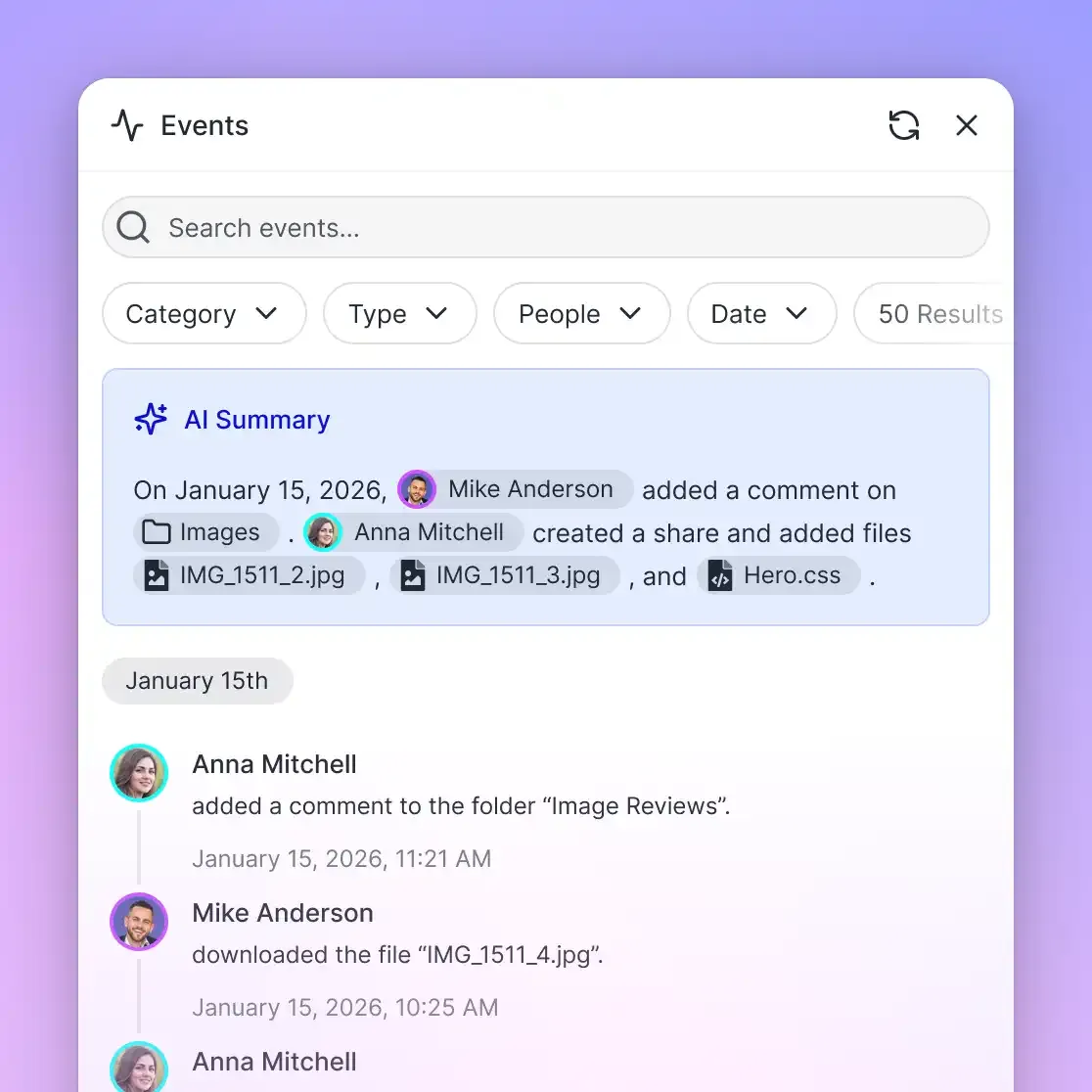
After updating metadata and moving the file, the pipeline is complete for that document. A human team member opening the workspace sees the file in the processed folder with all extracted fields visible in the sidebar. They can search for "invoices from Acme Supplies over $1,000" and get instant results because the metadata is indexed.
If the extraction flagged anomalies, like a missing signature field on a contract or a suspiciously high invoice total, your worker can tag the file as needs_review and post a comment mentioning a specific reviewer. Fast.io's comment system supports mentions, so the reviewer gets notified without leaving the workspace.
This handoff between agent and human is where Fast.io's shared workspace model pays off. The agent does the heavy lifting of reading and tagging. The human reviews, approves, or corrects. Both work in the same environment, on the same files, with a full audit trail of who did what.
For pipelines that need formal sign-off, enable the workflow feature on the workspace. This adds task lists, approval requests, and worklogs. Your extraction worker can create an approval request attached to the file, and a designated approver gets a notification to accept or reject the extracted data.
Error Handling and Production Hardening
A pipeline that works on 10 test documents needs additional safeguards before it handles thousands in production.
Retry with backoff. Wrap all Fast.io API calls in exponential backoff. Transient network errors and rate limits are normal at scale. If an extraction fails because the LLM returned malformed JSON, retry once with a stricter prompt. If it fails again, move the file to an errors folder and tag it with status: failed so a human can investigate.
Idempotency. Webhooks can be delivered more than once. Store each event_id in a set (Redis or a database column with a unique constraint) and skip duplicates. Without this, a network hiccup could cause the same document to be processed and tagged twice.
File locks for concurrency. If multiple workers might process related files simultaneously, use Fast.io's lock API. Acquire a lock before writing metadata, and release it when done. This prevents race conditions where two agents overwrite each other's tags on the same file.
# Acquire lock before metadata update
lock = httpx.post(
    f"{BASE_URL}/storage/file/{file_id}/lock/",
    headers=headers,
)

try:
    # Write metadata
    update_metadata(file_id, extracted_data)
    # Move file
    move_to_processed(file_id)
finally:
    # Always release the lock
    httpx.delete(
        f"{BASE_URL}/storage/file/{file_id}/lock/",
        headers=headers,
    )
Fallback polling. If your webhook endpoint goes down, documents pile up in the inbound folder unprocessed. Run a scheduled job (every 15 minutes is usually enough) that lists files in inbound older than a threshold and enqueues them for processing. This catches anything missed during outages.
Monitor credit usage. Intelligence Mode indexing costs 10 credits per page. A batch of 200 ten-page PDFs consumes 2,000 credits in one run. Track your monthly credit usage through the Fast.io dashboard and set alerts before you hit the plan limit.
Handle corrupt files gracefully. Password-protected PDFs, zero-byte uploads, and unsupported formats will appear in any real pipeline. Check file size and MIME type before sending to extraction. If a file is unreadable, skip it, tag it with the error reason, and move on.
Frequently Asked Questions
How do I automate document processing with APIs?
Configure webhooks to listen for file upload events, then pass the file reference to an AI agent or OCR service via API. The agent extracts structured data and writes it back as metadata. Fast.io's webhook and MCP server handle the event delivery and file access layers, so you focus on the extraction logic.
Can Fast.io trigger OCR workflows?
Yes. When a file is uploaded to a workspace with Intelligence Mode enabled, Fast.io automatically indexes the document text. You can also use webhooks to trigger external OCR services like Google Document AI or Tesseract for scanned images that need dedicated OCR before AI extraction.
Do I need to download files to extract data from them?
No. The Fast.io MCP server lets AI agents read, search, and query documents directly in the cloud. Your application sends prompts to the LLM, and the LLM uses MCP tools to access the file contents. The raw document stays in the Fast.io workspace.
What does the free agent plan include?
The free plan includes 50 GB of storage, 5,000 credits per month, 5 workspaces, and 50 shares. No credit card is required and there is no expiration date. That is enough to process around 500 single-page documents per month through Intelligence Mode indexing.
What happens if a document upload fails or the file is corrupted?
Your pipeline should check file size and MIME type before attempting extraction. If a file is unreadable (password-protected, zero bytes, or unsupported format), tag it with the error reason, move it to an errors folder, and skip it. Retrying a corrupt file wastes credits without producing results.
Can multiple agents process documents concurrently?
Yes. Multiple agents can access the same workspace. Use Fast.io's file lock API to prevent race conditions when two agents try to update metadata on the same file simultaneously. Acquire the lock before writing, and release it in a finally block.
Which LLMs work with the Fast.io MCP server?
The MCP server is LLM-agnostic. It works with Claude, GPT-4, Gemini, LLaMA, and local models. Any LLM that supports the Model Context Protocol can connect via Streamable HTTP at /mcp or legacy SSE at /sse.
How do I handle large documents that exceed the LLM context window?
Use Intelligence Mode's semantic search to query specific sections of the document rather than loading the entire file into the prompt. The LLM can search for "payment terms" or "total amount" and read only the relevant passages, keeping token usage low even for long documents.
Related Resources

Automate Your Document Workflows
Start building document processing pipelines on Fast.io with 50 GB free storage, 5,000 monthly credits, and full MCP server access. No credit card required.