Best Cloud Storage for Video: 7 Options for Production Teams
Video files demand more from cloud storage than documents or photos. You need large file support, fast transfers, and playback that doesn't buffer. This guide compares seven cloud storage options for video, covering streaming quality, collaboration tools, and real costs for production teams.
What Makes Cloud Storage Good for Video?
Video files are different from other content. A single professional video file takes substantial storage per minute of footage, short clips quickly add up to gigabytes. That changes what you need from storage. The top cloud storage for video offers:
- Large file support - Many services cap uploads at 2-5GB, which won't work for most raw footage
- Fast upload and download speeds - Moving terabytes of footage can't take days
- Video preview and playback - Streaming video in-browser without downloading first
- Collaboration features - Comments, version tracking, and shared access for editors
Most general-purpose cloud storage falls short on at least one of these. Consumer services like basic Google Drive work fine for vacation clips but struggle with professional workflows.
Helpful references: Fast.io Workspaces, Fast.io Collaboration, and Fast.io AI.
How We Evaluated These Options
We focused on what actually matters for video production teams:
Streaming quality: Does the service offer true adaptive bitrate streaming (HLS), or just progressive download that buffers constantly?
File size limits: Can you upload large ProRes files, or does the service cap out at a few gigabytes?
Collaboration tools: Can editors leave timestamped comments? Can clients review without downloading?
Pricing model: Per-seat pricing gets expensive fast when you have editors, clients, and stakeholders accessing footage.
Transfer speed: How long does it take to upload and download large files? Consider how this fits into your broader workflow and what matters most for your team. The right choice depends on your specific requirements: file types, team size, security needs, and how you collaborate with external partners. Testing with a free account is the fast way to know if a tool works for you.
7 top Cloud Storage Options for Video
1. Fast.io
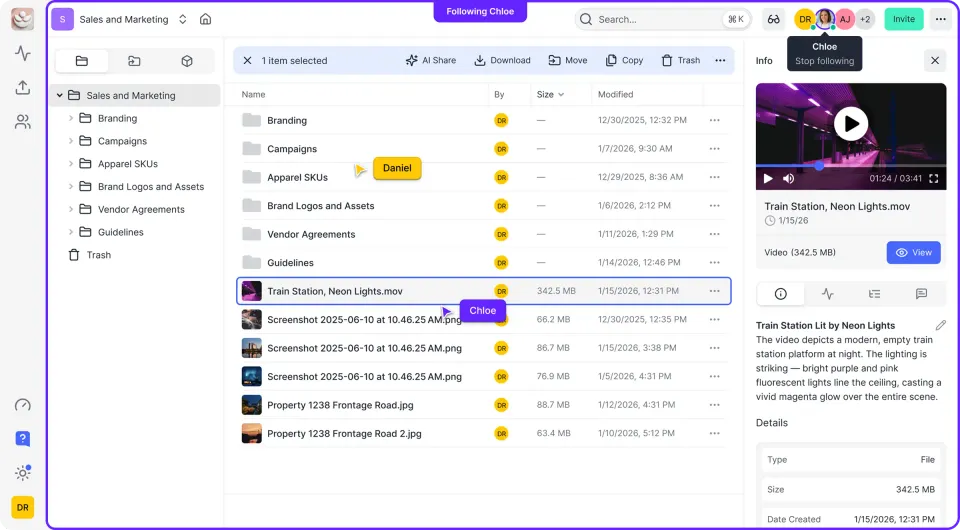
Fast.io uses HLS adaptive bitrate streaming, the same technology Netflix and YouTube use. Videos start playing instantly and adjust quality based on your connection. No buffering, no waiting for downloads.
Best for: Teams that share video with clients and stakeholders who need to view without downloading
Pros:
- True HLS streaming with instant playback
- Frame-accurate commenting for precise feedback
- Usage-based pricing instead of per-seat fees
- Unlimited guest access for clients
- Organization-owned files (stay when employees leave)
Cons:
- Newer platform, smaller market presence
- No local sync (cloud-native only)
Pricing: Usage-based credits. Pro plan includes 25 seats, Business includes 100 seats. Extra seats are published pricing each.
2. Backblaze B2
Backblaze B2 offers raw storage at about 1/5 the cost of AWS S3. It's S3-compatible, so it works alongside most video tools. Good for archiving footage you don't need to stream.
Best for: Archival storage and backup
Pros:
- low storage costs ($6/TB/month)
- S3-compatible API
- works alongside video production tools
- Scales to petabytes
Cons:
- No built-in video streaming or preview
- Technical setup required
- Egress fees for downloads
Pricing: $6/TB/month storage, $0.01/GB download
3. Google Drive
Google Drive works well for teams already in Google Workspace. The large storage on Business plans handles most projects. Preview quality is decent but not production-grade.
Best for: Teams using Google Workspace who need basic video sharing
Pros:
- Familiar interface everyone knows
- Works well with Google Workspace
- Solid mobile apps
- Real-time collaboration on docs
Cons:
- Progressive download, not true streaming
- 5GB upload limit via web interface
- Per-user pricing adds up
- Personal folder structure creates chaos
Pricing: published pricing/month for Business Starter (30GB), published pricing/month for Business Standard (2TB)
4. Dropbox
Dropbox has widespread adoption, making it easy to share with anyone. The Replay add-on offers video review features, though it costs extra.
Best for: Teams who prioritize broad compatibility and sync
Pros:
- Almost universal adoption
- Dropbox Replay for video review (add-on)
- Good desktop sync
- Smart Sync reduces local storage
Cons:
- Progressive download, buffers on large files
- Expensive per-seat pricing
- Replay costs extra
- Files tied to user accounts
Pricing: published pricing/month for Business, published pricing/month for Business Plus
5. Frame.io
Frame.io is purpose-built for video review. Adobe owns it now, so it works alongside Premiere Pro and After Effects. The review tools are excellent.
Best for: Video review workflows integrated with Adobe Creative Cloud
Pros:
- Frame-accurate comments
- Native Adobe integration
- Purpose-built for video
- Version comparison tools
Cons:
- Not a general storage solution
- Limited to video workflows
- Storage caps on plans
- Expensive for large teams
Pricing: published pricing/month for Pro, published pricing/month for Team
6. pCloud
pCloud offers lifetime storage plans, which makes it attractive for long-term archival. The built-in video player handles most formats without transcoding.
Best for: Solo creators and small teams looking for lifetime pricing
Pros:
- Lifetime plan option (one-time payment)
- Built-in media player
- Client-side encryption option
- 10GB free tier
Cons:
- No collaboration features
- Basic sharing controls
- Not built for teams
- Upload limits on some plans
Pricing: published pricing for 500GB, or $399 lifetime for 2TB
7. Sync.com
Sync.com prioritizes privacy with zero-knowledge encryption. Good for sensitive footage, but the encryption means no server-side preview or processing.


Share Files Without Limits on Fast.io
Fast.io uses HLS adaptive streaming so your team and clients can watch instantly. No downloads, no buffering.
Comparison Table: Cloud Storage for Video
Which Cloud Storage Is Best for Your Video Workflow?
Your choice depends on how you work with video:
If clients need to review footage: Choose a service with true streaming and commenting. Progressive download forces clients to wait for buffering or download entire files. Fast.io and Frame.io both offer frame-accurate comments on streaming video.
If you're archiving raw footage: Backblaze B2 gives you the most storage for the least money. No preview or streaming, but you can pull files when needed.
If your team runs on Google Workspace: Google Drive keeps everything in one place. It's not built for video, but the convenience might outweigh the limitations.
If you need sync and widespread compatibility: Dropbox works with almost everyone. Add Replay if you need video-specific review features.
If privacy is the priority: Sync.com's zero-knowledge encryption means even they can't see your files. The tradeoff is no server-side processing.
How Videographers Actually Store Footage
Most video professionals use a tiered approach:
Working storage: Fast, accessible storage for active projects. This is where you edit from. Speed matters more than cost.
Archive storage: Long-term storage for completed projects. Lower cost is the priority since you rarely access these files.
Delivery storage: Where you share with clients. Streaming quality and ease of access matter most here. Some teams use different services for each tier. Others prefer one platform that handles everything. Pick based on which tier frustrates you the most right now. Video files demand more from your storage platform than documents do. You need adaptive bitrate streaming for smooth playback, frame-accurate commenting for precise feedback, and enough bandwidth to handle large uploads without timeouts. Progressive download is not good enough for professional review workflows.
Common Questions About Video Cloud Storage
How much cloud storage do I need for video? A rough guide: a terabyte holds many hours of professional footage. Most production teams working on multiple projects need 5-10TB minimum. If you're archiving everything, plan for growth.
Can I edit video directly from cloud storage? Some services support this, but most workflows still use local or NAS storage for editing. Cloud storage works better for review, delivery, and archival. The exception is proxy-based workflows where you edit low-res versions and swap in full-res for final render.
What about upload speeds? Upload speed depends on your internet connection, not just the service. A 100Mbps upload connection moves tens of GB per hour. Most cloud services can accept data as fast as you can send it. The bottleneck is usually your internet provider.
Frequently Asked Questions
Which cloud is best for storing videos?
The top cloud storage for video depends on your workflow. For streaming and client review, Fast.io offers HLS adaptive streaming and frame-accurate comments. For raw archival, Backblaze B2 provides the lowest cost per terabyte. For teams already in Google Workspace, Google Drive offers convenience despite its video limitations.
What is the best way to store large video files?
Use a tiered approach. Keep active projects on fast storage you can edit from (local drives or NAS). Move completed projects to cloud archival like Backblaze B2. Use streaming-enabled cloud storage like Fast.io for sharing with clients. This balances cost, speed, and accessibility.
Is Google Drive good for video storage?
Google Drive works for basic video storage but has limitations. The 5GB web upload limit requires the desktop app for larger files. It uses progressive download rather than true streaming, which means buffering on large files. For teams already in Google Workspace, the convenience may be worth the tradeoffs.
How do videographers store their footage?
Most professionals use multiple storage tiers. Working projects stay on local SSDs or network-attached storage for editing speed. Completed projects move to cloud archival for long-term preservation. Client deliverables go to streaming-enabled platforms where reviewers can watch without downloading. This approach optimizes cost and accessibility for each stage.
What file size limits should I look for in video cloud storage?
Look for services that support at least 50GB uploads for most video work. Raw footage from professional cameras often exceeds 2-5GB per clip. Services with low upload limits force you to compress or split files, which complicates your workflow. Fast.io and Backblaze B2 have no practical file size limits.
Related Resources

Share Files Without Limits on Fast.io
Fast.io uses HLS adaptive streaming so your team and clients can watch instantly. No downloads, no buffering.