How to Test Fast.io Webhooks Locally with ngrok
Testing webhooks locally saves time when building file event integrations. This guide shows how to use ngrok to expose your local development environment and receive Fast.io notifications. You will learn how to configure tunnels, validate webhook signatures, and troubleshoot common issues.
The Challenge of Local Webhook Development
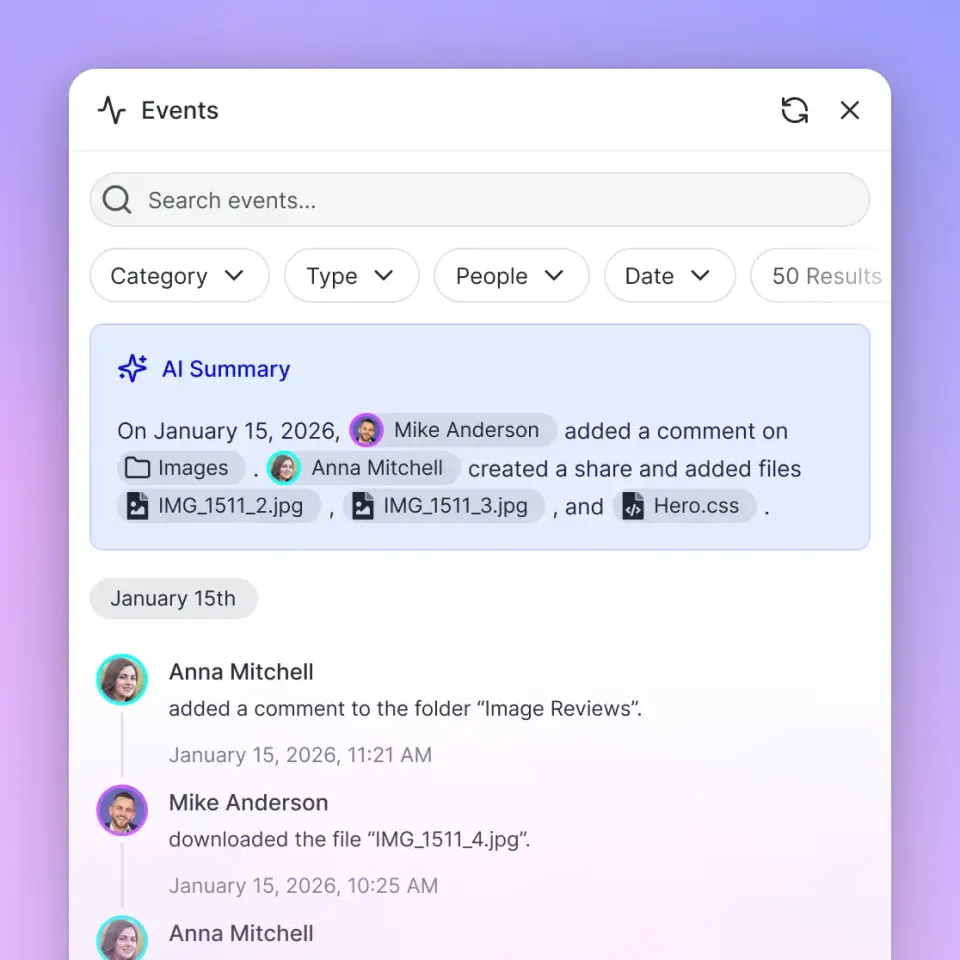
Building event-driven apps means you need to receive notifications quickly. When integrating with Fast.io, webhooks let your application react to file events instantly. Instead of polling the API to see if a file changed, Fast.io sends an HTTP POST request straight to your server. This works well in production.
Testing those webhooks locally is a different story. Your development machine usually sits behind a router or corporate firewall. It uses a private IP address that the public internet cannot reach. Since Fast.io dispatches webhooks from the cloud, it cannot send requests directly to your laptop.
To get around this, developers often write code locally, push it, and wait for a staging server to deploy just to test one webhook payload. This breaks your feedback loop. It forces you to wait for pipelines, makes local debugging impossible, and turns a quick check into a frustrating chore.
Context switching slows you down. Pushing code to a remote server means leaving your editor, checking git, and watching logs. You need a way to receive live webhooks directly on your local machine so you can inspect payloads, get immediate feedback, and iterate faster.
What is ngrok and Why Use It?
ngrok exposes your local server to the internet so you can test real-time Fast.io file event webhooks. It works as a tunneling application that creates a persistent connection between your machine and the ngrok cloud. When you start a tunnel, ngrok gives you a public HTTPS URL.
Any HTTP traffic sent to that URL gets intercepted by ngrok, tunneled through your outbound connection, and forwarded to your local port. This bypasses local firewalls and routers without making you open any ports manually.
This setup makes Fast.io integration much easier. Testing locally saves time. Instead of guessing a webhook payload's structure from the documentation, you can upload a file in Fast.io and immediately see the live JSON arrive at your local handler. ngrok also includes a web inspection interface that captures all incoming requests. This lets you replay a failed webhook request with one click, saving you from having to upload test files over and over.
Essential Steps to Test Webhooks Locally
Setting up your local environment takes three pieces: your local application, the ngrok tunnel, and the Fast.io dashboard.
Here is how to set up the workflow:
First: Install ngrok Download the ngrok agent using a package manager or direct download. The easiest way to authenticate is with the authtoken command. This saves to a configuration file, so you only do it once per machine. Run the command from your ngrok dashboard to link the agent to your account.
Second: Start Your Local Server Run your app on a local port and set up an endpoint for POST requests. Make sure your webhook route does not enforce strict Host header validation, since the request will come from the ngrok domain instead of localhost. Your route should accept the request and immediately return an HTTP success status.
Third: Configure the Fast.io Webhook Start an ngrok tunnel pointing to your local port. Copy the HTTPS URL and paste it into your Fast.io workspace webhook settings. Fast.io supports multiple webhook subscriptions. Create one just for local testing, separate from production. This keeps your local tests from messing with live workflows. Pick the file events you want, like uploads or deletions.
Fourth: Trigger a File Event Upload a file in Fast.io and check your local terminal to see the live webhook payload. The ngrok inspection dashboard will show the new request. It displays the exact JSON structure of the file metadata and lets you replay the request with one click. Replaying requests is helpful when tweaking your parser logic because you do not have to keep uploading files to generate traffic.
Fast.io Webhook Signature Validation
You need to verify incoming requests to keep your webhook integrations secure. Since your endpoint is public, anyone can send data to it. Many developers skip signature validation during local testing and wait until production. Building it in from the start saves headaches later.
When you add a webhook in Fast.io, it generates a secret key. Fast.io uses this key to compute an HMAC SHA-multiple hash for every payload. It puts this signature in the X-Fastio-Signature header of the POST request.
To validate the signature, your app calculates the expected hash and compares it to the header. First, grab the raw, unparsed HTTP request body. If your web framework parses the JSON before you compute the signature, the resulting string might differ from what Fast.io sent, and validation will fail.
Take the raw request body and compute an HMAC SHA-multiple hash using your webhook secret as the key. Then compare your hash against the X-Fastio-Signature header. Use a constant-time string comparison function to prevent timing attacks. Testing these validation steps locally with ngrok means you won't hit surprise authentication errors in production.
Scaling Webhook Infrastructure with Fast.io
As your application grows, your webhook handling will move from local testing to production. Webhooks form the base for file workflows, letting your systems respond instantly without continuous polling. This setup works well when combined with AI features.
Fast.io is an intelligent workspace. Files are auto-indexed, searchable by meaning, and queryable through chat. When a webhook fires for a new document upload, your app knows the file is ready in the built-in RAG system. You can toggle Intelligence Mode on a workspace so your AI integrations can ask questions about the new content right away, with no extra database sync needed.
For developers automating these workflows, Fast.io includes free storage, large file limits, and monthly credits. It also provides a large set of MCP tools via Streamable HTTP and SSE. Every feature in the Fast.io UI has a matching agent tool. You can link your webhook handlers with OpenClaw or custom LLM integrations to trigger processing, summarize files, or send notifications as soon as an event happens. By connecting to the MCP server and checking the tooling documentation, your local webhook tests can grow into agent workflows that run in shared workspaces.


Ready to build reactive file workflows?
Create your free Fast.io workspace today and start integrating intelligent, event-driven webhooks with your agent tools.
Troubleshooting Common Local Integration Issues
Testing webhooks with ngrok is straightforward, but you might run into a few issues. Knowing how to fix them saves time.
A common problem is a mismatch between the payload structure and your local parser. If you get a Bad Request error or validation fails, double-check that you are capturing the raw body for signature verification. Also, if your app takes too long to process an event, Fast.io might assume it failed and close the connection.
Webhook handlers should acknowledge receipt immediately. Your endpoint should accept the payload, pass it to a background queue, and return a success code right away. This tells Fast.io the delivery worked while your app processes the file in the background.
Network issues can sometimes cause Fast.io to deliver the same file event twice. If your handler creates a database record every time a payload arrives, you will end up with duplicate data. Design your handler to check the unique event identifier in every Fast.io payload. If that ID is already in your database, ignore the request and return a success code.
Local firewalls or antivirus software can also block the ngrok tunnel. Corporate policies sometimes stop tunneling apps from passing traffic. If Fast.io sends the webhook but your local server sees nothing, check your security logs. Finally, remember that on the free tier of ngrok, your public URL changes when you restart the app. If your machine goes to sleep, the URL expires. You have to restart the tunnel and paste the new URL into your Fast.io dashboard.
Frequently Asked Questions
How do I test Fast.io webhooks locally?
You can test Fast.io webhooks locally using ngrok to create a secure tunnel. This exposes your local server to the internet so Fast.io can send real-time HTTP POST requests straight to your endpoint for testing.
Can I use ngrok with the Fast.io API?
Yes, ngrok works well with the Fast.io API and webhook system. By routing events through an ngrok URL, you can validate signatures and debug your parsing logic locally before deploying.
How do I verify a Fast.io webhook payload is authentic?
Fast.io signs webhook payloads with a secret key. You verify them by extracting the raw request body, computing an HMAC SHA-multiple hash with your secret, and comparing it to the X-Fastio-Signature header using a constant-time comparison.
What happens if my local server is down when a webhook fires?
If your local server is offline or ngrok is closed, Fast.io cannot deliver the event and logs a failure. You will need to trigger a new file event once your environment is back online.
What HTTP status code should my local webhook handler return?
Your handler should return an HTTP success code immediately after receiving the payload. You should acknowledge receipt instantly and run heavy file operations or AI tasks in the background to avoid timeouts.
Related Resources

Ready to build reactive file workflows?
Create your free Fast.io workspace today and start integrating intelligent, event-driven webhooks with your agent tools.